How to Embed a Google Calendar onto your Placester Site [Classic]
This article will walk you through how to embed a Google Calendar onto your Placester site.
To embed a Google Calendar, open Google Calendar on your computer and login
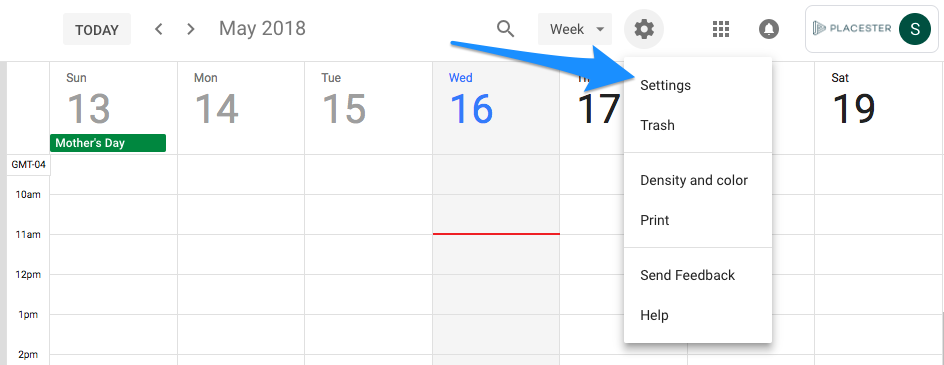
In the top right corner click
Settings
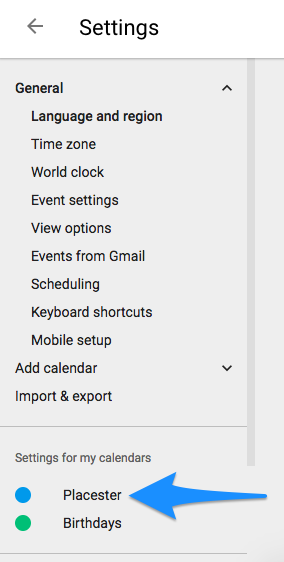
On the left side, click on the name of the calendar you would like to embed to your site
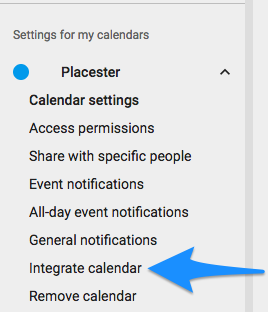
In the drop-down click "Integrate Calendar"
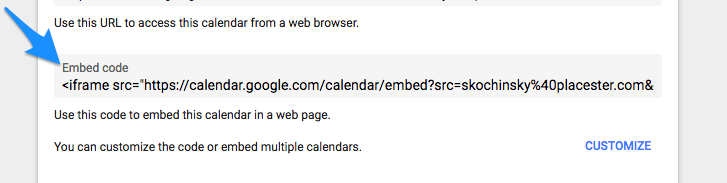
Under the Embed Code, copy the Embed Code
Once you have the Embed Code, you can add this to a page on your Placester Site.
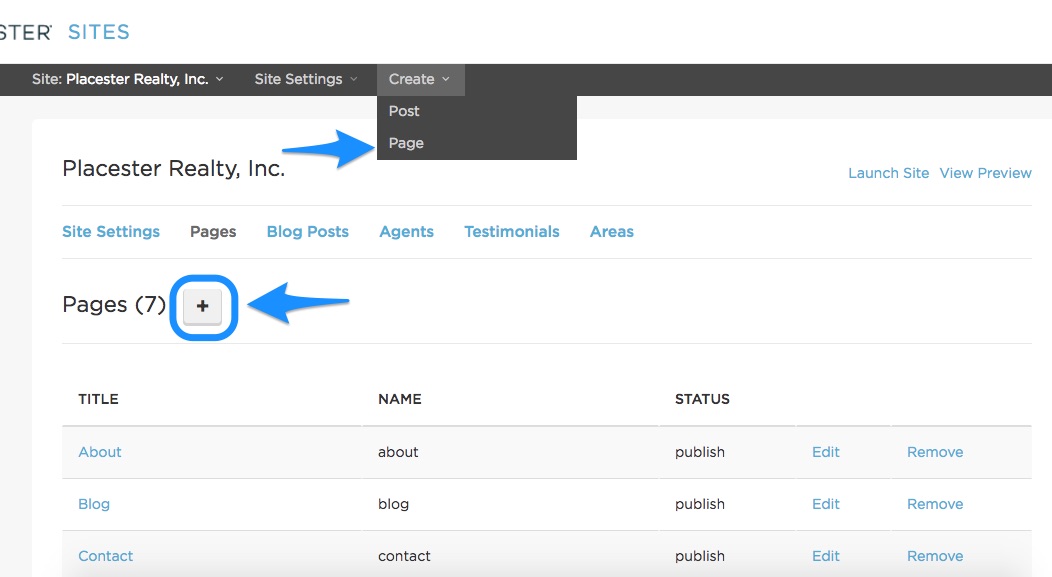
The first step is to create a page using either the Create option in the universal navigation bar or the [+] button in the Pages section of your Site Details:
Using the HTML Editor
Once you've opened the page editor, you'll need to select the HTML tool, which looks like this: </>.
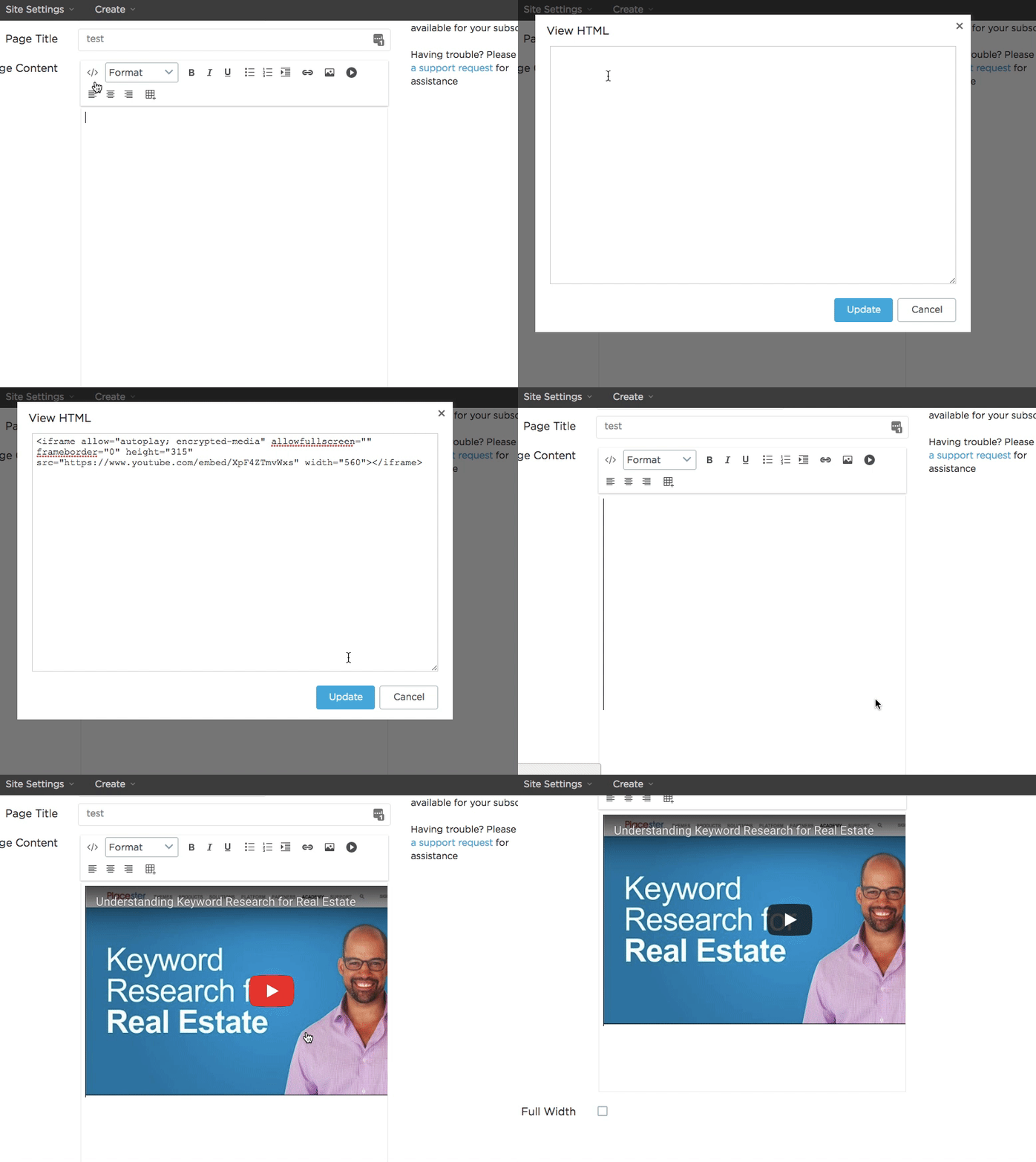
Then, paste in the HTML code snippet and click Update. If the code was accepted and successfully embedded, you'll now see your calendar appearing within the page content.
Need More Help?
If you have additional questions about embedding a Google calendar, let our support team know at support@placester.com.