Customizer: Editing an Existing Page [Codeless]
This article will walk you through editing a page that already exists on your website.
Pre-built Pages
Placester allows you to create as many pages as you’d like on your website. Some pages will be pre-built for you, such as a Search, Contact and About page, while other more custom pages will need to be created from scratch. If you want to edit the title or content of a page, you can do so within the page editor.
Getting to the Page Editor
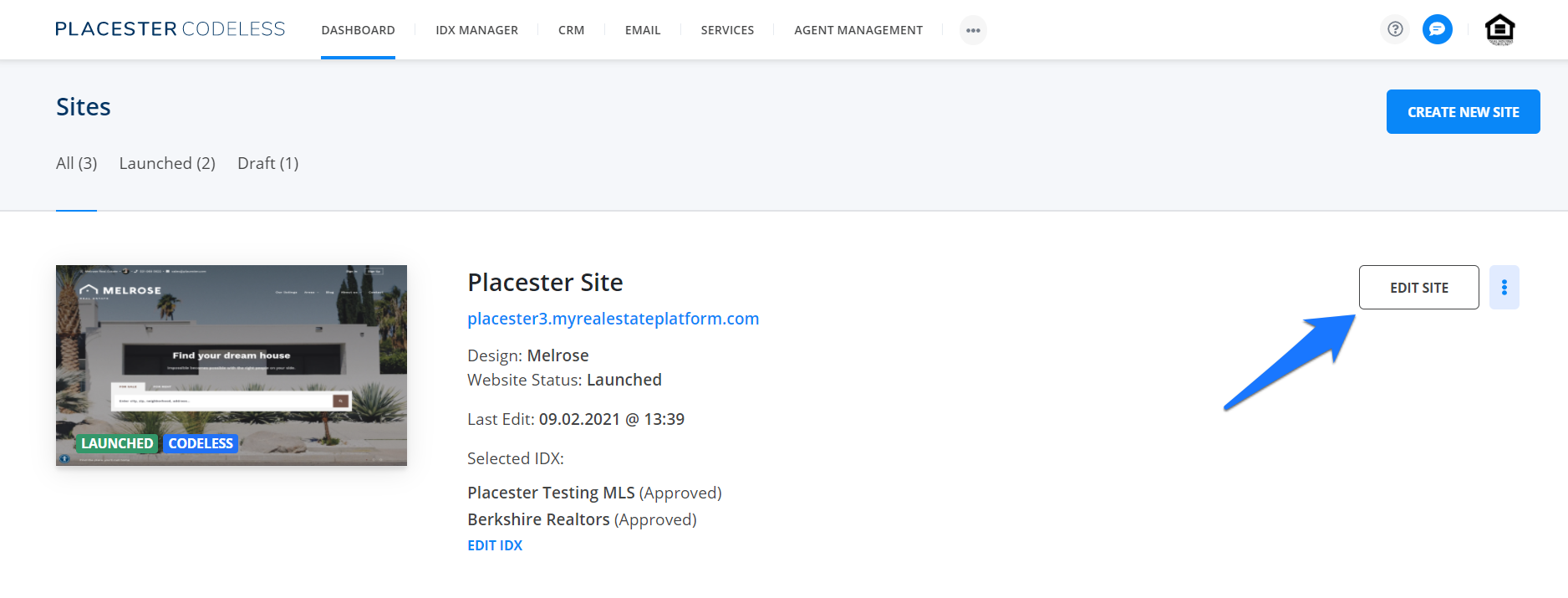
To edit an existing page, the first step is to log in to the Placester backend of your site. From the Dashboard click Edit Site.
Customizer Slide out
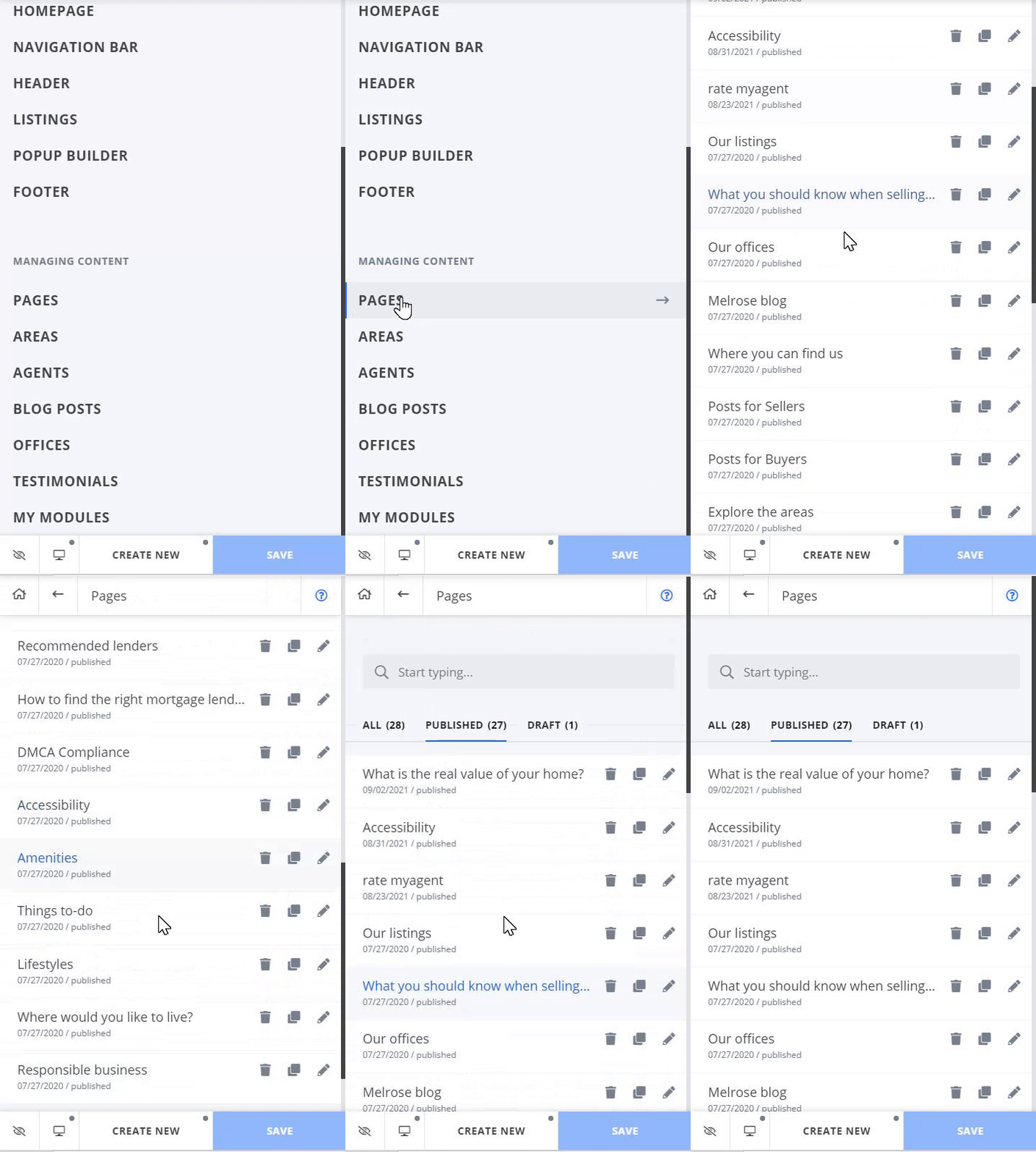
Once you're within the customizer slide out menu, click on the Pages tab to access the page index.
Page Index
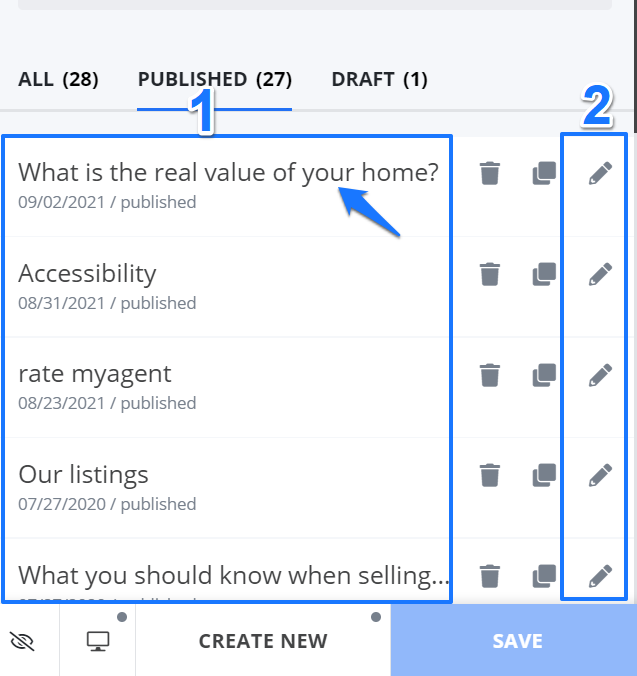
Within the pages tab, you’ll see all of your existing pages, their statuses (whether it's a draft or a published article), and the option to edit or remove each one. You can edit a page either by 1) clicking on the page title or 2) clicking the pencil icon next to the page you want to work on.
If you click Edit next to your About page, for instance, you’ll be brought to the page editor for that particular page.
From here, you can select your Page Template and add content to your new page. Our websites come with several page templates that are ready to go out of the box. This includes:
- Default Page
- About
- Agents Index
- Areas Index
- Blog Post Index
- Contact
- Featured Listings
- Offices Index
- Testimonials Index
- Home Valuation
- Custom Landing Page
Under Page Options, you can add a Page Title, view your slug, and add a Featured Image.
Note: The slug is there to show you what the address of the specific page will be. It will change automatically based on the page title.
Modules & Widgets
Next, you can select which Modules & Widgets you would like to display on your new page.
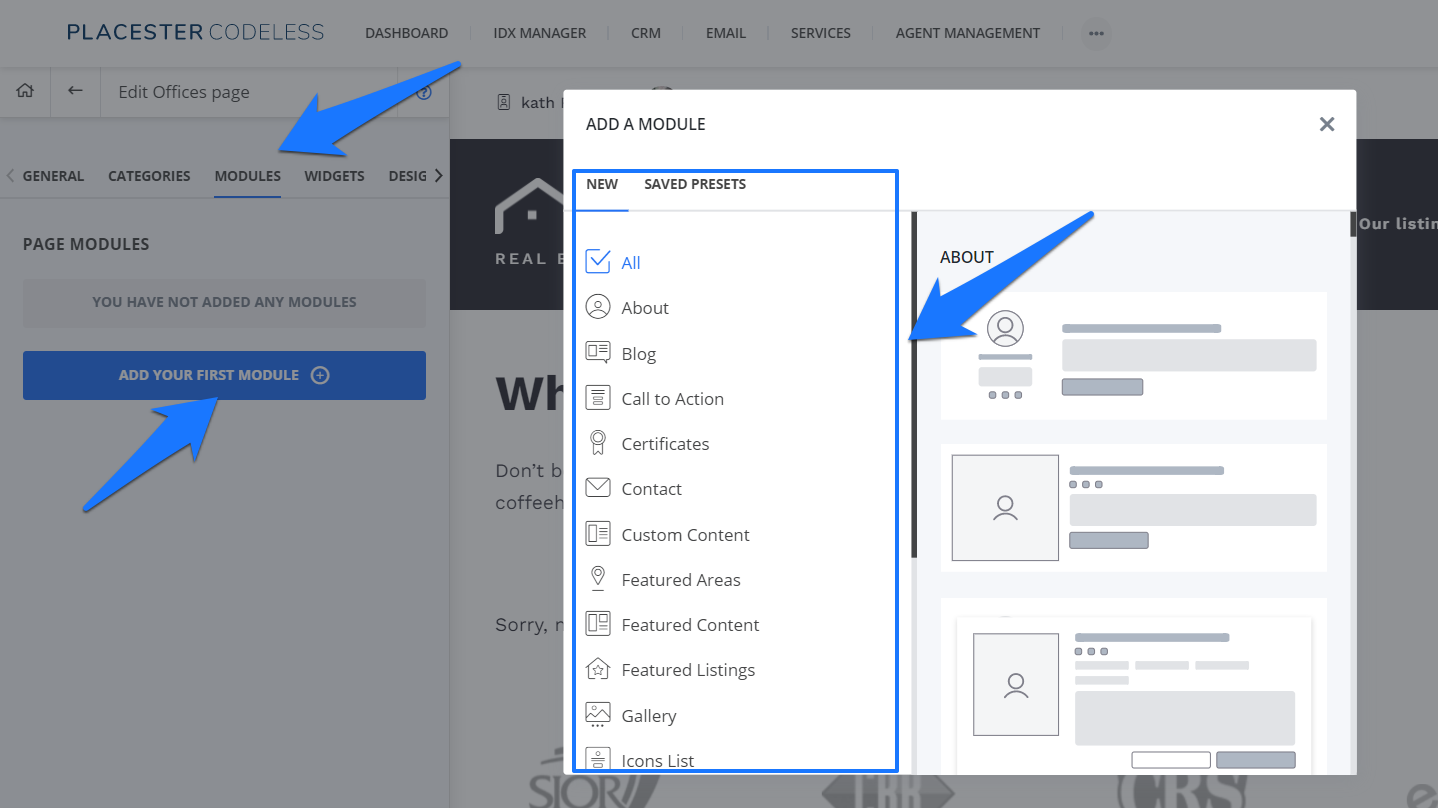
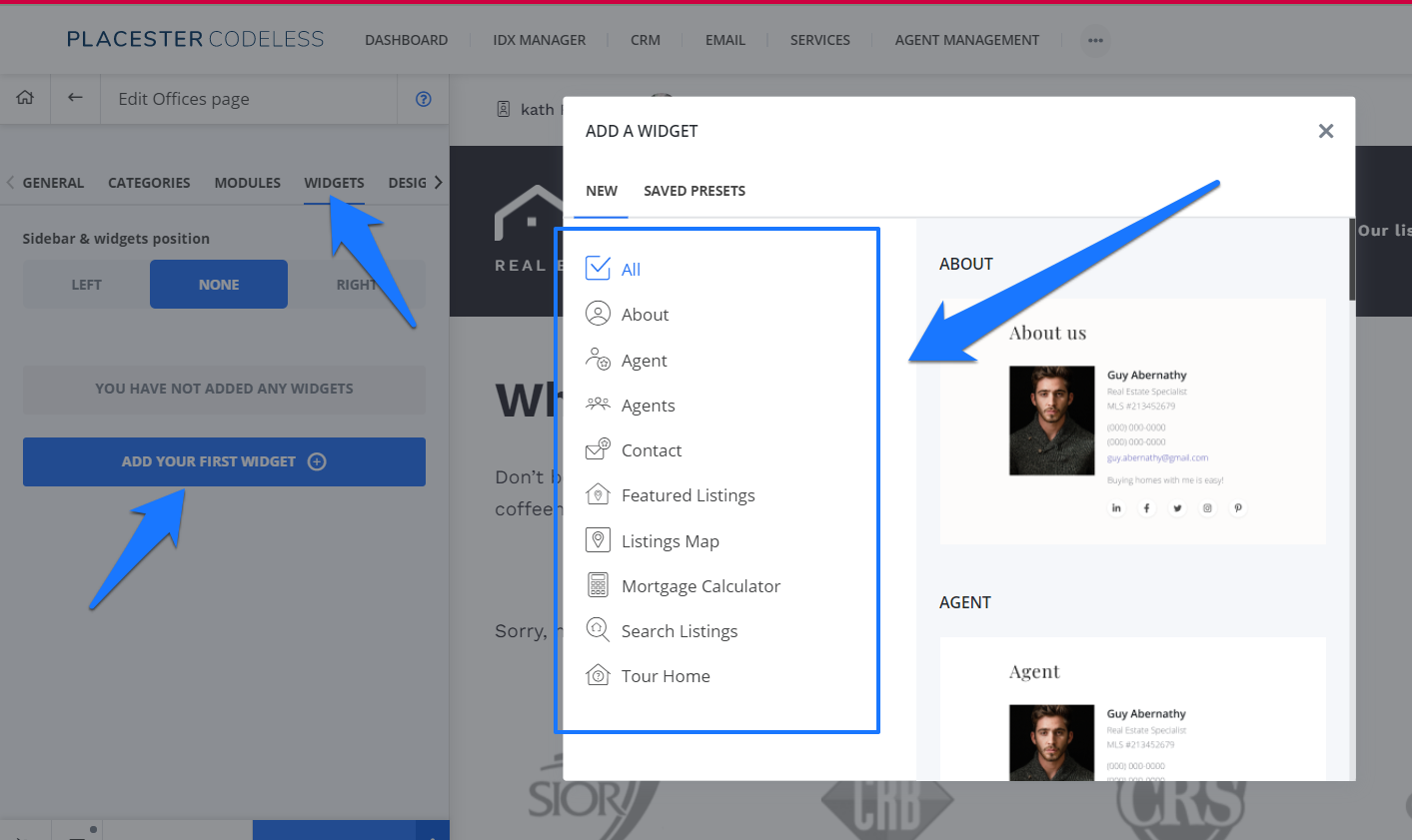
Modules: Modules are individual sections of your page that can be added, edited, removed and re-ordered to create the perfect experience for your site's visitors.
- How to: Choose item from the drop list. Click the 'add’ button'. Hover over an item to view edit and remove options. Drag and drop to re-order.
Widgets: Widgets are small self-contained areas that perform specific functions in your page’s sidebar. Add them to feature specific content.
Content Editor
The formatting toolbar allows you to make some formatting adjustments within the page content. Here is a key that shows you what each button within the toolbar does.

- Formatting: format text as Normal, Header or Quote
- Bold
- Italic
- Underline
- Strikethrough
- Remove Font Style
- Alignment and Indentation
- Line Height
- Unordered List: make a bulleted list on the page
- Ordered List: make a numbered list on the page
- Indentation
- Link: add hyperlinked text to your site
- Image: upload an image on the page.
- Video: embed a video within the page.
- Adding a Table
- HTML
When you are finished editing your new page and adding content, click the blue “Publish” button.
Need More Help?
For questions, concerns or feedback, please chat with our team:https://app.placester.com/chat