How to View Your Leads [Classic]
This article will show you how to view the leads that you've generated from your website.
Lead Capture Forms
There are various lead capture forms and calls to action across your Placester site that will gather leads' contact information. This could come from:
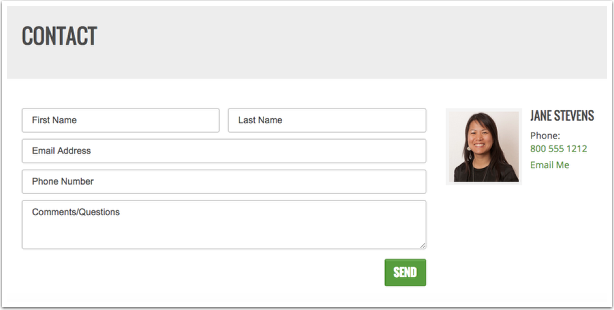
1. Your contact page
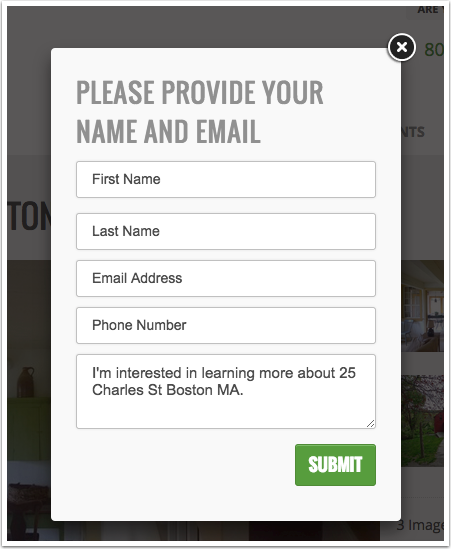
2. A lead capture form on a single property page (if Lead Capture is set to Aggressively Capture Leads
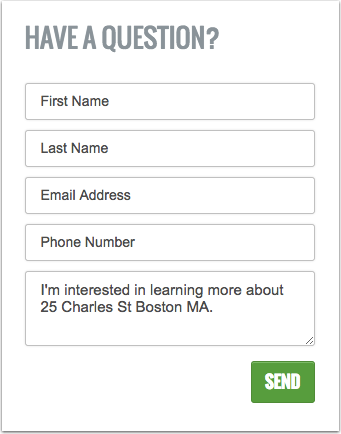
3. A contact form in a sidebar of a single property page
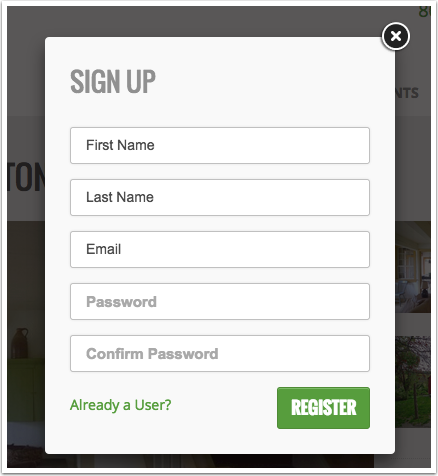
4. A registration form to sign up on your site to save searches and favorite properties.
A lead is anyone who fills out one of these registration or contact forms.
Viewing Your Leads
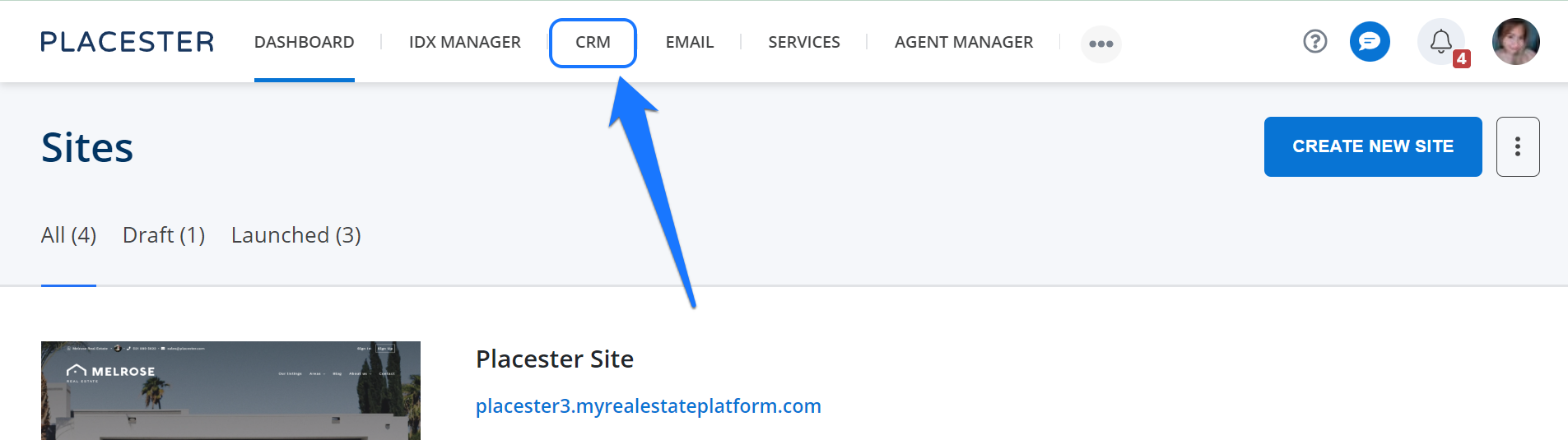
In addition to receiving an email notification about any lead that registers on the site, you can also view a list of all of your leads on the back end of your site. From your dashboard, just click the CRM tab, and it will redirect you to your leads.
My Leads
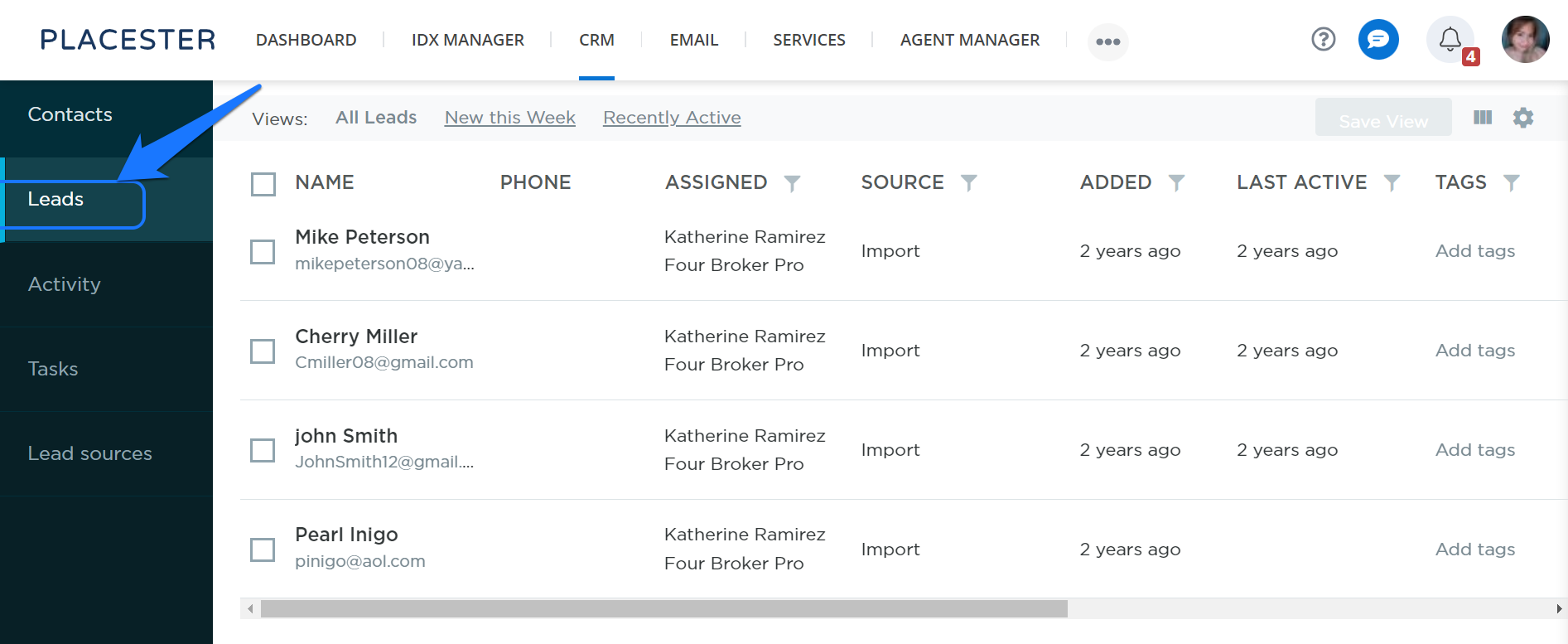
Here, you'll see a list of all of your leads. Your leads will show the email, name, date created, score, type, group, agent that has been assigned (in the case of a broker account), and source.
Viewing Lead Details
You can view the properties and search criteria that the lead has saved by clicking on the lead's email or name and viewing their details.
Need More Help?
If you have additional questions about viewing leads, let our support team know at support@placester.com.