Viewing Your Leads [Classic]
This article will show you how to view the leads that you've generated from your website.
Lead Capture Forms
There are various lead capture forms and calls to action across your Placester site that will gather leads' contact information. This could come from:
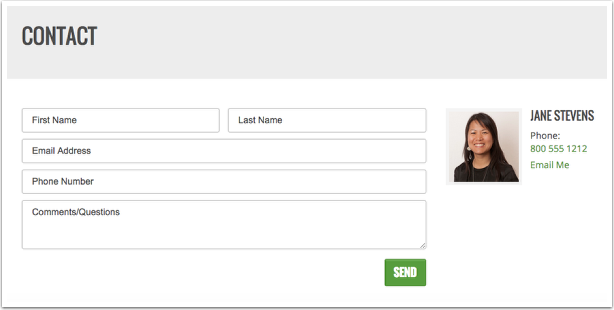
1. Your contact page
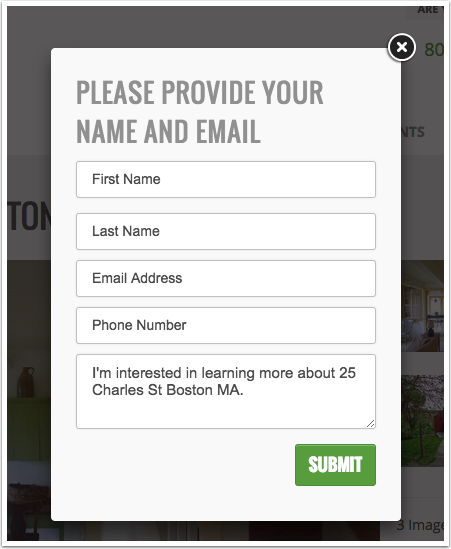
2. A lead capture form on a property page (if Lead Capture is set to Aggressively Capture Leads, or you have set your Custom Lead Capture to do so)
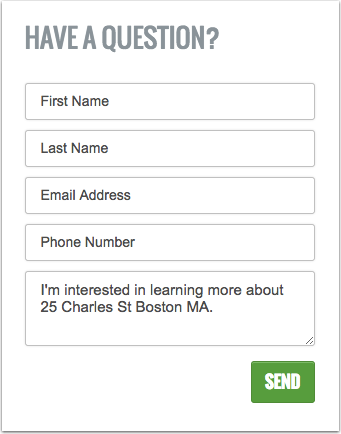
3. A contact form in a sidebar of a property page
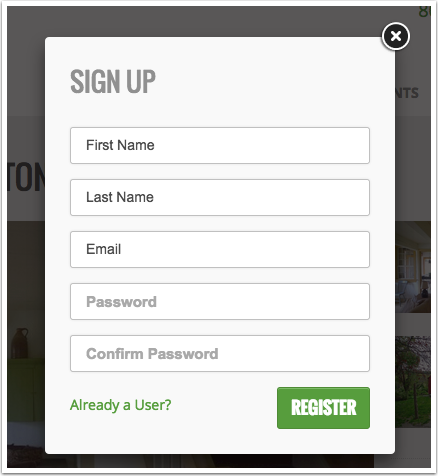
4. A registration form to sign up on your site to save searches and favorite properties.
5. Through your home valuation/ landing page
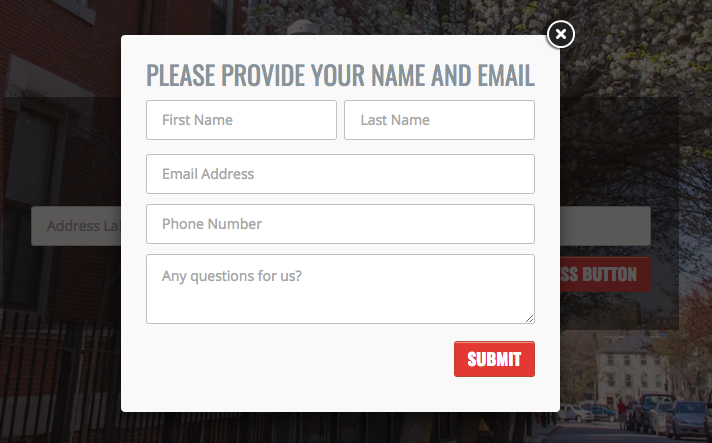
A lead is anyone who fills one of these registration or contact forms. In addition to receiving an email notification about any lead that registers on the site, you can also view a list of all of your leads through your Placester account.
Viewing Leads on Mobile
Placester CRM is now mobile-friendly and can be accessed on Mobile devices. Now, it's easier to edit Lead/Contact details anywhere as long as you have your mobile phone with you.
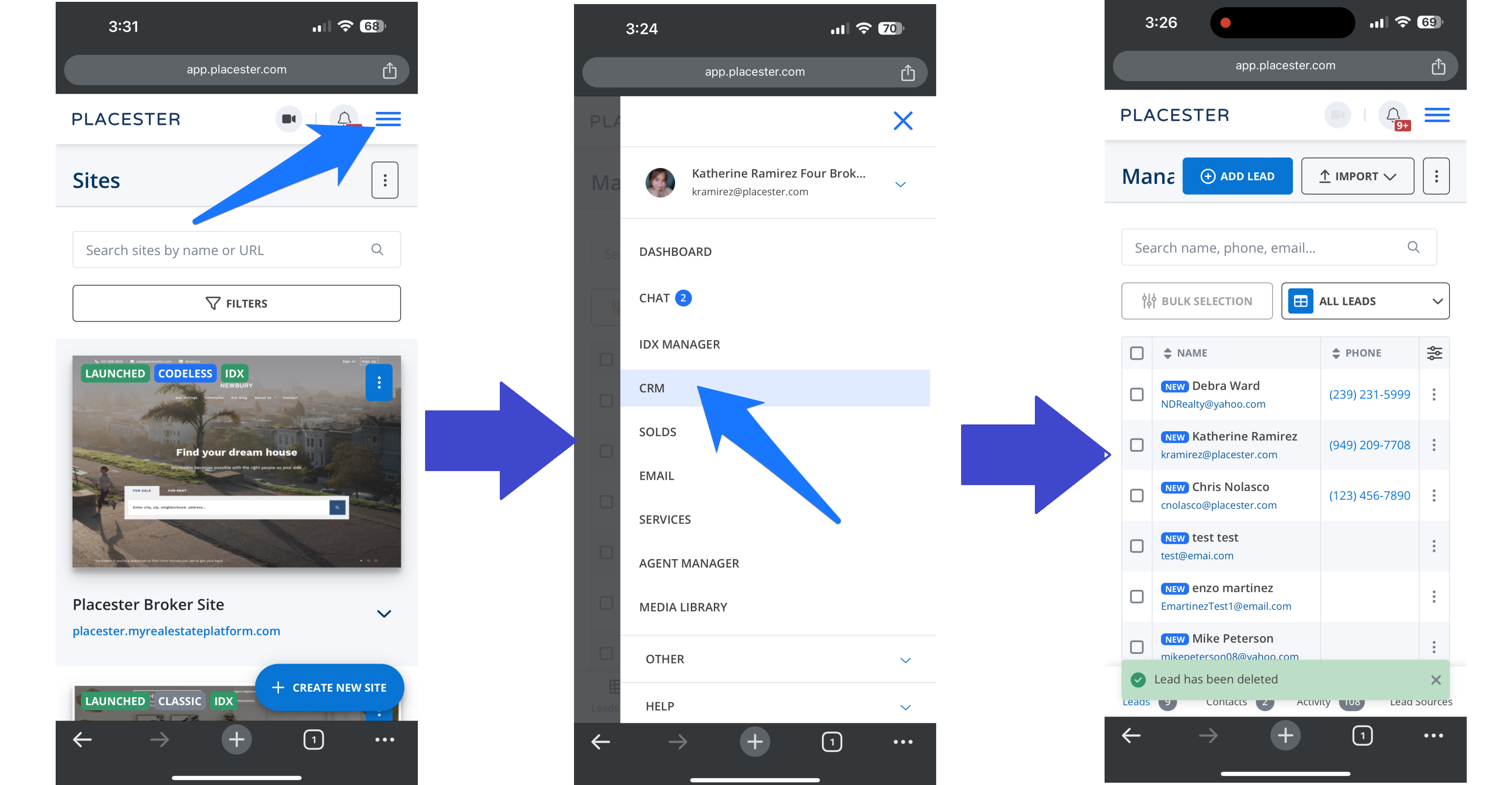
Once you log in on your mobile browser, click the trigram symbol ☰ on your dashboard, click CRM on the drop-down menu and it will bring you to a page where you can view your leads.
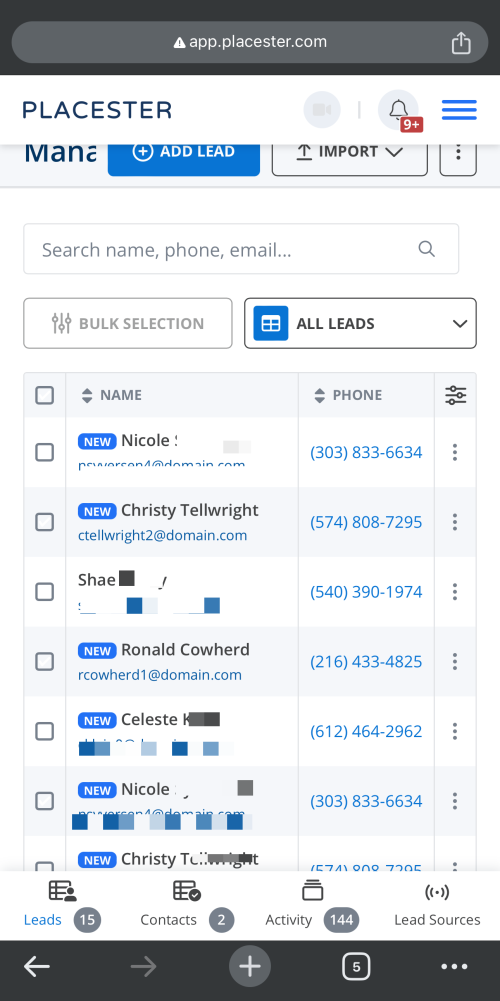
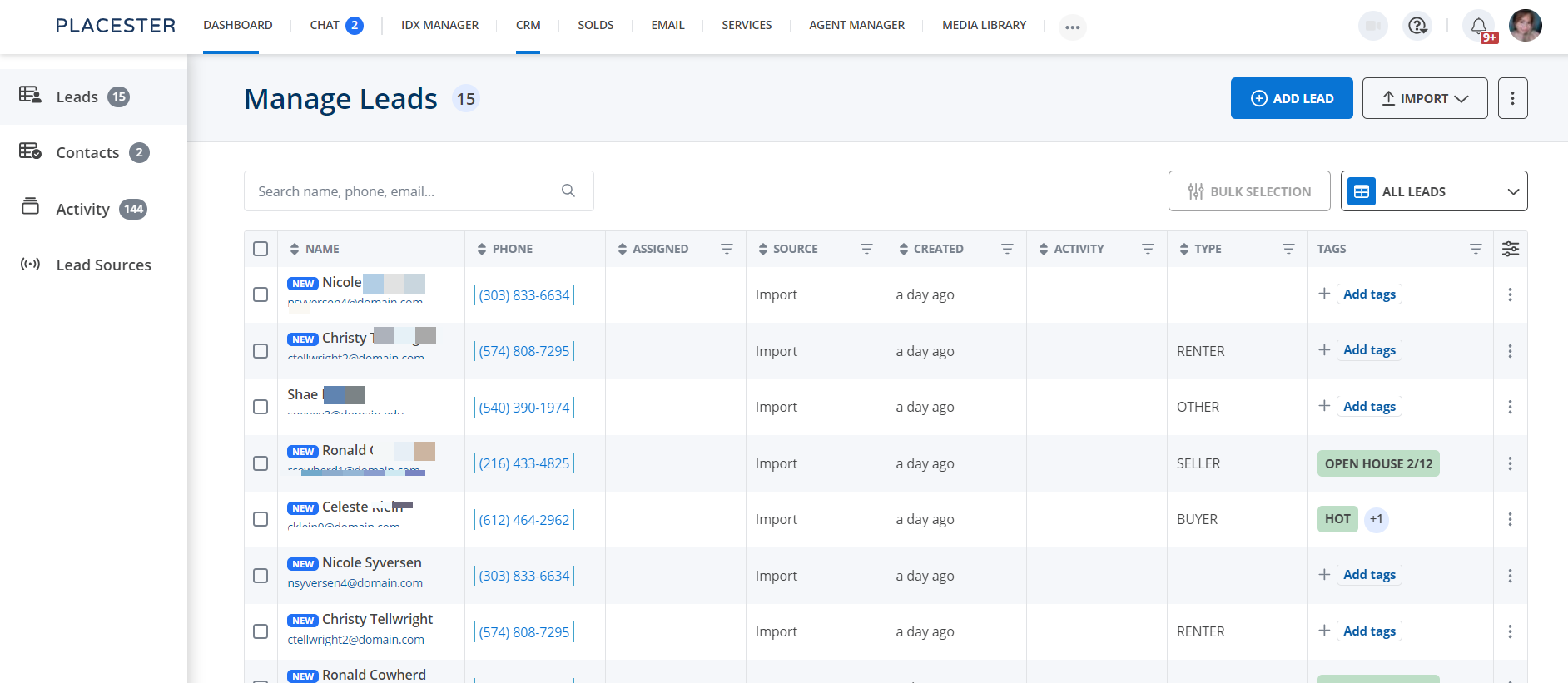
This brings you to the Placester CRM screen, where you can see your leads' email addresses, names, statuses, sources, creation dates, types, scores, and the group they are a part of.
CRM Tab
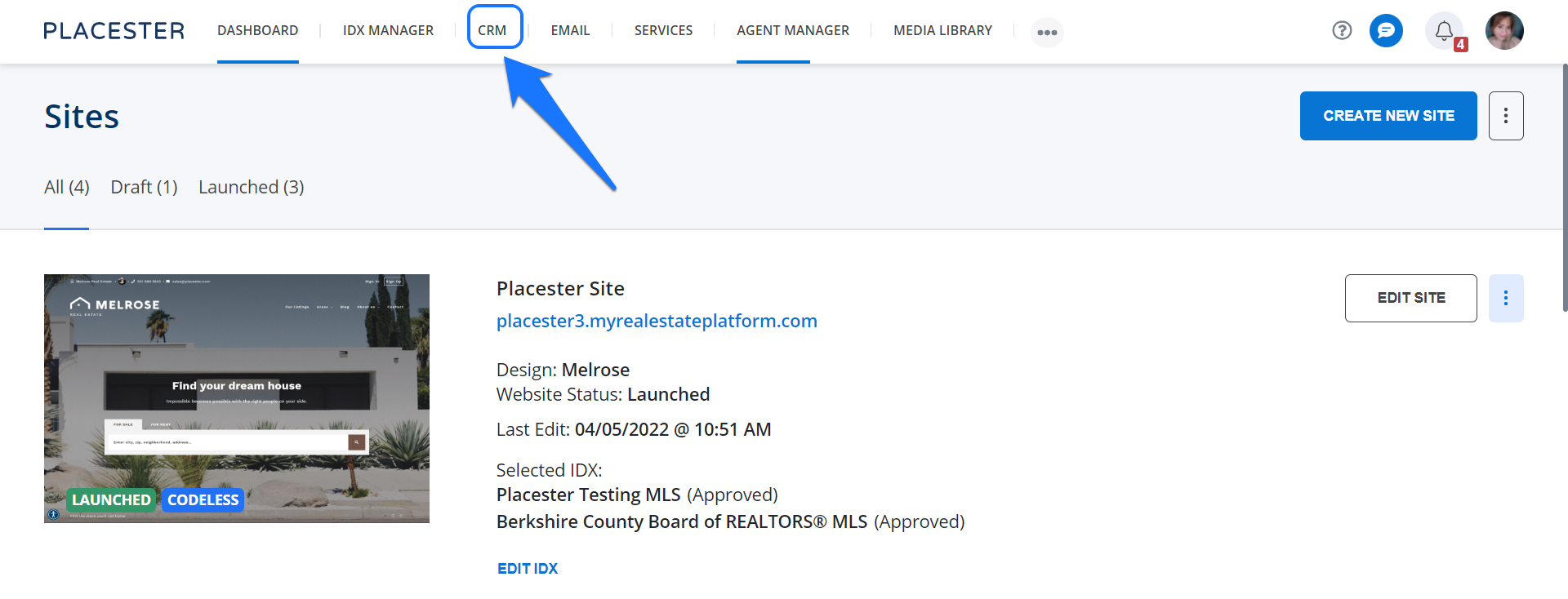
When you're logged into your Placester account, It will bring you to your dashboard where you will see the CRM tab on the top of the page. Click on CRM to view more detailed lead information.
Viewing Your Leads
This brings you to the Placester CRM screen, where you can see your leads' email addresses, names, statuses, sources, creation dates, types, scores, and the group they are a part of.
Searching For Leads
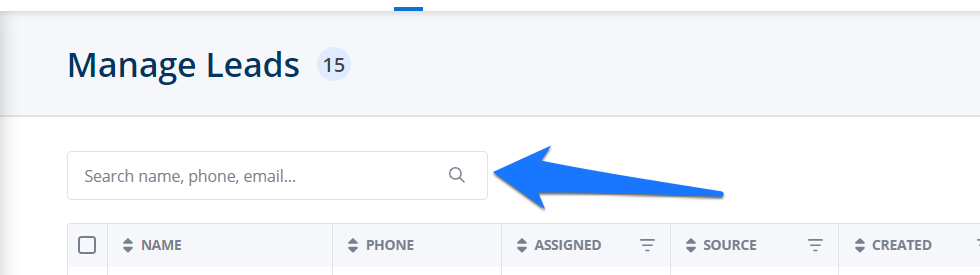
Within the Placester CRM tab, you have the ability to search for a specific lead by First Name, Last Name, Email Address or Phone Number. To search for a lead you'll need to click the search bar at the top right of your Leads page.
Managing Your Leads
Check out our other support articles in the Lead Management section to find out about editing leads, removing leads, adding notes, and viewing your leads' saved searches and properties.
Need More Help?
For questions, concerns or feedback, please chat with our team:https://app.placester.com/chat