Mapping your Bluehost Domain to Placester [Codeless]
This article will show the guides when mapping your Bluehost domain to your Placester website.
Mapping is the process of replacing your existing Placester domain with a custom one you have purchased from a third party provider. Placester always recommends that you map your domain rather than forward it. To find out more about the difference between mapping and forwarding click here.
In order to take care of mapping your Bluehost domain to your Placester site, you will need to change both your A-Record (IP address) and CNAME (hosting platform) to Placester specific settings. The article on this page will walk you through this process. If you run into any trouble, we recommend speaking with Bluehost directly, as it is their product. You can reach them at 844-303-1810 or create a ticket through their online support center.
Having Bluehost map your Domain
If you are going to have Bluehost take care of Domain Mapping for you. You will want to provide them with the following settings for pointing your site to Placester.
1. Forwarding: OFF
2. Nameservers: Set to DEFAULT
3. A-Record: 184.169.141.142
4. CNAME: domains.myrealestateplatform.com
After this is done move down to the bottom of the document and follow the instructions for your Placester site.
Mapping your Bluehost domain
Click Login in the top right corner of Bluehost home page in order to get logged in.

If you can't remember your password, click the Forgot password link. If you're having trouble with your account information, contact Bluehost at 1(888) 401-4678 or create a support ticket.
1. Click the Domain Name tab from the side navigation menu to the left.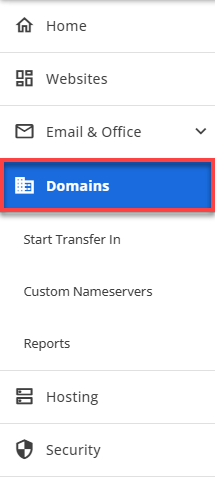
2. Make sure that the correct domain is selected.
3. Click the Advanced Tools section.

4. In the Advanced Tools section, you will see your name servers under Nameservers (DNS).
DNS Zone Editor
Within the DNS Zone Editor, you'll see all of your existing A-Records and CNAMEs.

Step 1: Edit the A-Record with Host @
- Host Record: @
- Points To: 184.169.141.142
- TTL: 14400

Step 2: Edit the CNAME with Host www
- Host Record: www
- Points To: domains.myrealestateplatform.com
- TTL: 14400
Make sure the changes are saved within Bluehost. Then, log into Placester.com to complete the final step.
Note: Remember, your new DNS settings will begin to propagate as soon as you save your changes. Each ISP updates at a different rate, usually taking 24-72 hours to complete worldwide
Adding your Bluehost Domain to Placester
On your Dashboard > vertical ellipses button > custom domain

This will bring you to the Custom Domain slide-out. Select the Custom domain to proceed.
Custom Domain Slide Out
Within the custom domain slide out, add the custom domain that you're looking to use. Use only lowercase letters, and be sure to include “www” when adding in your URL. Example: www.placester.com. Click Save.

Bluehost Support
If you run into any trouble, we recommend speaking with Bluehost directly, as it is their product. You can reach them at 888-401-4678or create a ticket through their online support center.
Troubleshooting
If you've made all of these changes and are finding that your site still isn't loading, here are some potential causes:
1. Caching: You have a cached copy of the site on your browser. Try clearing your cache, using a new browser or testing the site on a mobile device.
2. Propagation: DNS adjustments take longer to propagate with certain domain registrars. We like to test and make sure everything has propagated using www.WhatsMyDNS.com.
3. Errors in Site Settings > Custom Domain: make sure that you included the www before the custom domain and you didn't use any capital letters. Otherwise, the site will not load.
Pro Tip: DNS Tools
Here are some DNS tools that we recommend:
- Use WhoIs.com to find out where a domain is registered and the status of a domain
- Use WhatsMyDNS.net to check the current DNS records of a domain
Need More Help?
For questions, concerns, or feedback, please chat with our team: https://app.placester.com/chat