Previewing Social Automation Templates
Preview a video look before you use it for future Social Automation posts. You can watch the sample video or render the look with your own Business Profile branding without changing your selections.
Open Template selection
Open Content → Social → Settings, then find Template selection.
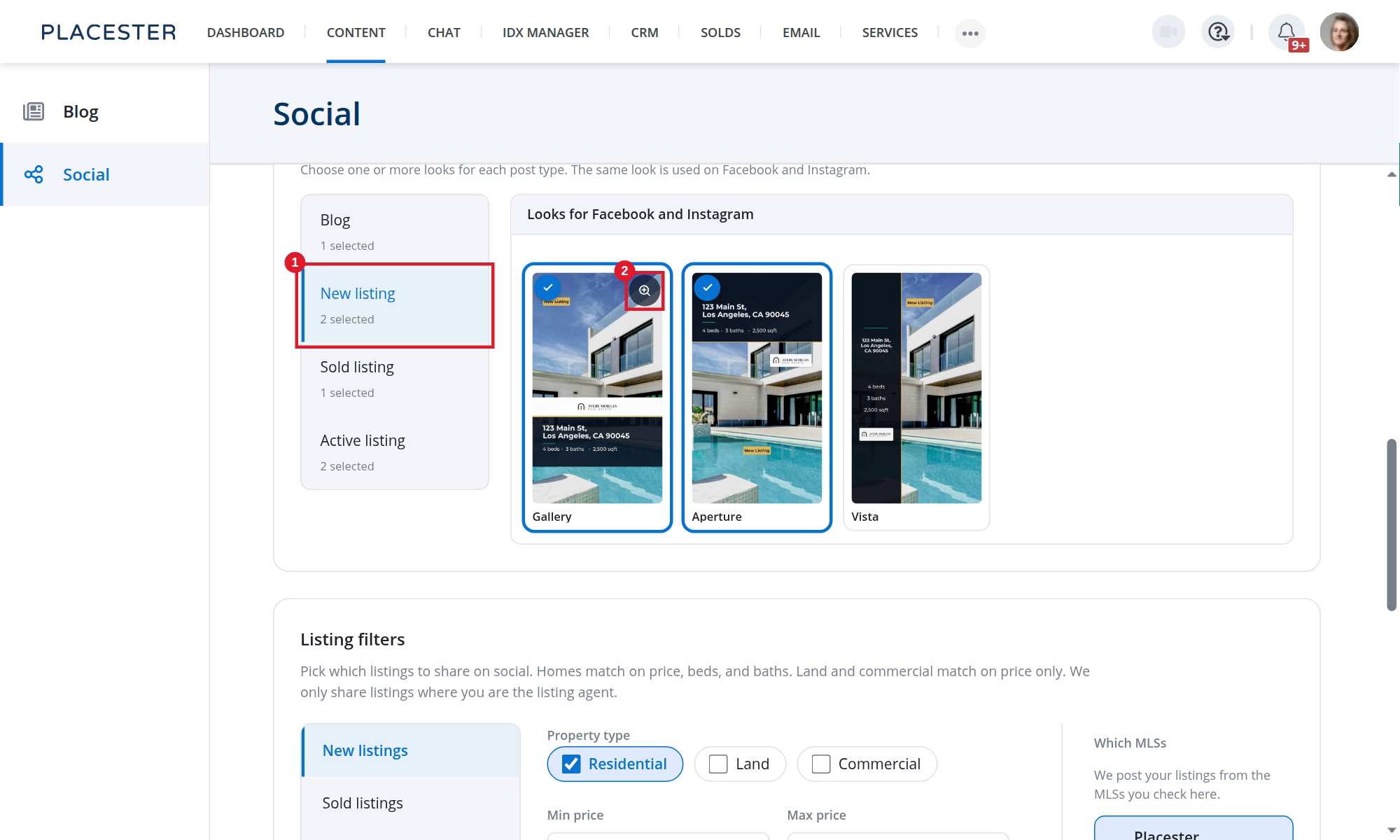
- Post type: Choose Blog, New listing, Sold listing, or Active listing.
- Preview: Point at a look to reveal its preview icon, then select the icon to open the sample video.
Opening a preview does not select or remove the look. To change which looks Social Automation uses, select the look card itself.
Watch the sample preview
The preview opens with a sample video for the selected post type and look.
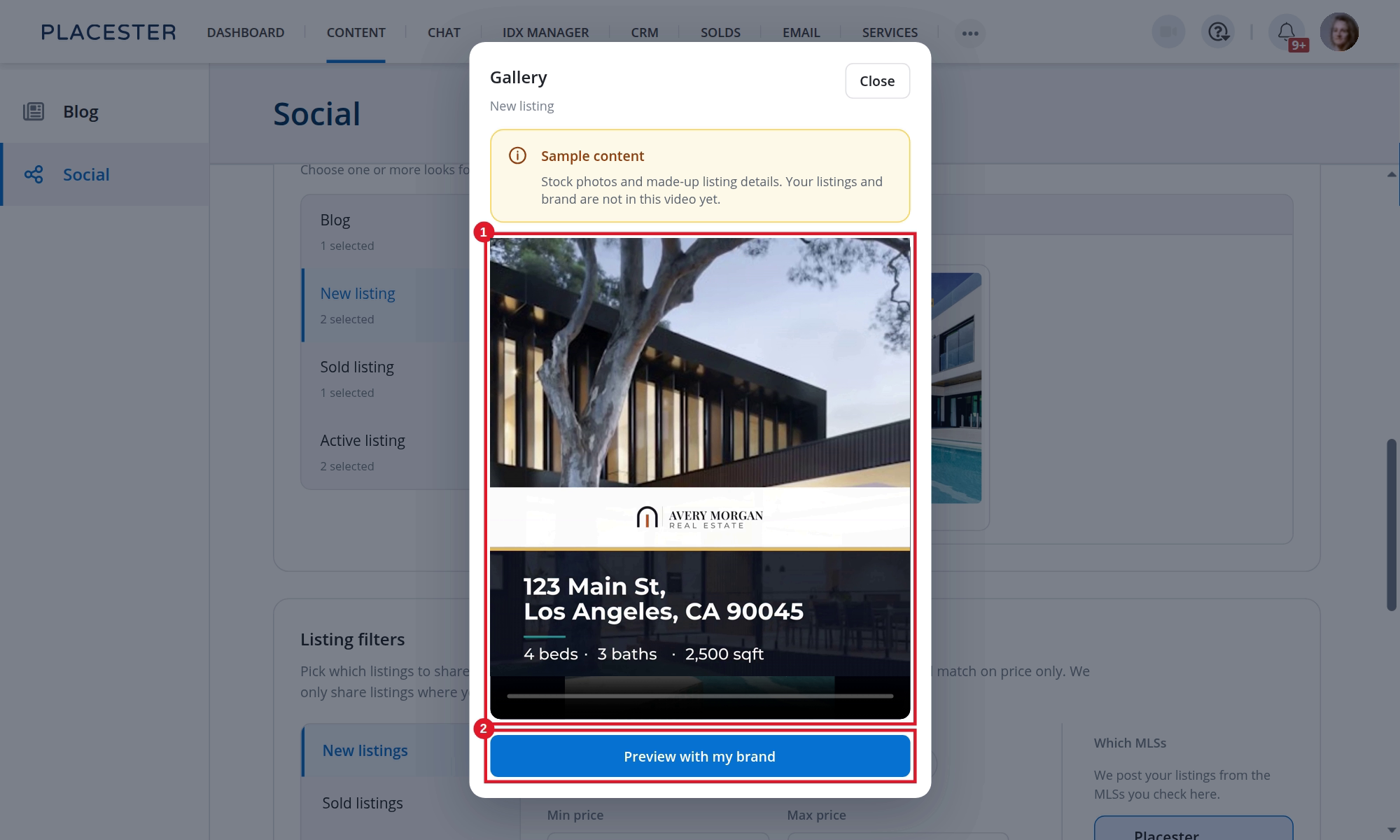
- Sample preview: Play, pause, scrub, or expand the sample video.
- Preview with my brand: Render the look with the colors, font, and logos from your Business Profile.
A branded preview can take a moment to render. It changes only the preview and does not publish a post or change your selected looks.
While it renders
Select Preview with my brand. The preview shows this message while it applies your colors, logos, and font. This usually takes 10–30 seconds.
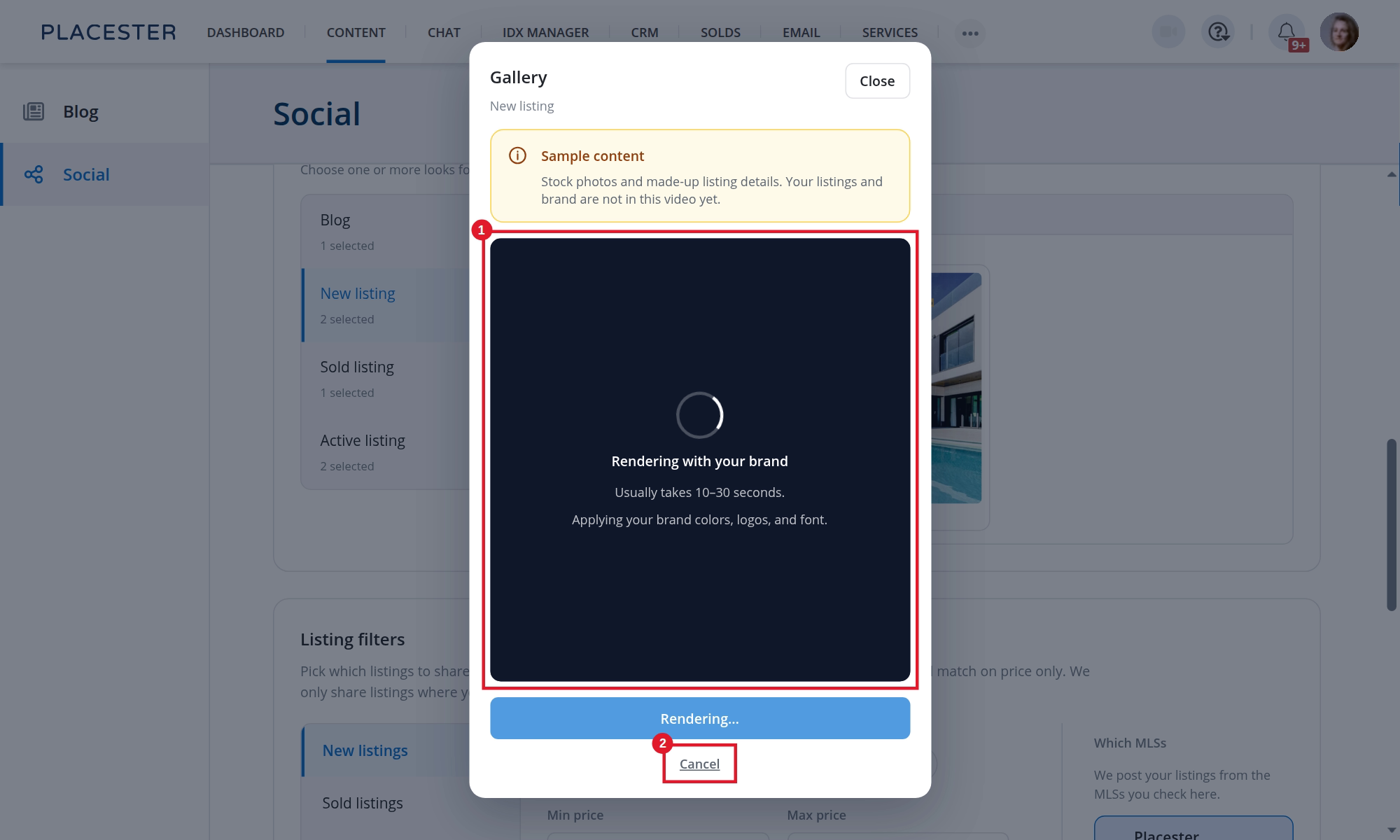
- Rendering with your brand: Wait for the preview. It does not publish a post.
- Cancel: Stop the render. Your selected looks stay as they are.
When the preview is ready
The video then uses your colors and logo. Use Sample and Your brand to switch between the two videos.
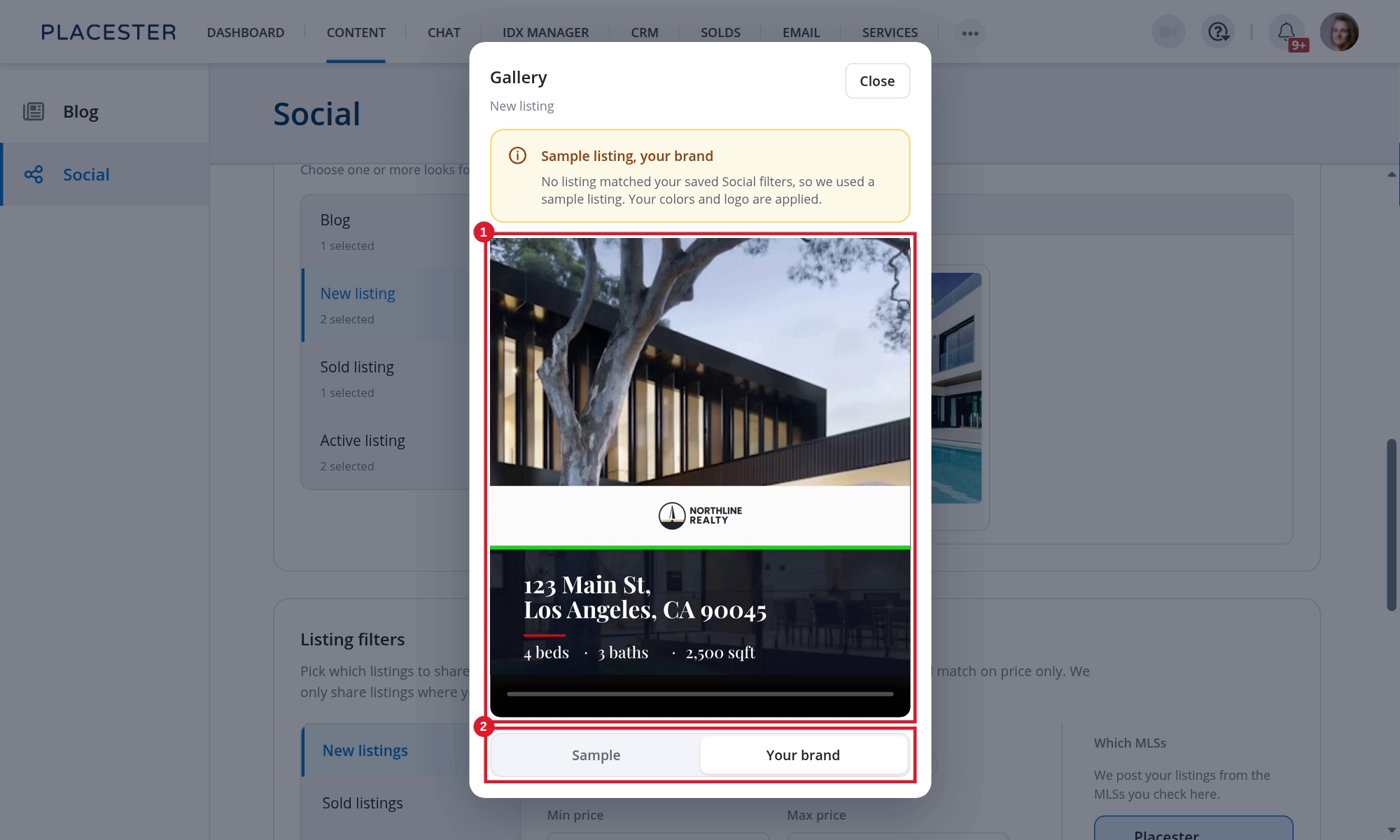
- Your video: This version uses your colors and logo.
- Sample or Your brand: Switch between the sample video and your branded video.
If you have no blog post, or no listing matches your saved filters, the preview uses a sample. Your colors and logo are still applied.
A listing in this preview matches your listing filters. See Listing Filters: Controlling Which Properties Get Posted.
Pause does not stop the preview. A paused post type still renders, and nothing is published.
Select Close when you finish reviewing the video.
Update your brand
If you want different colors, logos, or a font, use the Brand card above Template selection. When the brand is missing, the card says Your brand isn't set up yet and the link is Set brand on Business Profile. When the brand is set, the link is View or update brand on Business Profile. See Understanding and Updating Your Business Profile. Return to Template selection and render another branded preview after saving your Business Profile changes.
For help choosing one or more looks for each post type, see Choosing Your Social Automation Templates.
Need more help?
For questions, concerns, or feedback, chat with our team at app.placester.com/chat.