What Is Social Automation?
Introduction
Social Automation is an add-on that creates branded vertical videos from your listings and published blog posts, then shares them to enabled Facebook Pages and their linked Instagram accounts. From the calendar, you can also publish a photo or Reel immediately.
What Social Automation shares
Social Automation can create posts when:
- A listing is new.
- A listing is sold.
- An active listing reaches a still-on-market milestone: 7, 14, 21, 28, 42, 56, 70, 84, or 90 days, then a monthly milestone through 365 days. A missed day does not post later.
- A blog post is published on your selected Placester website. An eligible article can produce an initial video and a follow-up video 48–72 hours later.
Listing posts are created for the listing, or seller's, agent. Your account posts the listing when you are the listing agent. Your account does not post it when you are only the co-listing agent. A home you listed still posts from your account when another agent is the co-listing agent. A buyer's-agent-only business will not receive new, sold, or still-on-market listing posts. A team account shares listings that match an agent ID you add. A broker account shares listings that match an agent ID or an office ID you add. See Listing Filters: Controlling Which Properties Get Posted.
Automatic posts are vertical videos that use your selected look, colors, font, and logos. The caption links people back to the listing or blog post on your own website. A photo you publish from the calendar uses the image as uploaded, not a branded template.
When Story is on for a post type under Setting Up Social Automation, Placester also shares that Reel as a full-screen Story on Facebook and Instagram. A Story uses the same Reel with no music. People see it for 24 hours, then it disappears. From the calendar, you can also choose Also share as a Story when you publish a photo or Reel.
Content Automation is not required. Social Automation works with blog posts regardless of how they were written. Publishing a blog post is the trigger.
Where posts appear
Social Automation supports:
- Enabled Facebook Pages
- The Instagram Business or Creator accounts linked to those Pages
It does not publish to personal Facebook profiles, LinkedIn, X, TikTok, or Google Business Profile. See Connecting Facebook and Instagram to Social Automation.
Find Social Automation
In the top navigation, select Content. On the left, select Social.
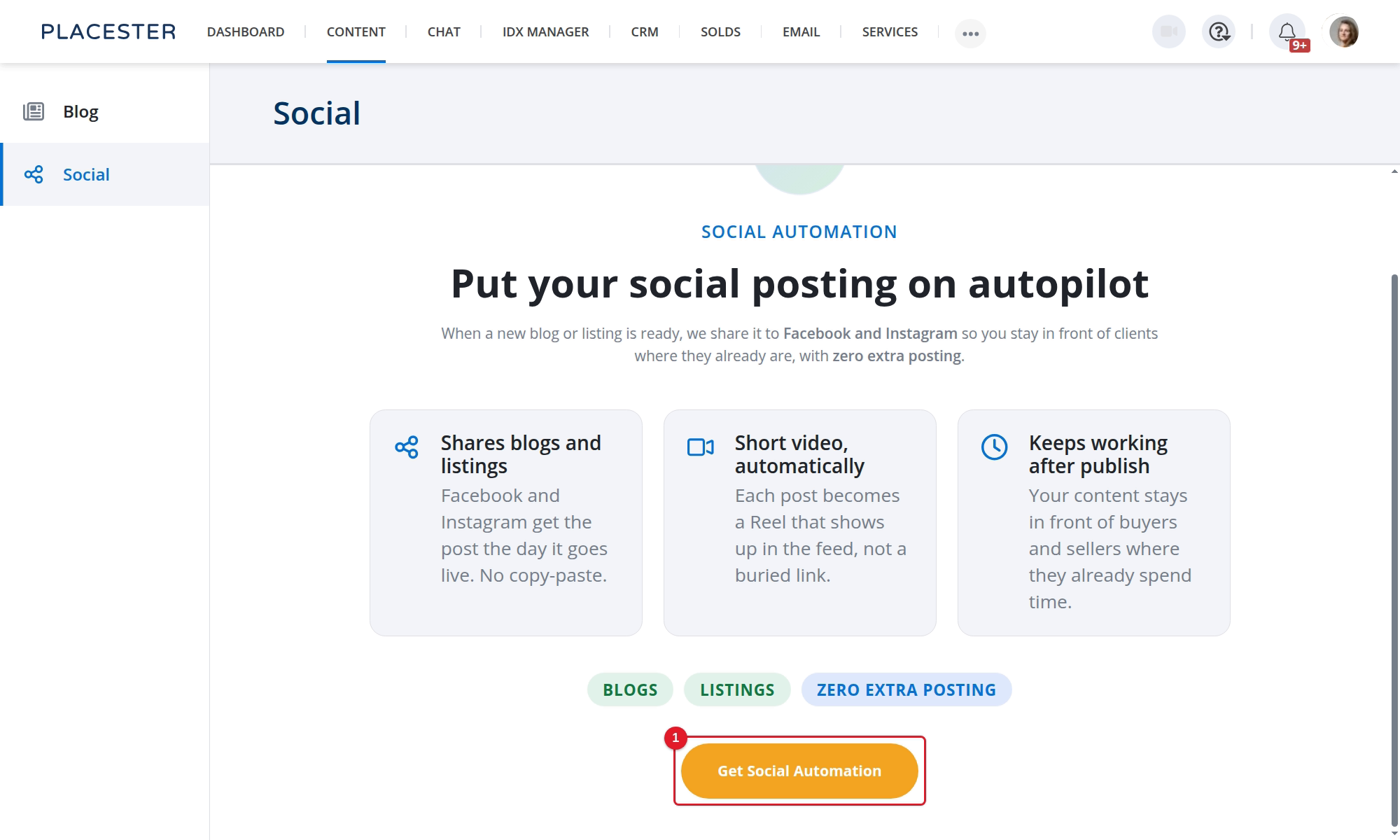
- Get Social Automation: Start the add-on purchase flow if Social Automation is not active on your account.
You can confirm an active subscription under Plan & Billing → Product Add-ons.
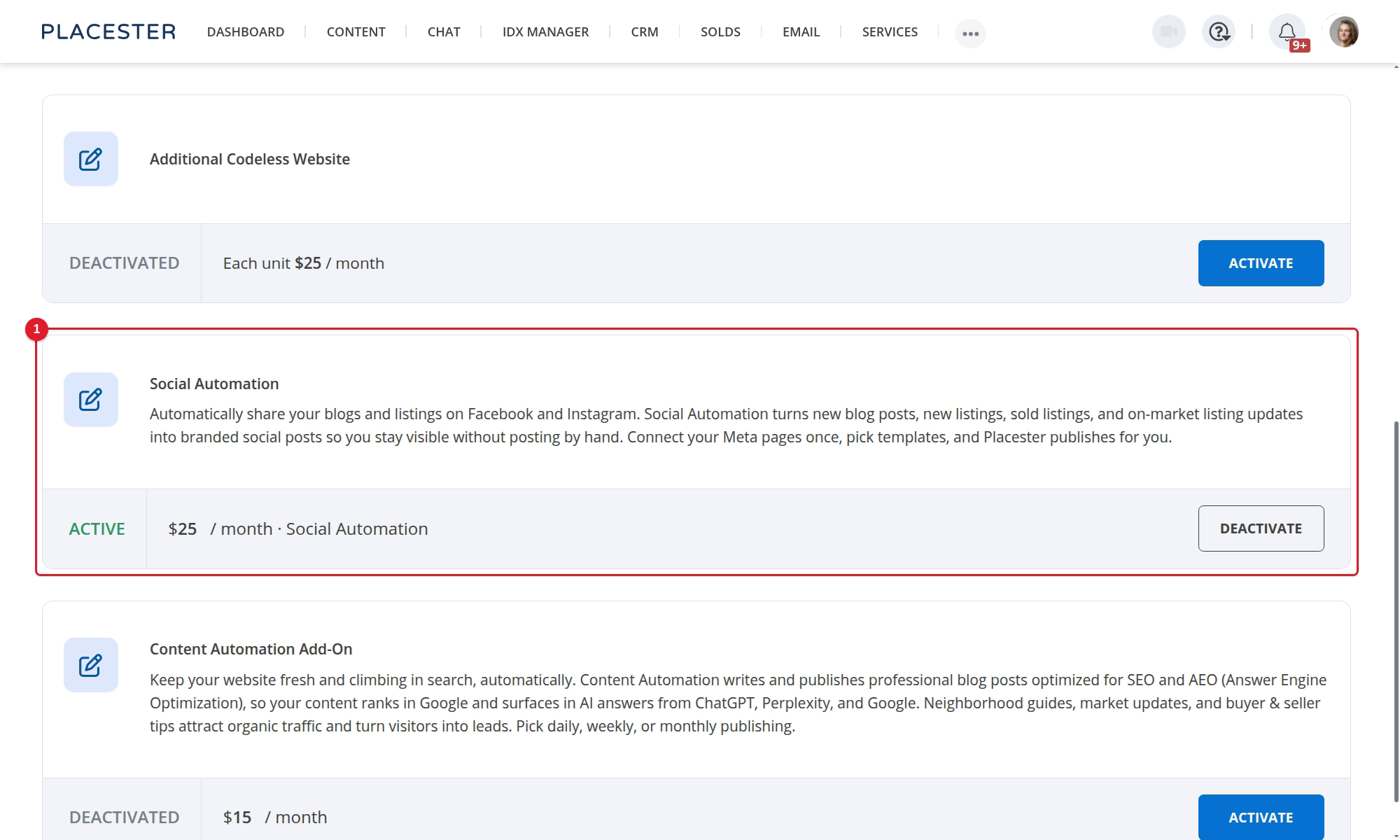
- Social Automation: Shows the add-on status and monthly price.
What you control
After setup, use the three tabs in the picture. They are Connect, Calendar, and Settings.
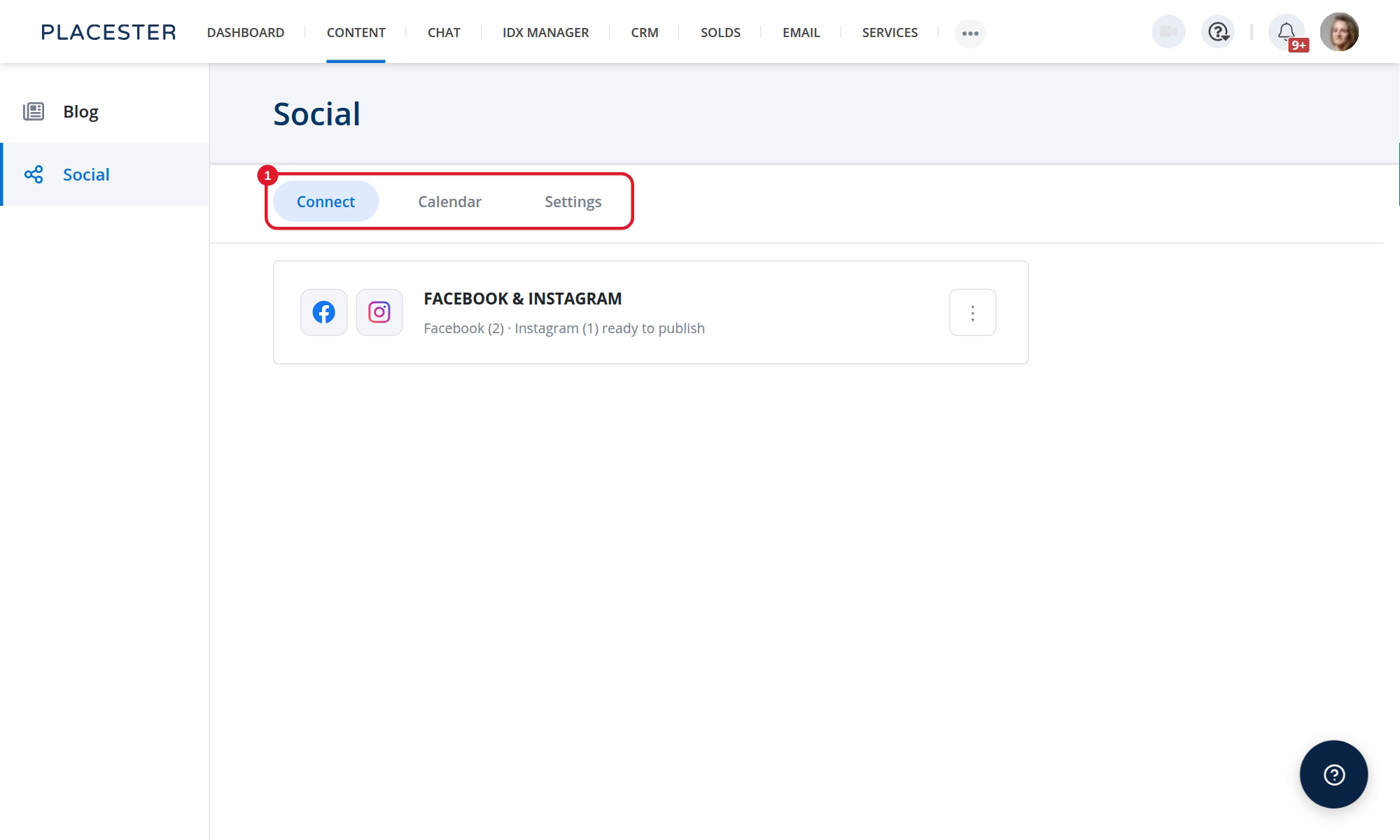
- Connect: Connect or manage Facebook and Instagram publishing destinations. See Connecting Facebook and Instagram to Social Automation.
- Calendar: Review posts published through Placester, edit a supported Facebook caption, delete a post, retry a failed post, publish a photo or Reel immediately, or share a post as a Story. See Using the Social Calendar.
- Settings: Choose which post types publish, turn Story on per type, choose Choosing Your Social Automation Templates, Listing Filters: Controlling Which Properties Get Posted, the daily still-on-market publish time, the Choosing a Blog Source for Social Automation, and Understanding and Updating Your Business Profile.
Social Automation does not include:
- A required approval step before automatic posts publish. Review is optional; see Reviewing a post before it publishes.
- Scheduling a specific post for a future date
- Reach, likes, or other engagement analytics
How often posts can publish
- Published blogs: Up to one blog-driven post per local day. An eligible article can produce an initial video and one follow-up 48–72 hours later; either may wait if another blog video has already used that day's slot.
- Still-on-market listings: One daily batch, with up to 20 listings.
- New and sold listings: Created as eligible MLS events arrive, with no daily cap.
Your settings and eligible activity determine whether there is something to publish on a given day.
Next steps
Start with Setting Up Social Automation. You can also review:
- Connecting Facebook and Instagram to Social Automation
- Choosing Your Social Automation Templates
- Previewing Social Automation Templates
- Listing Filters: Controlling Which Properties Get Posted
- Choosing a Blog Source for Social Automation
- Using the Social Calendar
- Troubleshooting Social Automation
Need more help?
For questions, concerns, or feedback, chat with our team at app.placester.com/chat.