Ordering Social Automation
You can order Social Automation from the add-ons area in your account. Use these steps to find it in Plan & Billing and review what to check before you activate it.
Open Product Add-ons in Plan & Billing
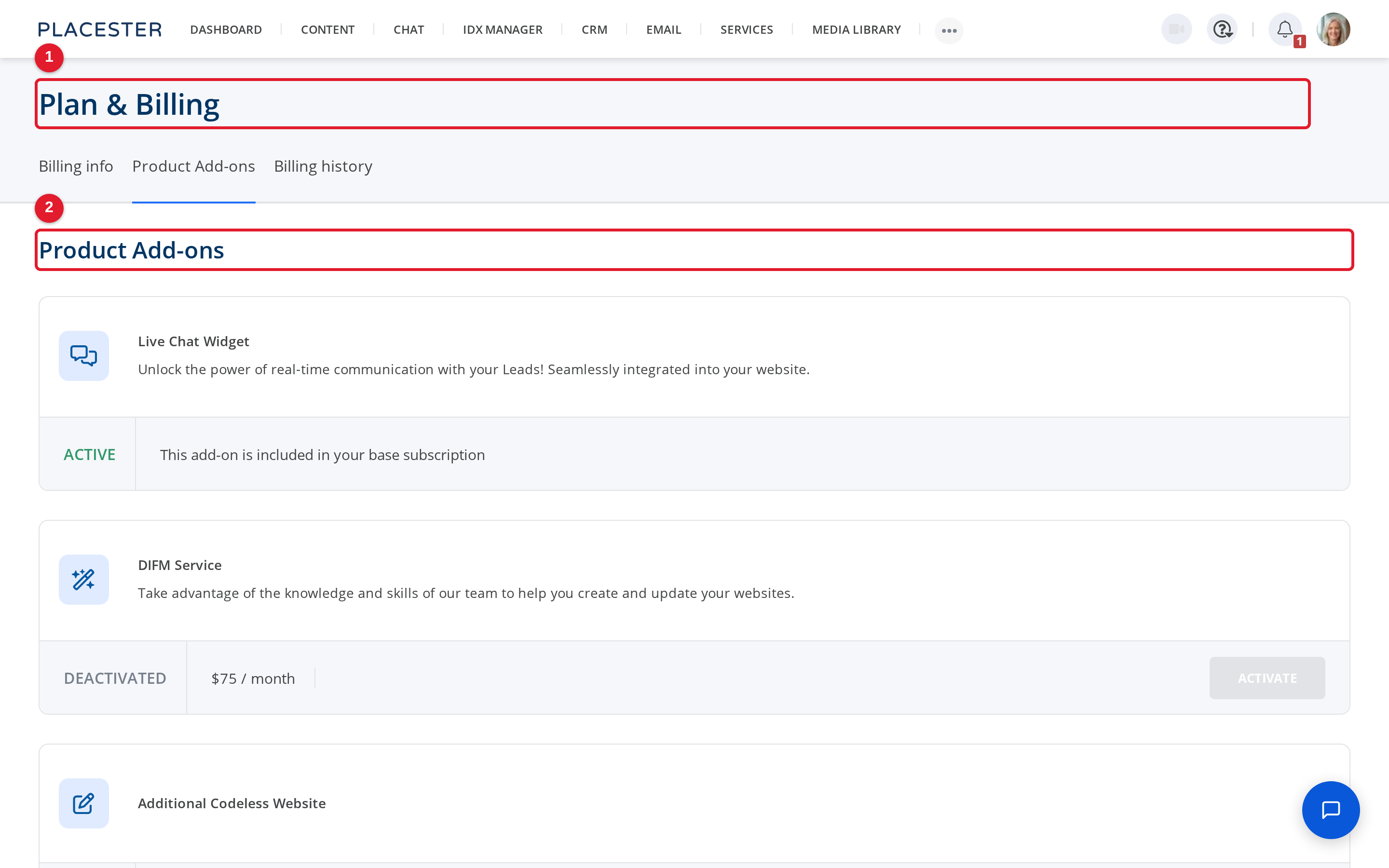
- Plan & Billing: Shows the account billing area.
- Product Add-ons: Shows the page where available add-ons are managed.
Open Plan & Billing, then go to Product Add-ons to view the add-ons available for your account.
Find the Social Automation add-on
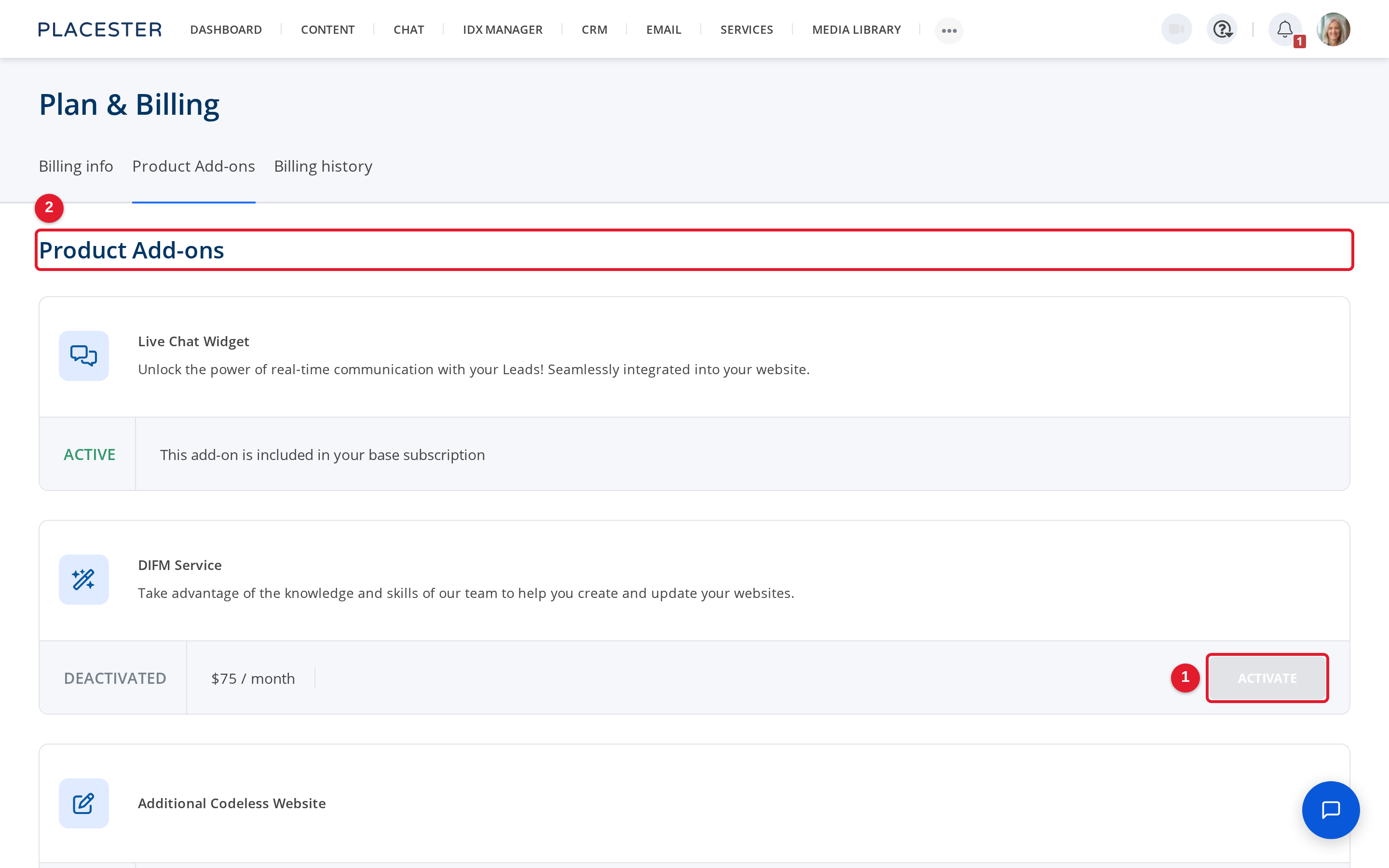
- ACTIVATE: Starts the order flow for an available add-on.
- Product Add-ons: Confirms you are still on the add-ons page.
On the Product Add-ons page, find the Social Automation card. If Social Automation is available to order, select ACTIVATE to begin.
Review the order options before you activate
Before you activate Social Automation, review the details shown on its add-on card. Confirm that you are on the Product Add-ons page and check the Social Automation description and monthly pricing shown there before you continue.