Toronto Theme Guide [Classic]
This article will provide a general overview of the site design, features and image dimensions for the Toronto theme.
Theme Selection
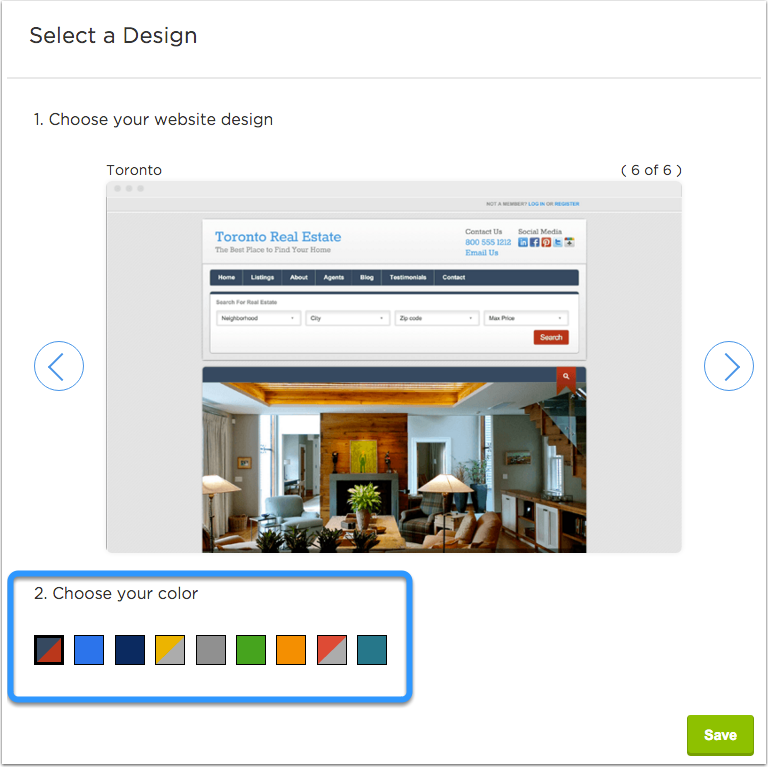
You can select the Toronto site design and one of its four color schemes via Site Settings > Theme Selection.
Header
Top Left: Site Title and Tagline, you can add these via Site Settings > Site Info.
Top Right: Phone number, Email Me link, and Social Network Icons.
Menu: You can add pages to your menu via Site Settings > Menu, you can learn more information about editing your menu here
Search Form: Just below the menu there is a homepage quick search, you can choose which homepage quick search is displayed on your site via Site Settings > Search Forms.
Home Slideshow
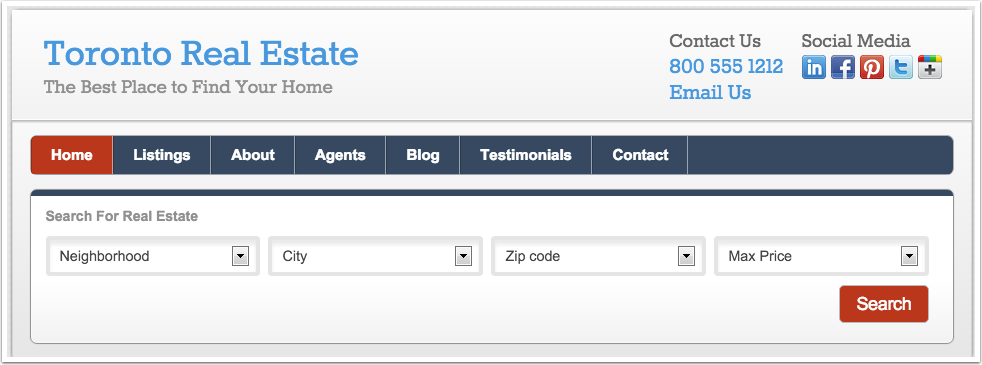
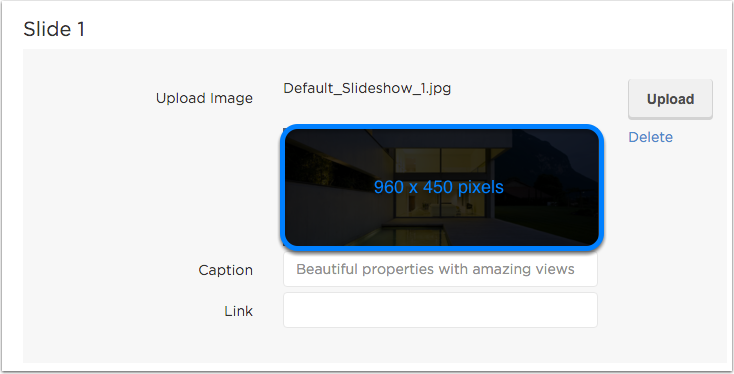
You can upload new slideshow images through Site Settings > Slideshow. You can find more information about adding images to your slideshow here
Featured Listings and Home Page Widgets
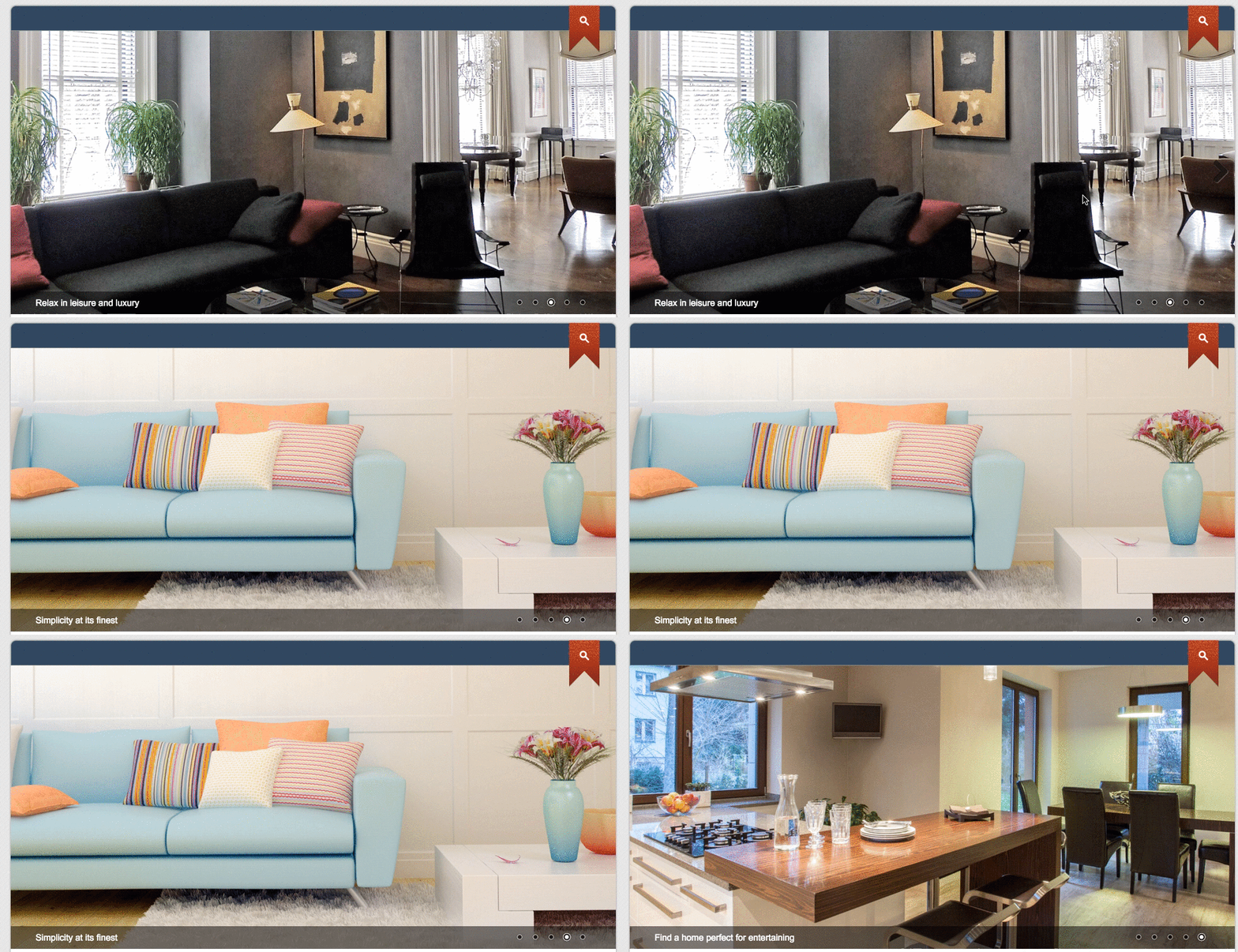
6 Featured Listings (2 even columns of 3 listings). You can add listings to your homepage via Site Settings > Featured Listings. You can find more details about adding featured listings to your homepage here.
About Widget: Name, Phone, Email Me link.
Get In Touch Widget: Contact Form/Lead Capture
Mortgage Calculator
Footer
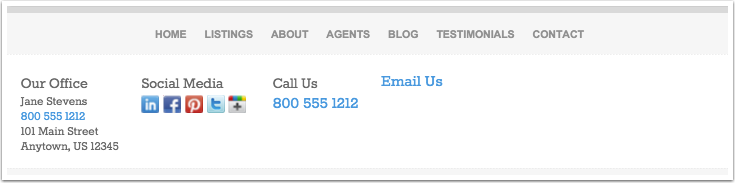
Menu, Office Information, Social Networks, and Phone number & Email Me link.
Recommended Image Dimensions
Slideshow Images: 960 pixels wide by 450 pixels tall
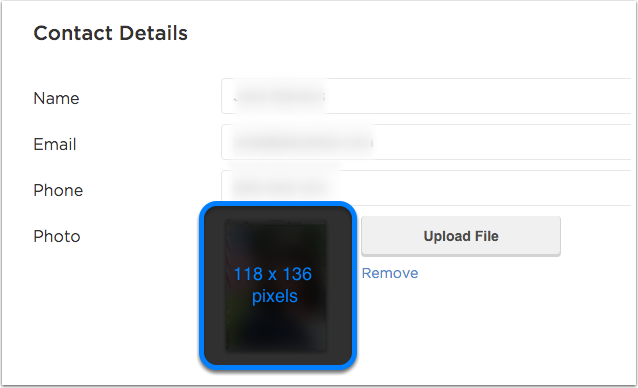
Individual Agent Headshot (under site info): 118 pixels wide by 136 pixels tall
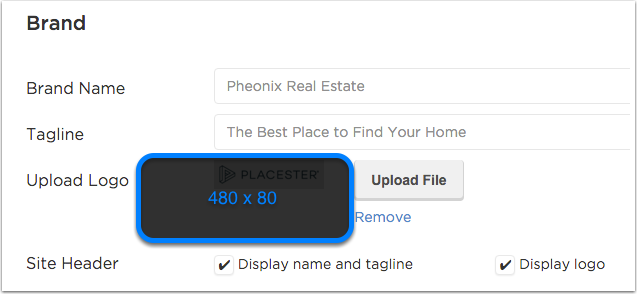
Logo: 480 pixels wide by 80 pixels tall
Images within Pages/Blog Posts: maximum of 600 pixels wide
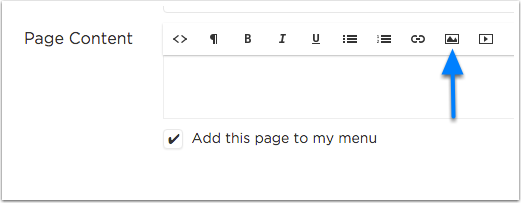
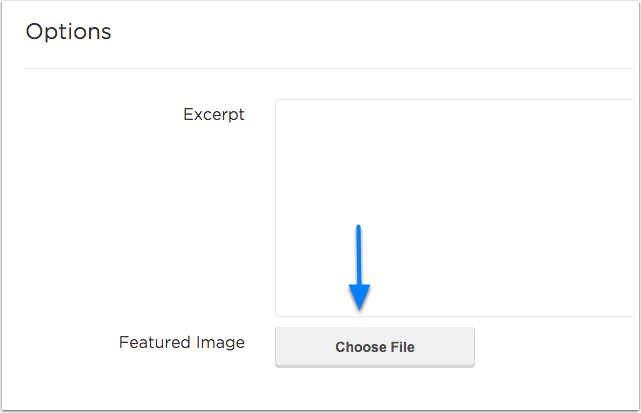
Blog Post Featured Images: 259 pixels wide by 173 pixels tall
Agent Headshots (Featured Image on Agents Page): 128 pixels wide by 155 pixels tall
You can find some helpful tips and recommendations for cropping and resizing images here
Need More Help?
For questions, concerns, or feedback, please chat with our team: https://app.placester.com/chat