Importing Leads [Classic]
This article will show you how to import leads to your Placester account.
Importing Leads in Mobile
Placester CRM is now mobile-friendly and can be accessed on Mobile devices. Now, it's easier to edit Lead/Contact details anywhere as long as you have your mobile phone with you.
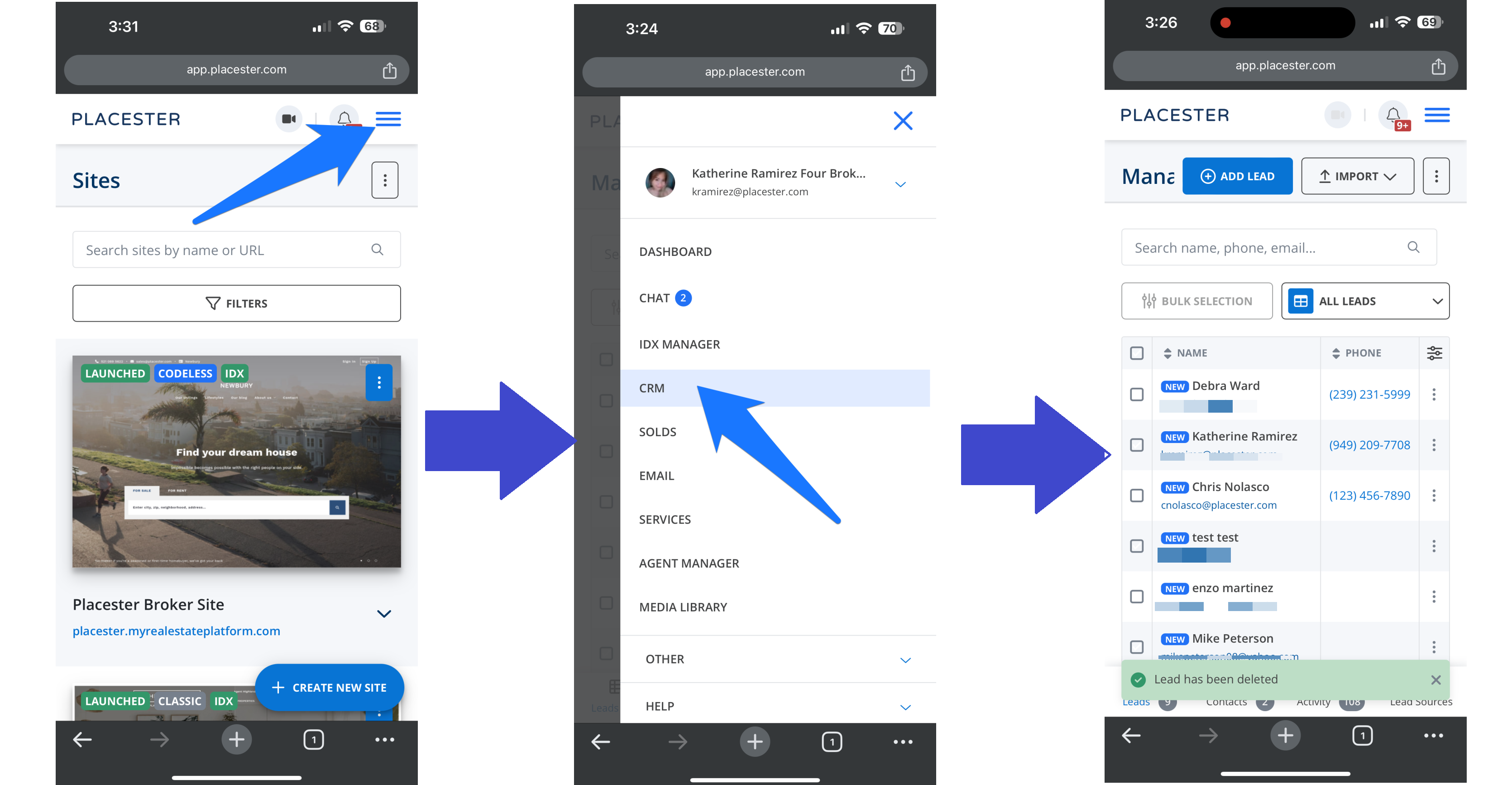
Once you log in on your mobile browser, click the trigram symbol ☰ on your dashboard, click CRM on the drop-down menu and it will bring you to a page where you can view your leads.
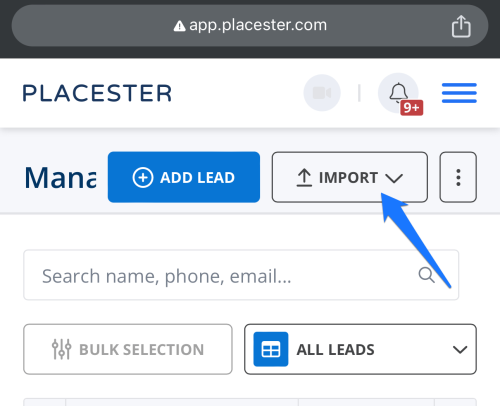
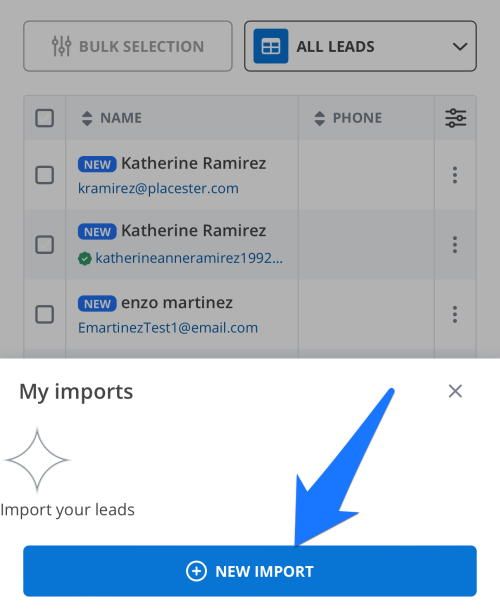
Next, click the Import button then (+) New Import.
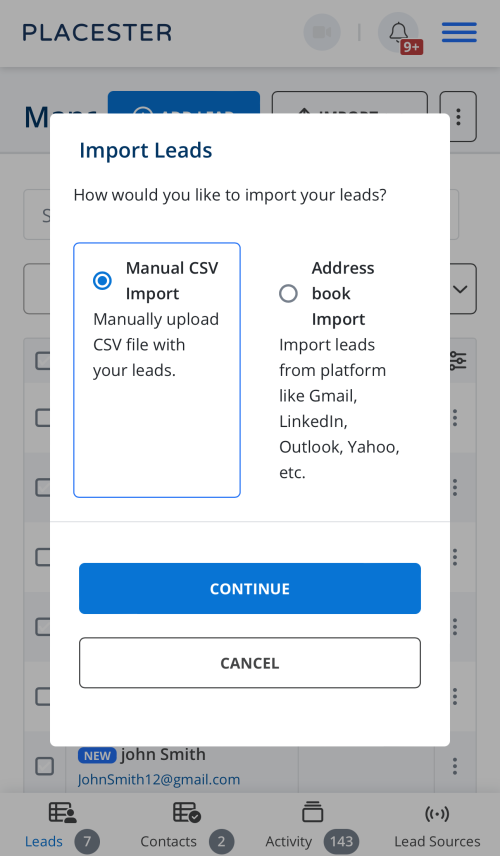
The next screen is where the leads can be imported. You'll be able to choose between uploading a CSV. file or uploading leads from an address book.
If you decide to upload the leads using a CSV. file, the first thing to do is download the required CSV. lead import template.
Click here to download the required template.
Once you selected the file to be imported, click the import button.
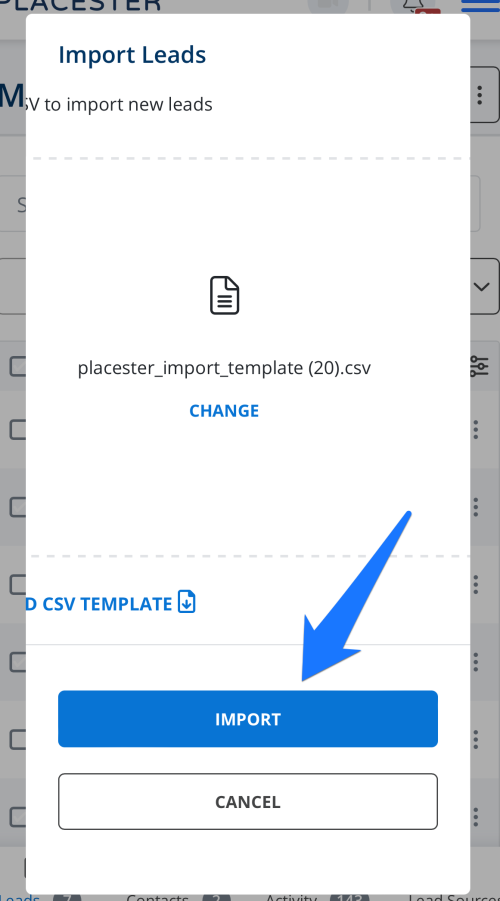
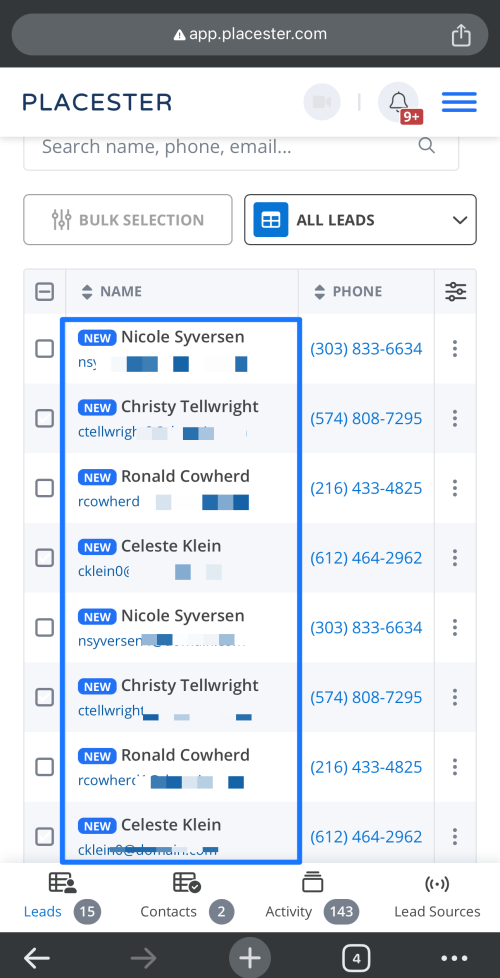
It will bring you back to the leads list and your imported leads will appear.
Importing Leads
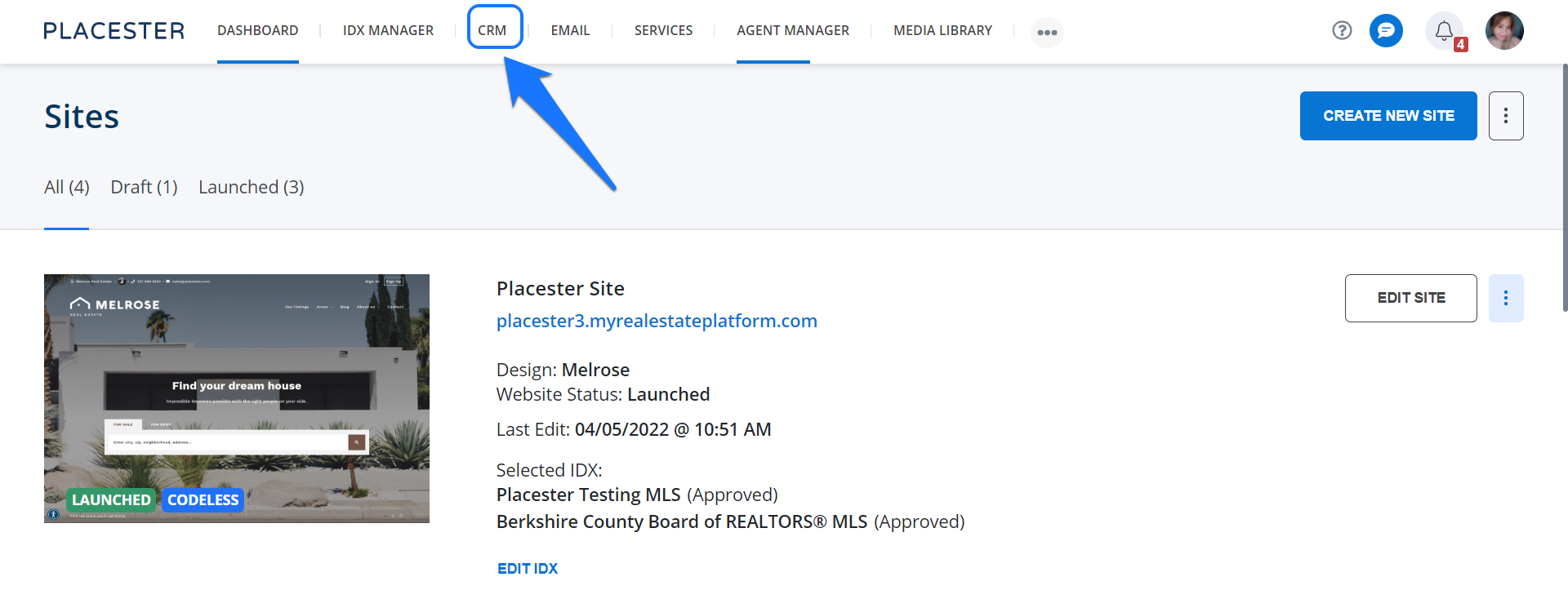
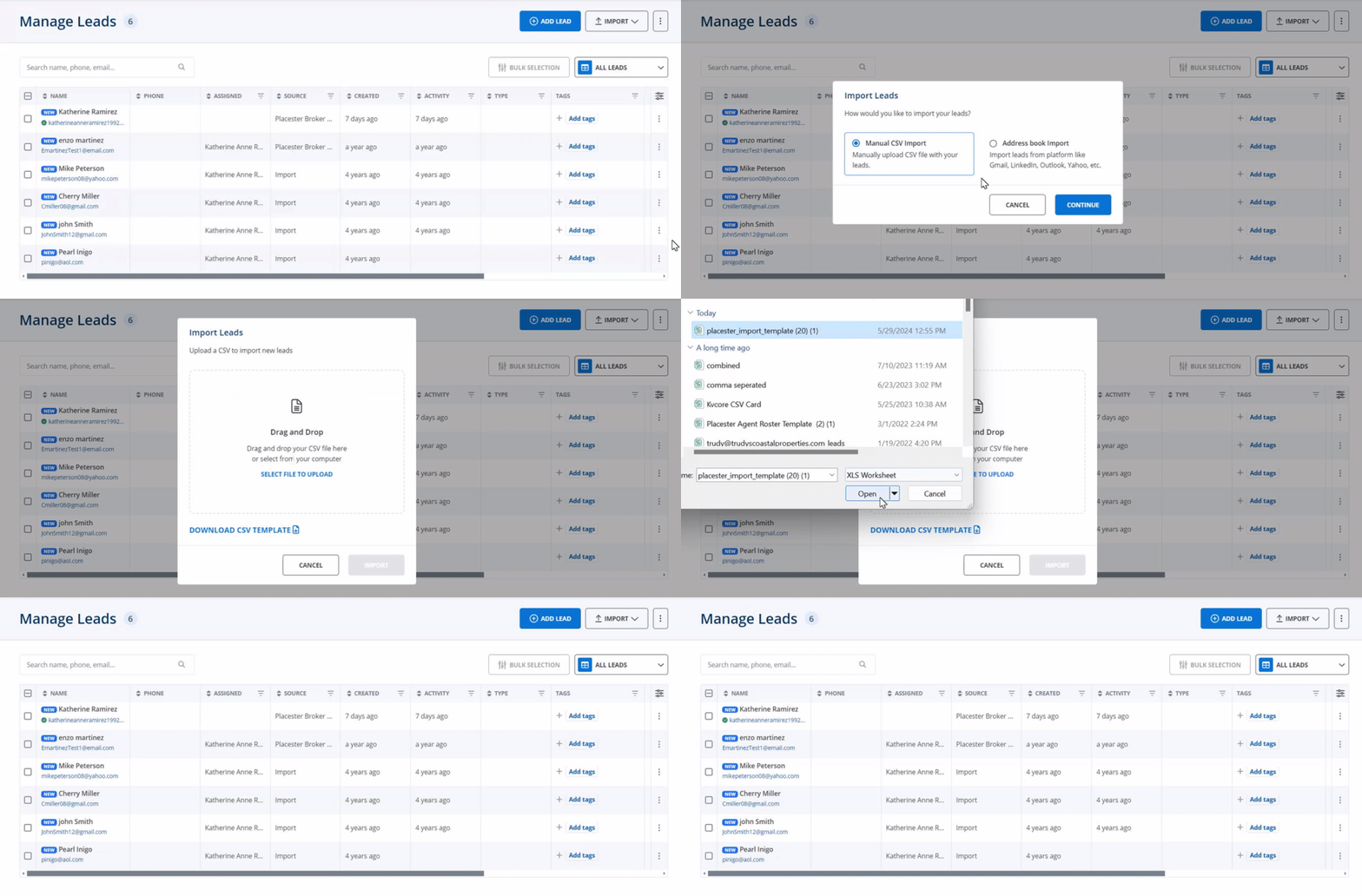
To import your leads, first, log in to your Placester account then check the CRM tab on the top of the dashboard.
This will bring you to the page where you can view all of your current leads. Next, click the Import button.
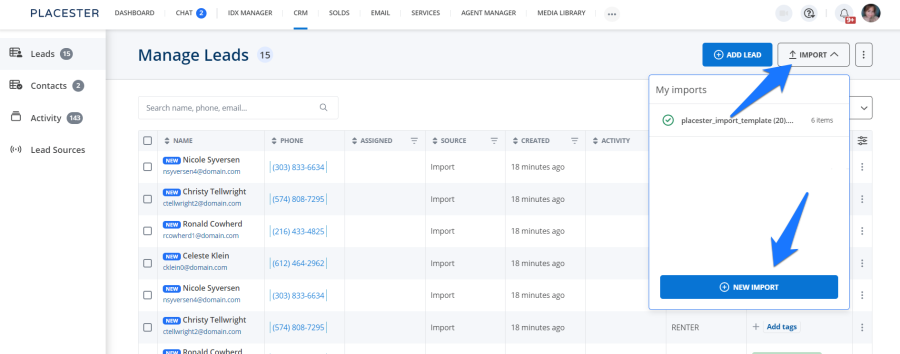
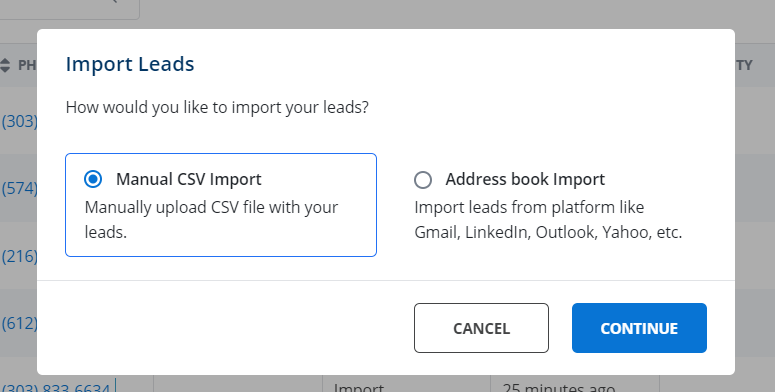
The next screen is where the leads can be imported. You'll be able to choose between uploading a CSV. file or uploading leads from an address book.
If you decide to upload the leads using a CSV. file, the first thing to do is download the required CSV. lead import template.
Click here to download the required template.
Adding Leads to the Required Template
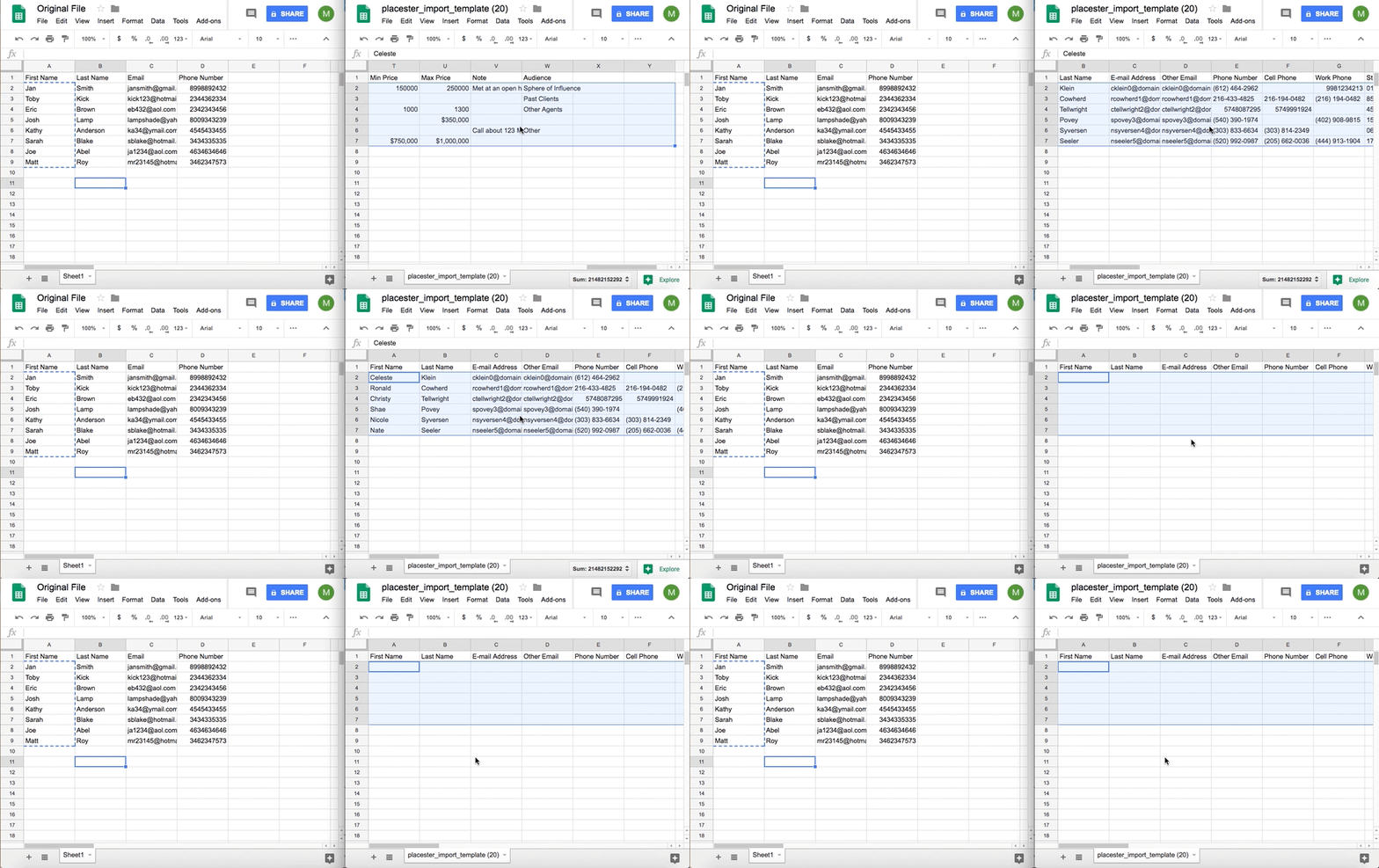
Once the template has been downloaded onto your computer. Open it along with the file you would like to upload. The template has a lot of criteria available to fill out. You do not need to fill out all of the criteria in order to upload the file.
The first step is to delete the example leads from the template.
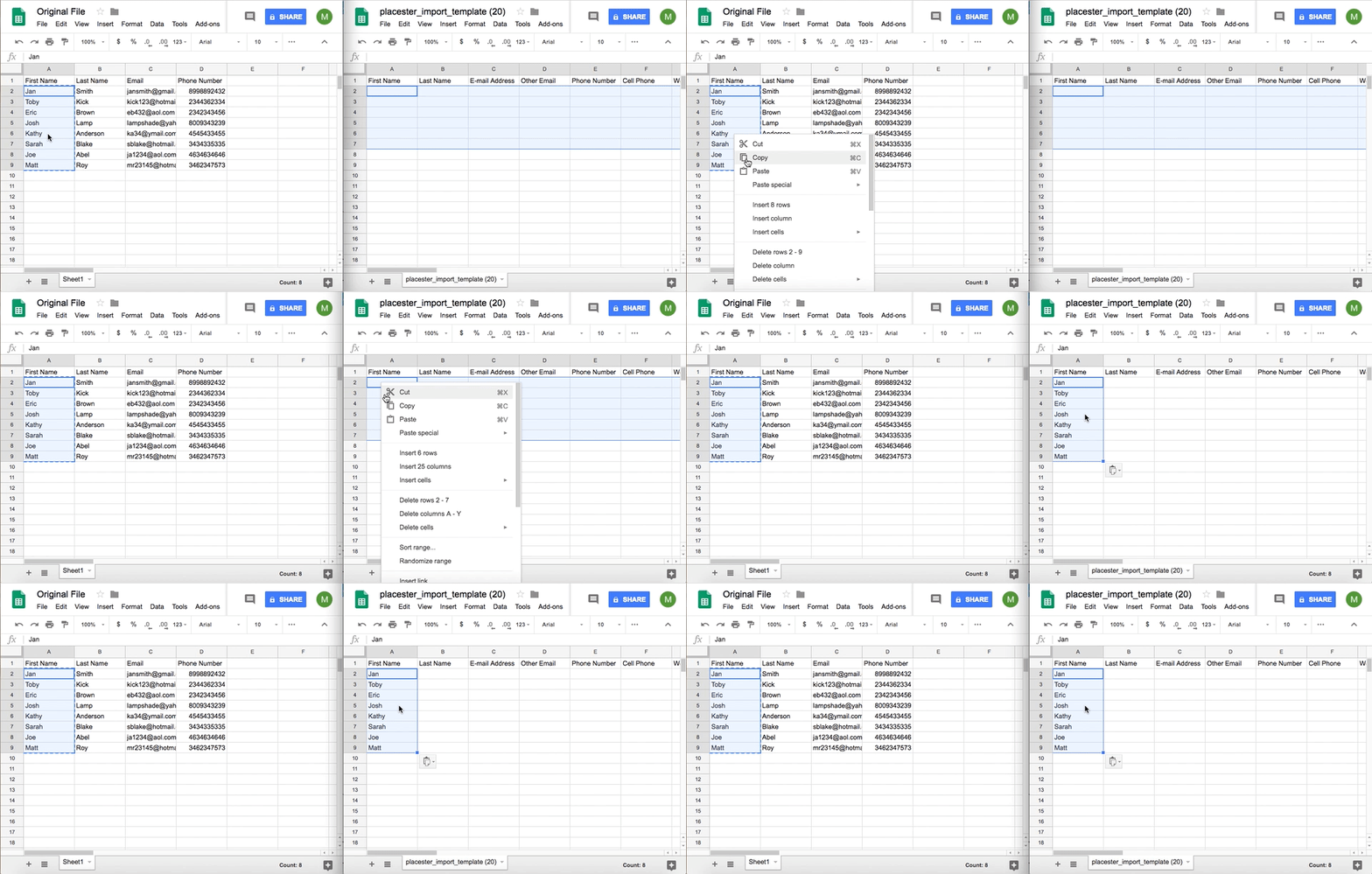
Once the example leads are deleted, copy and paste each column over to the Placester Template.
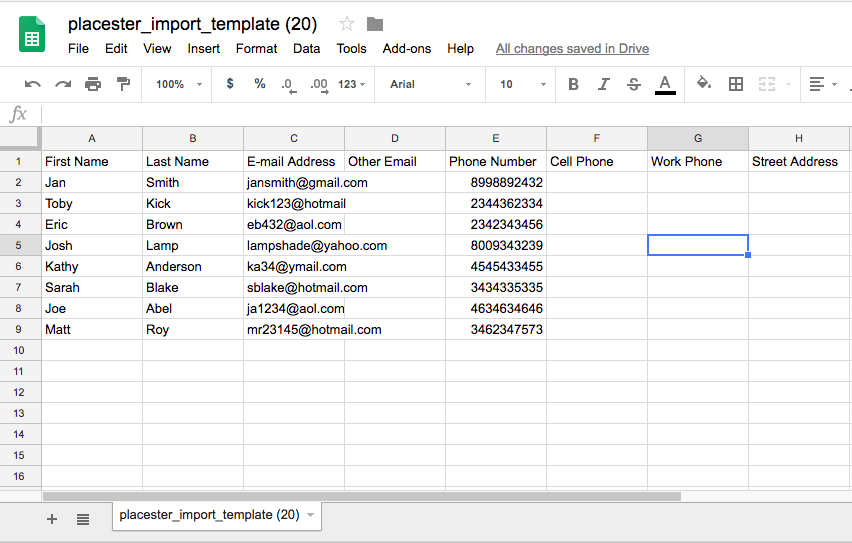
When adding the information, be sure to add it the appropriate column. The final product will look similar to the example below.
NOTE: The import process will not import blank rows, rows with missing or invalid email addresses, invalid phone numbers or more than one phone number or email address for a lead. You'll be able to export a list of leads that did not successfully import (with the reason why) by clicking on the highlighted number in the 'Leads Failed' column.
After the template has been fully updated, save it as a CSV. file and upload it onto the backend of your account.
Importing Leads From an Address Book
The Address Book button allows you to upload leads from multiple sources. Gmail, Outlook, and AOL.com are just some of the sources available to import leads from.
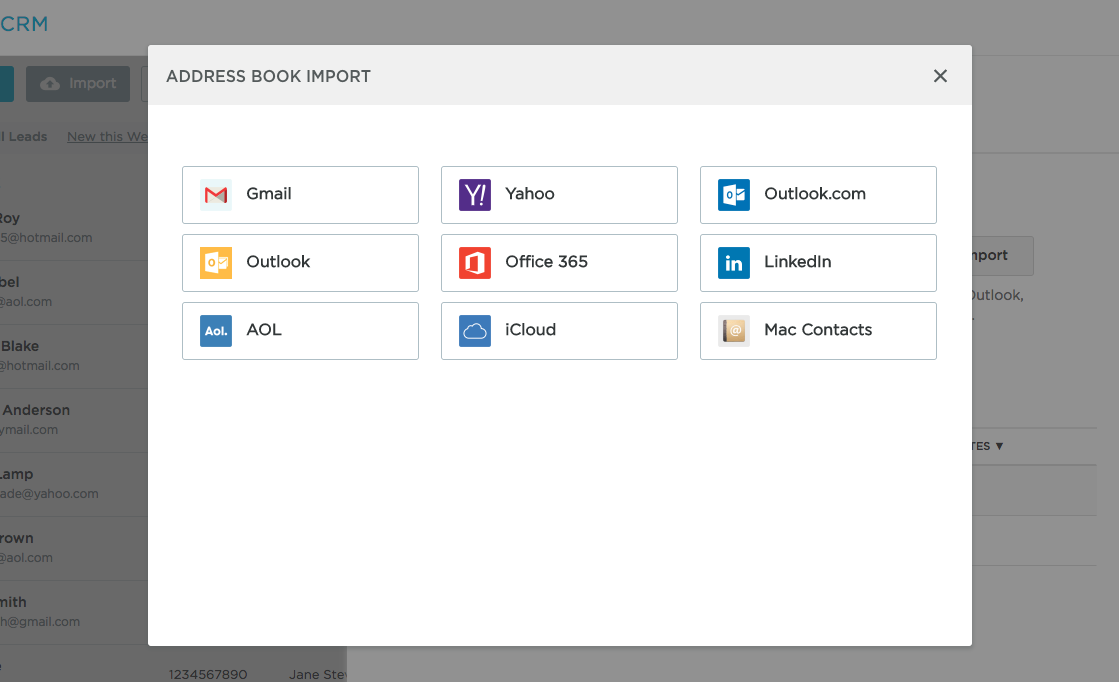
To import contacts from one of the address books, click on the address book you would like to import and follow the login process for accessing the contacts. Once you're logged into the address book, the contacts will appear in the pop-up.
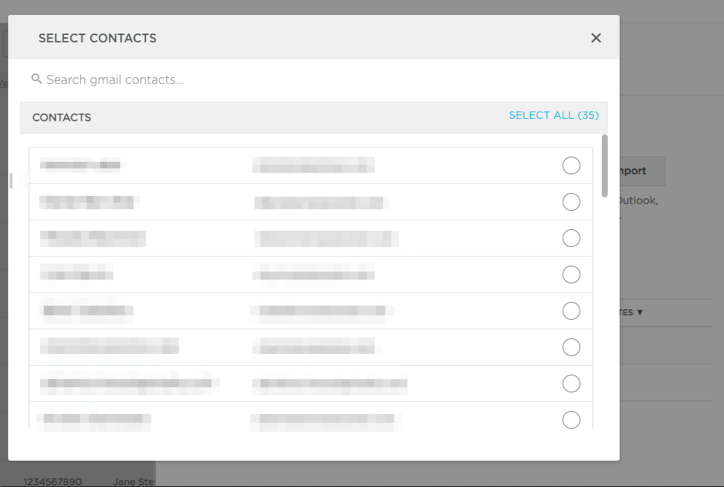
The contact pop up allows you to select all of the contacts by clicking on the Select All button in the righthand corner or select the contacts one by one.
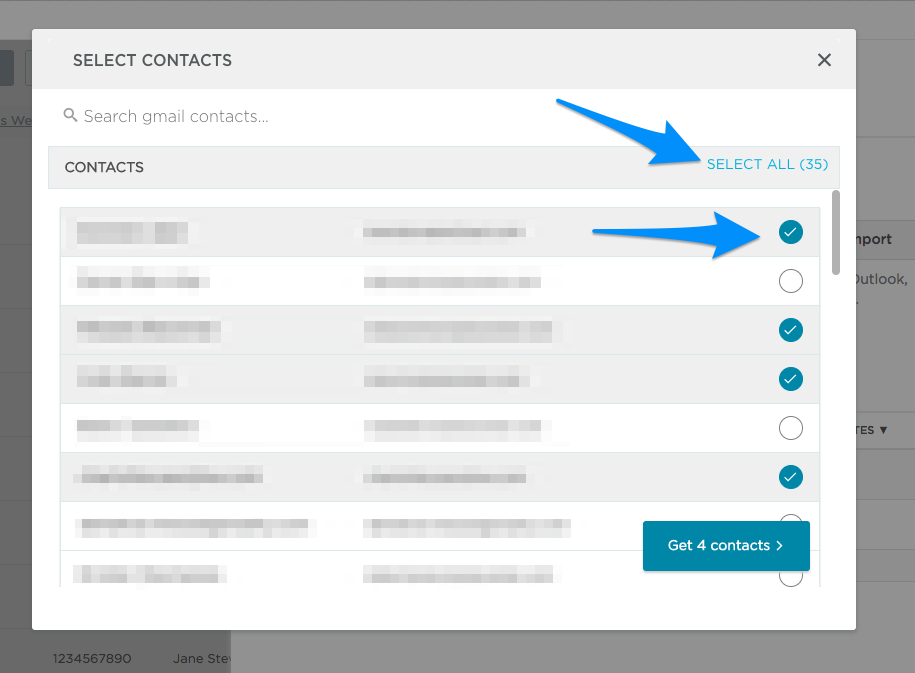
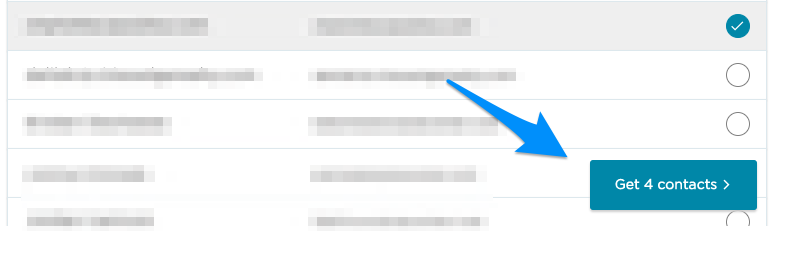
Once the desired amount of contacts have been checked off, click the blue Get Contacts button. After clicking the button, the selected contacts will be automatically uploaded onto the CRM.
Any duplicate contacts or failed imports can be managed the same way as stated above.
Need More Help?
For questions, concerns or feedback, please chat with our team:https://app.placester.com/chat.