Creating Groups
This article will show you how to create groups within the Leads feature of your Placester account.
What is a Group?
A Group is a collection of agents that you've grouped together for managing leads. A Group could consist of agents from the same office, a team who work in a specific area, or a sales or rental team.
CRM > Groups
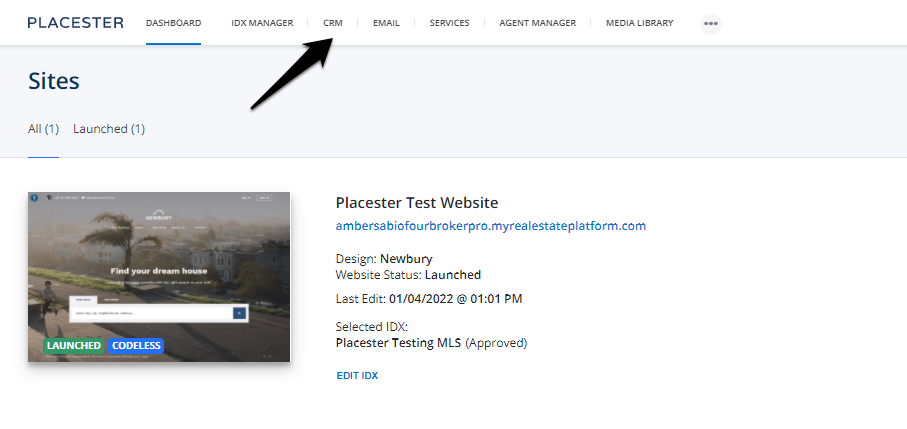
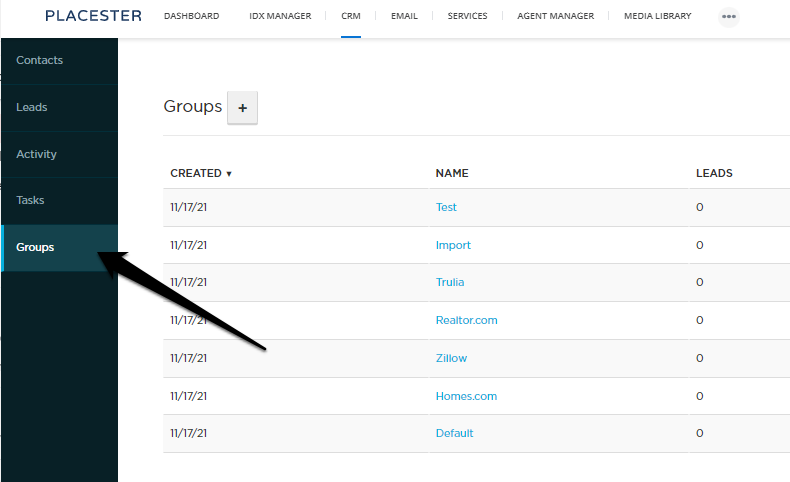
To find your groups, go to the App icon and click the CRM tab, then scroll down to Groups on the lefthand side.
Creating a Group
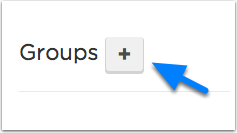
To create a new Group, click the gray + (plus) button.
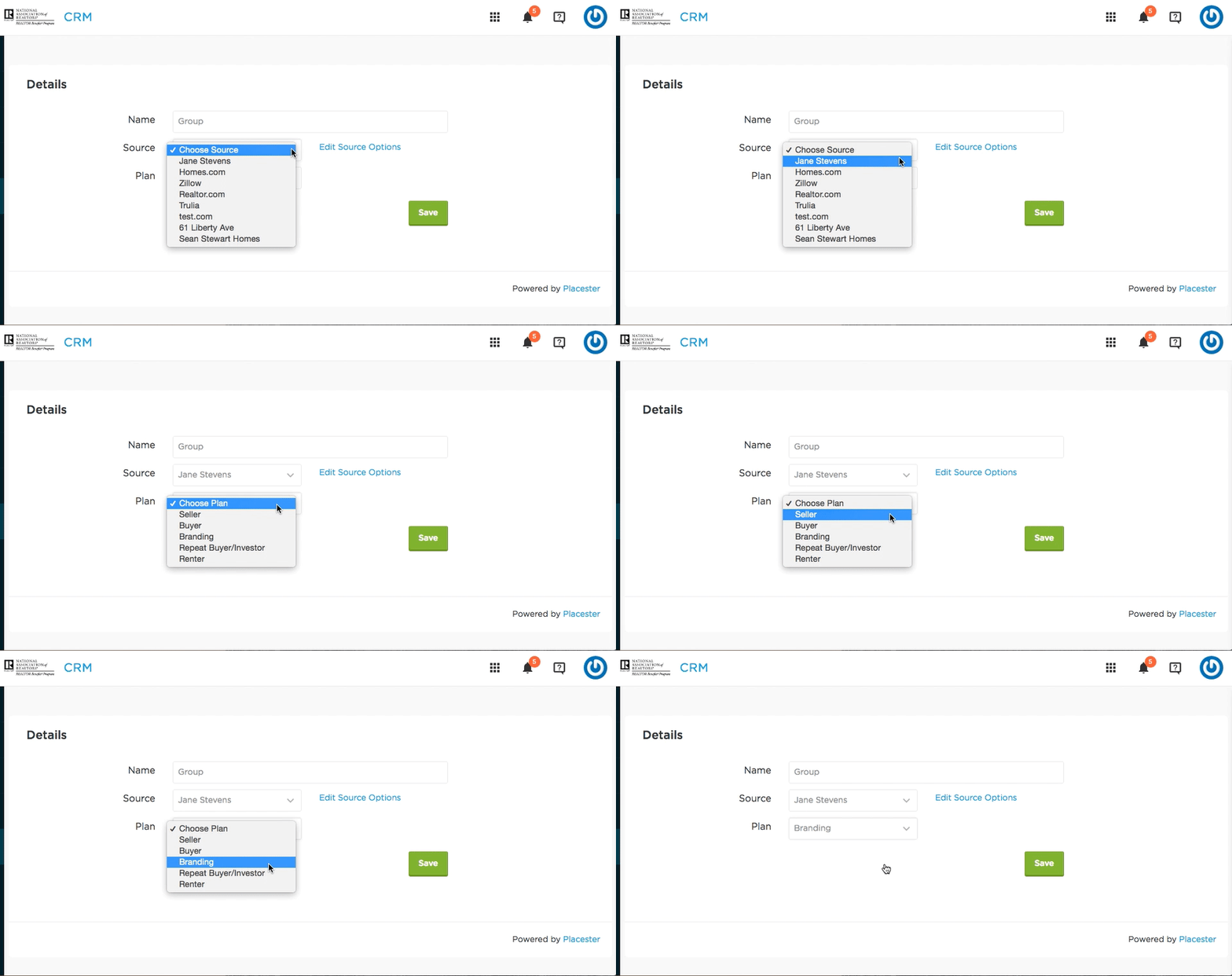
First, give the Group a name, select a Source, choose a Plan and click Save.
Once the Group has been created. You will receive a routing email to route leads from an outside source.
If you have a Broker Subscription with us, you have the ability to add Agents to the group. If you would like to add Agents, just scroll down and click the + sign next to Agents on the Groups page then select the Agents you want to add to the Group and click Save when finished.
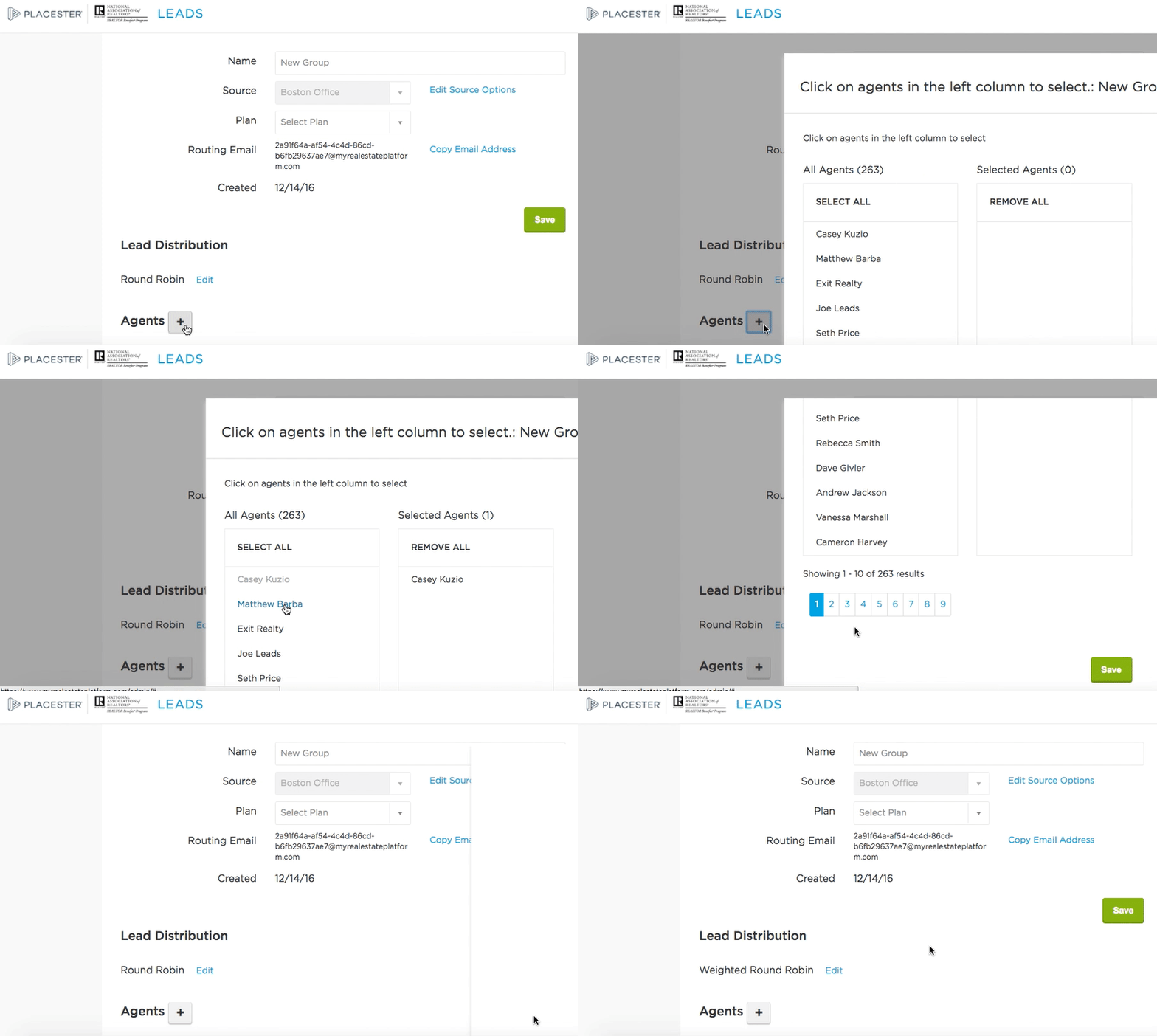
Your new Group is complete.
Need More Help?
If you have additional questions about adding your logo, let our support team know at support@placester.com.