Pointing your Custom Domain to your Placester Site [Classic]
This article will show you how to Point your Custom Domain to your Placester Site.
In order to take care of mapping your Domain to your Placester site, you will need to change both your A-Record (IP address) and CNAME (hosting platform) to Placester specific settings. The video and article on this page will walk you through this process. If you run into any trouble, we recommend speaking directly with your provider as it is their product. We have articles specific to the most commonly used domain providers click on the name below to access these articles:
- Go Daddy
- .Realtor domain
- Using another provider? Click here for a full list of our how-to articles
Having your provider map your domain
If you are going to have your provider take care of Domain Mapping for you. You will want to provide them with the following settings for pointing your site to Placester.
1. Forwarding: OFF
2. Nameservers: Set to DEFAULT
3. A-Record: 184.169.141.142
4. CNAME: domains.myrealestateplatform.com
After this is done move down to the bottom of the document and follow the instructions for your Placester site.
Mapping your domain on your own
To take care of domain mapping, you’ll need to log into your DNS management platform and change the A-Record and the CName. These can usually be found within the Domain Name Systems (DNS) section or the DNS Zone File.
A-Record:
- Points to the IP Address 184.169.141.142
- Host should be @ or * depending on the registrar
CNAME:
- Points to domains.myrealestateplatform.com
- Host should be www
Once you’ve completed these settings, log in at placester.com to access the back end of your site and complete the final step for domain mapping.
From your dashboard, click the 3 dots next to the update your site button and this will bring you to the manage domain slide out.
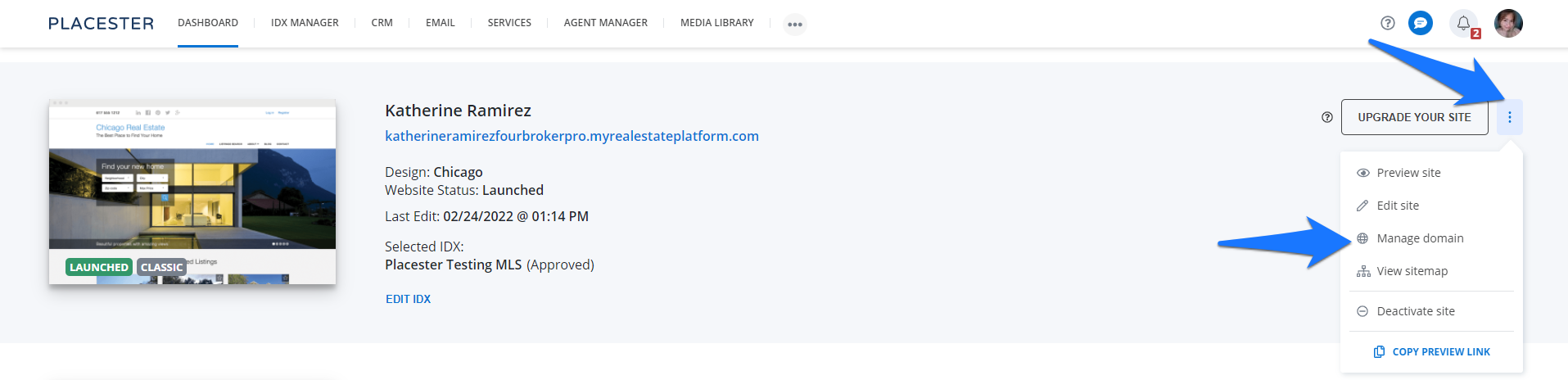
Custom Domain Slide Out
Within the custom domain slide out, add the custom domain that you're looking to use. Use only lowercase letters, and be sure to include “www” when adding in your URL. Example: www.placester.com
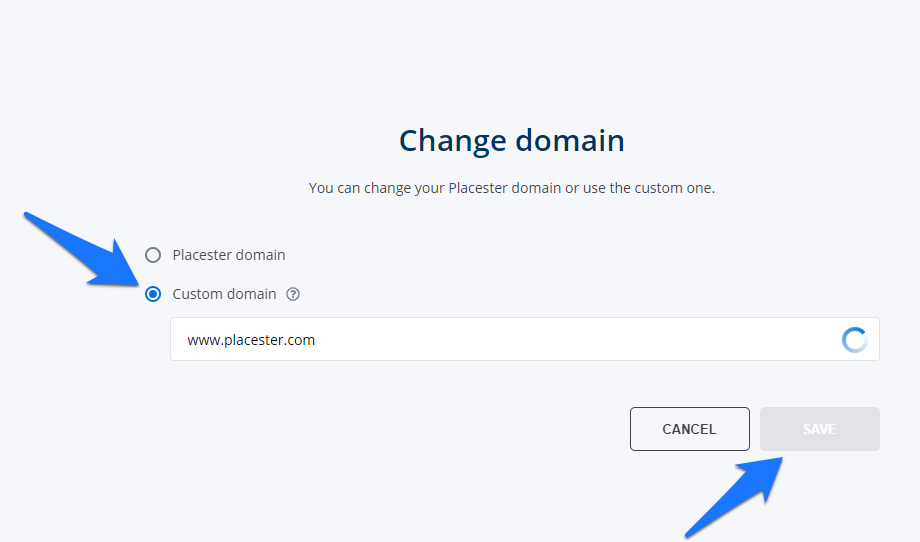
Click the Save button.
Troubleshooting
If you've made all of these changes and are finding that your site still isn't loading, here are some potential causes:
1. Caching: You have a cached copy of the site on your browser. Try clearing your cache, using a new browser or testing the site on a mobile device.
2. Propagation: DNS adjustments take longer to propagate with certain domain registrars. We like to test and make sure everything has propagated using www.WhatsMyDNS.com.
3. Errors in Site Settings > Custom Domain: make sure that you included the www before the custom domain and you didn't use any capital letters. Otherwise, the site will not load.
Pro Tip: DNS Tools
Here are some DNS tools that we recommend:
- Use WhoIs.com to find out where a domain is registered and the status of a domain
- Use WhatsMyDNS.net to check the current DNS records of a domain
Pro Tip: Purchasing a Custom Domain
Don’t have a Custom URL yet? We recommend purchasing from sites such as GoDaddy.com and Hover.com, which offer simple DNS management tools. You can find out more about this here.
Need More Help?
For questions, concerns, or feedback, please chat with our team: https://app.placester.com/chat