Linking Social Networks [Codeless]
These steps are for the Legacy Customizer. For Site Edit, see Linking Your Social Networks.
This article will show you how to add links to your social media accounts to your Placester website.
Social Media Links
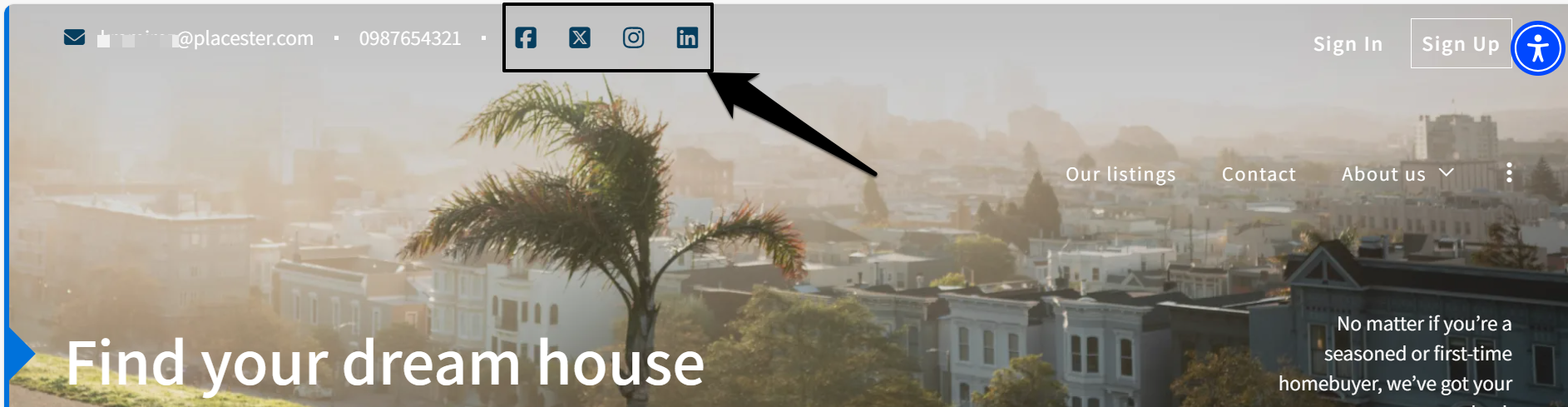
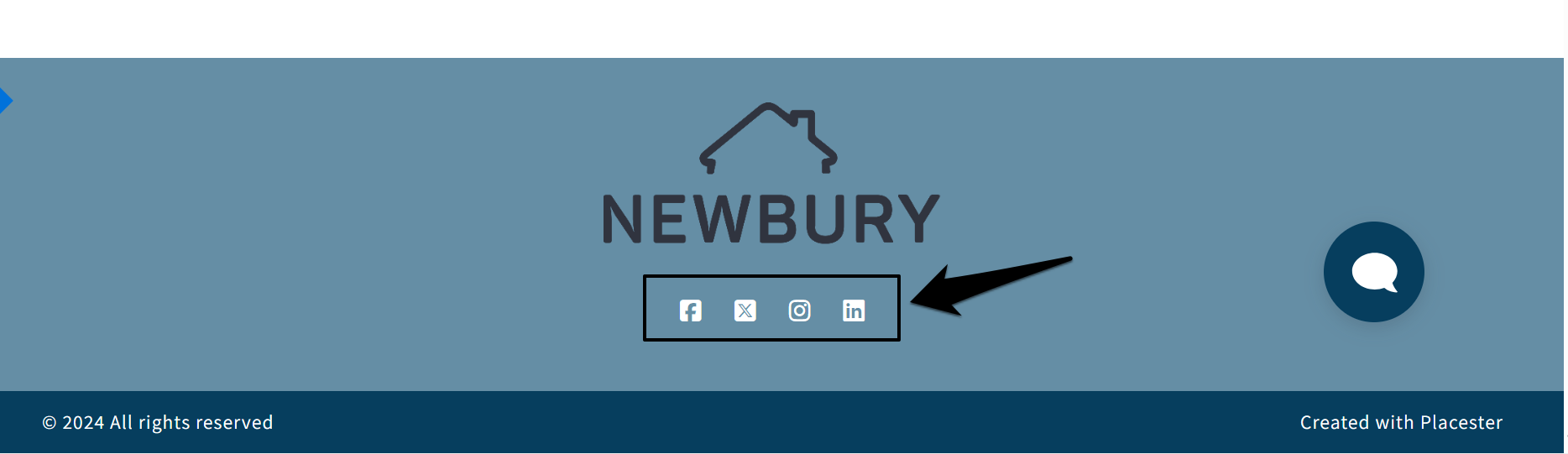
The social media links that you add will appear on the front end of your site in the header and footer. The design will look slightly different depending on which theme you're using, but generally will look something like this:
Header
Footer
Dashboard > Edit Site > General Options > Social Networks
To add your social media accounts to your website, go to the General Options tab and hit Social Networks.
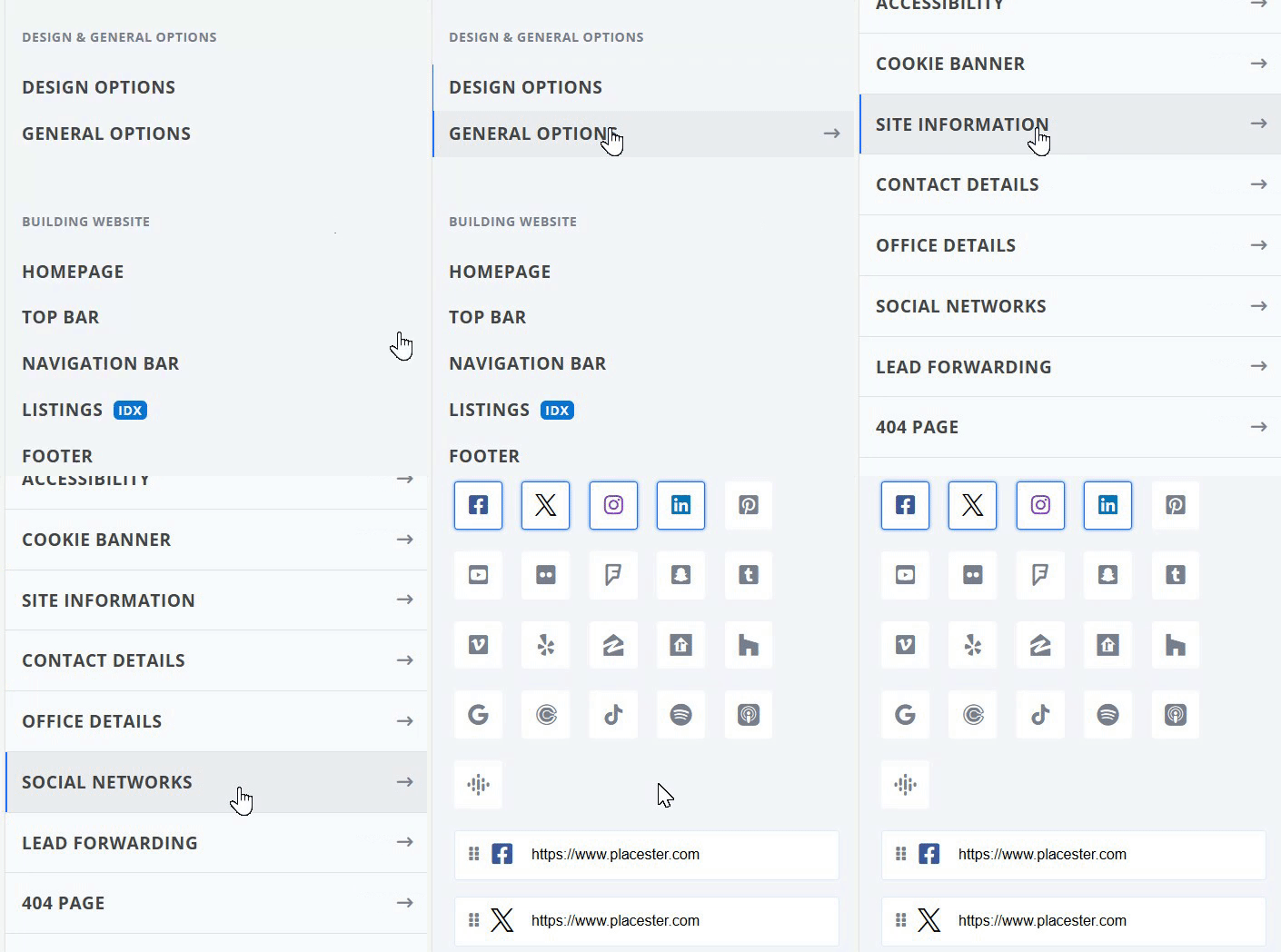
Social Networks Slide Out
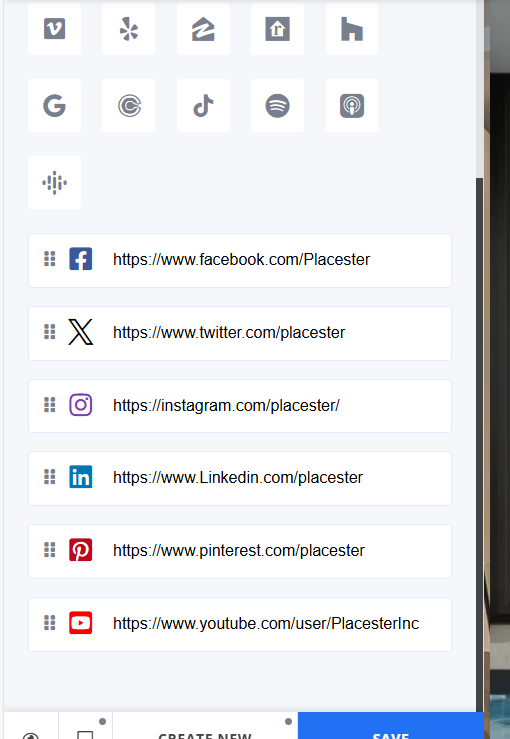
This will bring you to a screen where you add your personal or business social media accounts. Click on the social network icon that you wish to display on your website header.
Finding your Social Media Links
To enter your social media accounts, go to each of your personal or business profile pages and look at the URL, or web address then copy. For example, let’s look at Placester’s social network account URLs:
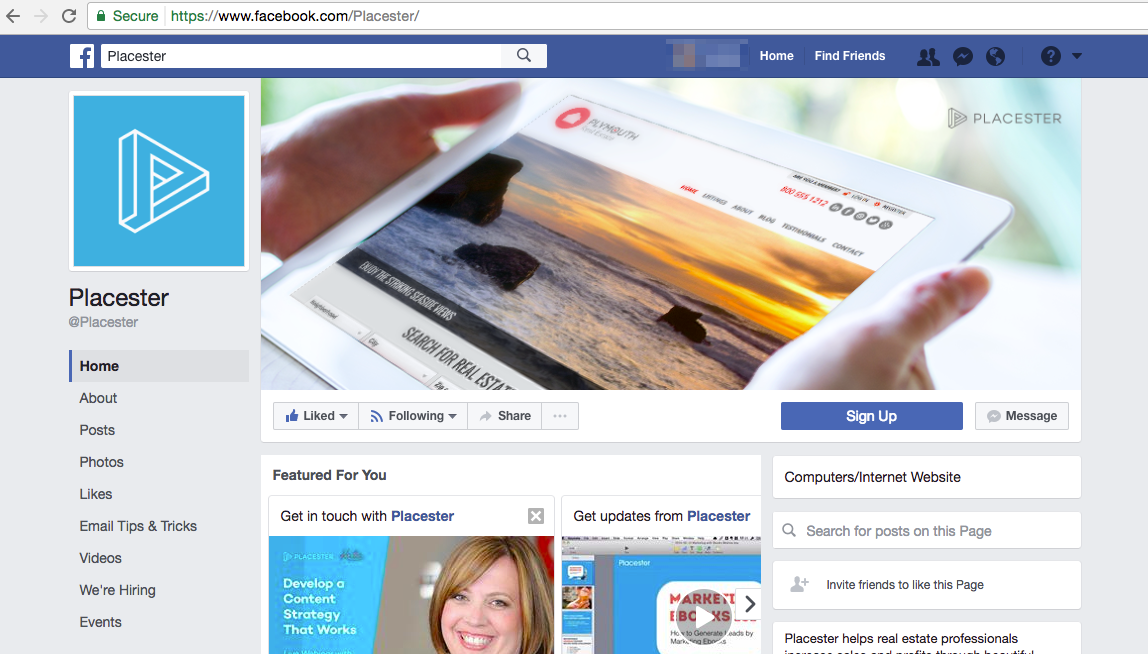
The Facebook URL is https://www.facebook.com/Placester, so we’ll just need to copy the link.
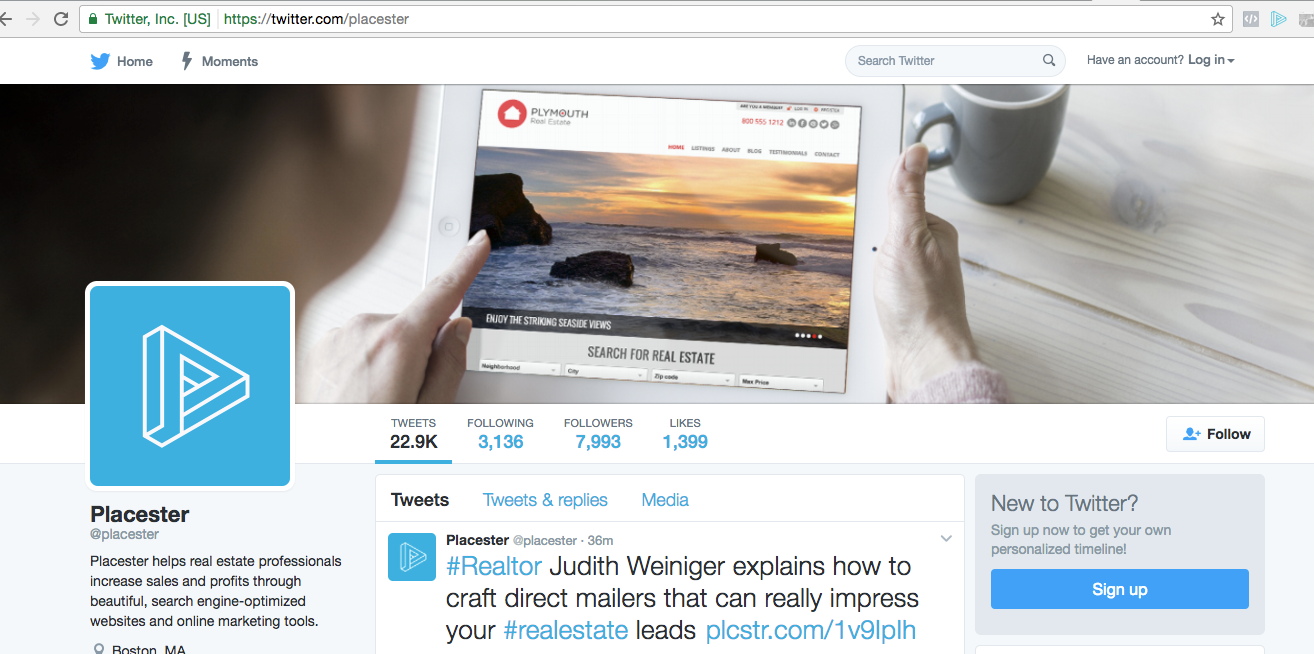
The Twitter URL is https://www.twitter.com/placester
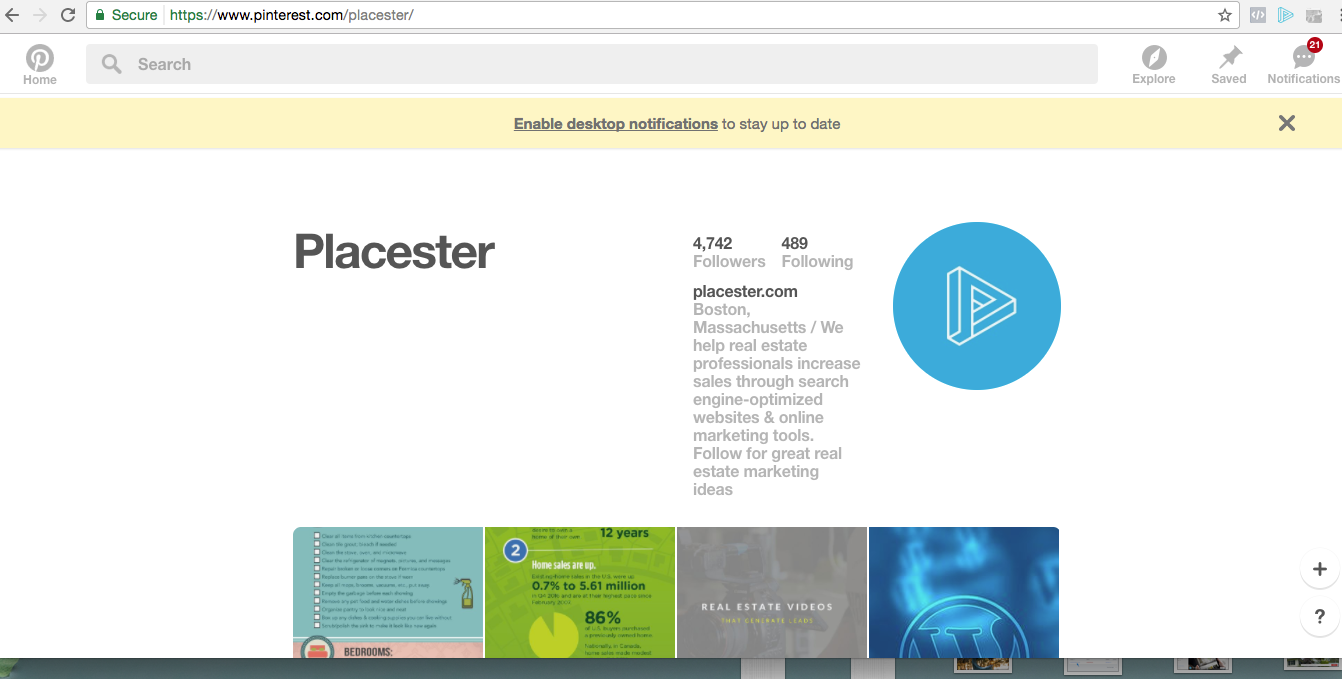
The Pinterest URL is https://www.pinterest.com/placester
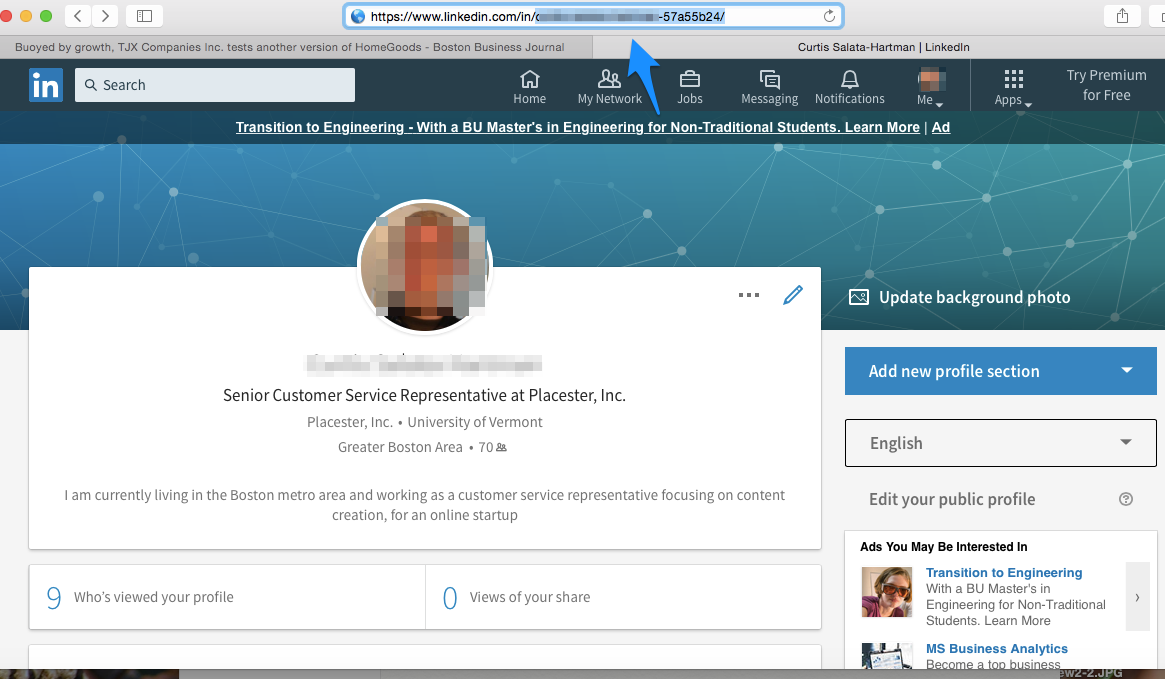
LinkedIn's system has recently been simplified all you need to do is proceed to your profile. Once there just copy everything in the url.
If you're having trouble with your LinkedIn link not working, check out LinkedIn's support article on finding your public profile URL.
Google Plus
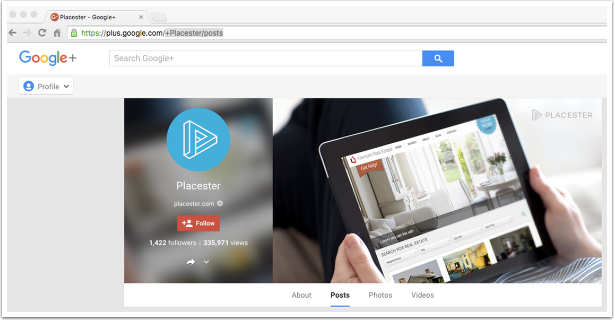
The Google Plus URL is https://plus.google.com/+Placester/posts.
Youtube
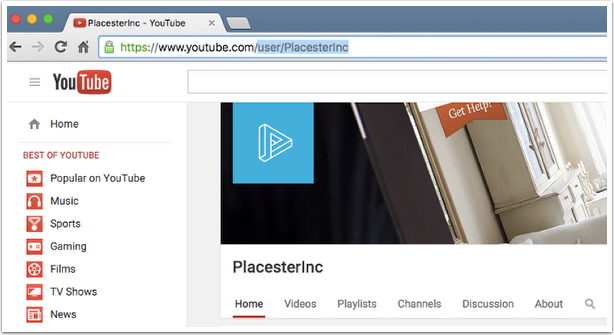
The Youtube URL is https://www.youtube.com/user/PlacesterInc
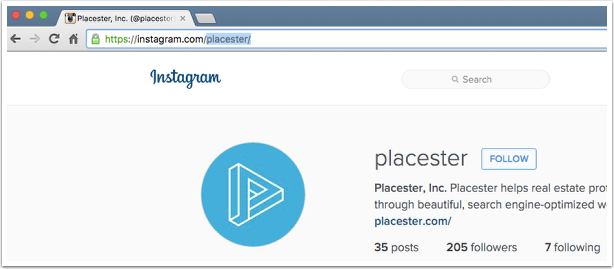
The Instagram URL is https://instagram.com/placester/
Entering your Social Networks
Now that we know your social media URLs, we can add them to the Social Networks slide out. Once you’ve filled in the blanks for your accounts, click Publish.
Don't Have All of These Accounts?
You don’t have to use every social media account. If you’re just getting started, you can add them one at a time as you become more active and learn more about the leads you generate from them. We’d recommend Facebook and Twitter to start, as they are the two most popular social media sites.
Need More Help?
For questions, concerns, or feedback, please chat with our team: https://app.placester.com/chat