Linking Your Social Networks
Your site can show icons that link to your profiles on social networks and real estate sites. The icons show in the header, the footer and the about module of your site. You add the links in Site Edit Settings.
Important: These links do not go into the draft. Each link saves automatically, and visitors see it without Publish. Discard does not undo it.
Find your profile links
Open your profile on each network in a browser, then copy the full address from the address bar. Copy all of it, including https://, for example https://www.facebook.com/yourpage.
Open social networks
- Select Dashboard in the top menu.
- On the site card, select EDIT SITE. Site Edit opens with your homepage.
- Select Settings in the top bar, then select the Site tab.
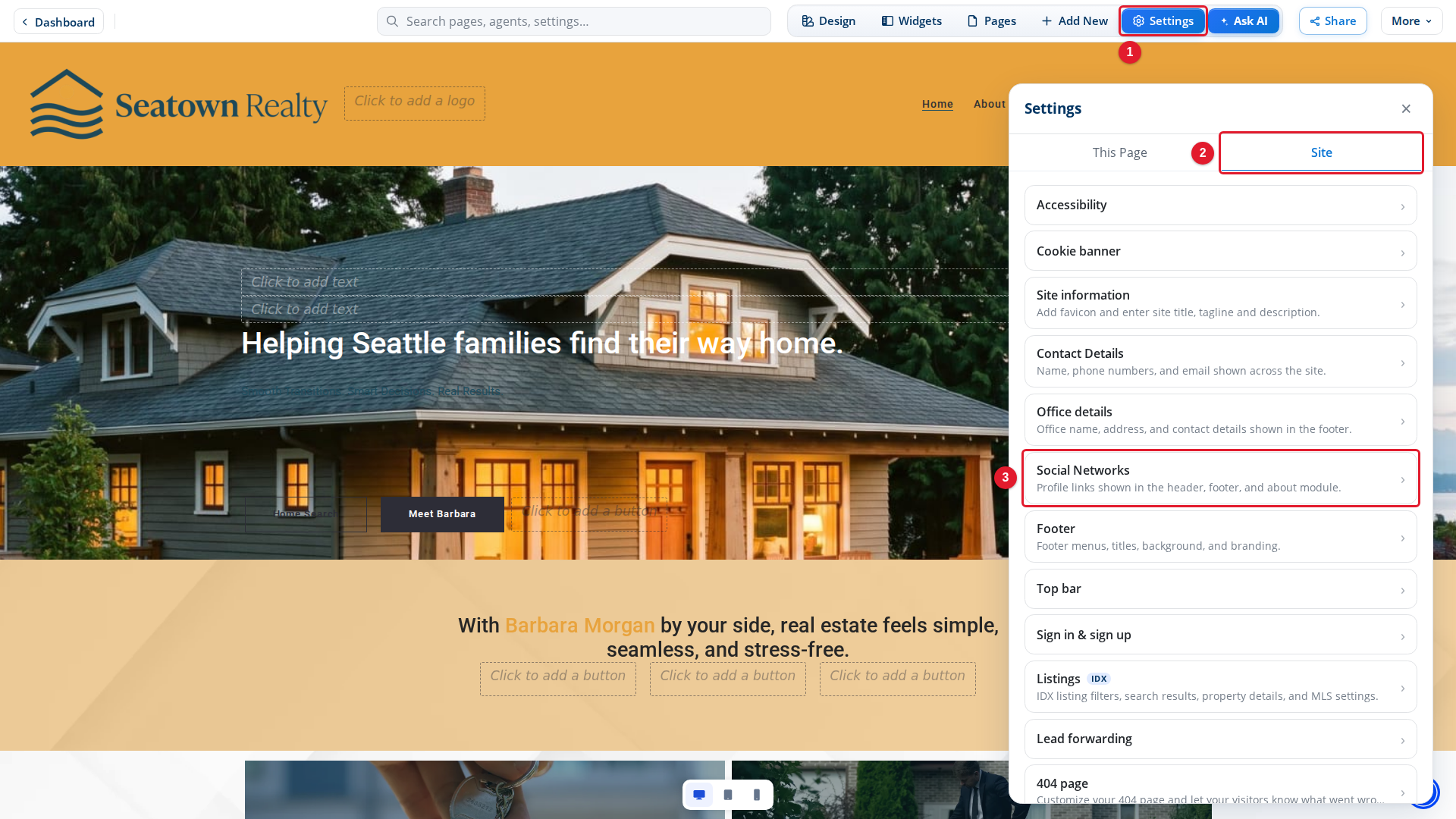
- Settings: Opens Settings.
- Site: Settings that apply to the whole site.
- Social Networks: The links to your profiles on social sites.
Select Social Networks. A note at the top of the panel says: "Changes saved here are visible on your live site immediately. They do not use draft mode."
Add a profile link
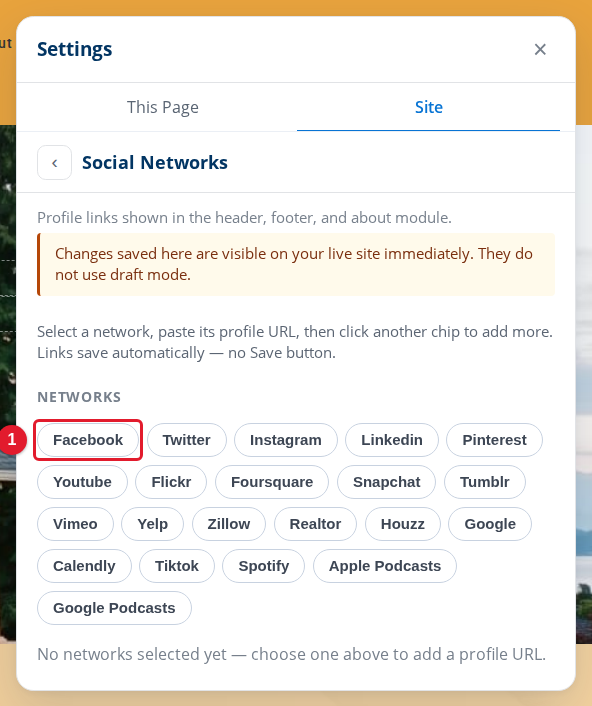
- Facebook: Select a network to add a box for its profile link.
The list has Facebook, Twitter, Instagram, Linkedin, Pinterest, Youtube, Flickr, Foursquare, Snapchat, Tumblr, Vimeo, Yelp, Zillow, Realtor, Houzz, Google, Calendly, Tiktok, Spotify, Apple Podcasts and Google Podcasts.
Select a network. A box for its profile URL appears under Profile URLs.
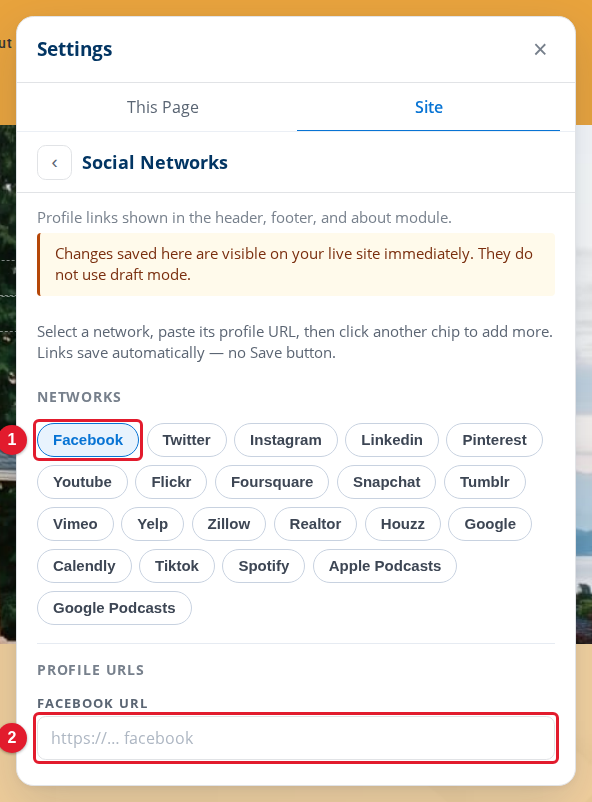
- Facebook: The selected network is highlighted.
- Facebook URL: Paste the address of your profile here.
Paste the address of your profile into the box, then press Tab. Wait a few seconds before you close the panel. To add another link, select the next network.
There is no Save button. Each link saves automatically.
Remove a profile link
Select the highlighted network again. Its box goes away, and the link is removed from your site.