Renaming Your Site
You can rename your site from the Dashboard so the site name stays up to date without opening EDIT SITE.
Open your Sites list in the Dashboard
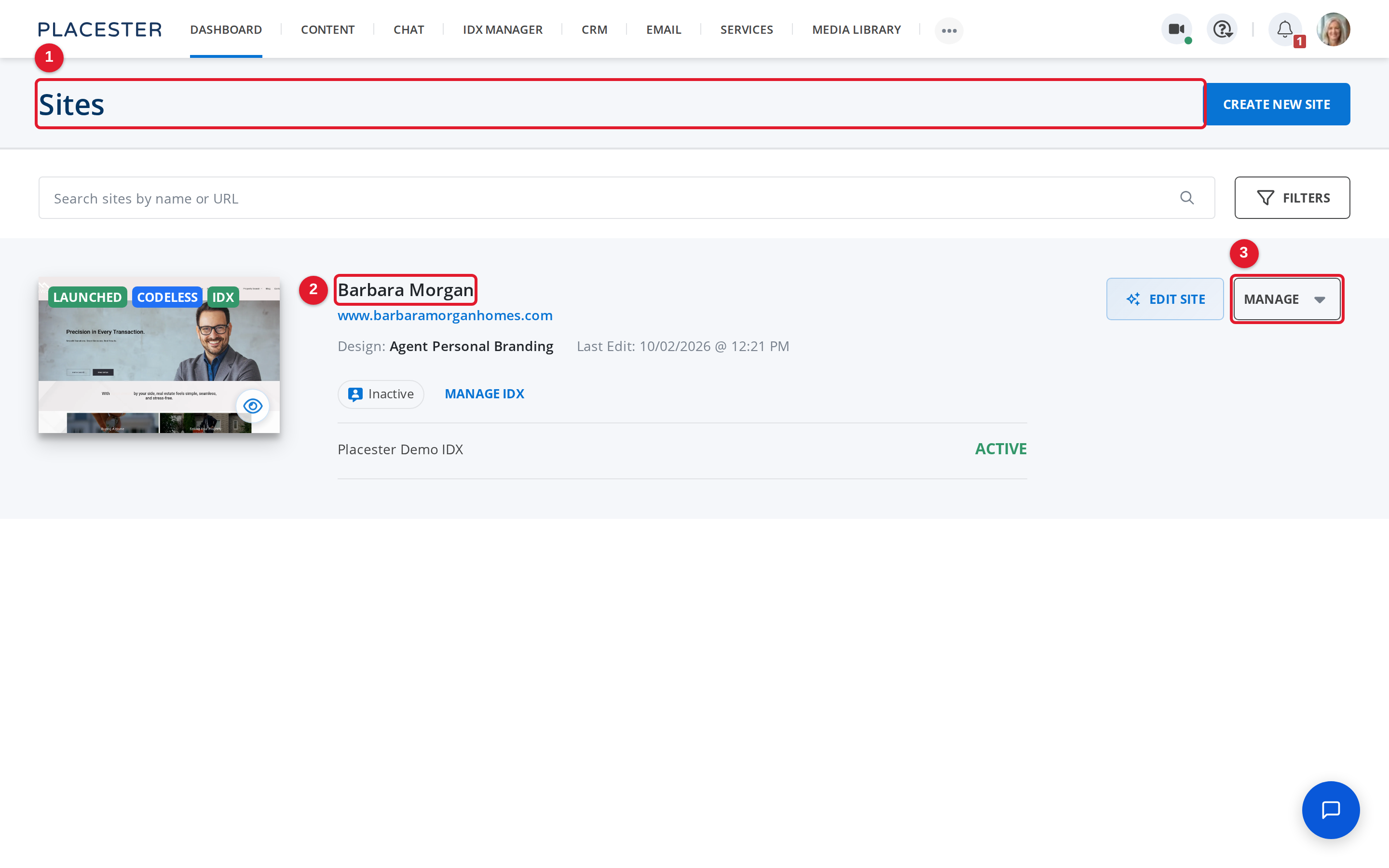
- Sites: This is where you view all of your Placester websites.
- Barbara Morgan: Each site card shows the current site name.
- MANAGE: Open this menu to access site management actions.
Open the Change site name screen
For the site you want to rename, open MANAGE, then select Rename site. This opens the Change site name dialog.
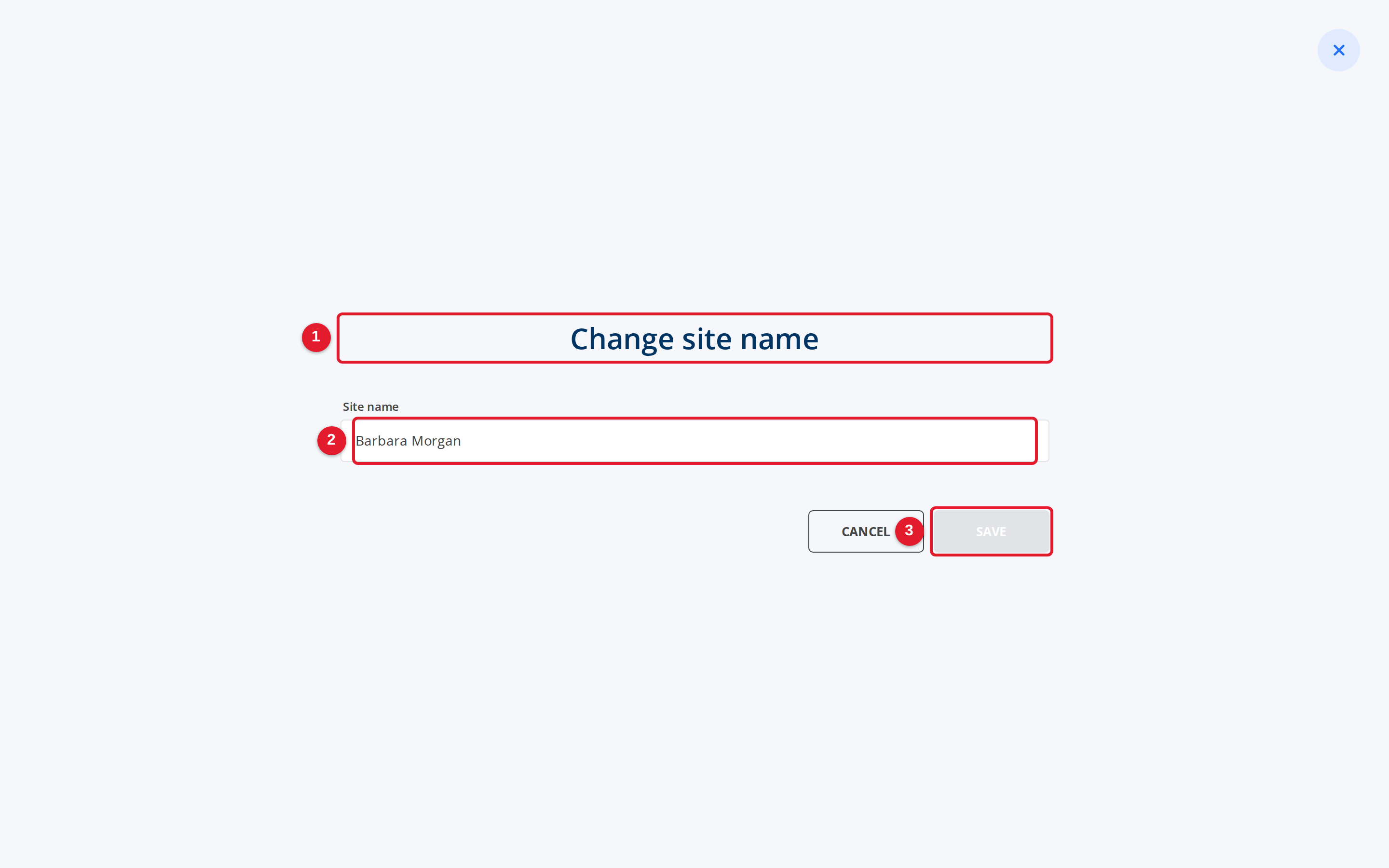
- Change site name: This screen lets you rename the selected site.
- Type new name: Enter the new name you want to use for the site.
- SAVE: Save applies the new site name.
Review the new site name field before saving
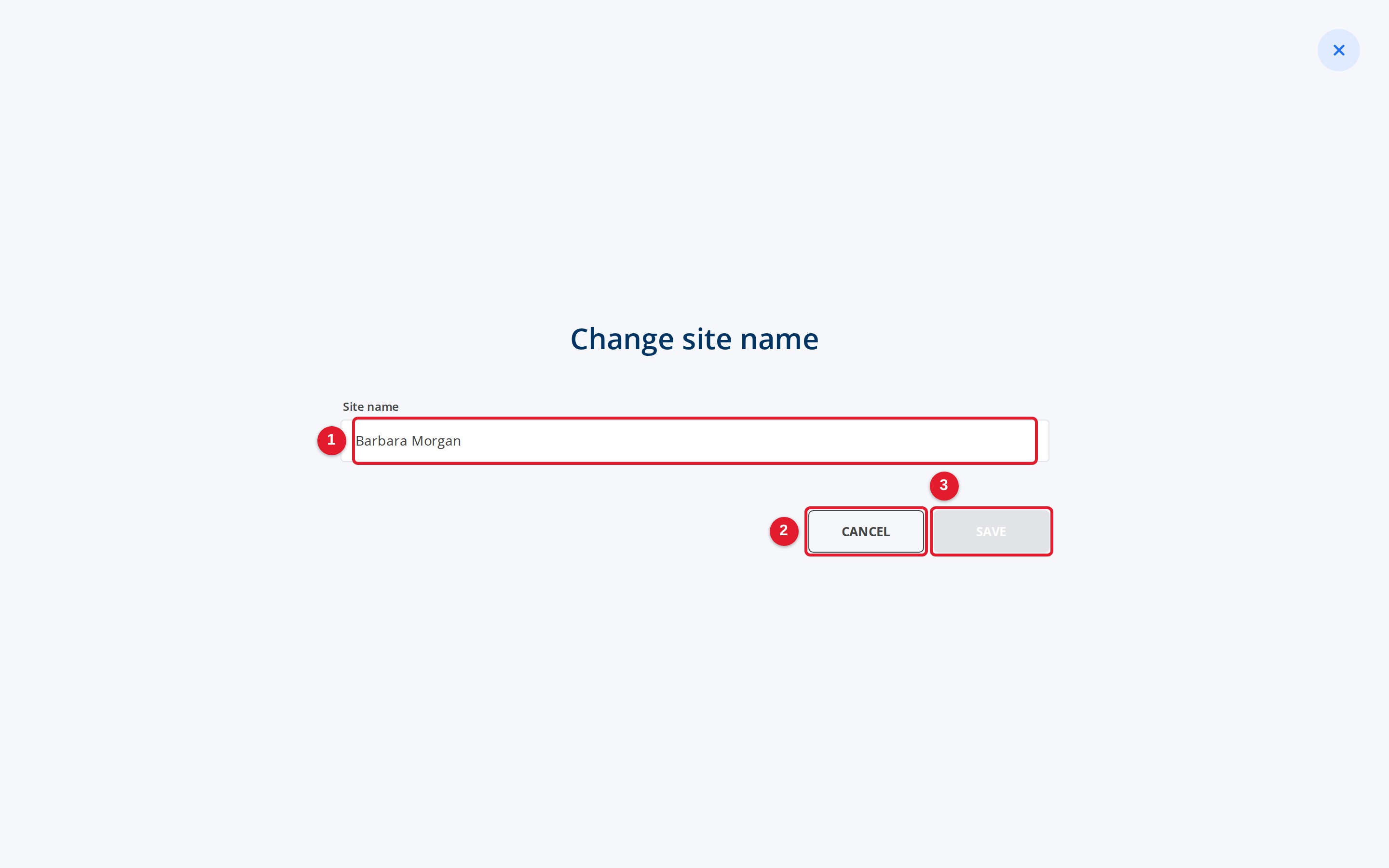
- Type new name: Type the updated site name here.
- CANCEL: Cancel closes this screen without saving changes.
- SAVE: Save confirms the new site name when you are ready.