Connecting Your Domain
You can change your site's web address from the Dashboard. Use these steps to switch to a Placester domain or connect a domain you already own.
Open the Change Domain dialog
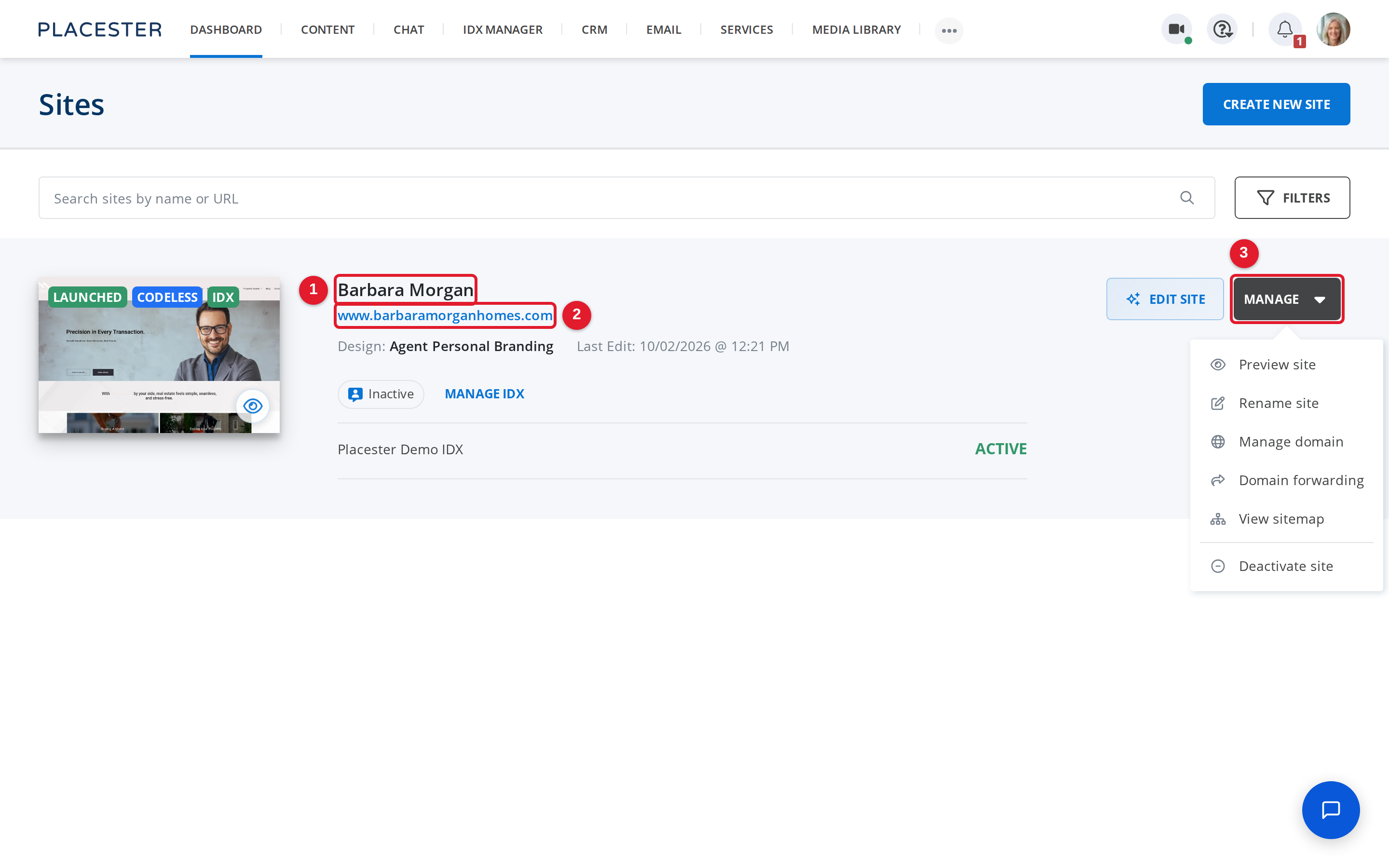
- Barbara Morgan: This is the site whose domain you want to manage.
- www.barbaramorganhomes.com: This shows the site's current web address.
- MANAGE: Open this menu to find domain settings for the site.
Find your site on the Sites page. Select MANAGE, then select Manage domain.
Choose a Placester domain
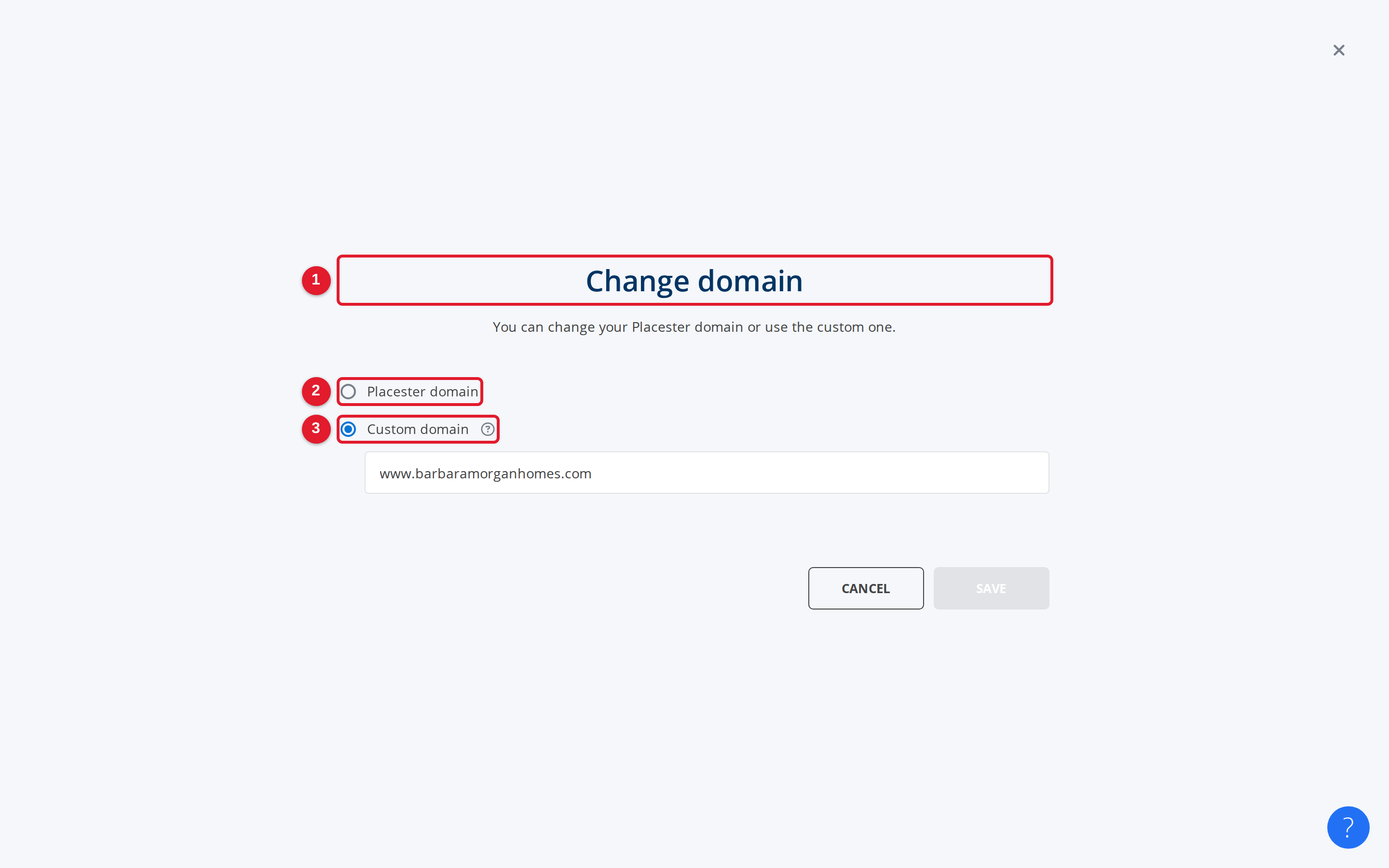
- Change domain: This dialog is where you change the site's address.
- Placester domain: Choose this option to use a Placester-provided domain.
- Custom domain: Choose this option instead if you already own a domain.
In Change domain, select Placester domain if you want to use a Placester domain. When you are ready, select SAVE.
Connect a custom domain
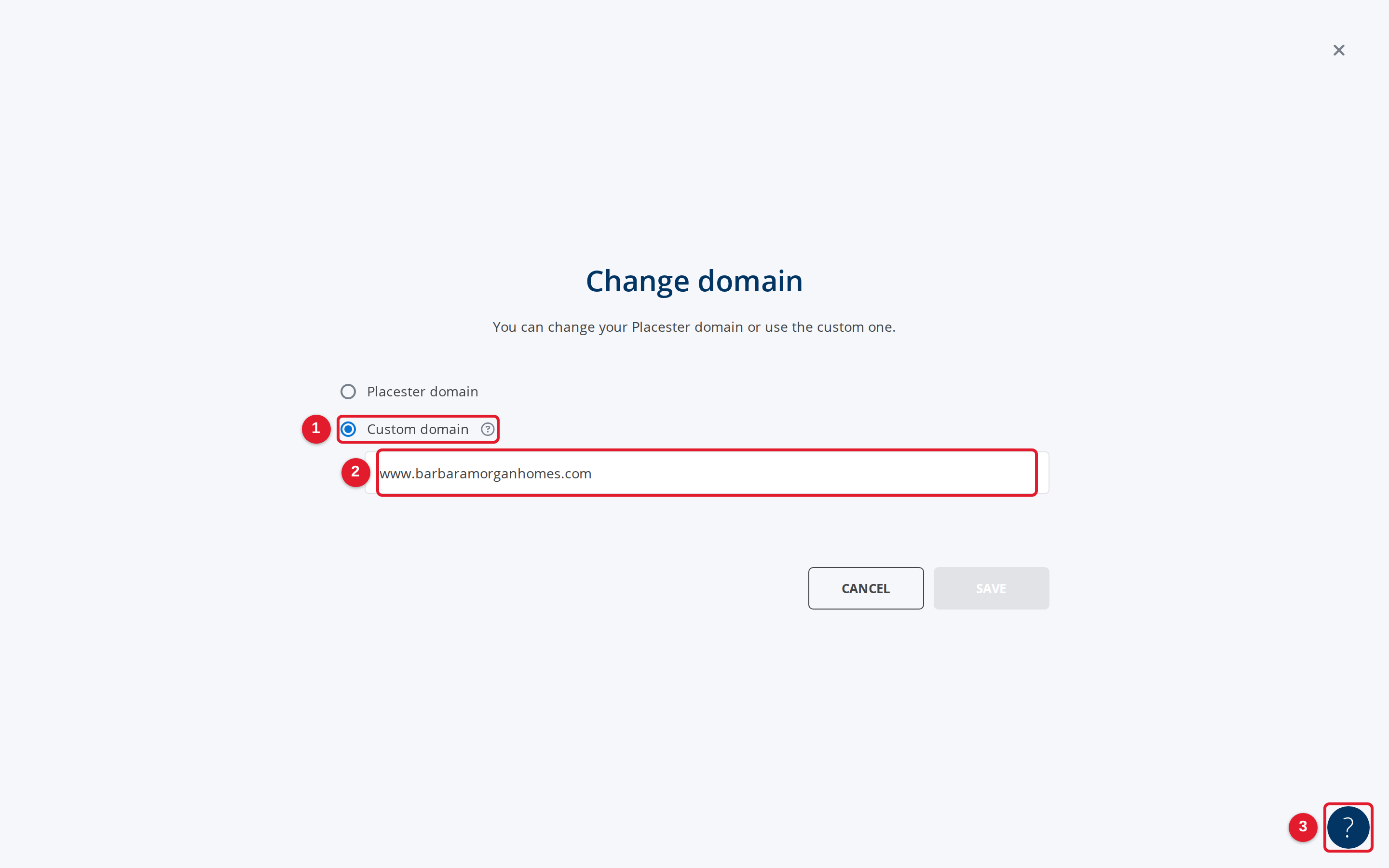
- Custom domain: Choose this option to connect a domain you already own.
- Enter custom domain: Enter the custom domain you want this site to use.
- ?: Use this help button if you need guidance while changing domains.
In Change domain, select Custom domain. Enter your domain in Enter custom domain, then select SAVE.