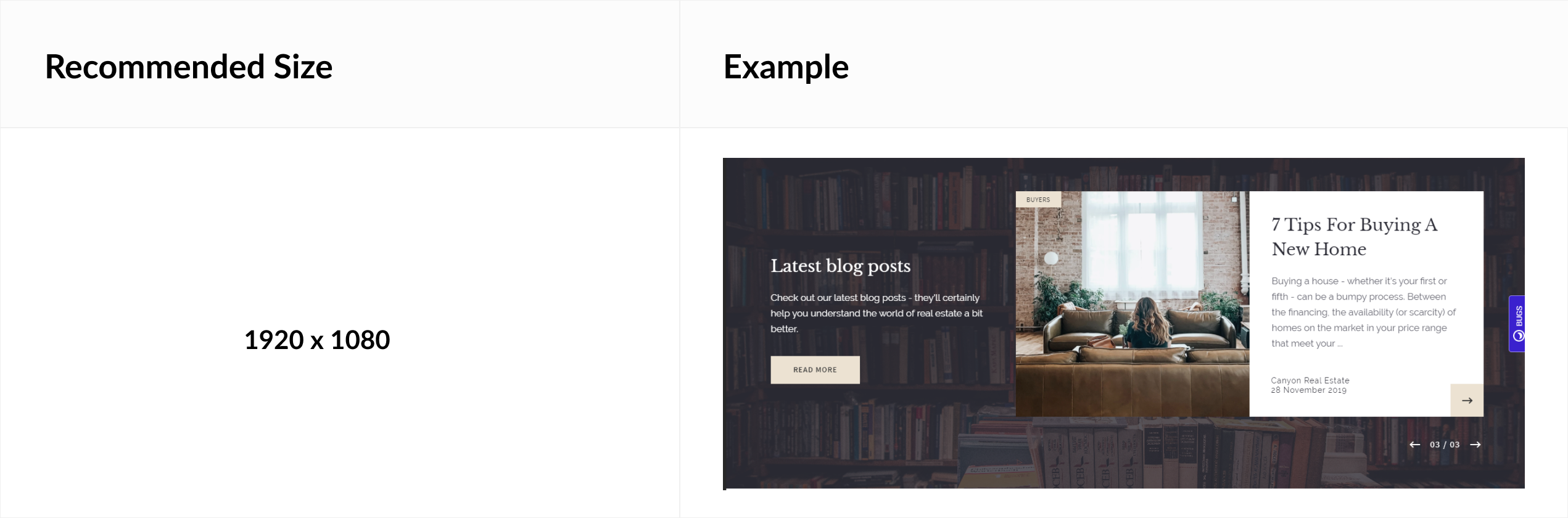
Image Dimension Guide [Codeless]
This article will showcase the recommended dimension for all the images across Codeless sections, modules, and pages.
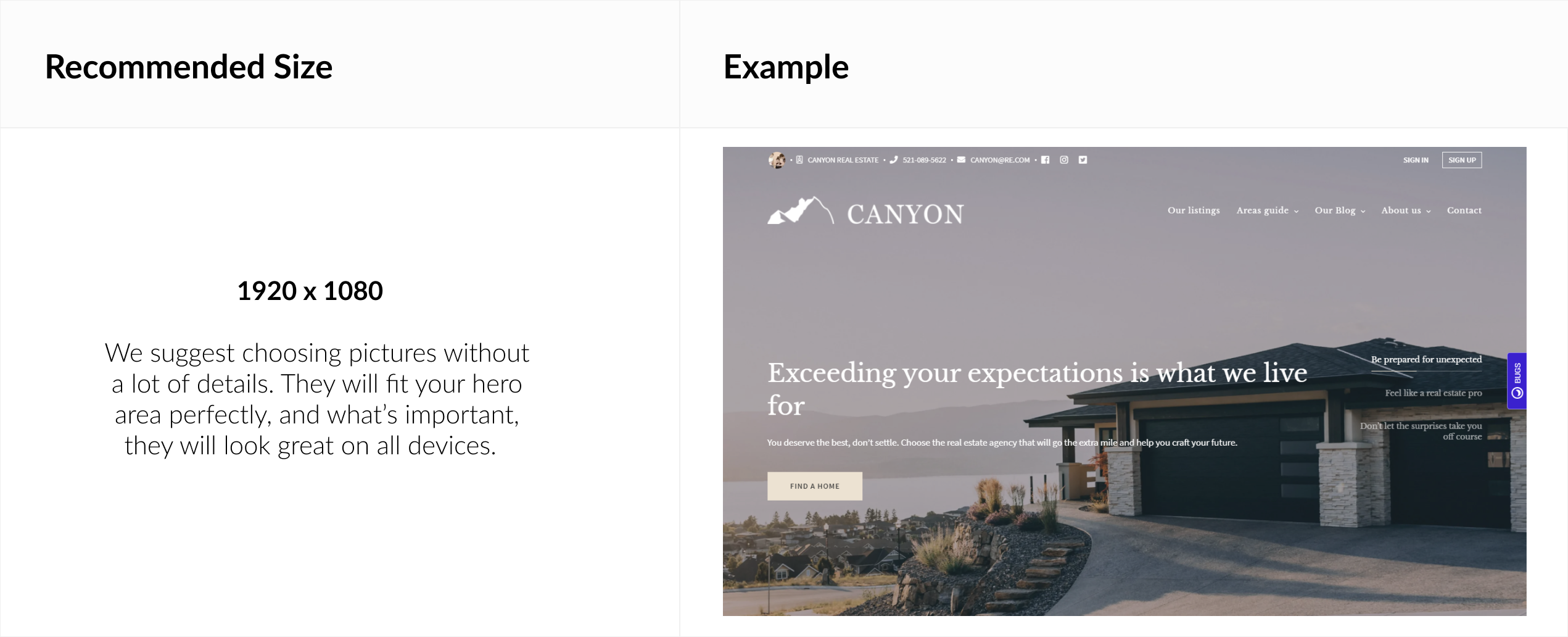
Homepage Hero image
You can change your Homepage Hero image, by going to:
Homepage > Edit Homepage Hero > Edit Homepage Slideshow
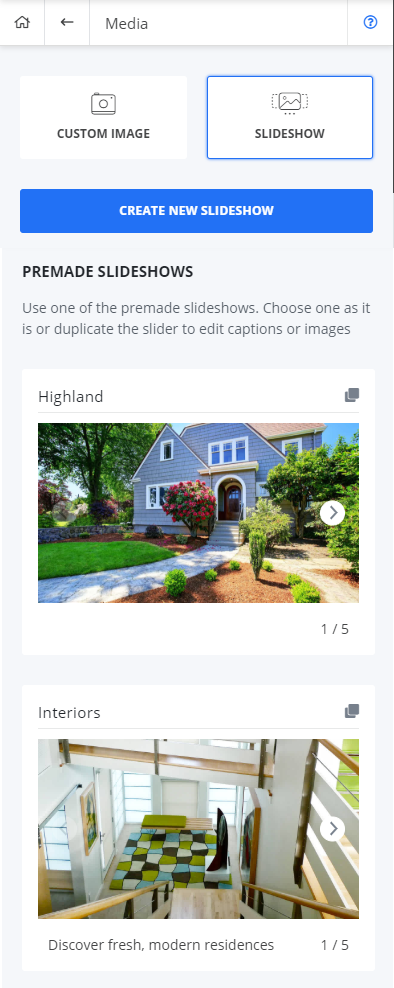
We have already prepared for you predefined packages with images of homes, scenes, and landscapes. You’re free to use, and you can be sure that your site will look beautiful with them!
Logo
You can upload a logo of your choice by going to:
Design Options > Logos
Featured Content Cards - background image
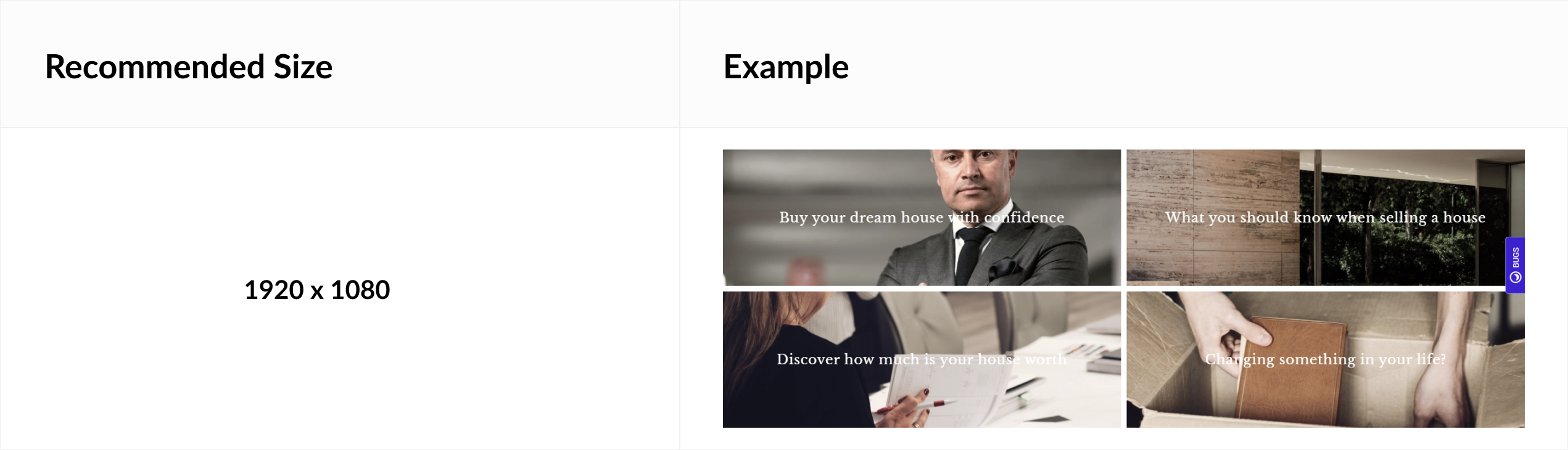
It is important to provide a high quality image for Featured Content Card because depending on layout and the number of cards, they will spread differently.
Contact Details - photo
To add it go to:
General Options > Contact Details
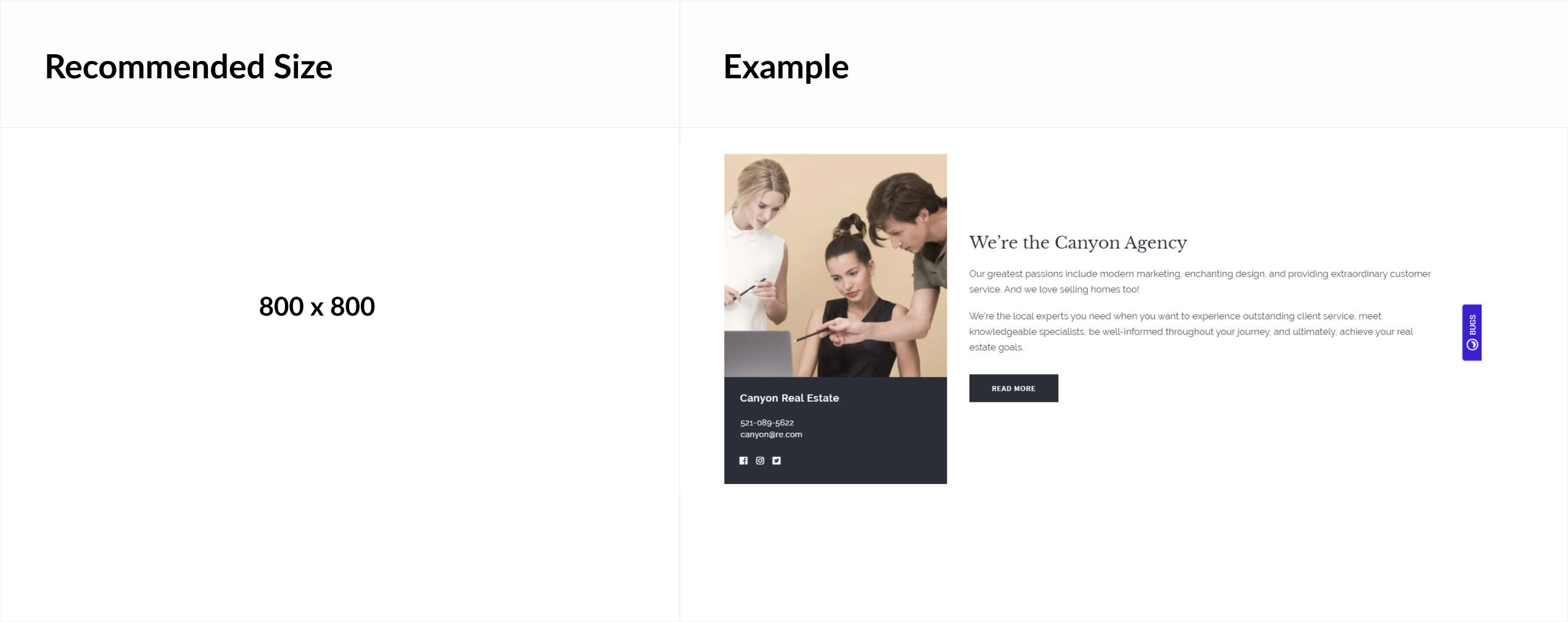
The Contact Details image will appear in MODULE ABOUT, and on SOCIAL BAR at the top of the homepage.
Note that the recommended dimensions here are the same for both height and width.
Area - featured image
PLAN ADVANCED AND ABOVE
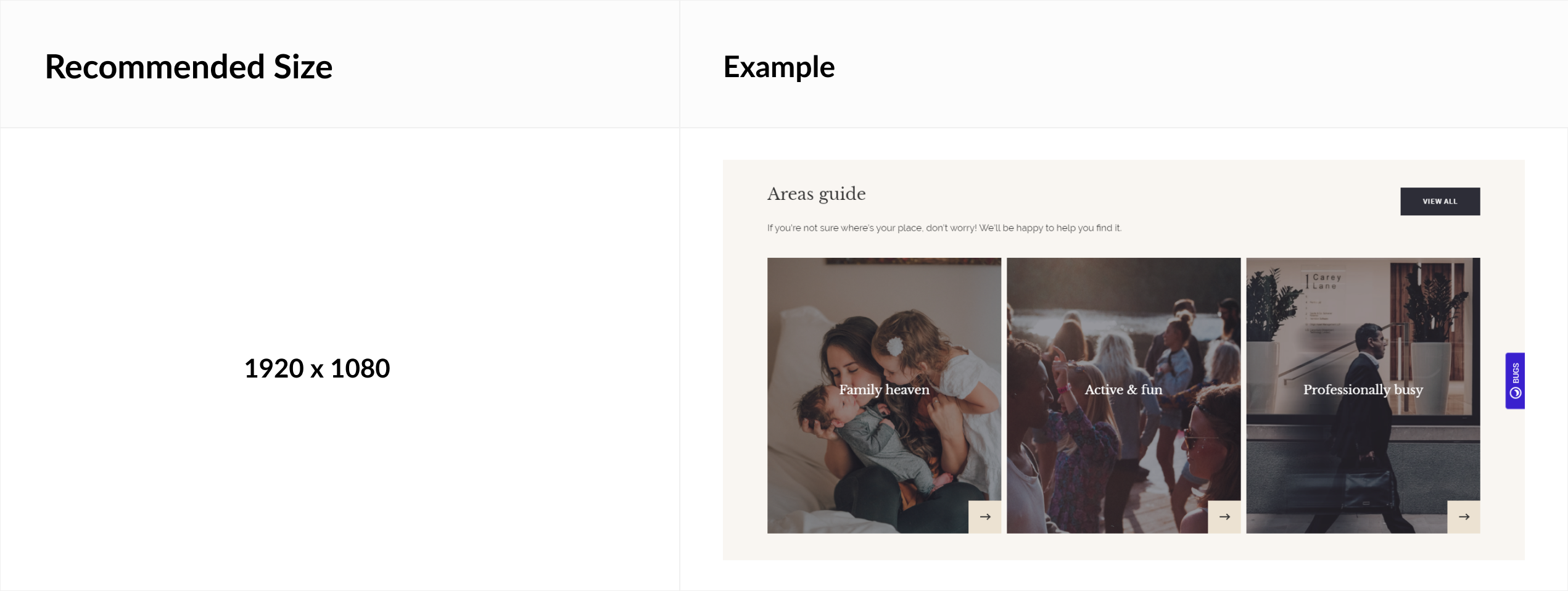
It is important to provide a high quality image for Featured Content Card because depending on layout and the number of cards, they will spread differently.
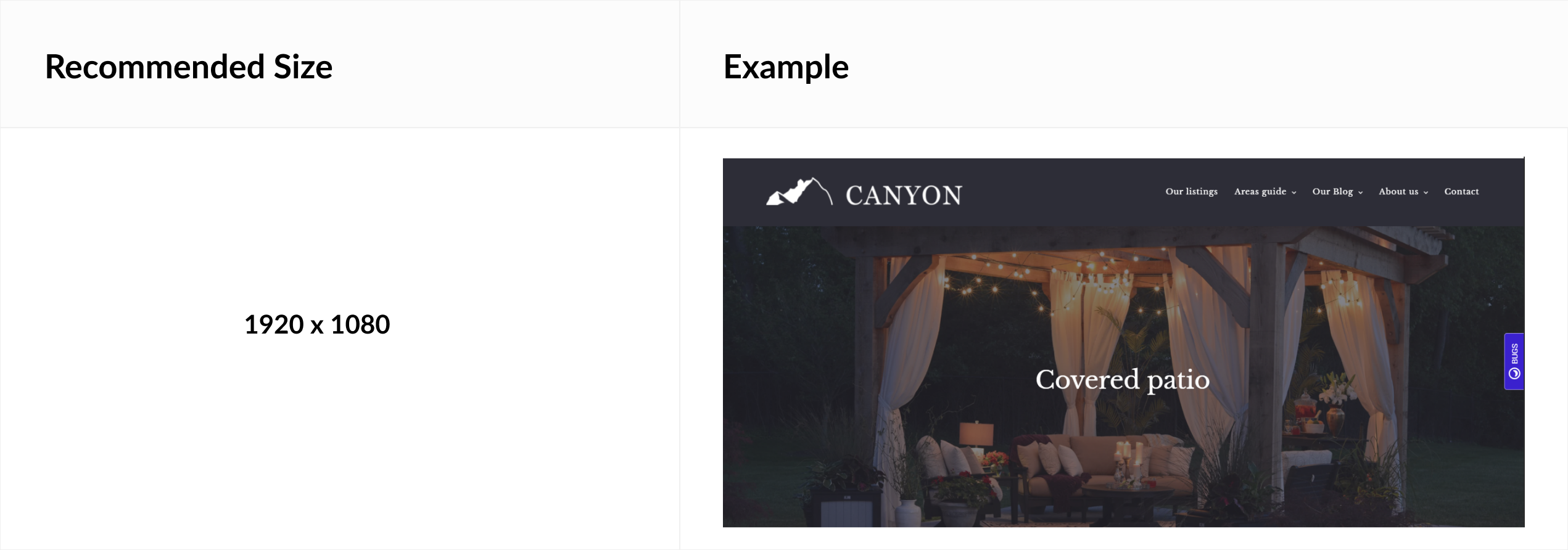
Area slider
PLAN ADVANCED AND ABOVE
Testimonial - featured image
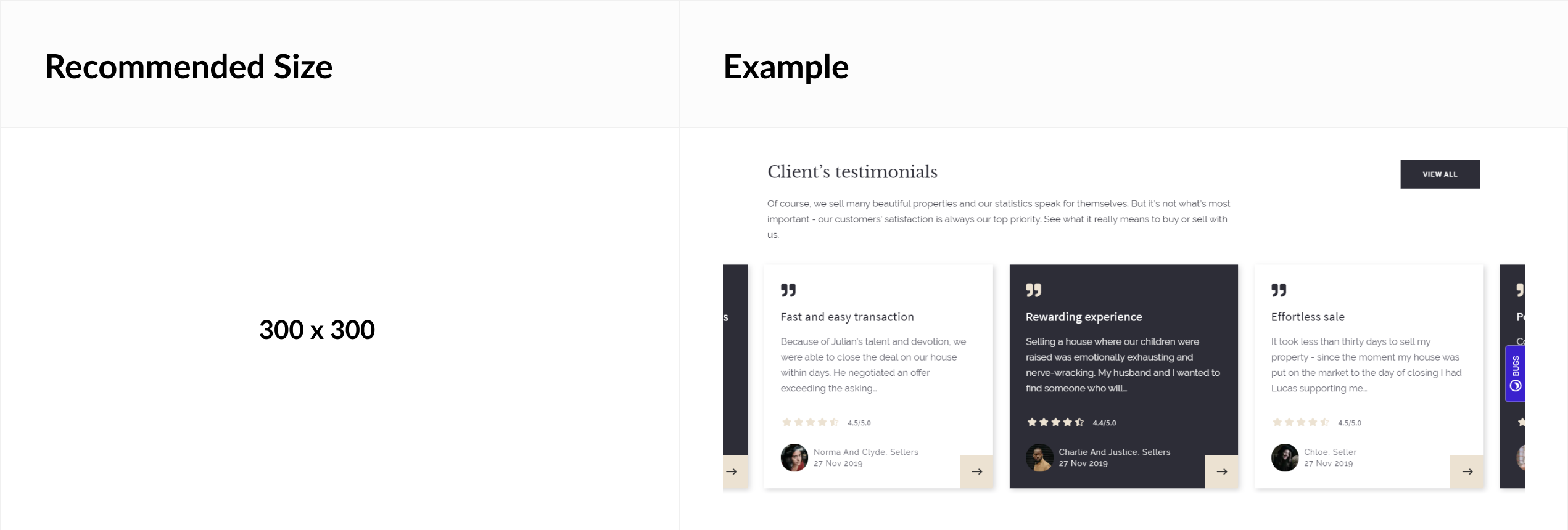
Note that the recommended dimensions here are the same for both height and width.
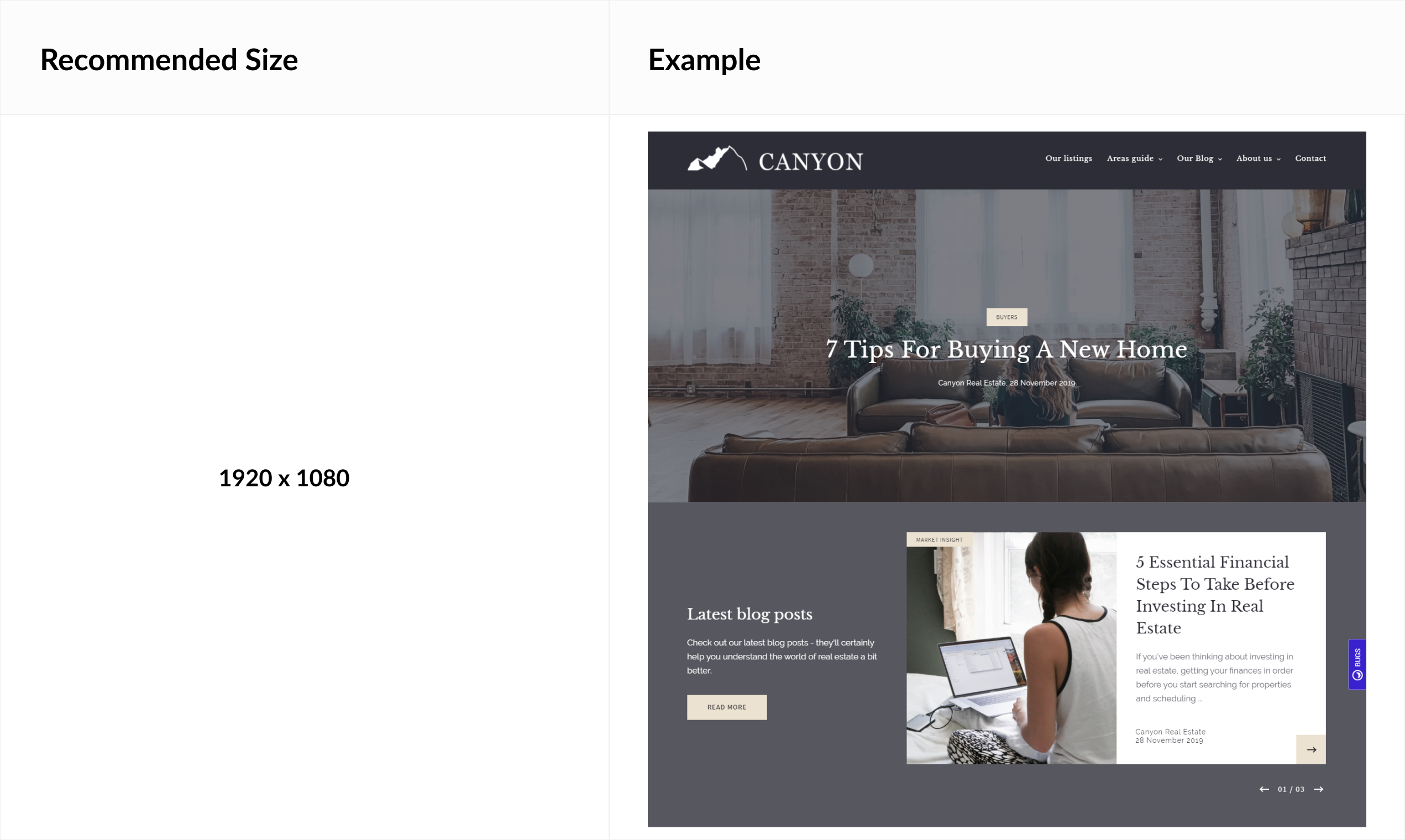
Blog post - featured image
Custom content - background image
PLAN ADVANCED AND ABOVE
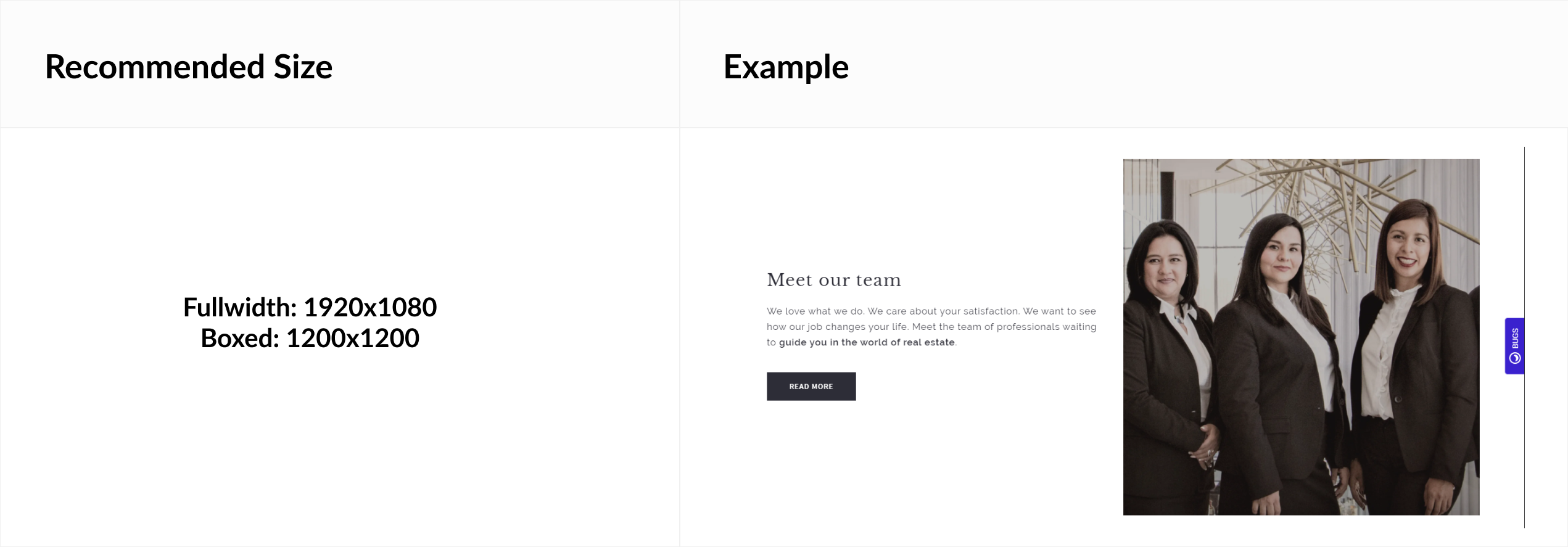
Here, recommended image size depends on the Custom Content layout that you have chosen before.
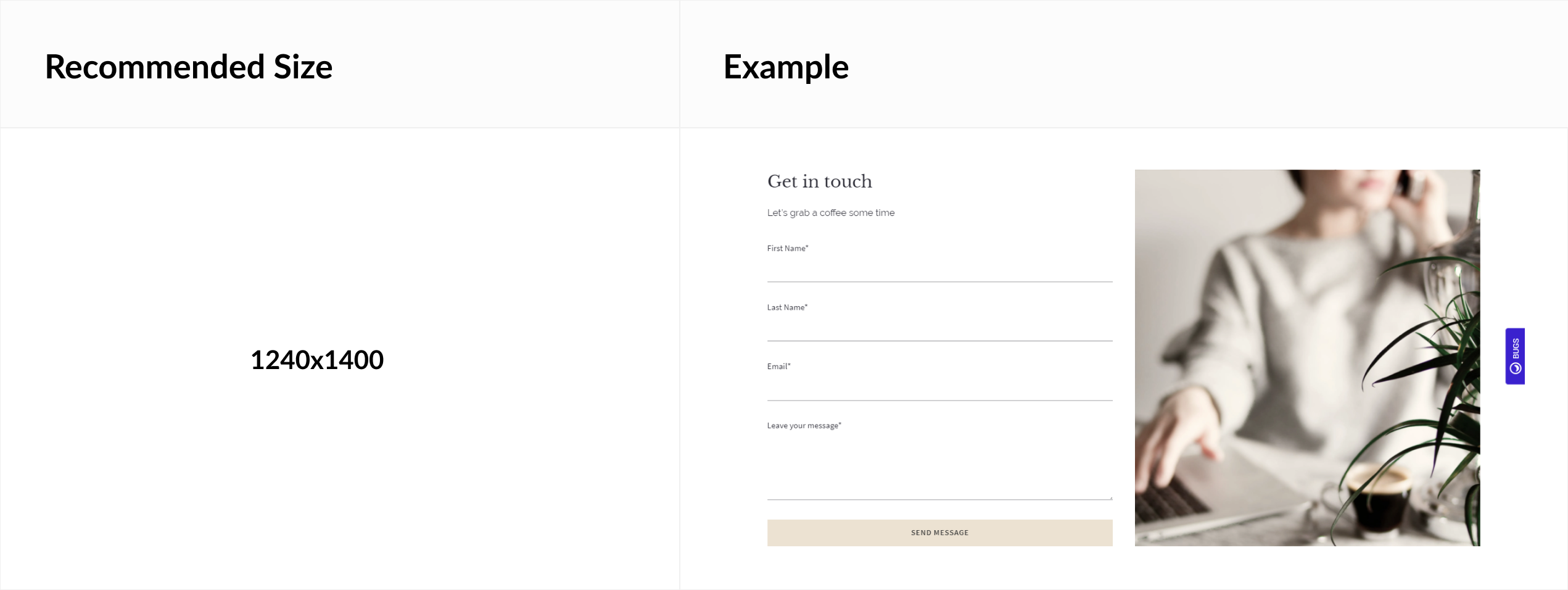
Contact - image
Agent - featured image
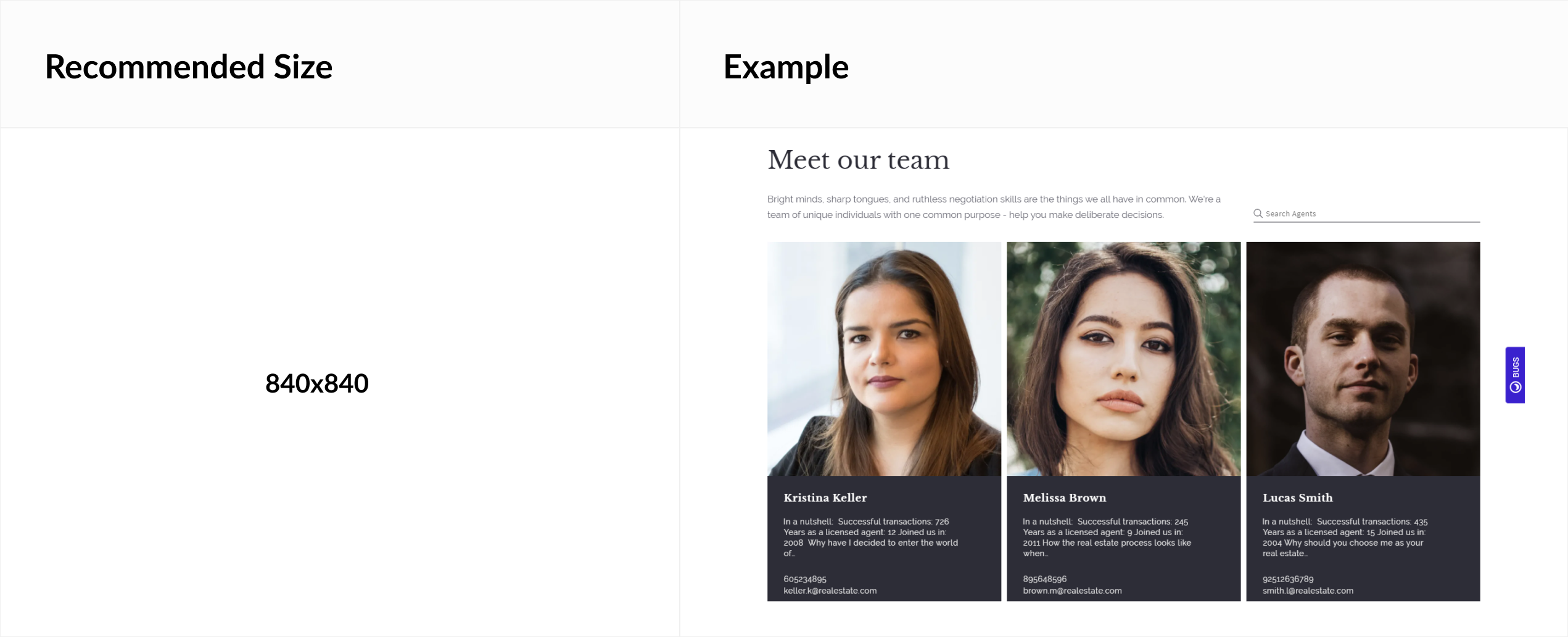
Note that the recommended dimensions here are the same for both height and width.
Office - featured image
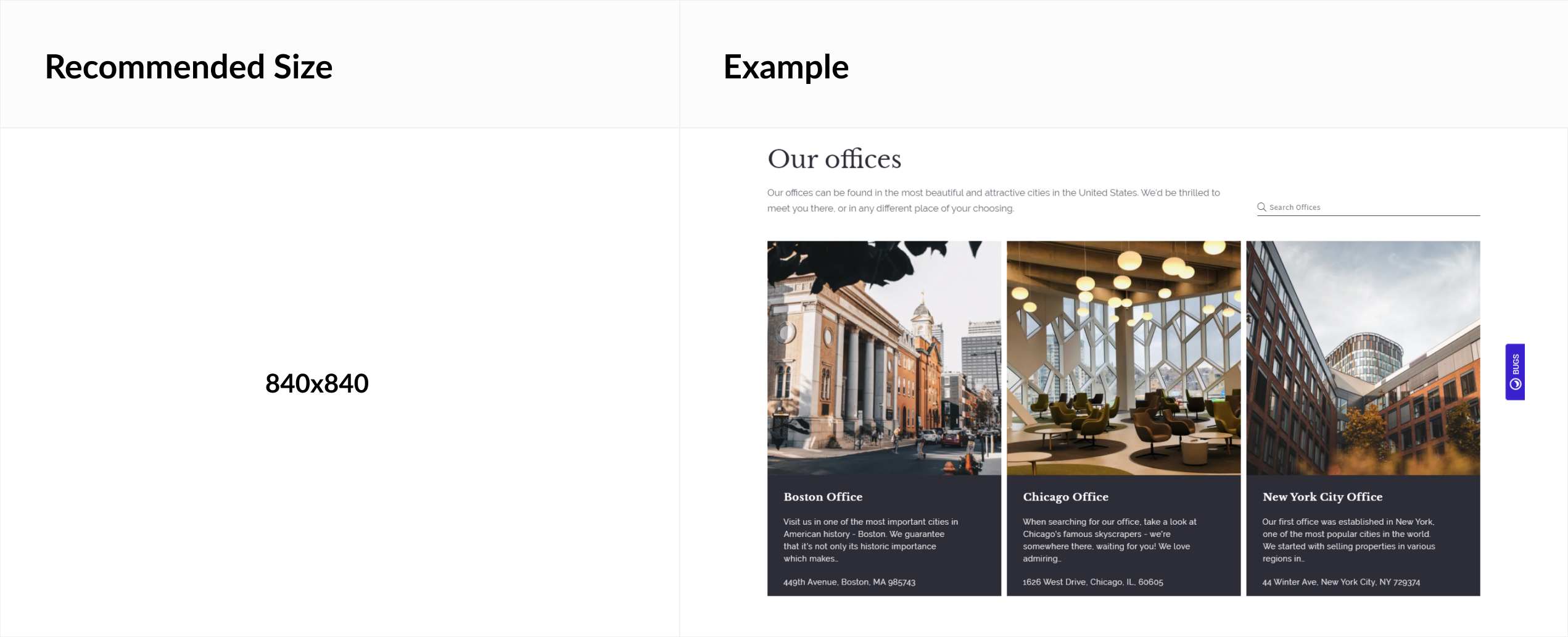
Note that the recommended dimensions here are the same for both height and width.
Mortgage calculator - image
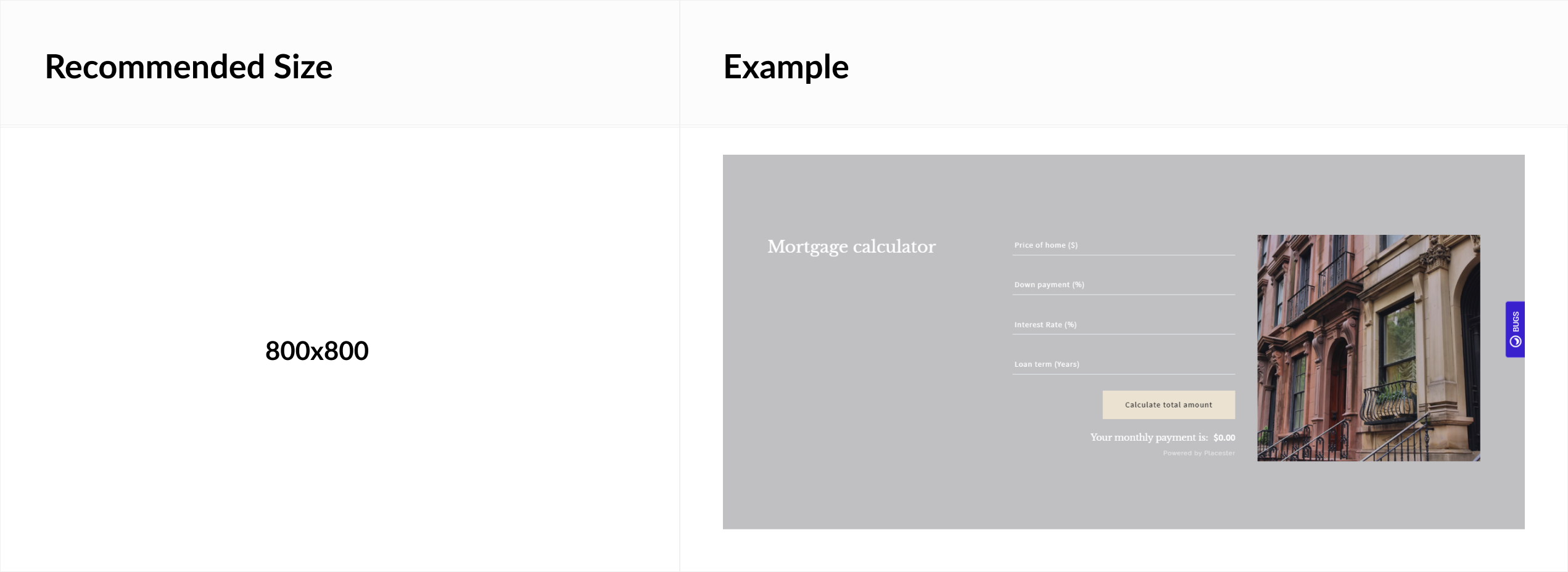
Note that the recommended dimensions here are the same for both height and width.
Landing page
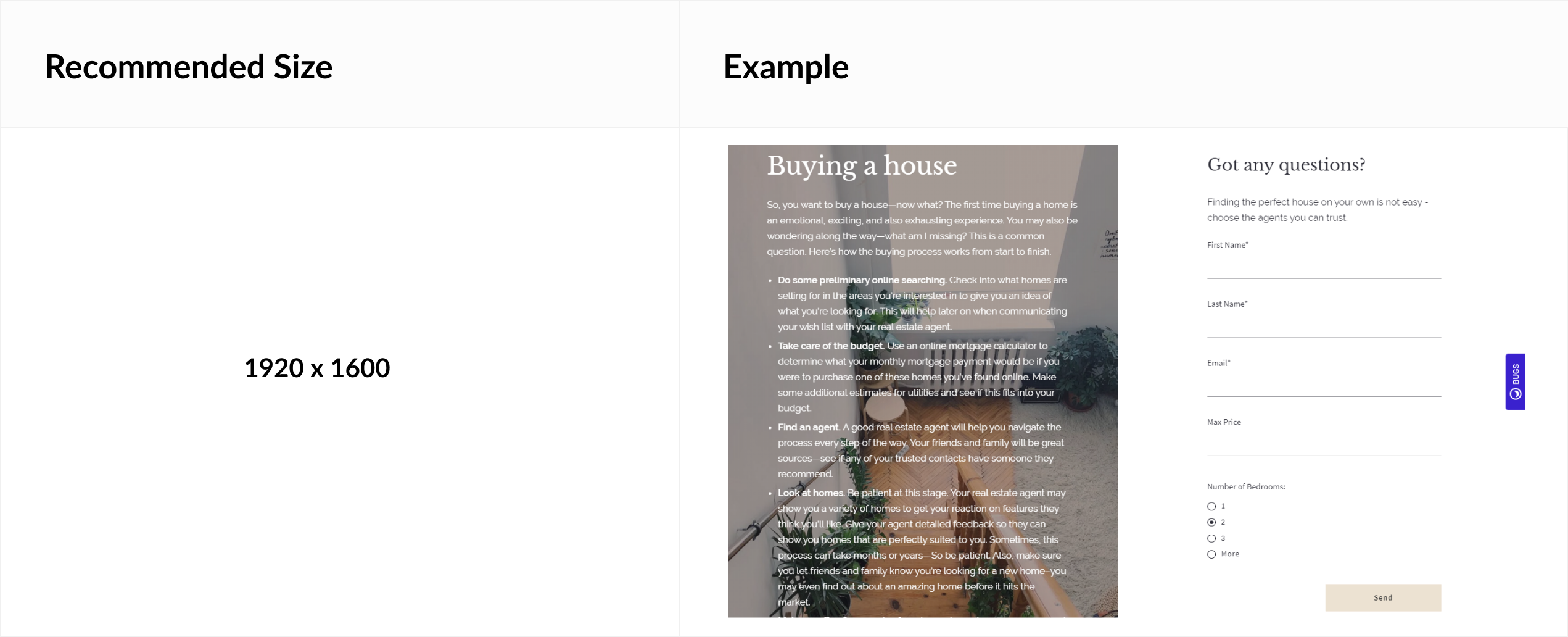
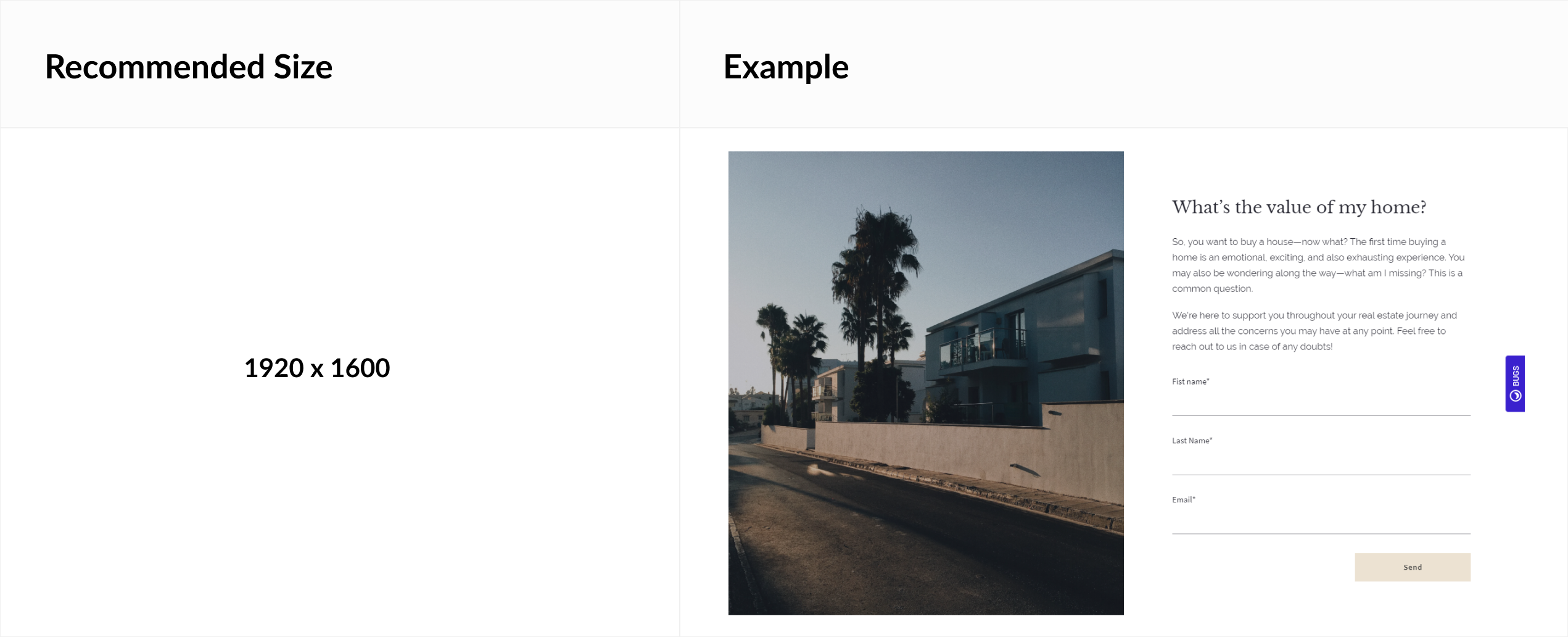
Home valuation
Logo wall - logotypes
PLAN ADVANCED AND ABOVE
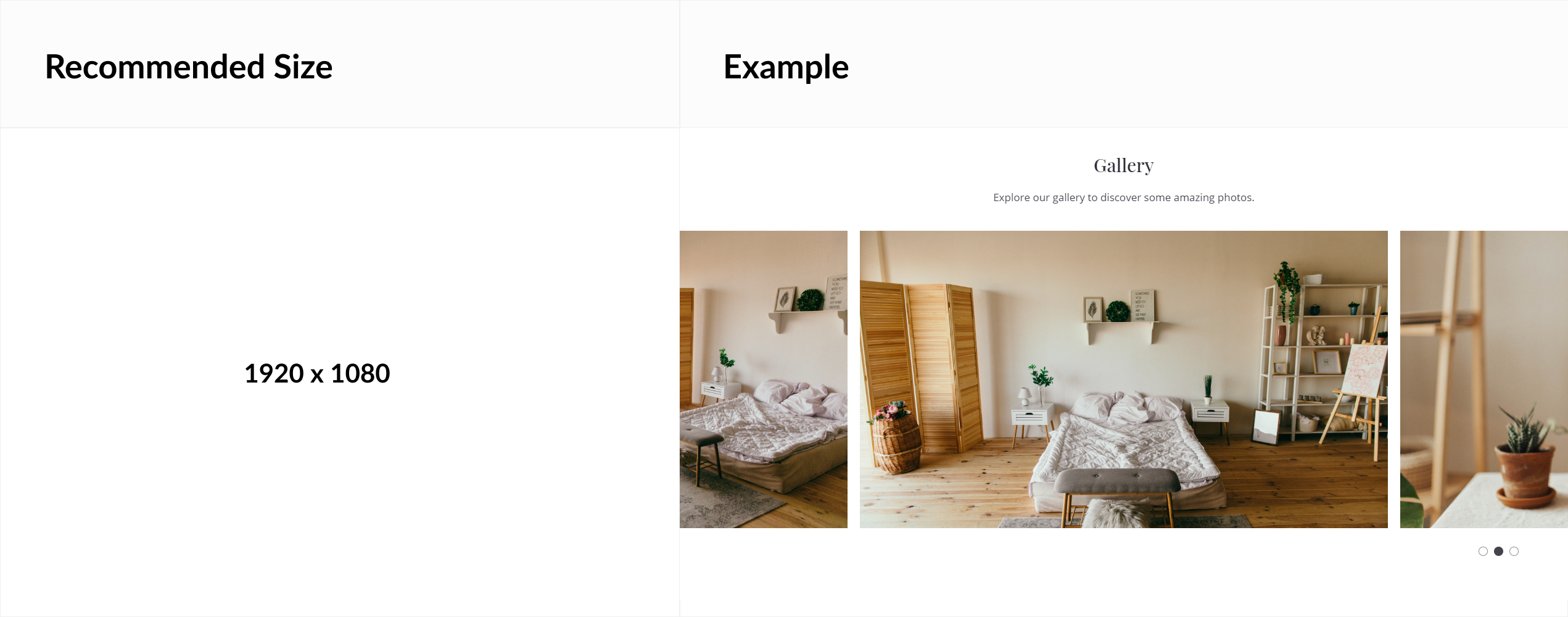
Gallery module - image gallery
PLAN ADVANCED AND ABOVE
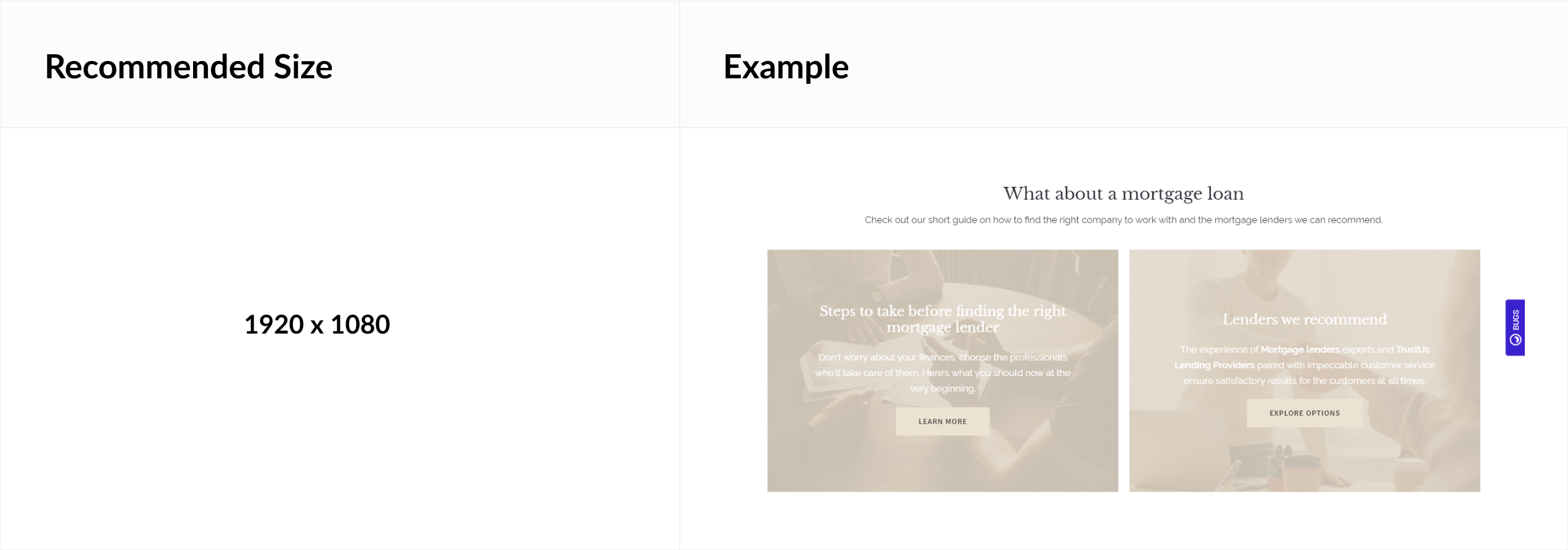
Call to action - background image
PLAN ADVANCED AND ABOVE
Module background - image
PLAN ADVANCED AND ABOVE
To change background go to:
Any Module Edition > Design Tab