Editing Your Codeless Contact Details [Codeless]
These steps are for the Legacy Customizer. For Site Edit, see Updating Your Contact and Office Details.
This article will show you How to add your Contact Information with Placester.
Please note that once your contact details have been updated, these details will automatically be used on your contact page, modules, and widgets.
To start, on your Dashboard, click Edit Site >General Options > Contact Details
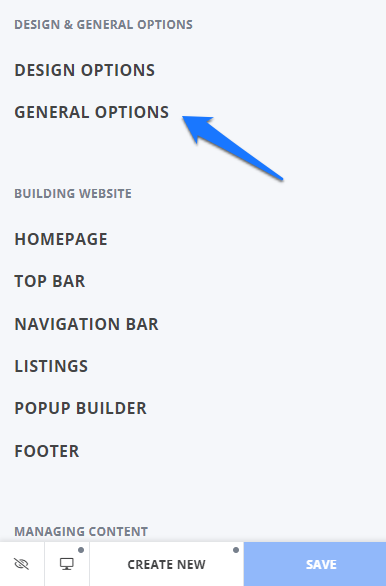
This will open a slide-out panel where you can add your name, email address, phone number and headshot to the Contact Details section.
A preview of the updates you will make on your site appears on the right side of your screen. Feel free to use a contact email address that's different from the one associated with your Placester account - don't worry, your login username won't change. Once you’re done adding your information, click the ‘Publish’ button to save it.
You will also have a shortcut to edit the About Section and Social Networks under your contact details.
Need More Help?
For questions, concerns, or feedback, please chat with our team: https://app.placester.com/chat.