CRM: Managing Custom Views [Codeless]
This article will explain how to set up and manage custom views in Placester's CRM. Managing your leads effectively is all about filtering out excess noise to quickly access the people and details you need. With Custom Views, you can customize your Placester leads index to drill down to the information that matters.
Accessing the CRM on Mobile
Placester CRM is now mobile-friendly and can be accessed on Mobile devices. Now, it's easier to edit Lead/Contact details anywhere as long as you have your mobile phone with you.
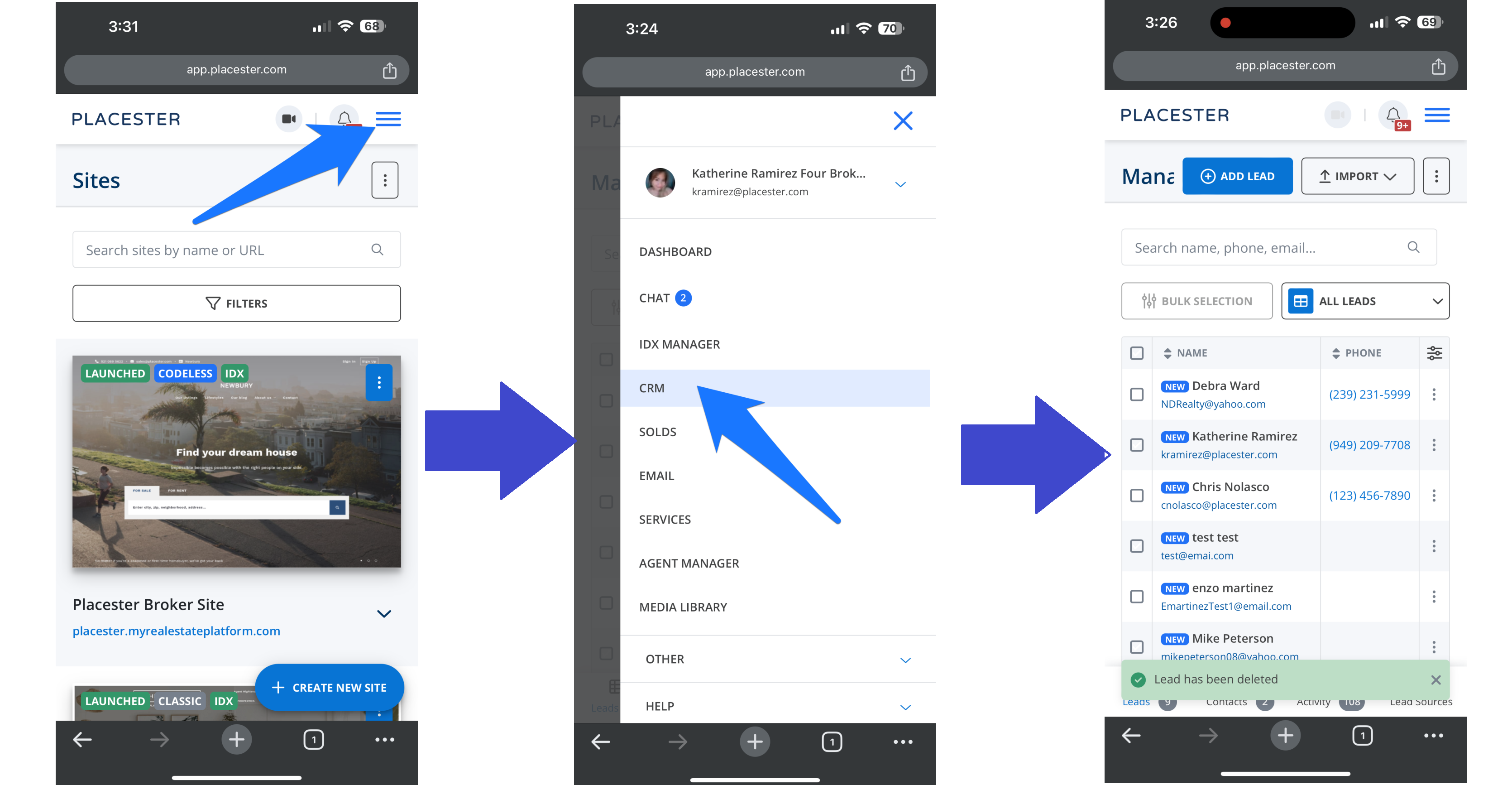
Once you log in on your mobile browser, click the triple bar ☰ on your dashboard, click CRM on the drop-down menu and it will bring you to a page where you can view your leads.
Creating a Custom View
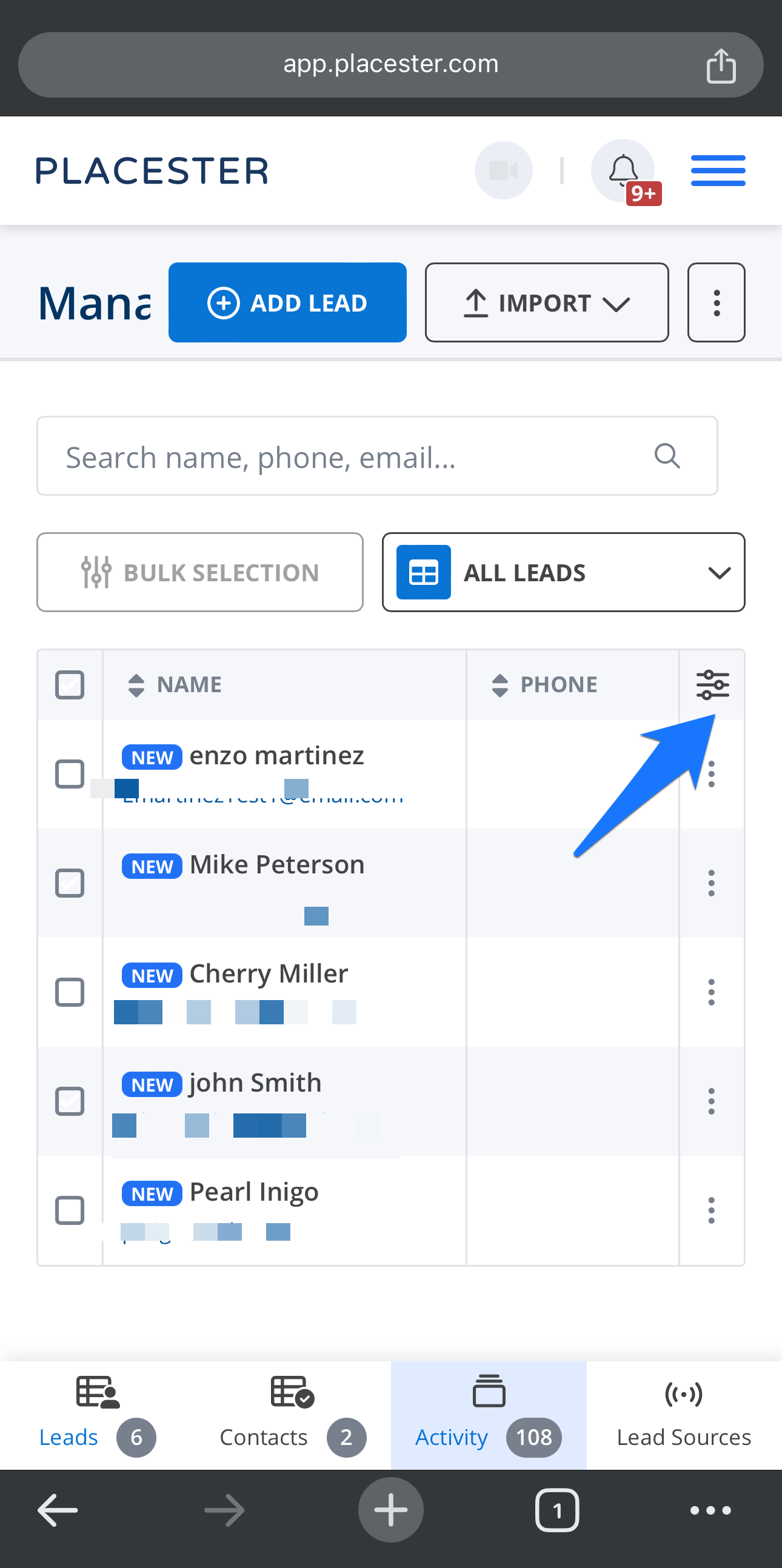
Next you will need to create a new custom view. This is accessed by clicking on the adjustment icon that is in the top right corner of the leads view.
Accessing the CRM on a Desktop
To start creating a custom view, you will need to access the CRM by clicking the CRM tab from your page
Creating a Custom View
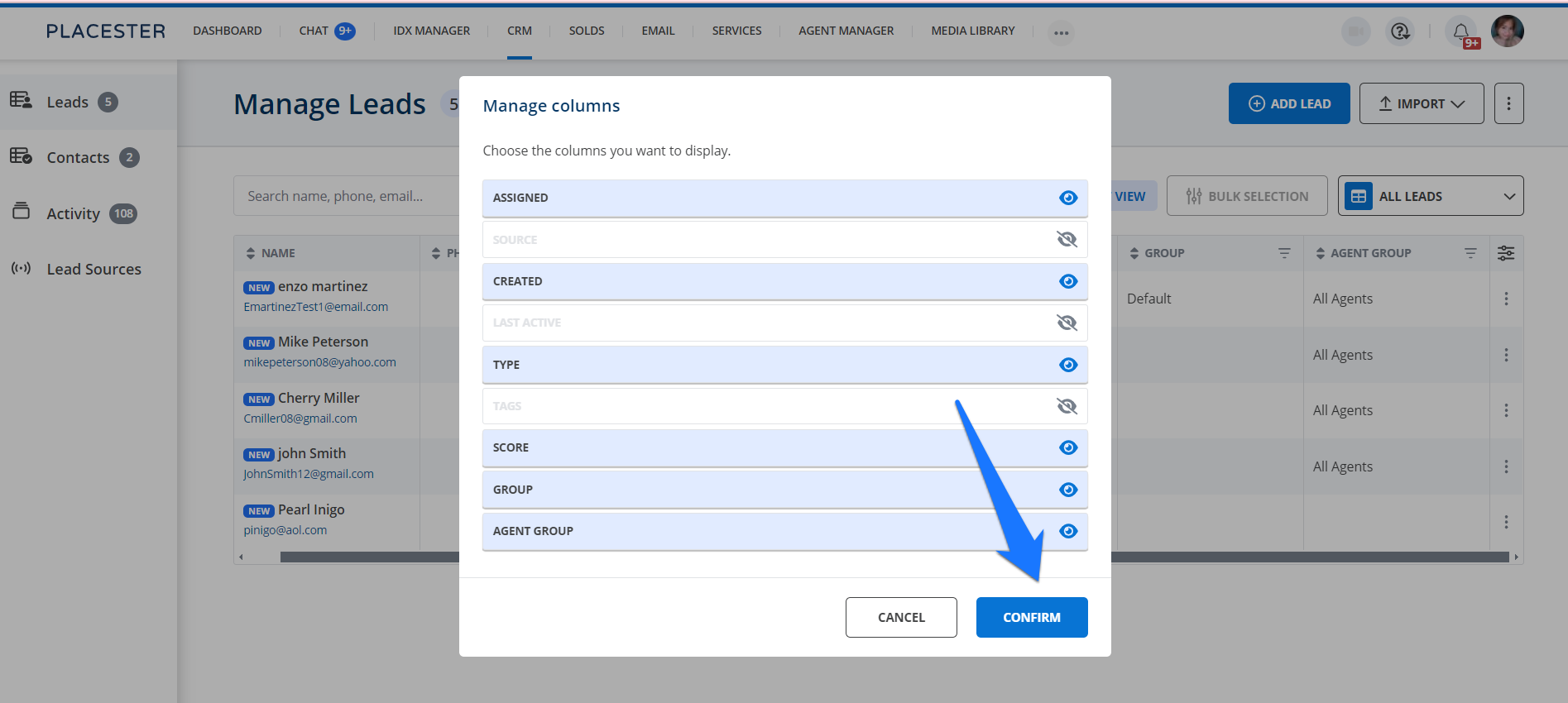
This is accessed by clicking on the adjustment icon that is in the top right corner of the leads view.
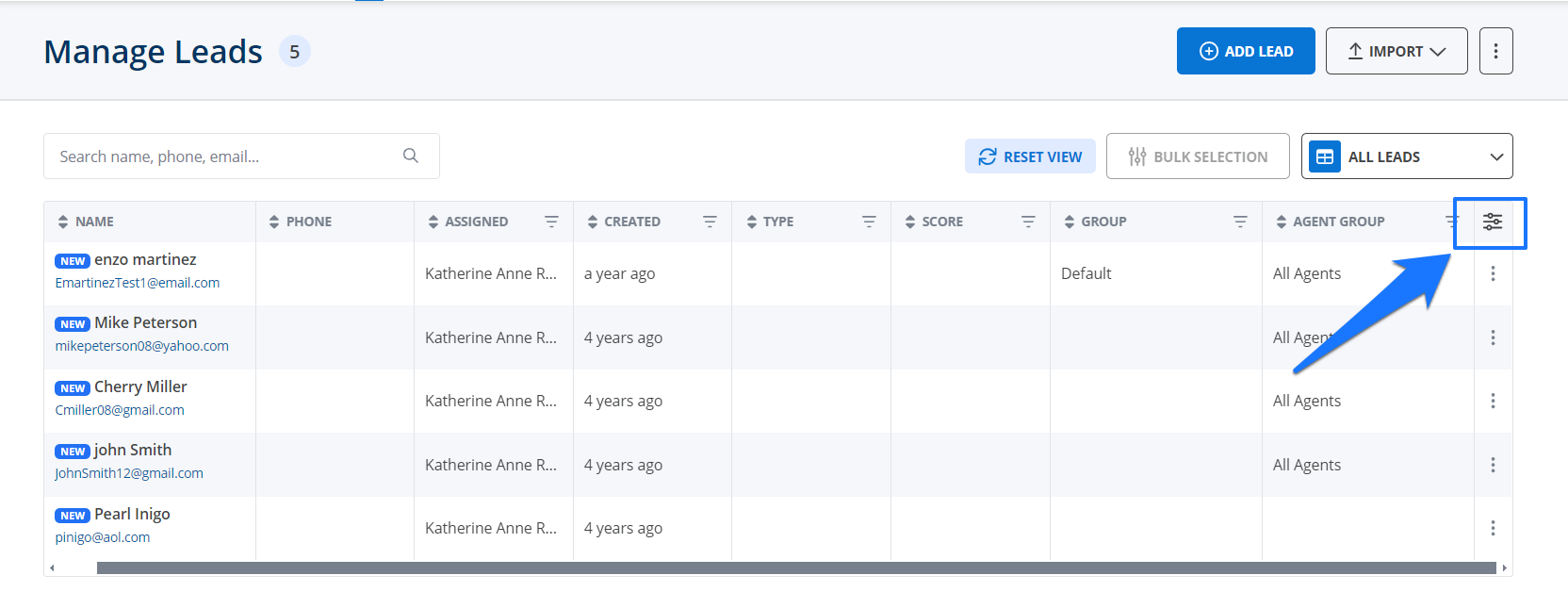
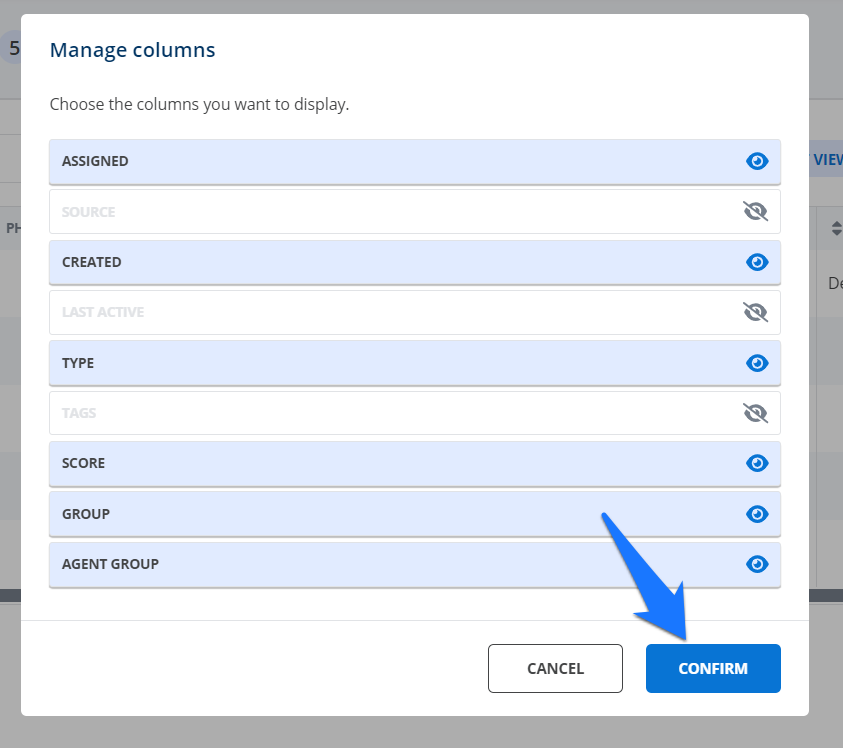
Once you click on the adjustment icon, you will be prompted to select which columns to show and which columns to hide. Once you have made your selections, click the blue confirm button in the bottom right corner of the selection box. You will then notice that your leads view has changed to reflect what you just previously selected.
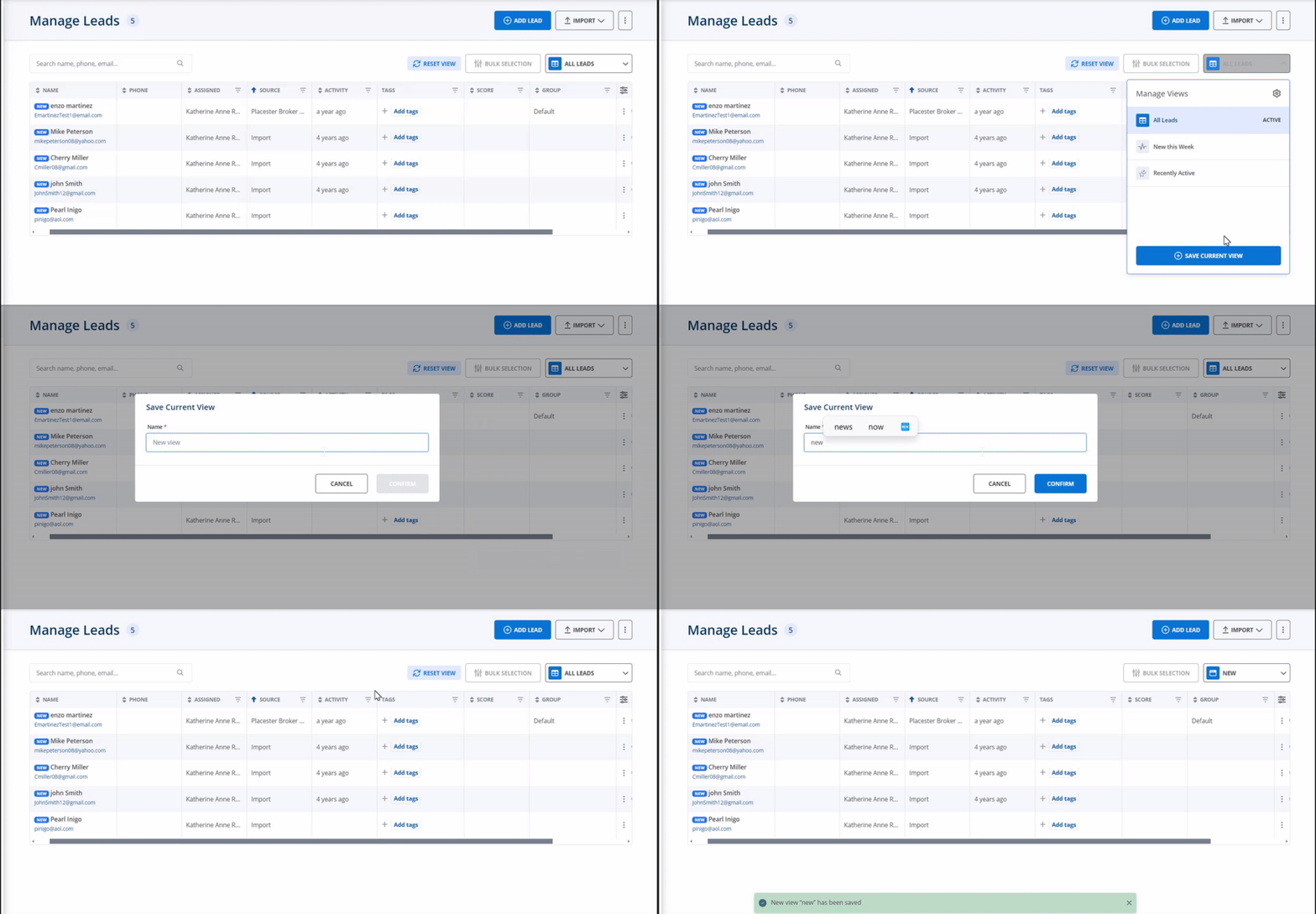
Additionally, you are able to filter each column and save the resulting display as a new custom view by clicking the “Save View” button to the left of the “column icon”.
To save this new custom view, you will have to click the All leads button and a dropdown menu with an option to save the current view, next is for you to add a name for your new custom view.
Switching Between Views
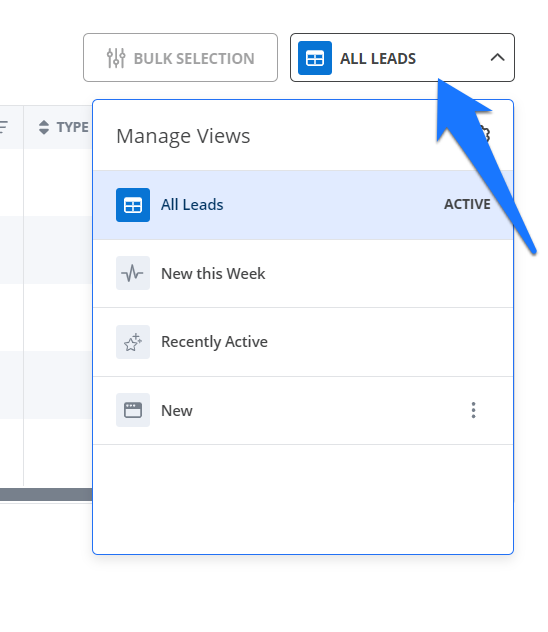
Now that you have created a custom view, it will appear along with the default views in the grey bar above your leads. You can click on each view to change how your leads are displayed.
Managing Views & Deleting Views
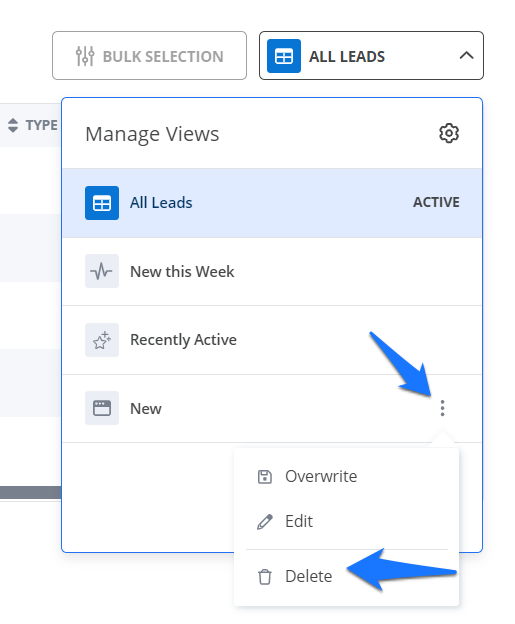
To overwrite, edit, or delete an existing custom view, click on the 3 dots next to the custom view name.
Need More Help?
For questions, concerns, or feedback, please chat with our team: https://app.placester.com/chat