Exporting Leads [Codeless]
This article will walk you through how to export your leads from the Placester CRM.
Accessing the CRM on Mobile
Placester CRM is now mobile-friendly and can be accessed on Mobile devices. Now, it's easier to edit Lead/Contact details anywhere as long as you have your mobile phone with you.
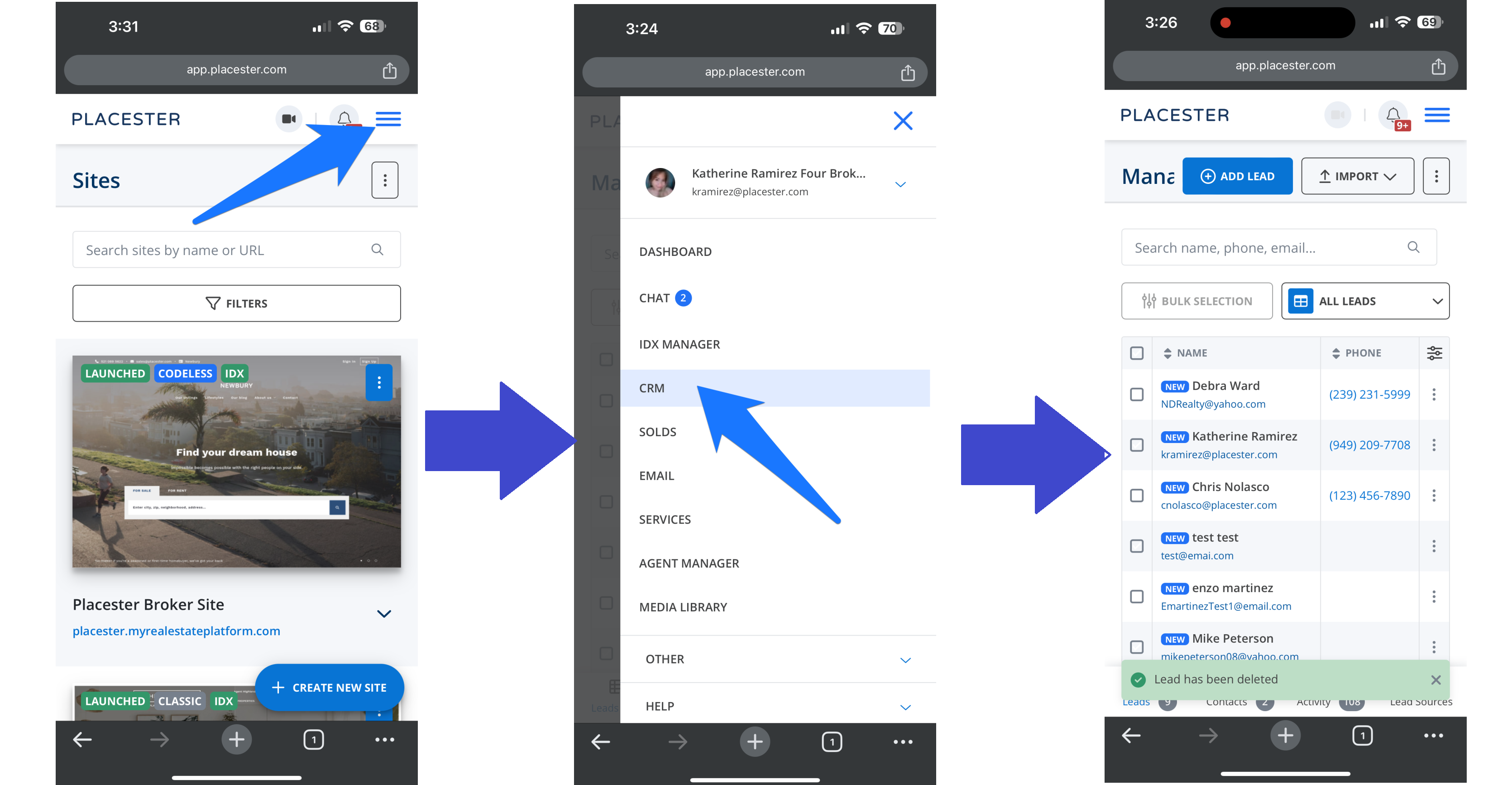
Once you log in on your mobile browser, click the trigram symbol ☰ on your dashboard, click CRM on the drop-down menu and it will bring you to a page where you can view your leads.
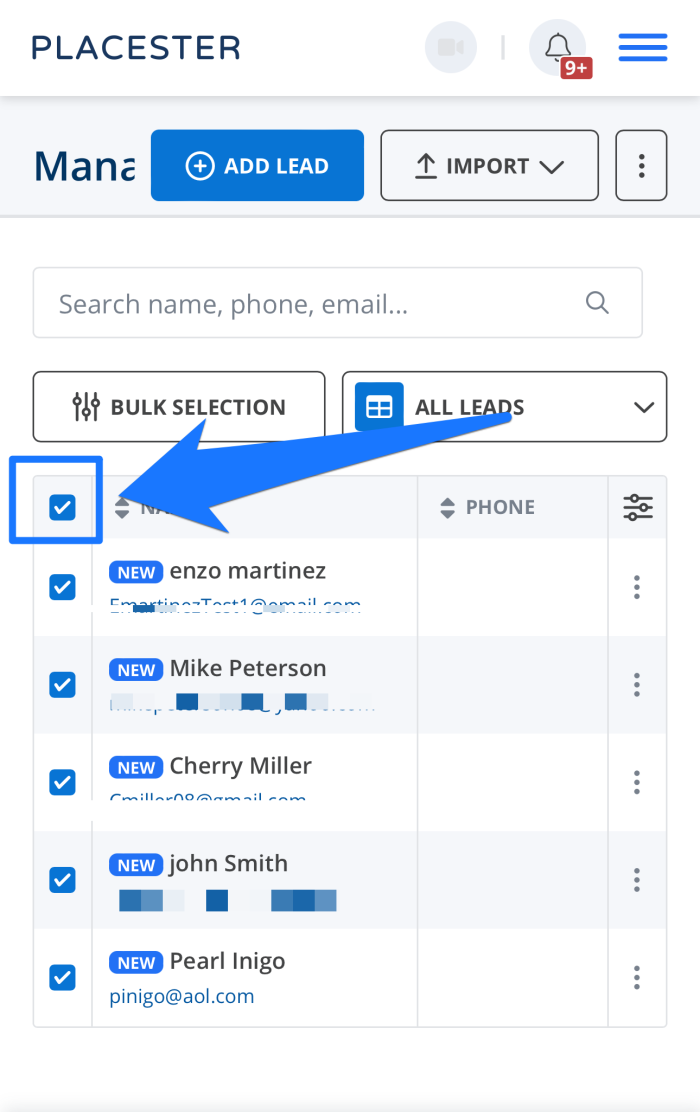
If you’re looking to export specific leads, you can check off leads individually using the squares next to the lead’s name. If you would like to export all of your leads at once, you can do so by clicking on the top square next to Name.
Once you've selected the leads that you'd like to export, click on the “3 dots” button located towards the right top of the screen. In the drop-down menu, you can export your Leads to CSV or export it to your Cloze CRM.
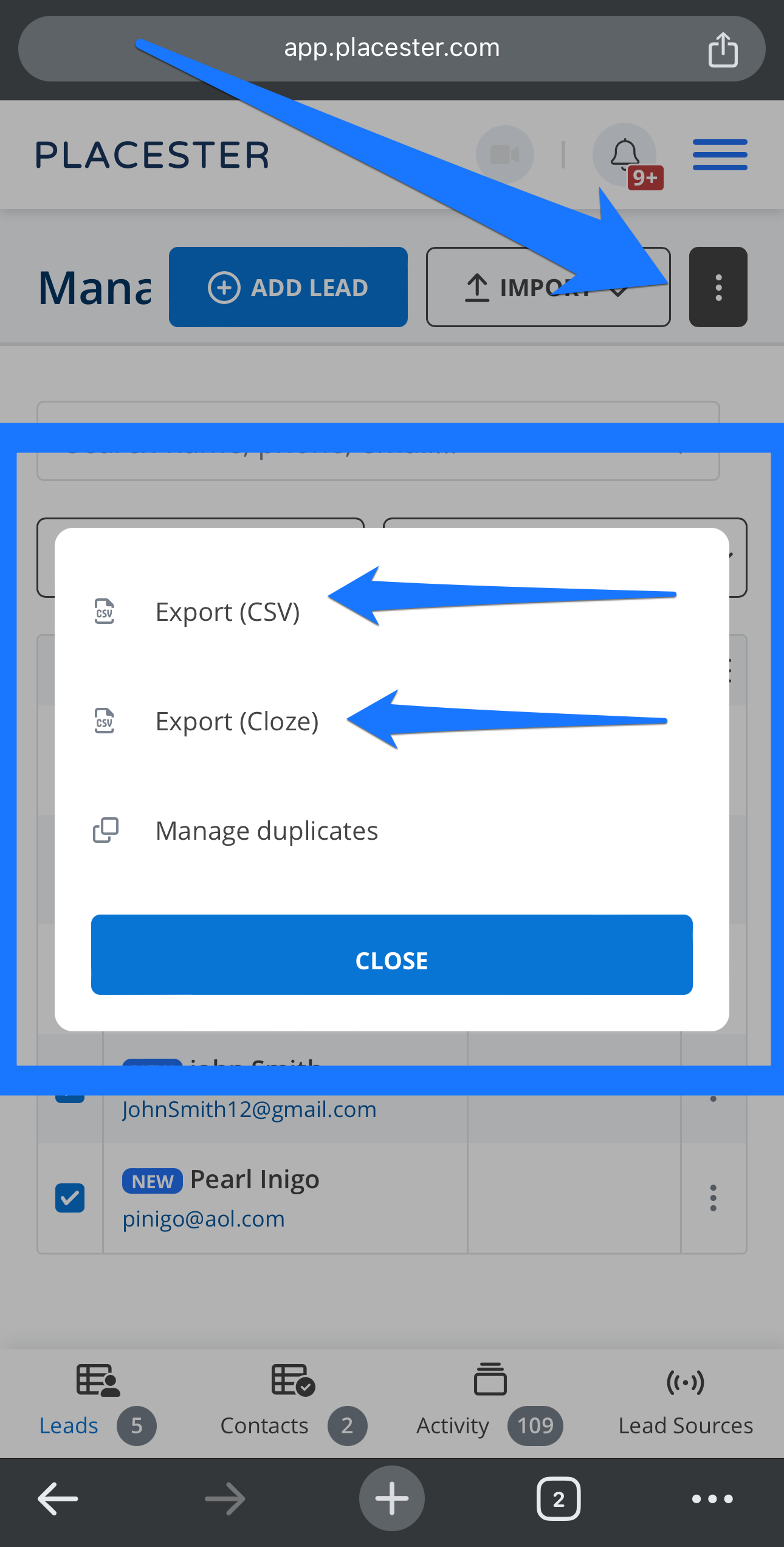
Once you have made a selection, your leads will automatically download to your computer.
Accessing the CRM on a Desktop
When logged into the back end of your Placester account, you can access the CRM by clicking on the Apps icon in the top right-hand side of the screen, and clicking on "CRM" in the drop-down menu.
Please note that the CRM is only included with certain subscription levels. If you’re interested in learning more about our offerings, please feel free to visit our packages and pricing page.
Accessing the Leads Tab
First, locate and click the CRM tab from your page to view all of your current leads.
Exporting Your Leads
When going into the CRM, you will automatically be directed to your Leads tab first.This is where you can start the process of exporting your leads.
If you’re looking to export specific leads, you can check off leads individually using the squares next to the lead’s name. If you would like to export all of your leads at once, you can do so by clicking on the top square next to Name.
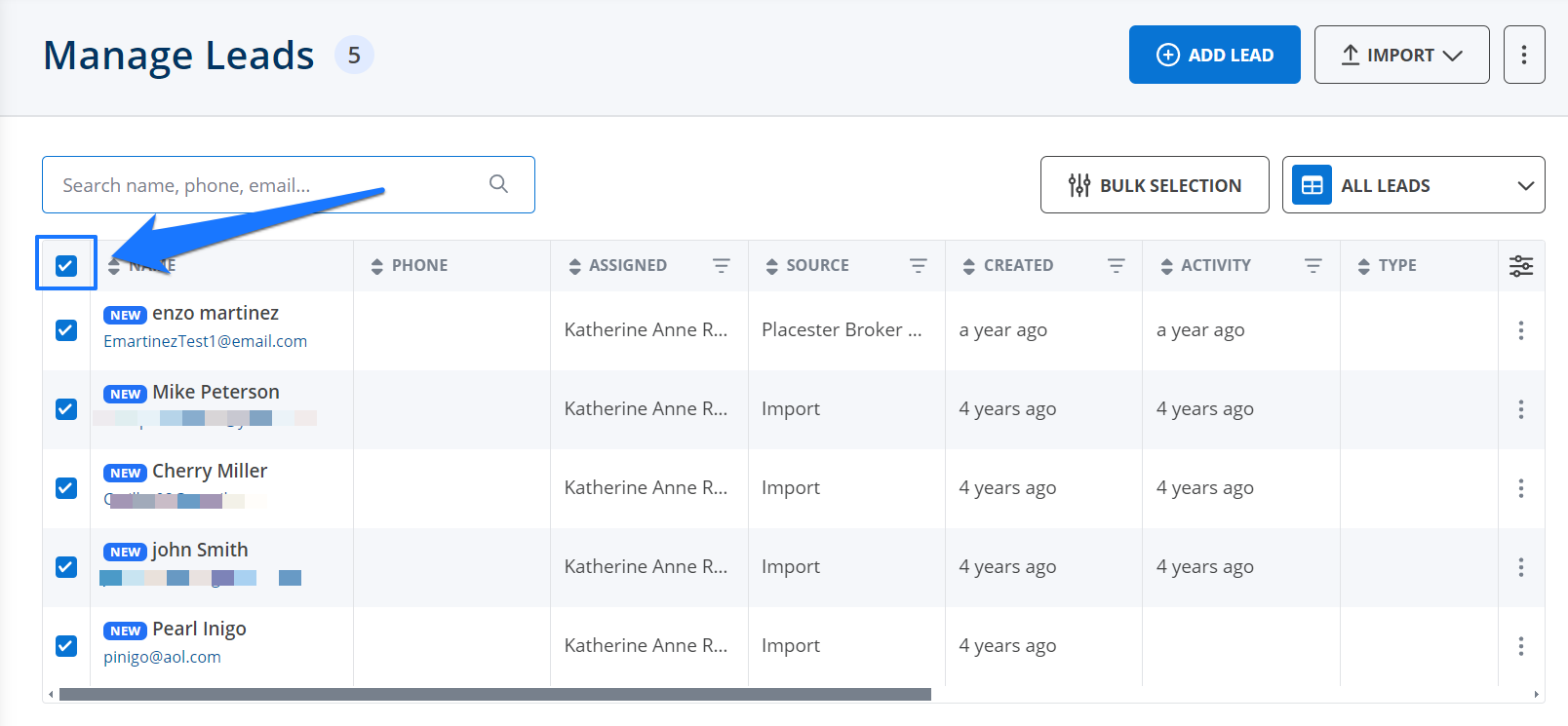
Once you've selected the leads that you'd like to export, click on the “3 dots” button located towards the right top of the screen. In the drop-down menu, you can export your Leads to CSV or export it to your Cloze CRM.
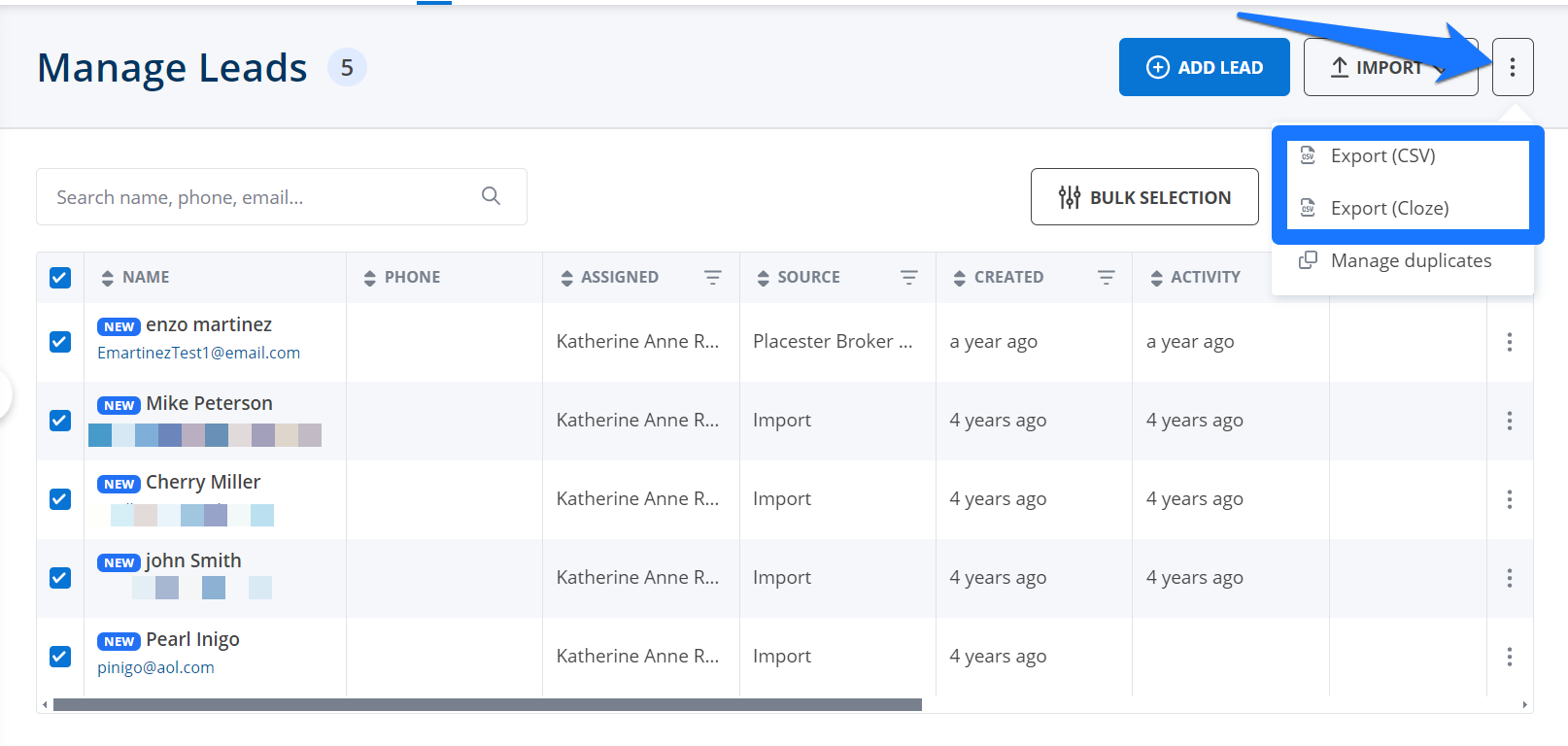
Once you have made a choice and clicked on it, your leads will automatically download to your computer.
Need More Help?
For questions, concerns, or feedback, please chat with our team: https://app.placester.com/chat