Sign In/ Sign Up Forms
These steps are for the Legacy Customizer. For Site Edit, see Customizing Sign-In, Sign-Up, and Social Login.
This article will show you How you can Customize your Sign In and Sign Up Forms
Dashboard
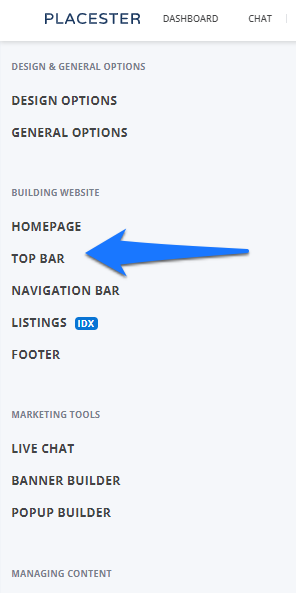
Once you log in to your Placester dashboard, click Edit site. This will bring you to the customizer slideout. In the customizer click Top Bar.
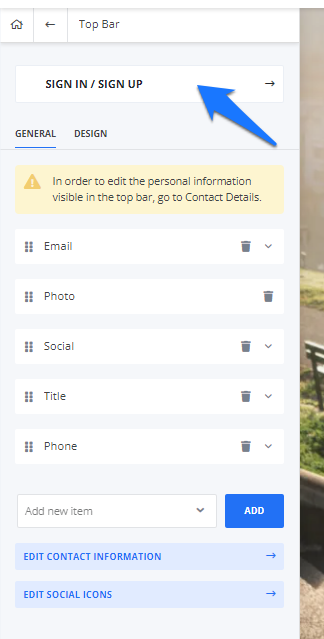
On the Top Bar's editing page, Click Sign in/Sign Up:
Sign Up Form
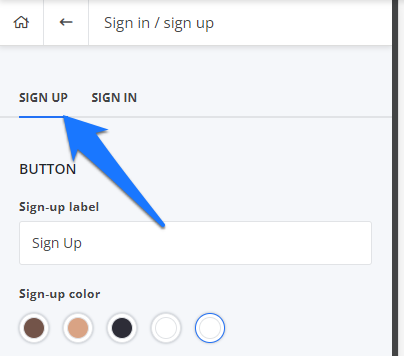
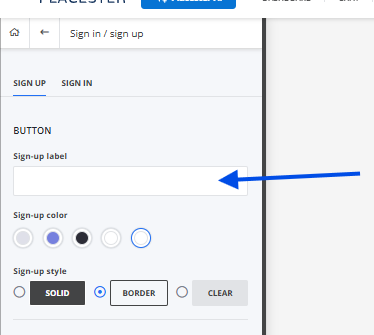
On the editing page for the Sign Up form, you can relabel the button, and change the button color and button style.
Sign Up Builder
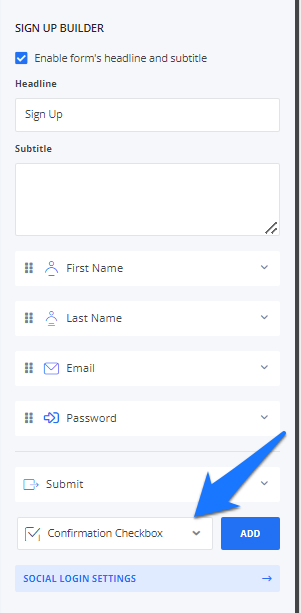
In this section, you can enable and add a headline and a description, reorder the items and you can now even add a check box and a text area to your Sign up Forms.
Sign In Form
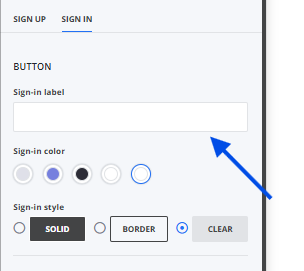
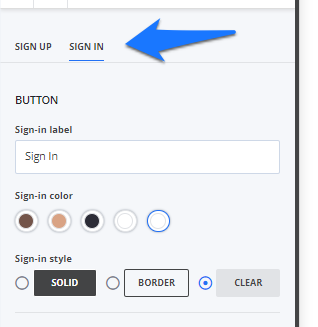
In your Sign In Form, you can also relabel the Sign In button, and change the button color and style.
Sign In Builder
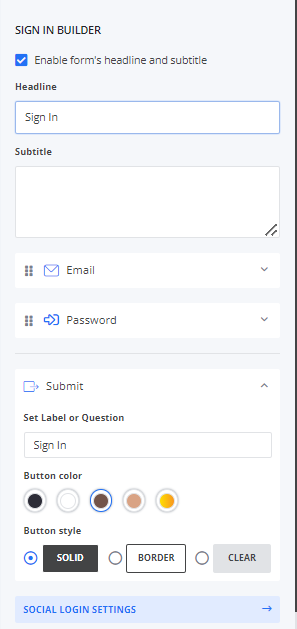
In this section, you can enable and add a headline and a description, reorder the items, and even update the color and style of the Sign In's submit button.
To save the changes, click Save button.
Remove the Sign In/ Sign Up
The trick to hide the Sign In/ Sign Up buttons on the website's top bar is to leave the sign up/sign in label empty. If you leave it empty, it won't show on the live site.