Cookie Banner
These steps are for the Legacy Customizer. For Site Edit, see Turning On the Cookie Banner and Accessibility Widget.
This article will show you How to Add a Cookie Banner to your website
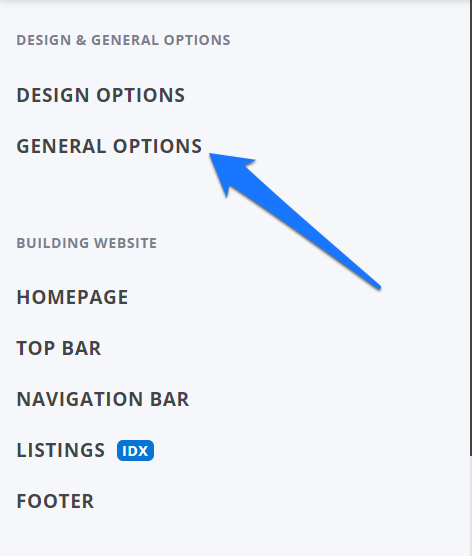
Once you Log in to your Placester dashboard, click Edit site. This will bring you to your customizer. And in your customizer, Click General Options.
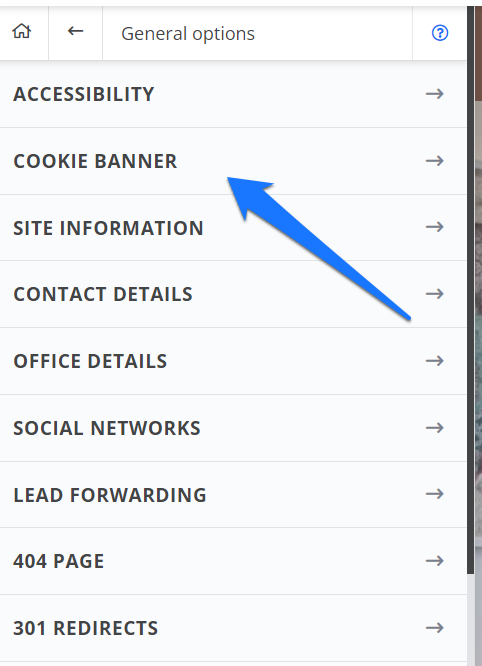
On the slide-out menu, click Cookie Banner.
Toggle on the button to enable the cookie banner.
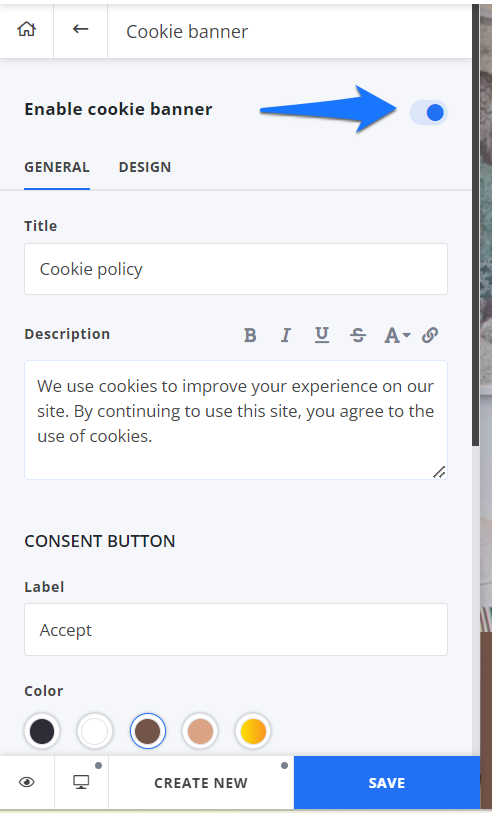
You can add your Title and descriptions, relabel your consent and decline buttons, and change the button style and colors.
The Design tab is where you can change your cookie banner layout, color scheme, and banner position.
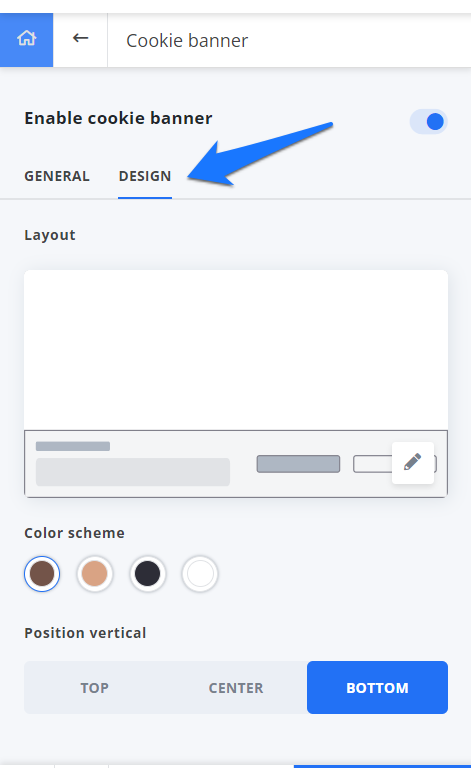
Once done, you can click the Save button.
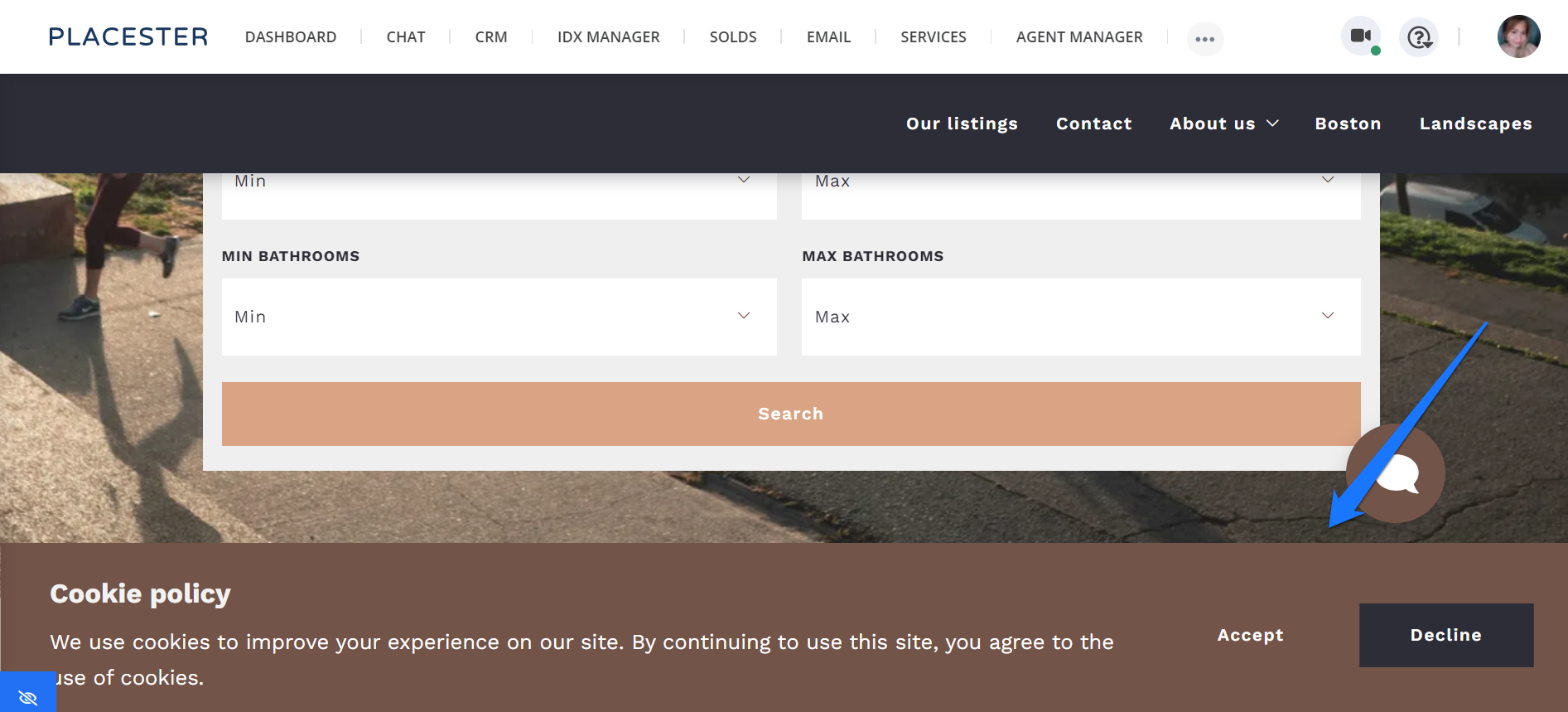
This is how the cookie banner will look on the live site:
Need More Help?
For questions, concerns, or feedback, please chat with our team: https://app.placester.com/chat