Adding a blog post to a category [Classic]
This article will explain how to organize your blog posts into blog categories. This feature is currently available on our Plymouth, NAR exclusive Chicago, and KW exclusive Madison themes.
It is also important to note that this feature is only available on our higher subscriptions. If you’re currently not subscribed to one of these packages but are interested in learning more, please visit our packages and pricing page.
Categorizing blog posts
Categorizing blog posts can be a good way to structure and organize your posts. You may want to place your blog posts into categories in order to sort your articles by theme. You can also use this tool to gear your articles to different audiences i.e. a buyers blog and a sellers blog.
Creating a new category
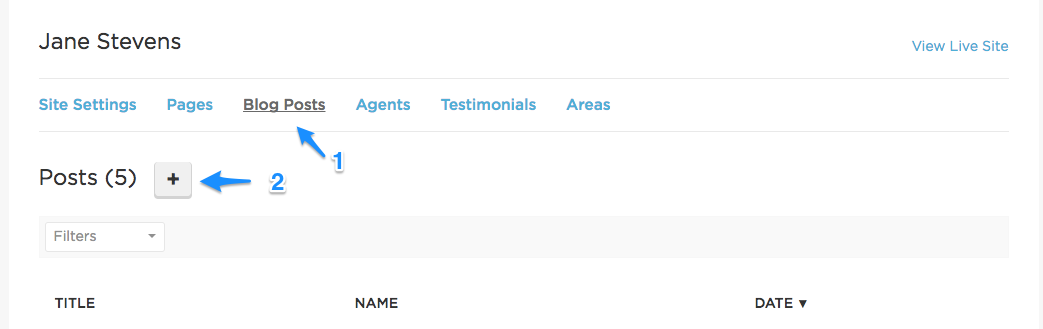
The easiest way to add a new blog category is when you are creating a new post, although this can be done with existing posts as well. First click on the Blog Post option at the top of your back end menu then the + next to Posts to create a new post.
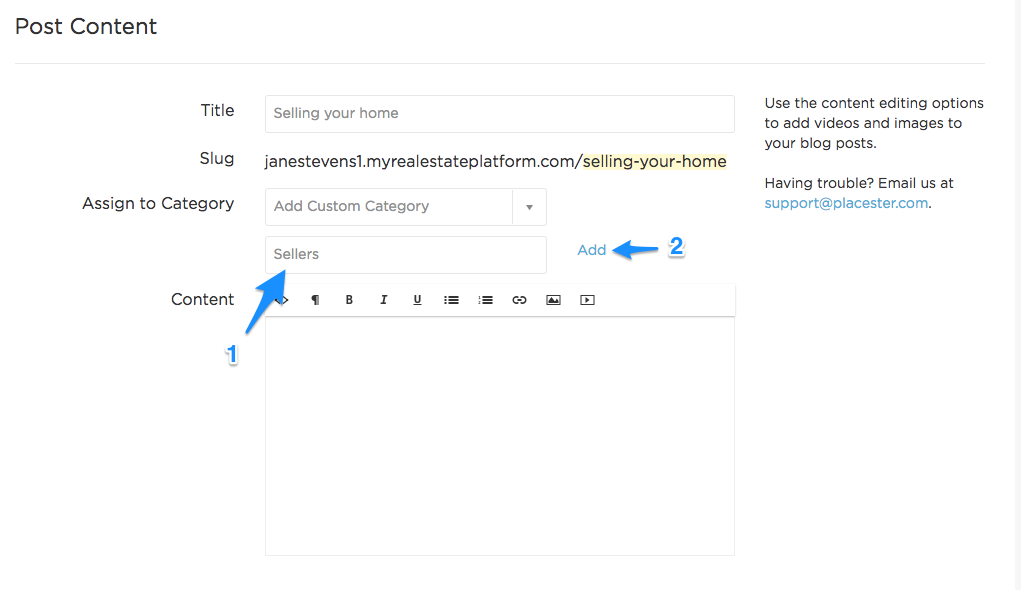
You will see right below the title box there is the Assign to Category section. Once you have entered the title of your post, you will need to select Add Custom Category from the dropdown menu.

A box will appear for you to add the name of your category. Add the name of the category, then click add.

Adding a category to an existing blog post
You can add any preexisting post to any new category you create. To do this, go to edit any existing post.

Move down to the Assign to Category section, and select the category you would like to place the blog into.

Creating a Blog Index for a new category
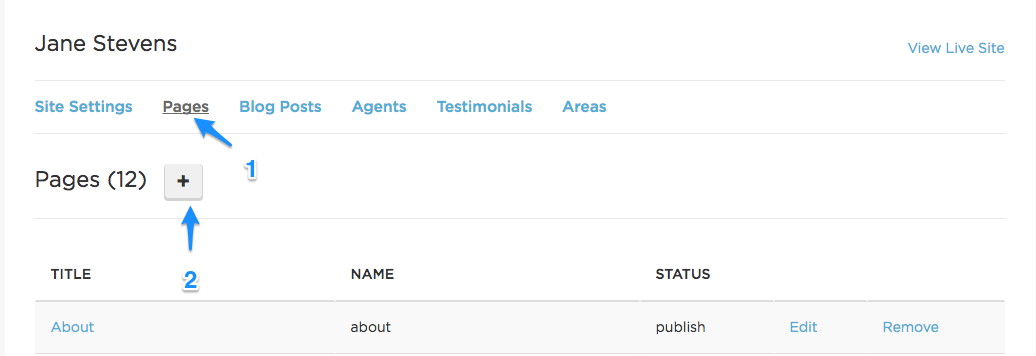
Once you have added the respective blogs to the category you have created, you will need to add a new index to showcase the new blog category. To add a new index , proceed to Pages and click on the + to add a new page.
Choose Blog Index from the page template dropdown. Enter a title for your index, then select the appropriate category in category filters.
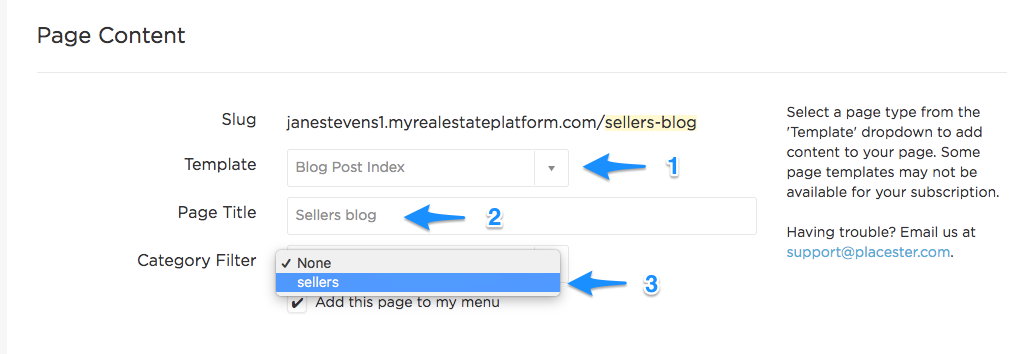
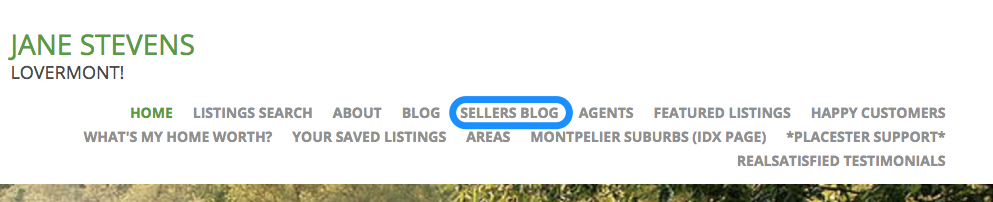
This creates a seperate index for articles under this specific category, which will appear on your menu.
Need More Help?
For questions, concerns, or feedback, please chat with our team: https://app.placester.com/chat