Advanced Page Editing [Classic]
This article will show you the advanced options for editing pages on your Placester site.
Quick Link to Page Creator
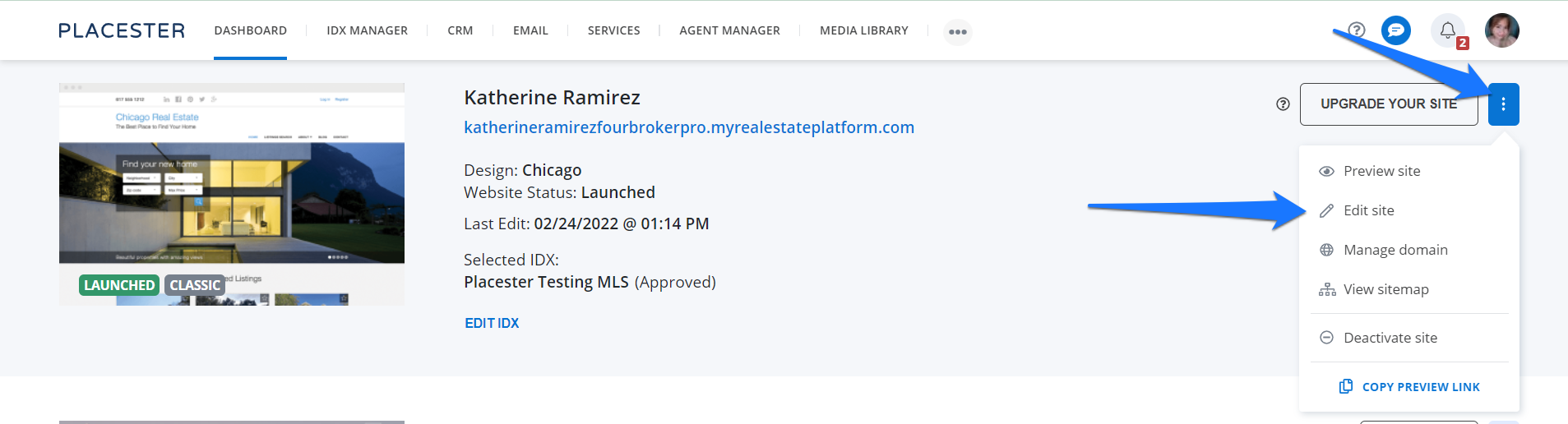
To add a page, first, you will need to log in to the backend of your Placester site. From your dashboard, click the 3 dots next to the update your site button and click edit site from the dropdown.
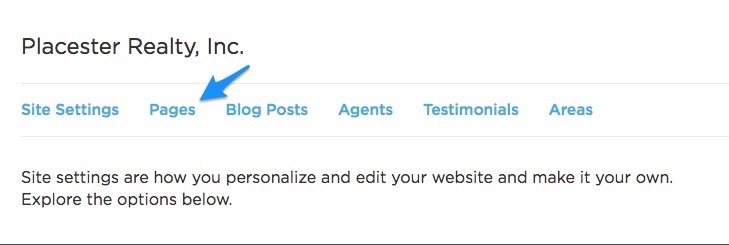
If you are already in your site settings menu, you can access pages through the horizontal menu at the top of the page.
Formatting Toolbar
The formatting toolbar allows you to make some formatting adjustments within the page content. Here is a key that shows you what each button within the toolbar does.

- HTML: Click here to learn more about inserting HTML
- Formatting: format text as Normal, Header or Quote
- Bold
- Italic
- Underline
- Unordered List: make a bulleted list on the page
- Ordered List: make a numbered list on the page
- Indentation
- Link: add hyperlinked text to your site
- Image: upload an image on the page. Click here to learn more about adding images.
- Video: embed a video within the page. Click here to learn more about embedding videos.
- Alignment
- Adding a Table
HTML Editor
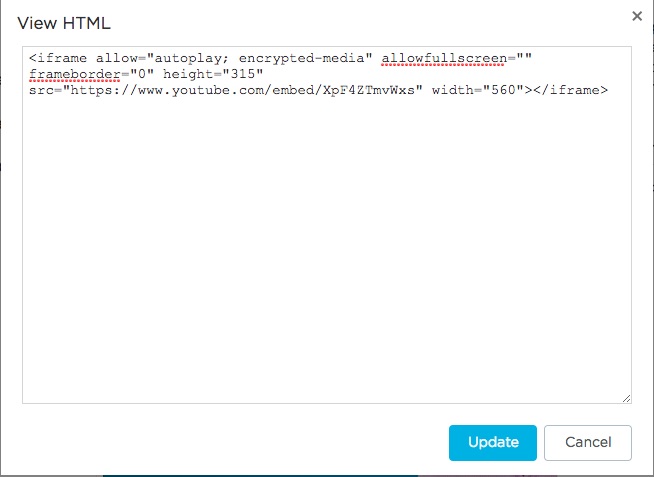
Clicking the HTML icon brings you the HTML editor. This is where you'll need to add HTML embed codes or iframes to your site. To find out more about adding HTML to a page, click here.
Formatting
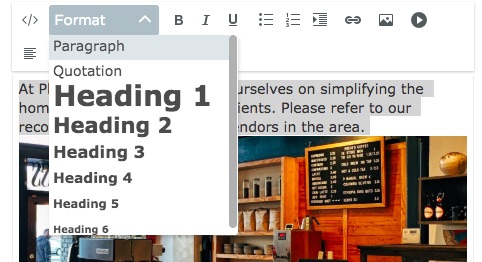
To change the size/format of a highlighted piece of text, click this icon. You'll see eight options: Paragraph (normal text), Quotation, and Headings 1-6.
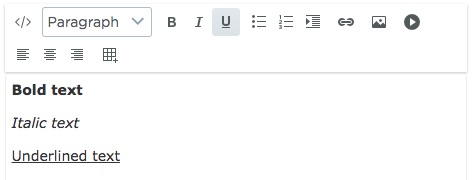
Bold, Italic, Underline
Highlight the text you want to edit, and then click the appropriate butto
Lists
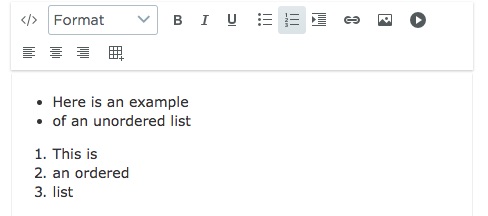
Click the Unordered List icon to begin creating a list using bullet points, and the Ordered List icon to begin creating a numbered list.
Hyperlinking Text
To link text on your page to another URL/page (hyperlinking), highlight the text in the page editor, and click the Hyperlink button. This opens a popup with the link settings.
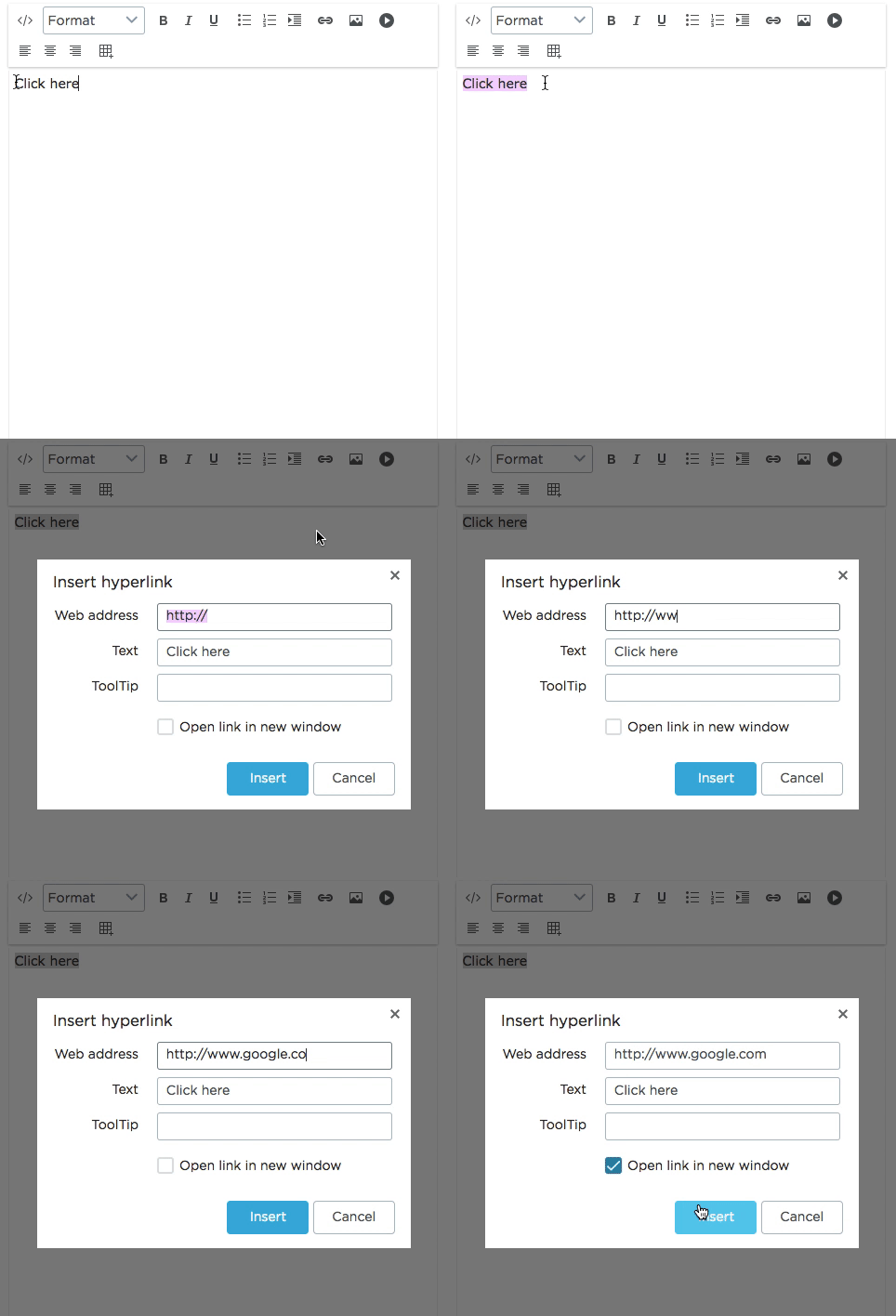
You can enter the URL/web address for the linked text to go to, change the text that displays instead of the full URL, a ToolTip (what displays when you hover over the link), and whether or not to open the link in a new window.
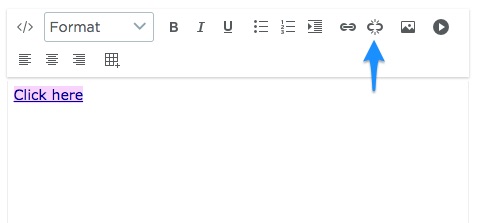
If you want to remove the hyperlink, highlight the text and then click the Remove Hyperlink button
Upload Image
When you click the Upload Image Icon, you'll see a small pop-up which gives you the option to drag and drop an image to upload, or to choose a file from your computer.
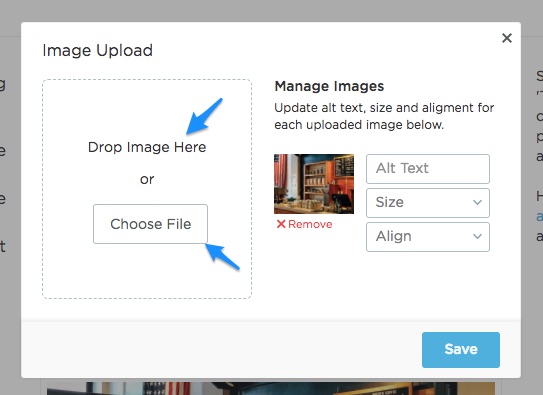
Once you've uploaded your image, there a couple of advanced editing options. You can add Alt Text to the image, resize the image, and choose the way the image is aligned on the page.
Insert Video
Click this icon insert a video from Youtube or Vimeo. To find out more about adding videos to your page, click here.
Need More Help?
For questions, concerns, or feedback, please chat with our team: https://app.placester.com/chat