Adding HTML to a Page [Classic]
This article will show you how to embed an HTML code or iFrame into a page on your website.
HTML Embed Codes
You may have a form or other iFrame that you'd like to embed onto a page using some HTML. This is possible using the HTML tool in the page editor.
Please note: You can only add HTML here, not JavaScript.
Pro Tip: you can create a custom form for free using Wufoo.
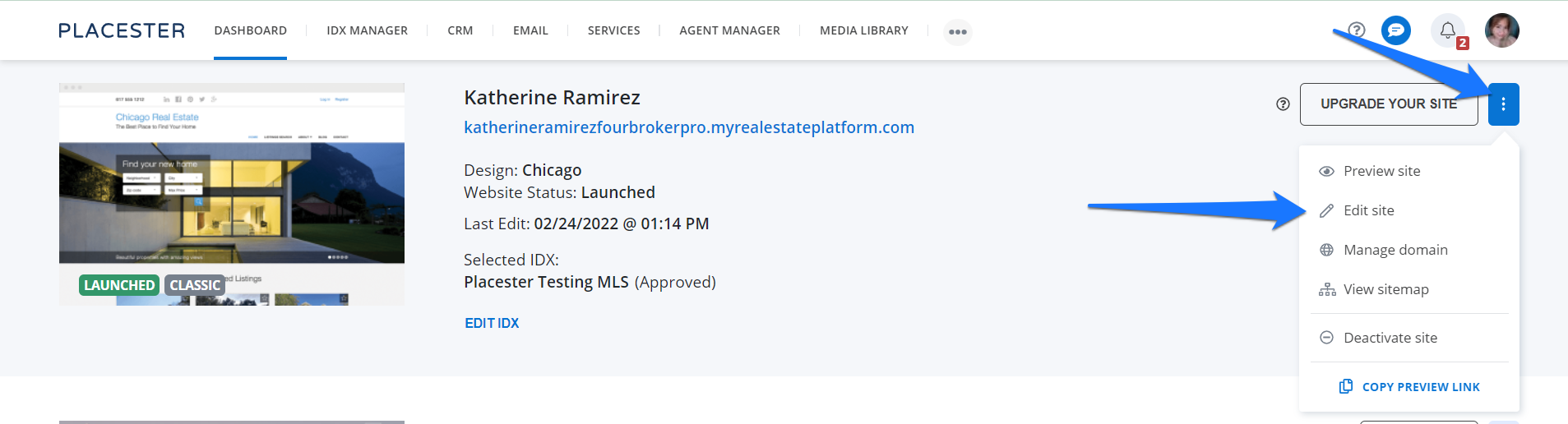
The first step is to create a page, first, log in to the backend of your Placester website. On your dashboard, click the 3 dots next to the update your website button then click edit site from the dropdown.
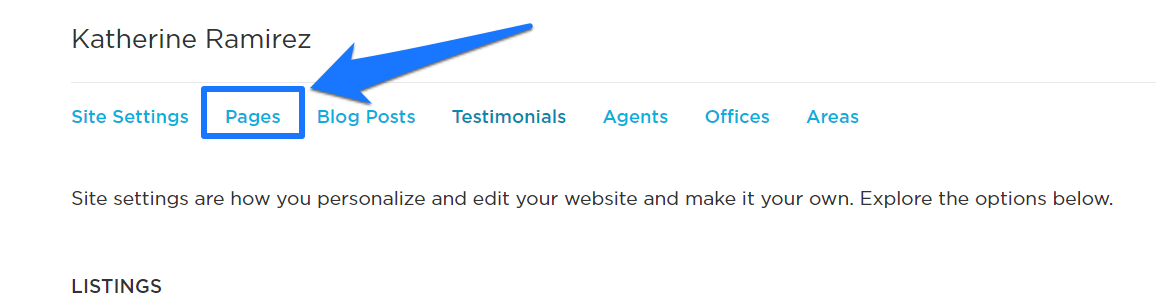
This will bring you to the site settings page where you can find the Pages tab.
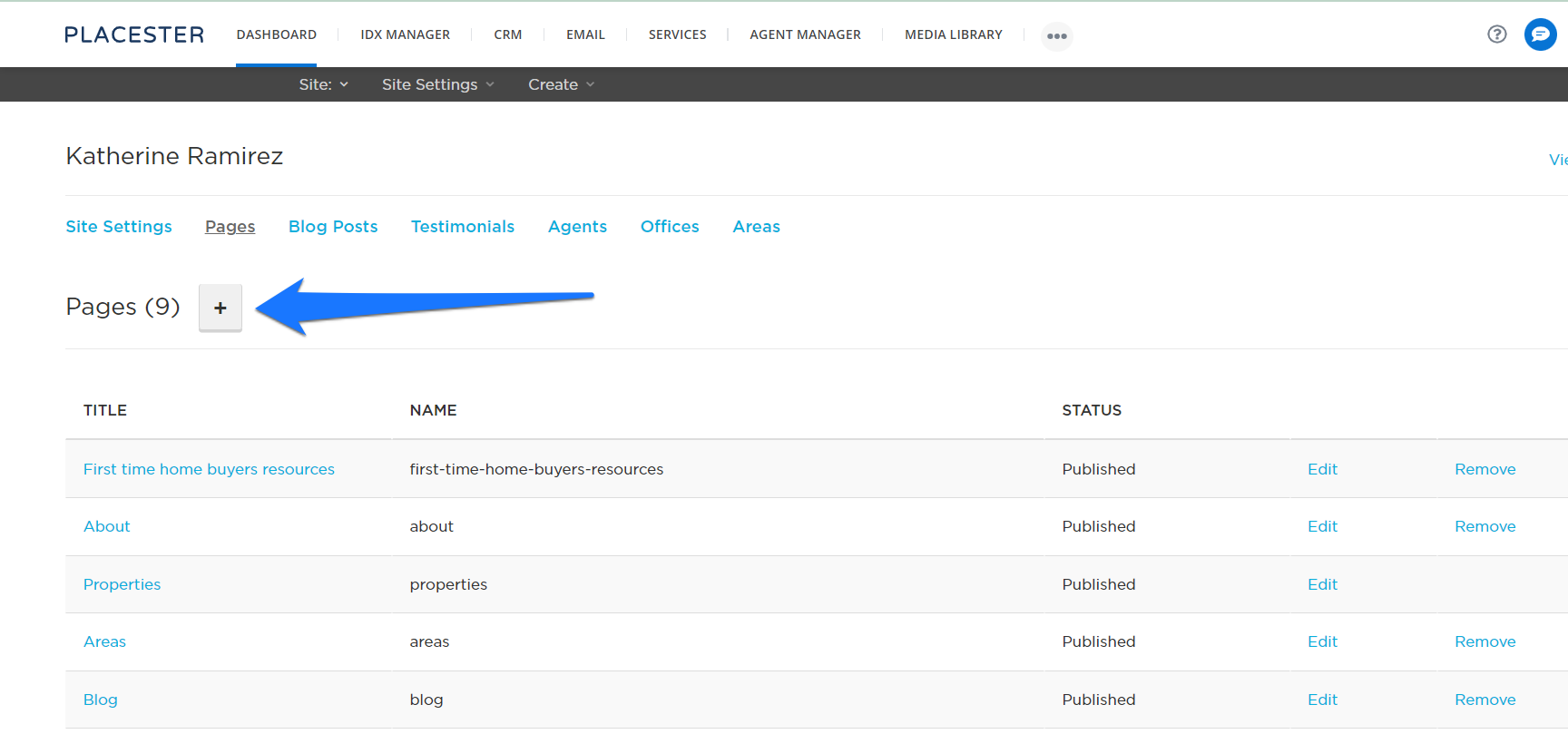
It will then redirect to the list of your pages. To create a new page, click the (+) icon.
Using the HTML Editor Tool
Important Note: All Placester site are now secure. Because of this, all code must be secure as well, in order to function properly on the site. if you see an http:// in the iframe you will need to add an s to make it https://. If you have added this and the iframe is not working as expected, be sure the source site you're getting this from is secure. If the source is secure please reach out to the support team.
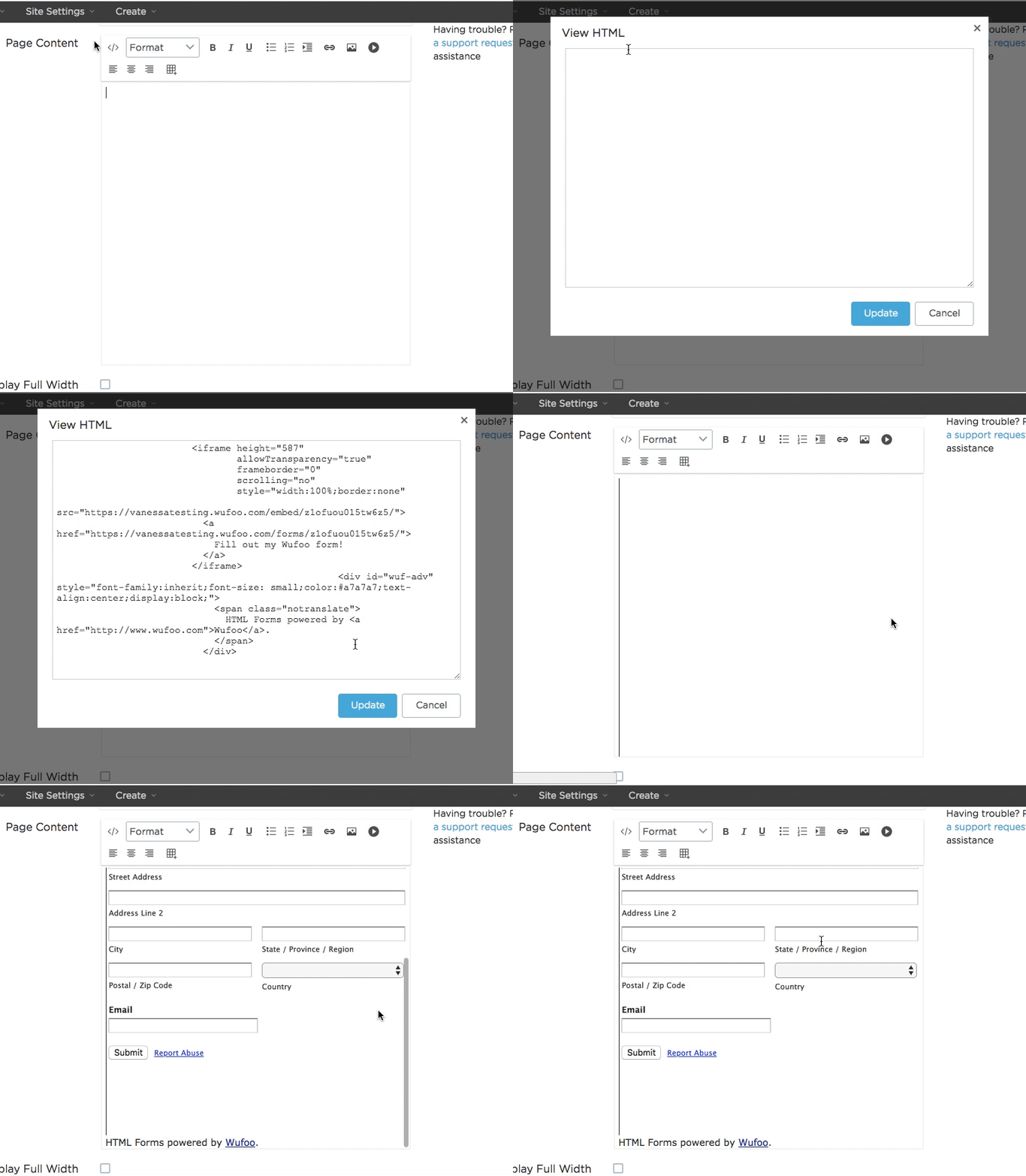
Once you've opened the page editor, you'll need to select the HTML tool, which looks like this: </>.
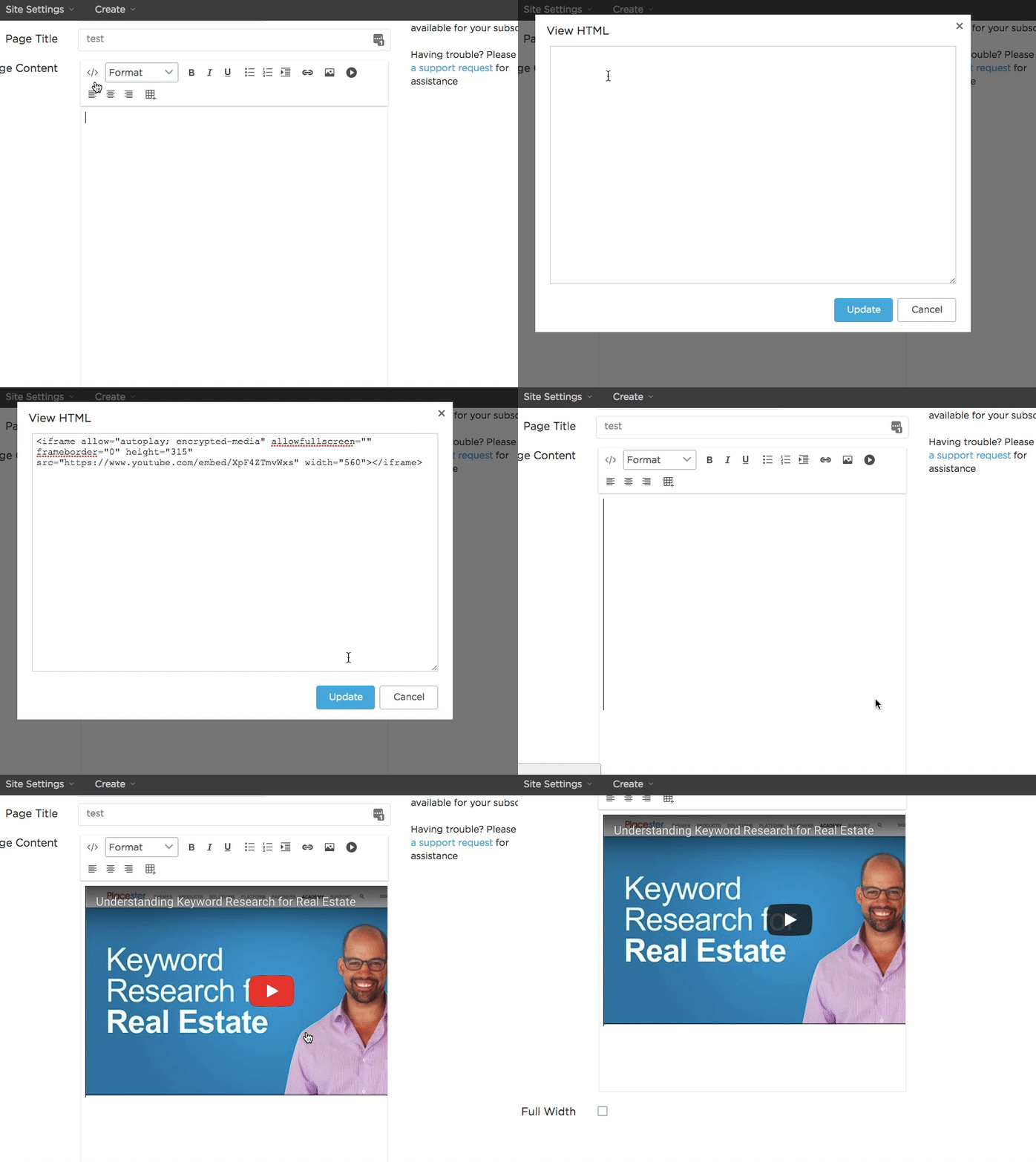
Then, paste in the HTML code snippet and click Update. If the code was accepted and successfully embedded, you'll now see your form or iFrame appearing within the page content.
Wufoo Example
Here's an example of what embedding a Wufoo form code looks like:
Viewing the Live Page
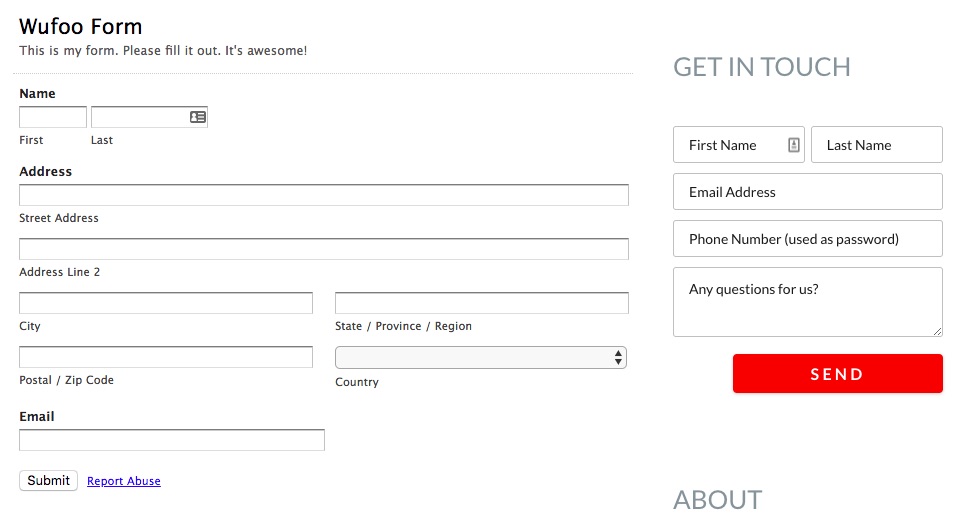
Here is what that form looks like on the live site:
Embedding Videos
If you have an HTML embed code for a video, click here to learn how you can add it to a page or post using the video embed tool.
Need More Help?
For questions, concerns, or feedback, please chat with our team: https://app.placester.com/chat