Adding Videos to Pages and Posts [Classic]
This article will walk you through you how to embed Youtube and Vimeo videos into your pages and posts.
Youtube
Before going into the backend of your Placester site, you will first want to retrieve the embed code for the Youtube video that you’re looking to use. To start, go to Youtube, and pull up the video.
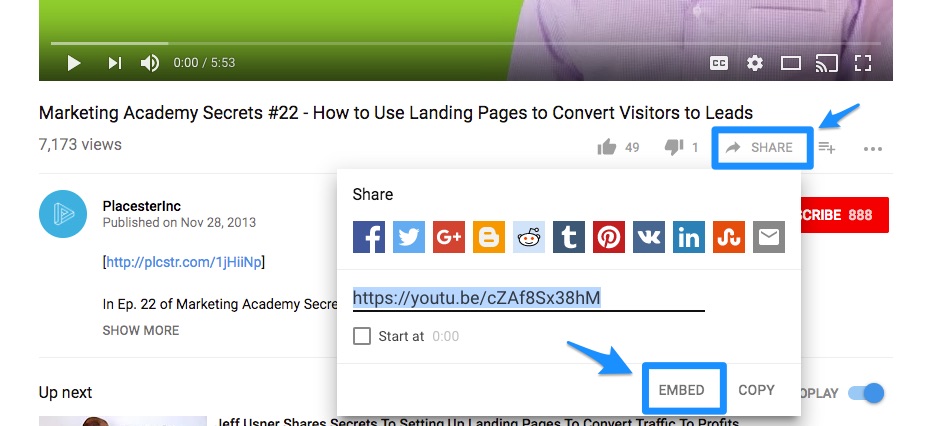
Underneath the Video title, click on the “Share” tab towards the right-hand side of the screen, and then click on “Embed”.
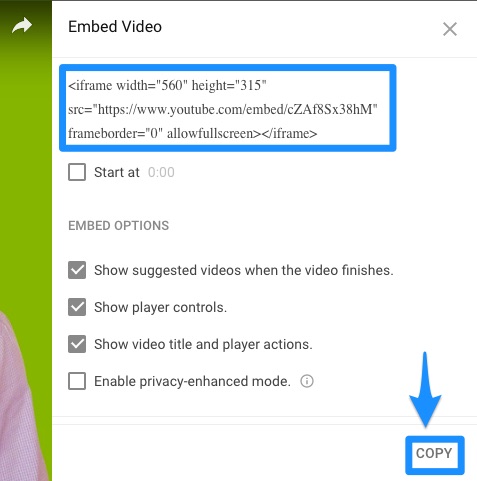
This will bring up an embed window, where you can view the code that you need. From here, you can simply click “Copy”, which will automatically copy the entire code to your computer’s clipboard.
Vimeo
Before going into the backend of your Placester site, you will first want to retrieve the embed code for the Vimeo video you’re looking to share. To start, go to Vimeo, and pull up the video.
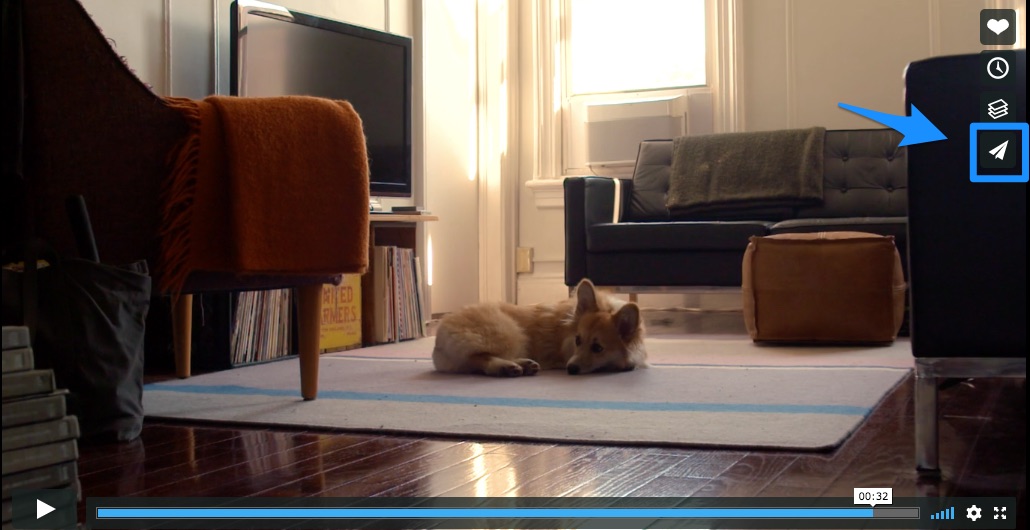
If you hover your mouse over the video screen, you will notice that a couple of icons appear on the right-hand side of the video. From here, click on the paper plane icon.
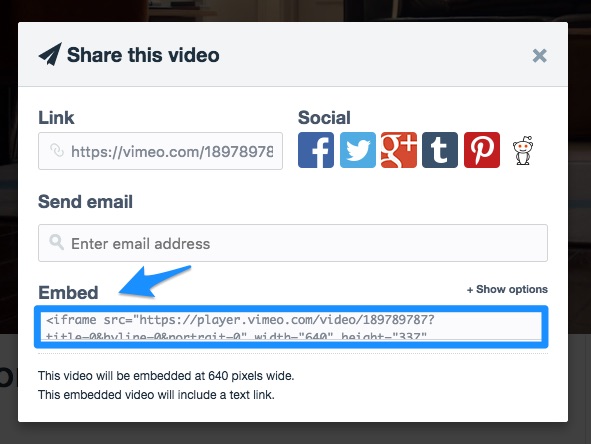
This will then bring up a “Share this video” window. In the Embed section, you will be able to find the code that you will need. Highlight the entire frame, and copy the code to your computer’s clipboard.
Placester Dashboard
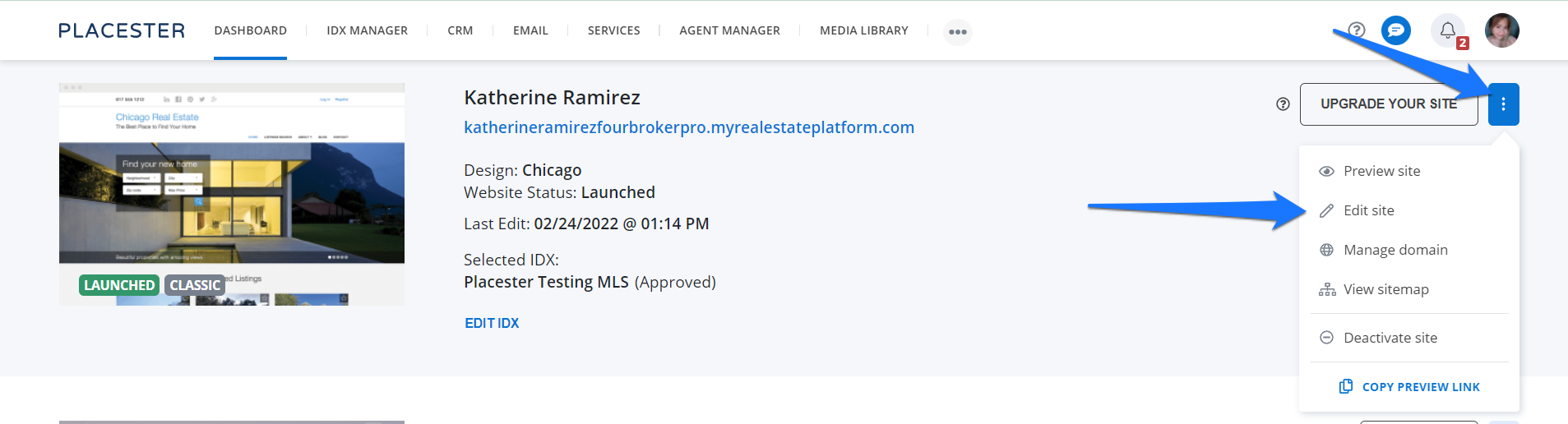
Once you have the embed code for your video, log into the backend of your Placester site. From your dashboard, click the 3 dots next to the update your site button and click edit site from the dropdown. This will lead you to your Site setting page.
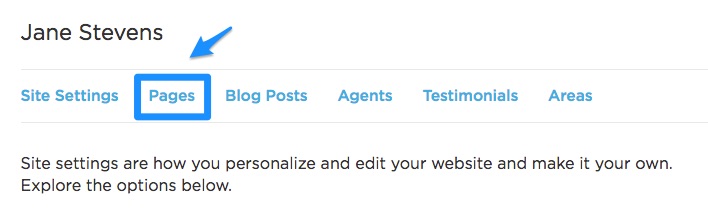
From here, you can access your pages by clicking on the “Pages” tab, located underneath your site’s title. You can learn more about creating pages here, as well as how to edit existing pages by clicking here.
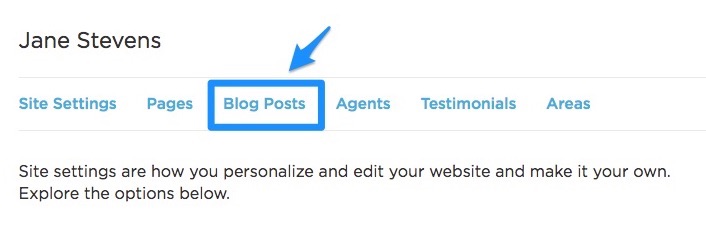
Similarly, you can add a blog post to your site directly from your Dashboard by clicking on either of the “Edit Site” links. However, instead of clicking on the “Pages” tab, click on “Blog Posts”. You can learn more about creating new posts here, as well as how to edit existing posts by clicking here.
Adding an Embed Code
Within the page/post editor, you will notice a formatting bar located towards the top of the Page/Post Content section. From here, click on the video button.

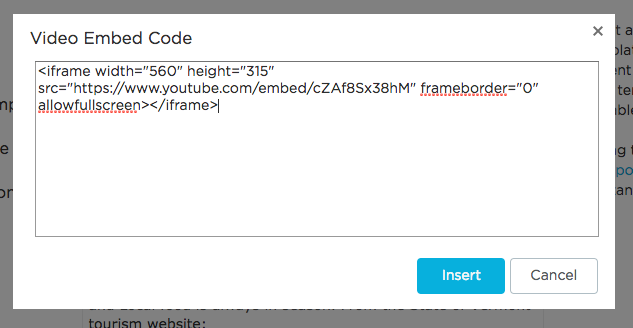
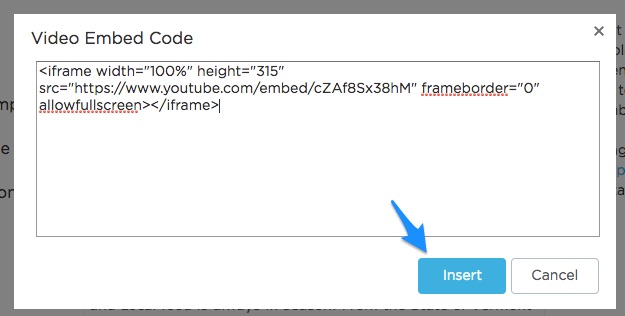
You should then see a “Video Embed Code” window come up on your screen. This is where you will want to paste your Youtube or Vimeo code.
Important: Editing the Code
Before clicking on the “Insert” button, you will first need to adjust the width code of the iFrame to display as width="100%". This will ensure that your video formats correctly to the page on both desktop and mobile devices.
For example, let’s say this is the code that you had just pasted into the “Video Embed Code” window:
You will want to change width="560" to be width="100%" instead. After this adjustment, the iFrame should then look something like this:
Once you have edited this part of the code, click “Insert” to embed the video to your page/post.
When you’ve finished editing the content of your page/post, click on the “Save” button, located on the bottom of the page/post editor.
Need More Help?
For questions, concerns, or feedback, please chat with our team: https://app.placester.com/chat