Setting Your Content Automation Schedule
Your Content Automation plan sets how often posts can publish. The schedule sets the available date or day, local time, time zone, and publishing mode.
Before you begin: Monthly, weekly, and daily are separate plans. To change cadence, open Plan & Billing → Product Add-ons and select CHANGE PLAN for Content Automation.
Set the schedule during setup
On the wizard's Schedule step:
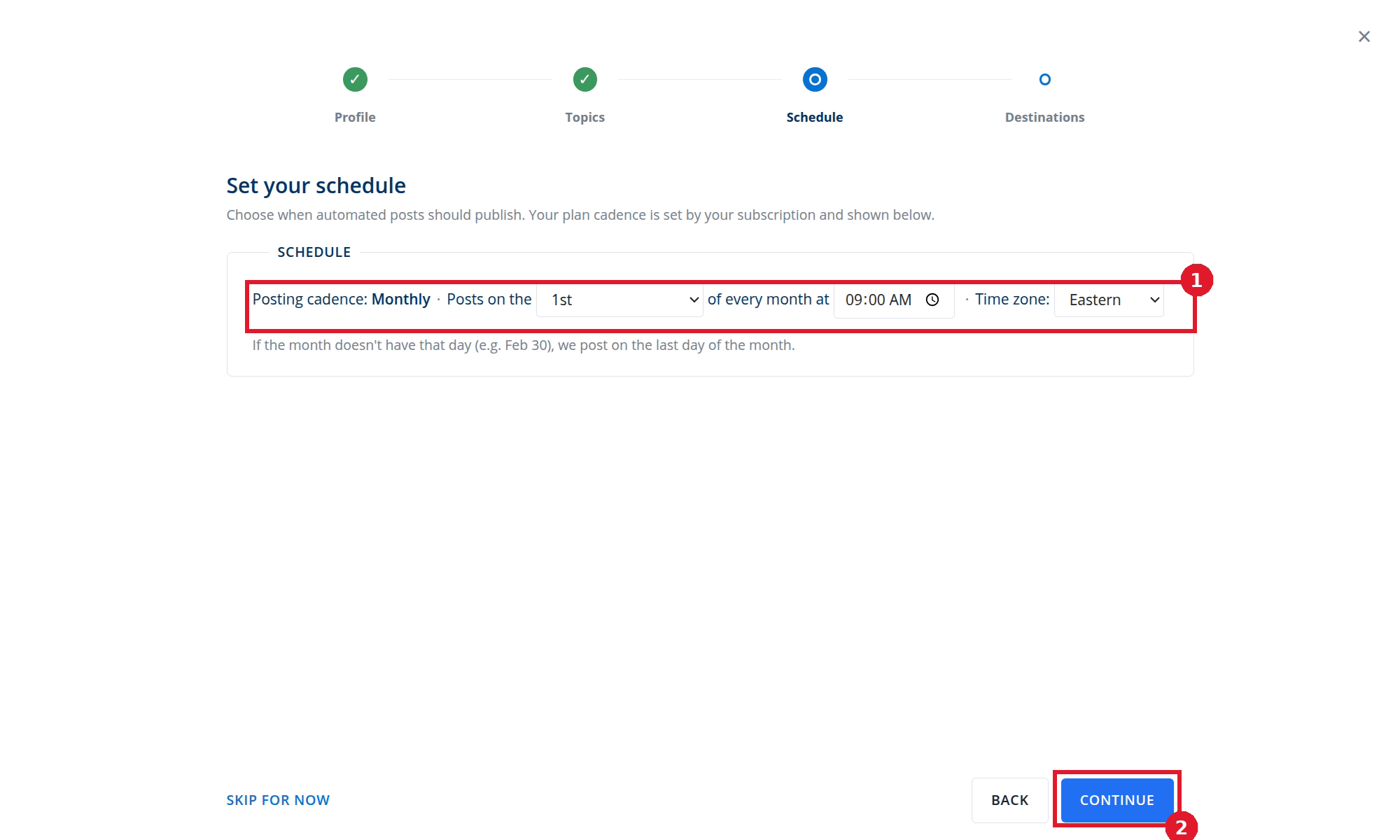
- Set the controls shown for your plan. The example is monthly, so it offers a day of the month, time, and time zone.
- Select CONTINUE.
If a selected date does not exist in a month, Content Automation posts on that month's last day.
The setup wizard does not show a publishing-mode choice. Completing setup turns on Publish immediately. You can change the mode afterward.
Choose a publishing mode
- Open Content → Blog → Configuration.
- Under AUTOMATED BLOG POSTS, choose a mode.
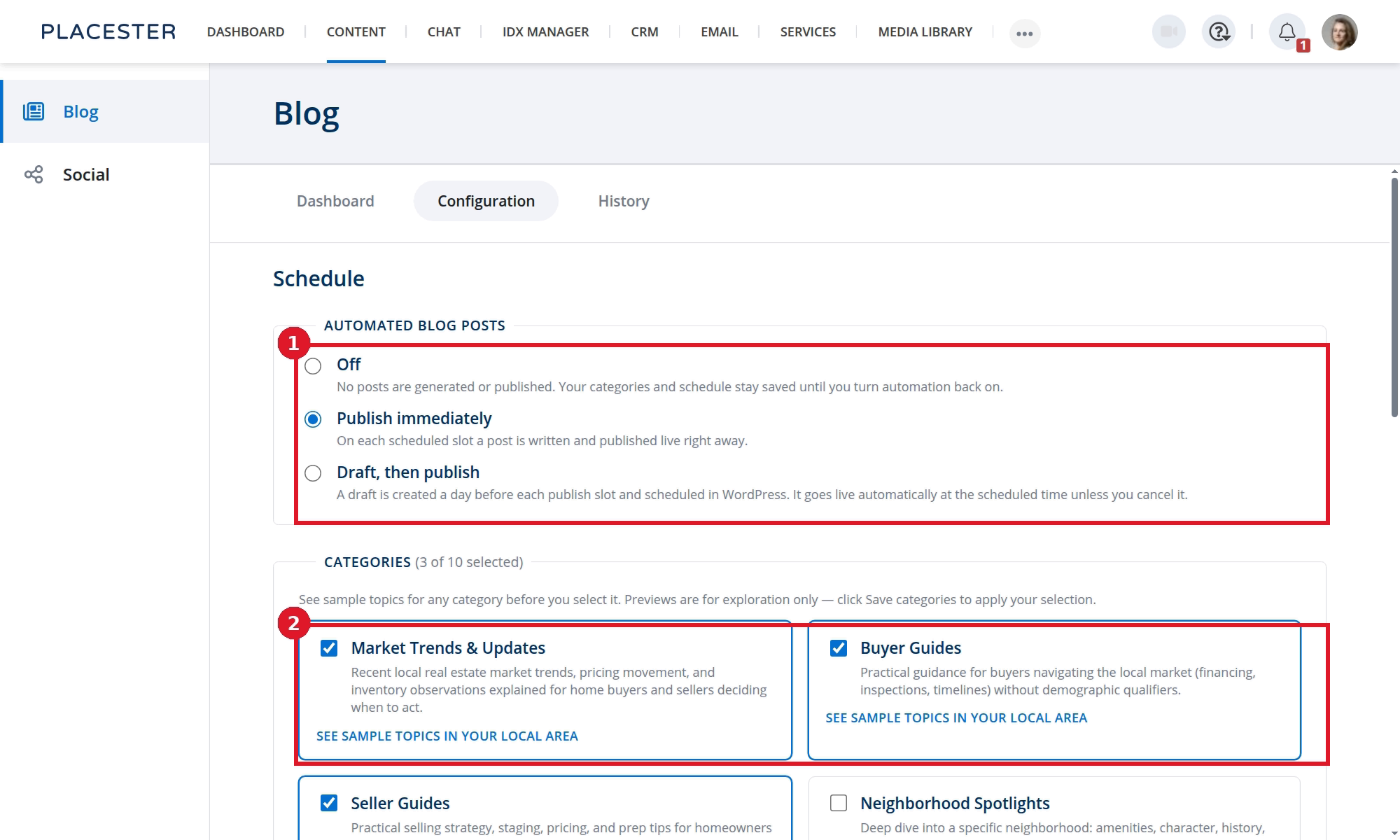
- Choose Off, Publish immediately, or Draft, then publish.
- CATEGORIES is a separate setting directly below the publishing mode.
- Off: No posts are generated or published. Categories and schedule stay saved until you turn automation back on.
- Publish immediately: A post is written and published at each scheduled slot.
- Draft, then publish: A draft is created one day before each publish slot and scheduled in WordPress. It goes live at the scheduled time unless you cancel it.
Change the date or time
Scroll to the SCHEDULE section on Configuration.
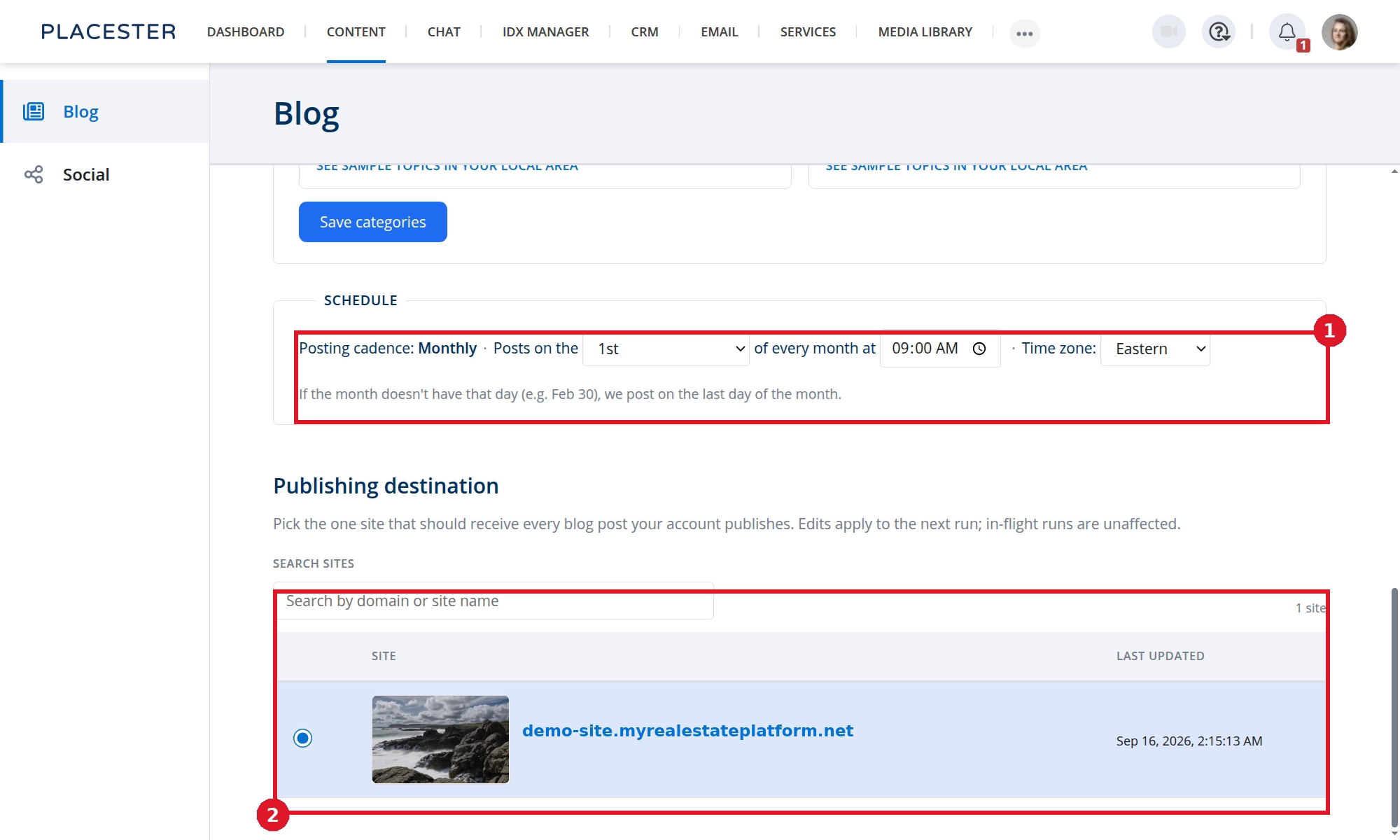
- SCHEDULE shows your plan cadence and the available date or day, time, and time-zone controls.
- Publishing destination is a separate setting below the schedule.
The controls change to match a monthly, weekly, or daily plan. Your selections save when changed.
Switching to Off stops new generation. It does not delete posts already published.
Off versus deactivating the add-on
Off pauses automated posts but keeps Content Automation active on your subscription. Your categories and schedule remain saved.
To deactivate the paid add-on, open Plan & Billing → Product Add-ons, find Content Automation Add-On, and select DEACTIVATE. Confirming deactivation keeps access available through the end of your current billing cycle. Use CHANGE PLAN instead when you only want to change the publishing cadence.
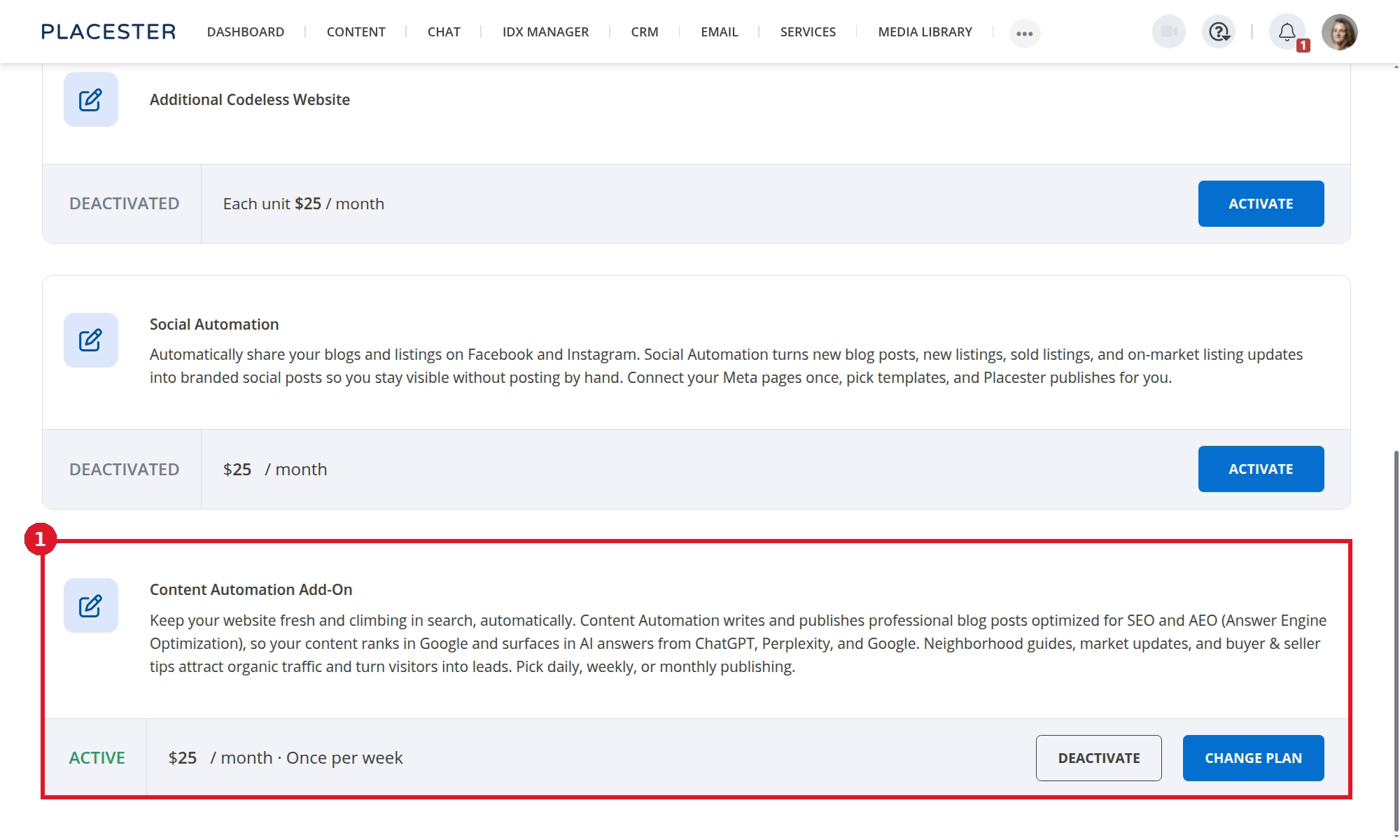
- DEACTIVATE ends add-on access after the current billing cycle; CHANGE PLAN changes the monthly, weekly, or daily cadence.
Need more help?
If you have questions about Content Automation, contact Placester Support at support@placester.com.