How To Hyperlink Text And Images
These steps are for the Legacy Customizer. For Site Edit, see Formatting Text, Links, Images, and Tables.
This article will show you how to hyperlink text and images on your site.
Hyperlinking Text
To link text on your page to another URL/page (hyperlinking), highlight the text in the page editor, and click the Hyperlink button. This opens a popup with the link settings.
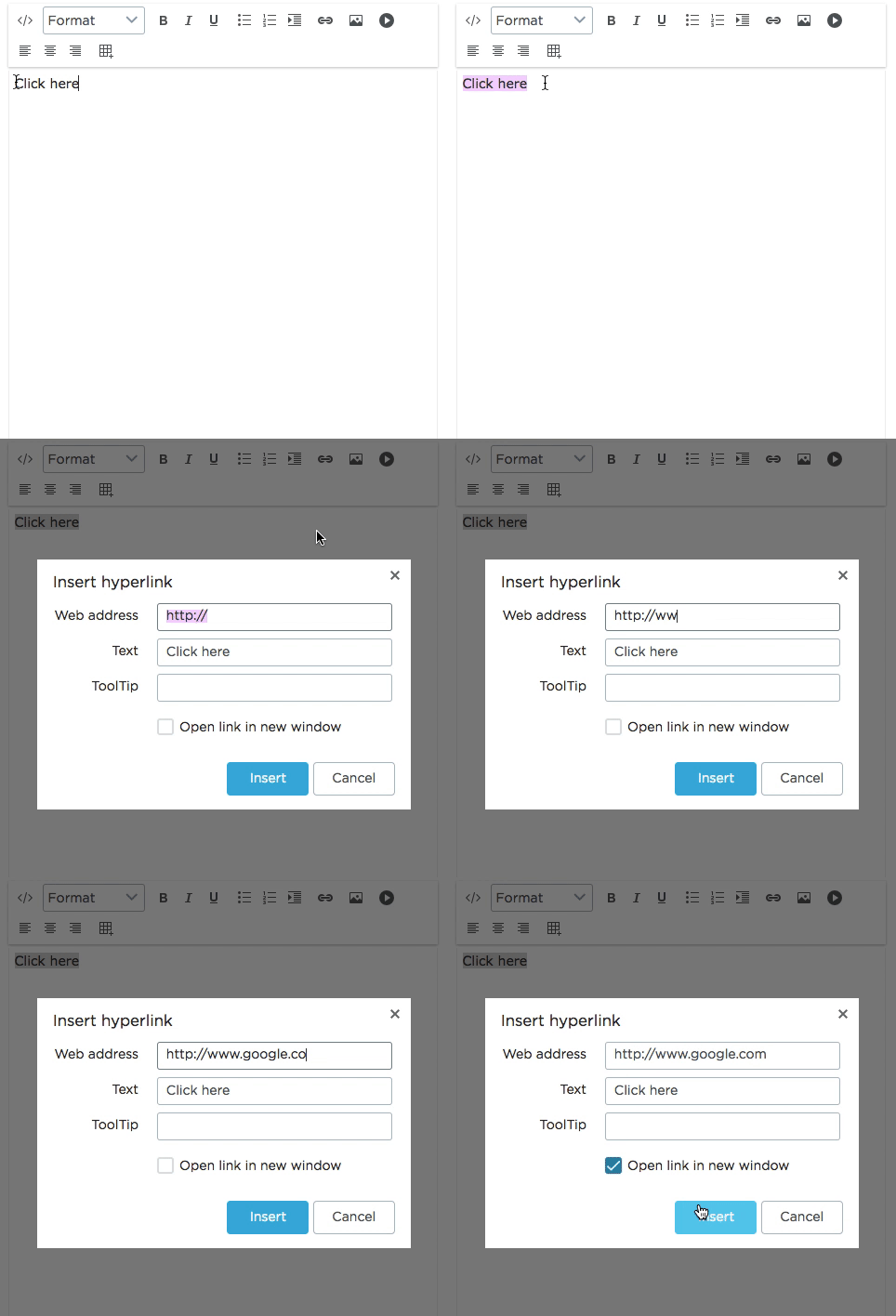
You can enter the URL/web address for the linked text to go to, change the text that displays instead of the full URL, a ToolTip (what displays when you hover over the link), and whether or not to open the link in a new window.
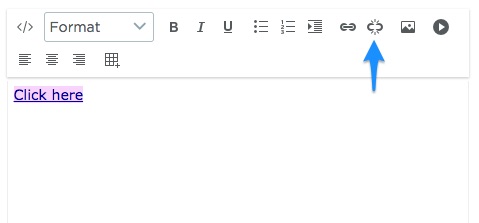
If you want to remove the hyperlink, highlight the text and then click the Remove Hyperlink button
Hyperlinking Images
There is a similar process for hyperlinking images. Once you've uploaded your image, click the Hyperlink button and add the Web address.

Need More Help?
For questions, concerns, or feedback, please chat with our team: https://app.placester.com/chat