Adding a Blog Post to a Category [Codeless]
These steps are for the Legacy Customizer. For Site Edit, see Organizing Blog Posts with Categories.
This article will explain How to Organize your Blog Posts into Blog Categories with Placester.
It is important to note that this feature is only available on our Advanced and Office Builder plans. If you’re currently not subscribed to one of these packages but are interested in learning more, please visit our packages and pricing page.
Categorizing blog posts
Categorizing blog posts can be a good way to structure and organize your posts. You may want to place your blog posts into categories in order to sort your articles by theme. You can also use this tool to gear your articles to different audiences i.e. a buyers blog and a sellers blog.
Creating a new category
The easiest way to add a new blog category is when you are creating a new post, although this can be done with existing posts as well. To create a new post, log into your Placester account then click “edit site” to access the back end of your website. On the side, menu click create new > blog post.
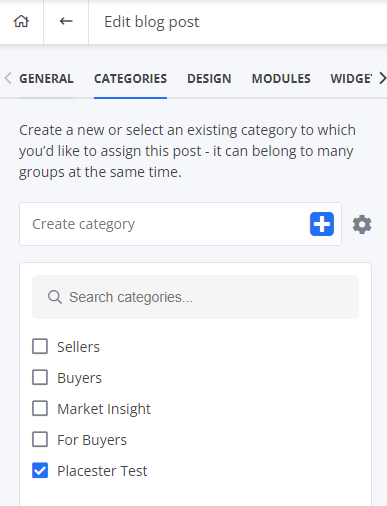
Under the “Categories” tab, you can create a new blog category or select an existing category to which you’d like to assign this post to.
To create a new blog category, enter the title of the new category and click the “+” button. The new category will now display checked in the box below.
Adding a blog to a category
You will see right below the title box there is the section to assign a blog to categories. Check off any categories you would like to assign the blog post to - it can belong to many groups at the same time.
Managing Categories
The managing categories section allows you to edit or delete your existing categories. To manage categories, click on the gear icon.
To edit the title of the category, click directly on the name of the category you’d like to edit. To delete a category, click on the trash icon to the right of the category.
Creating a Blog Index for a new category
Once you have added the respective blogs to the category you have created, you will need to create a new blog index page to showcase the new blog category.
To add a new blog index page, click Create New > Page. Then select “Blog posts index” as the page template.
Under Page options, enter a title and a description for your blog index page. You also have the option to select how many blog posts you’d like to display per page.
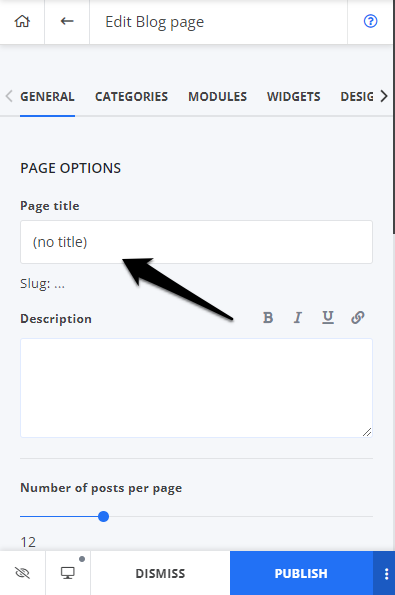
Then select the appropriate category under the “Categories” tab. Once this is complete, click the “Publish” button.
This creates a separate blog index page for articles under this specific category, which will appear on your menu.
Need More Help?
For questions, concerns, or feedback, please chat with our team: https://app.placester.com/chat