Tips and Resources for Cropping and Resizing Images [Codeless]
This article will show you how to crop and resize your images to fit the homepage slideshow.
Why do I need to crop or resize my images?
An important part of a great real estate website is having high-quality images to attract your site visitors and prospective clients. You'll want to add images to your slideshow that are as close as possible to the recommended size for your template. If the image is too small, it will look blurry and pixelated; if the image is too large, then parts of it will be cut out or it could slow down your site's loading speed.
Recommended dimension for all the images across Codeless sections, modules, and pages.
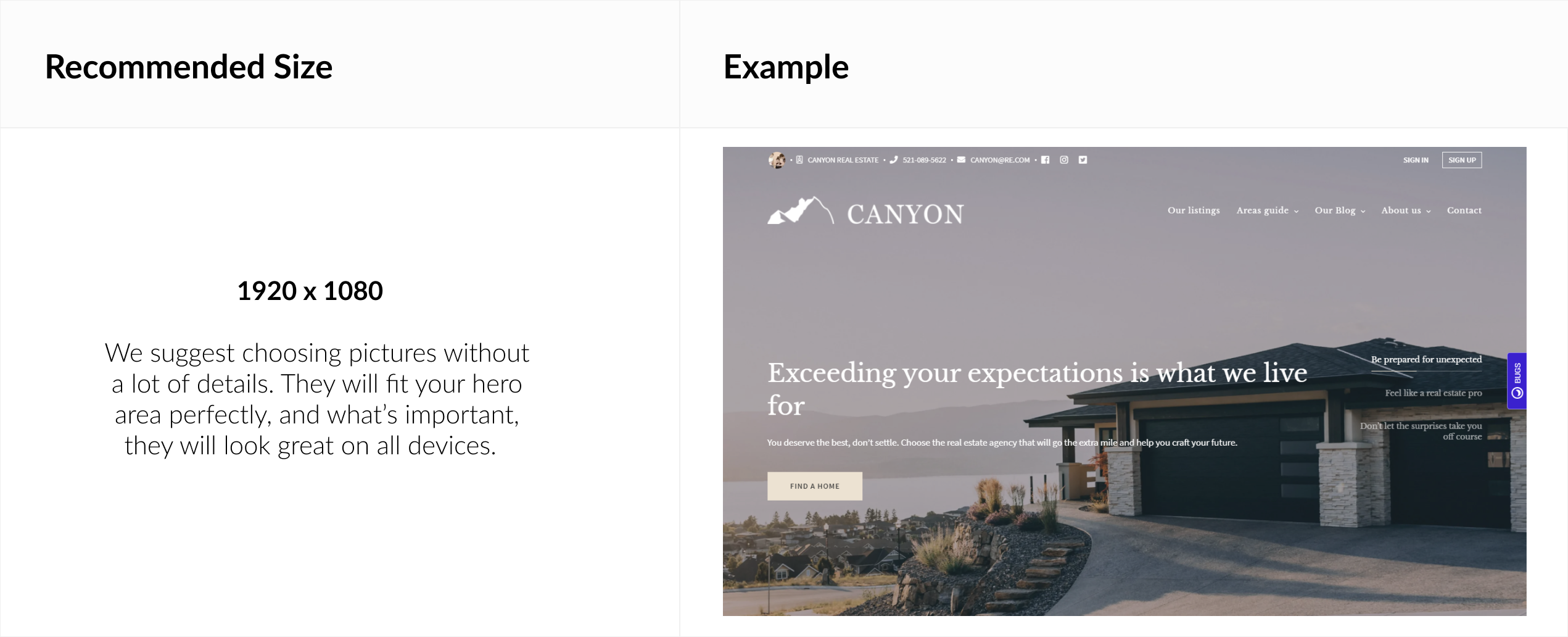
Homepage Hero image
You can change your Homepage Hero image, by going to:
Homepage > Edit Homepage Hero > Edit Homepage Slideshow
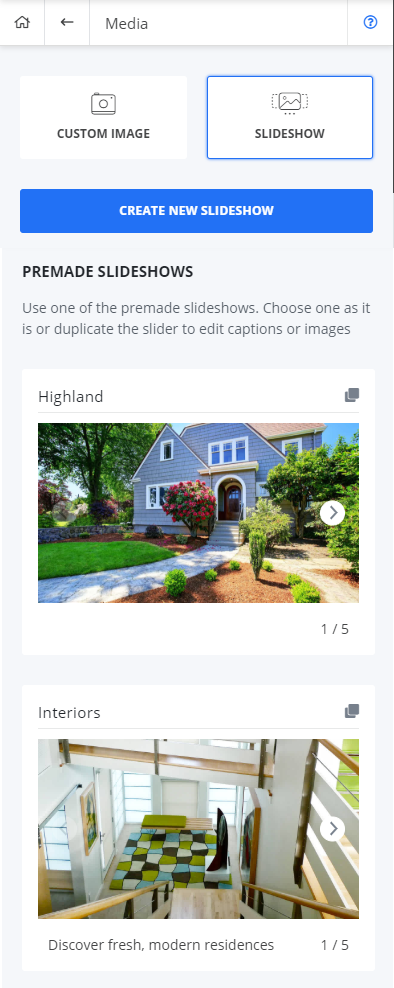
We have already prepared for you predefined packages with images of homes, scenes, and landscapes. You’re free to use, and you can be sure that your site will look beautiful with them!
Logo
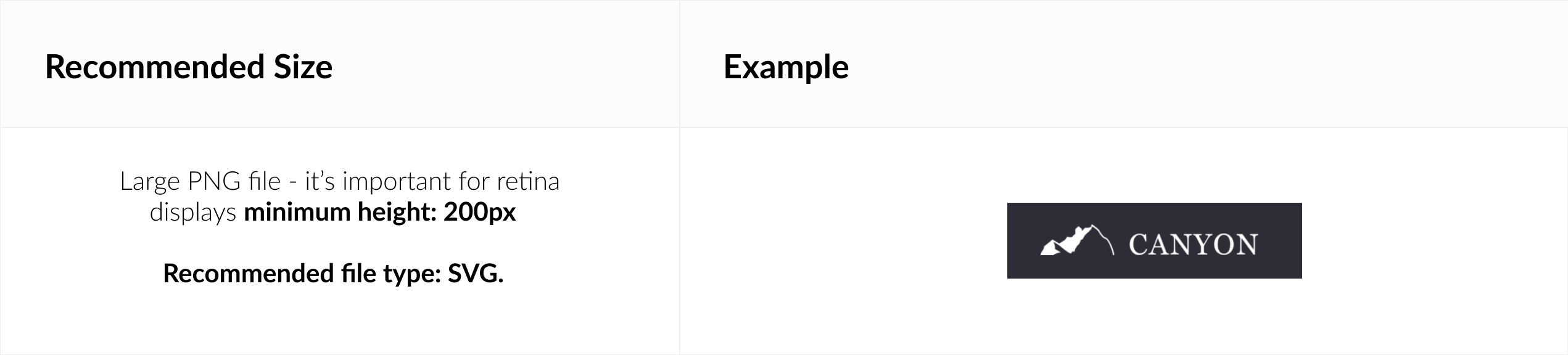
You can upload a logo of your choice by going to:
Design Options > Logos
Featured Content Cards - background image
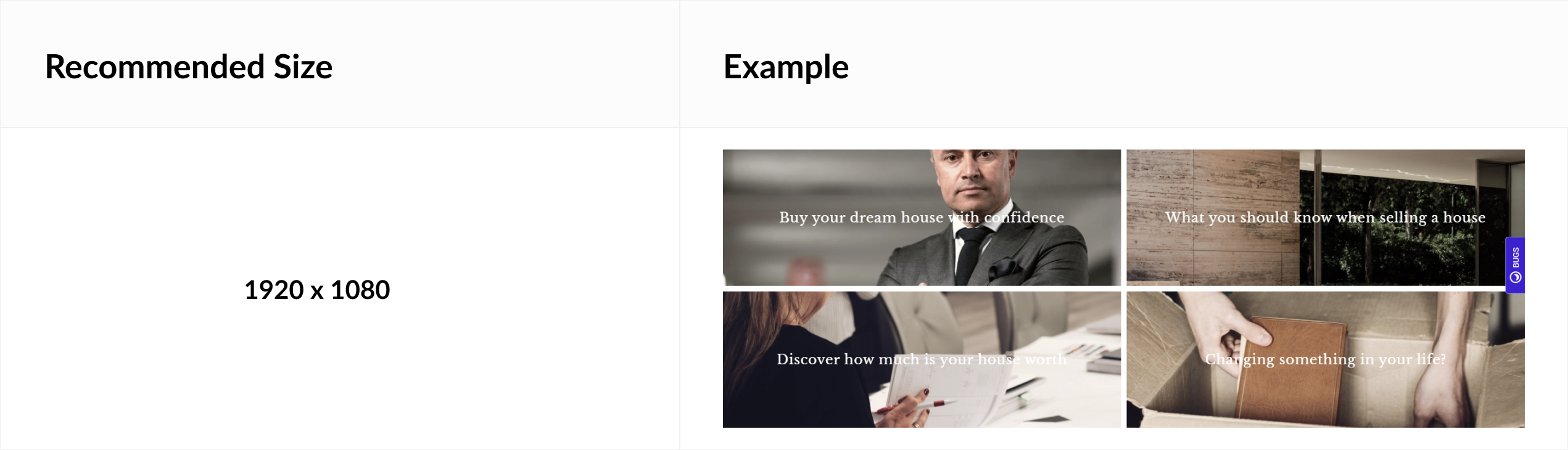
It is important to provide a high quality image for Featured Content Card because depending on layout and the number of cards, they will spread differently.
Contact Details - photo
To add it go to:
General Options > Contact Details
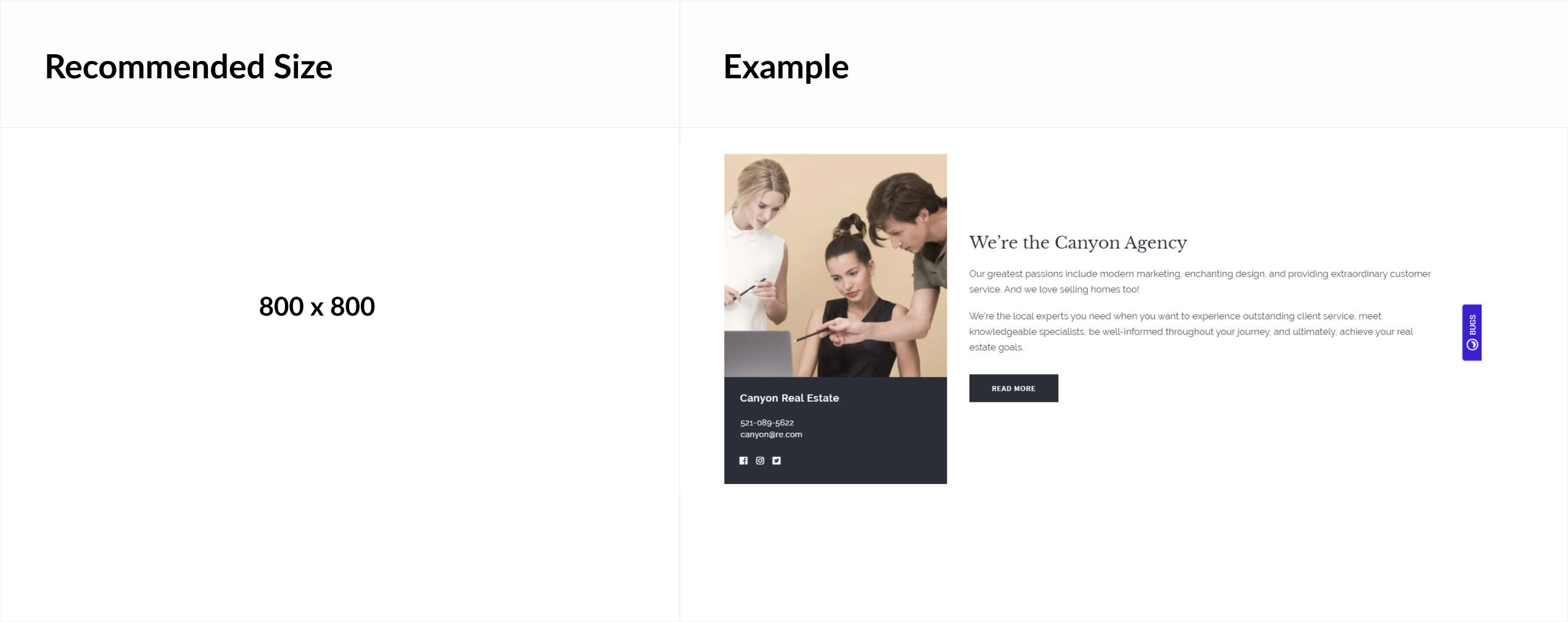
The Contact Details image will appear in MODULE ABOUT, and on SOCIAL BAR at the top of the homepage.
Note that the recommended dimensions here are the same for both height and width.
Area - featured image
PLAN ADVANCED AND ABOVE
It is important to provide a high quality image for Featured Content Card because depending on layout and the number of cards, they will spread differently.
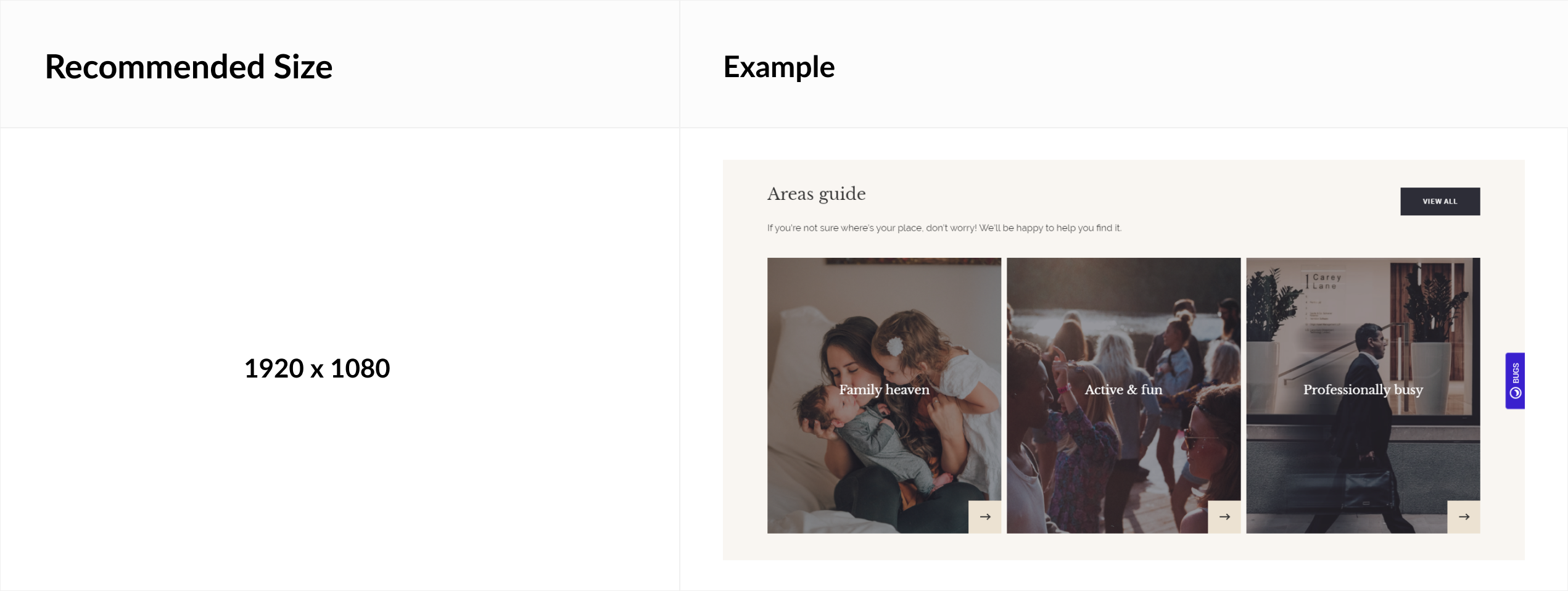
Area slider
PLAN ADVANCED AND ABOVE
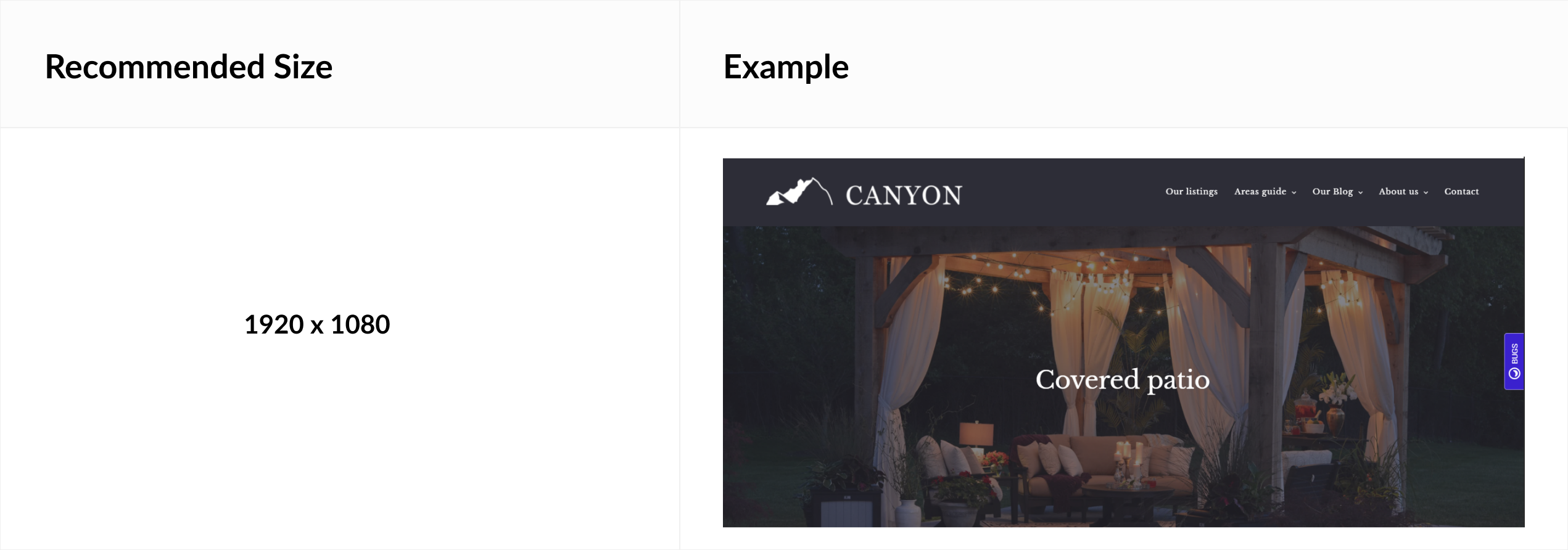
Testimonial - featured image
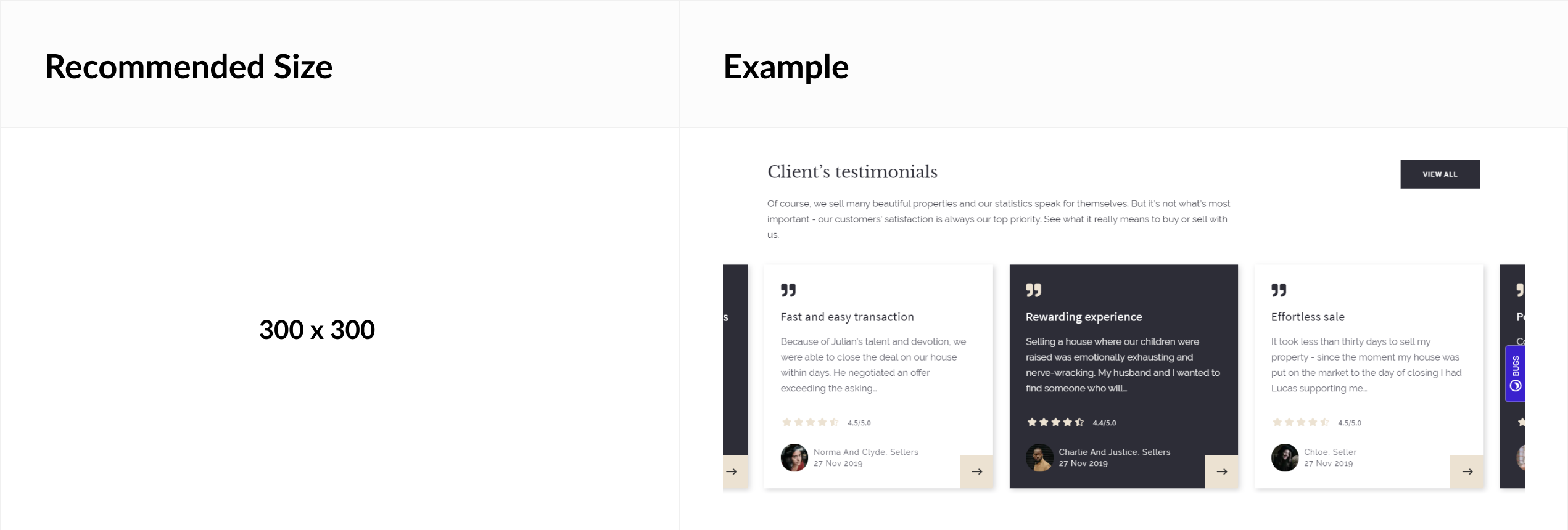
Note that the recommended dimensions here are the same for both height and width.
Blog post - featured image
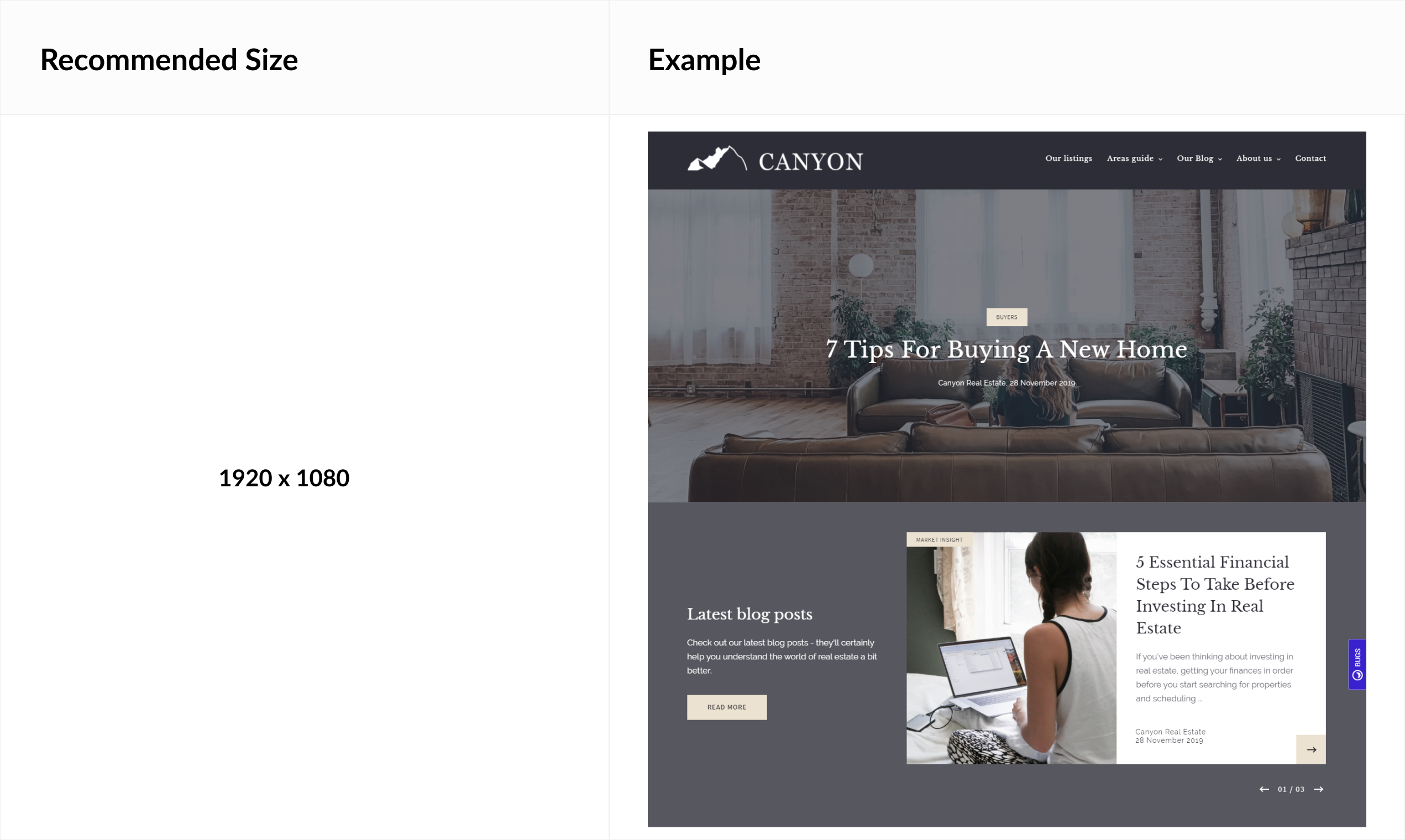
Custom content - background image
PLAN ADVANCED AND ABOVE
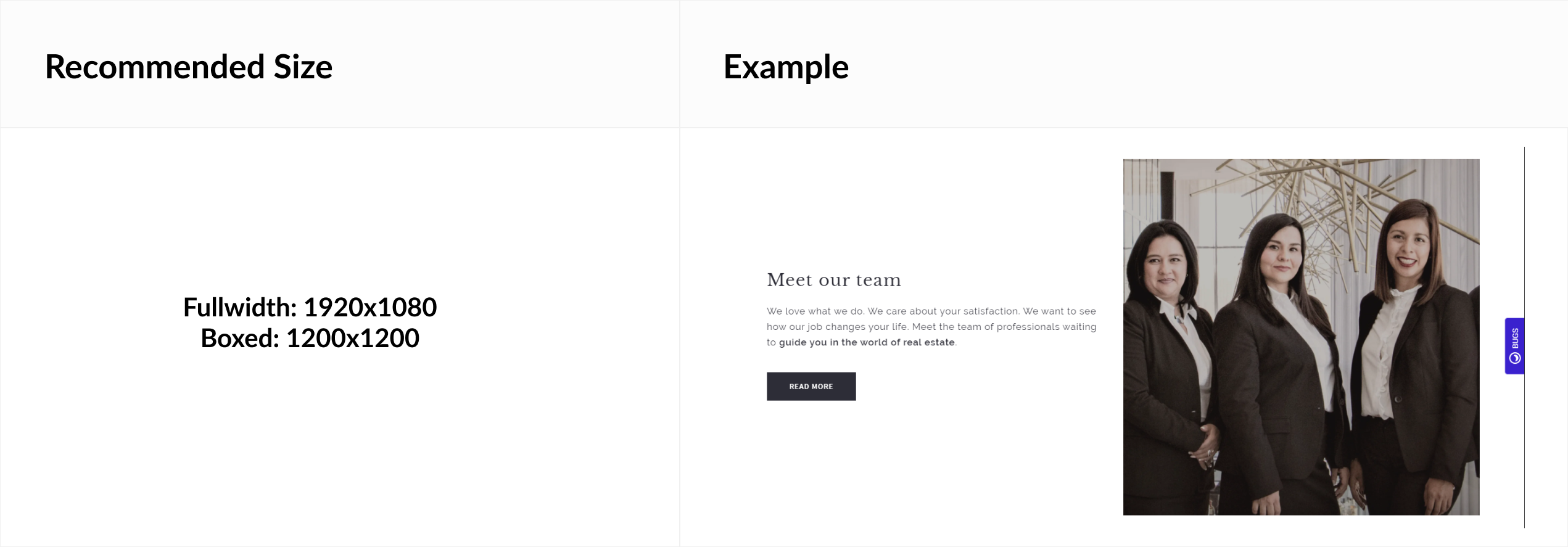
Here, recommended image size depends on the Custom Content layout that you have chosen before.
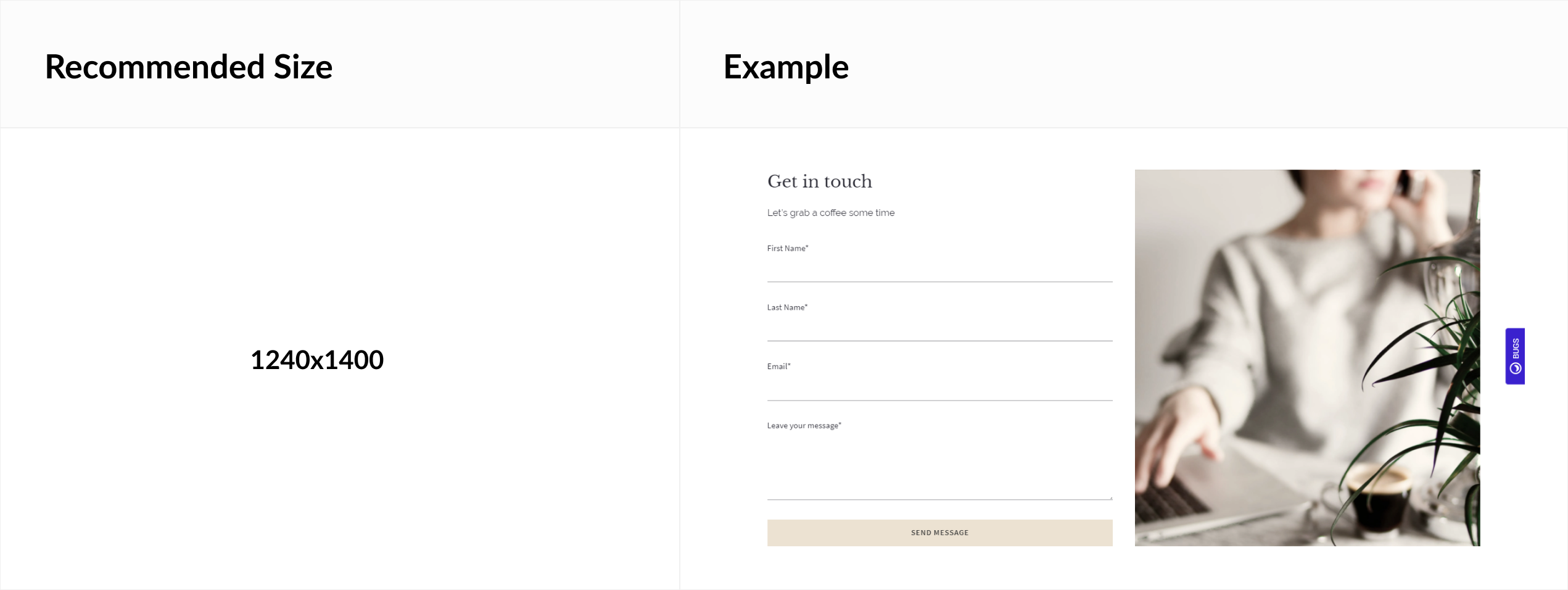
Contact - image
Agent - featured image
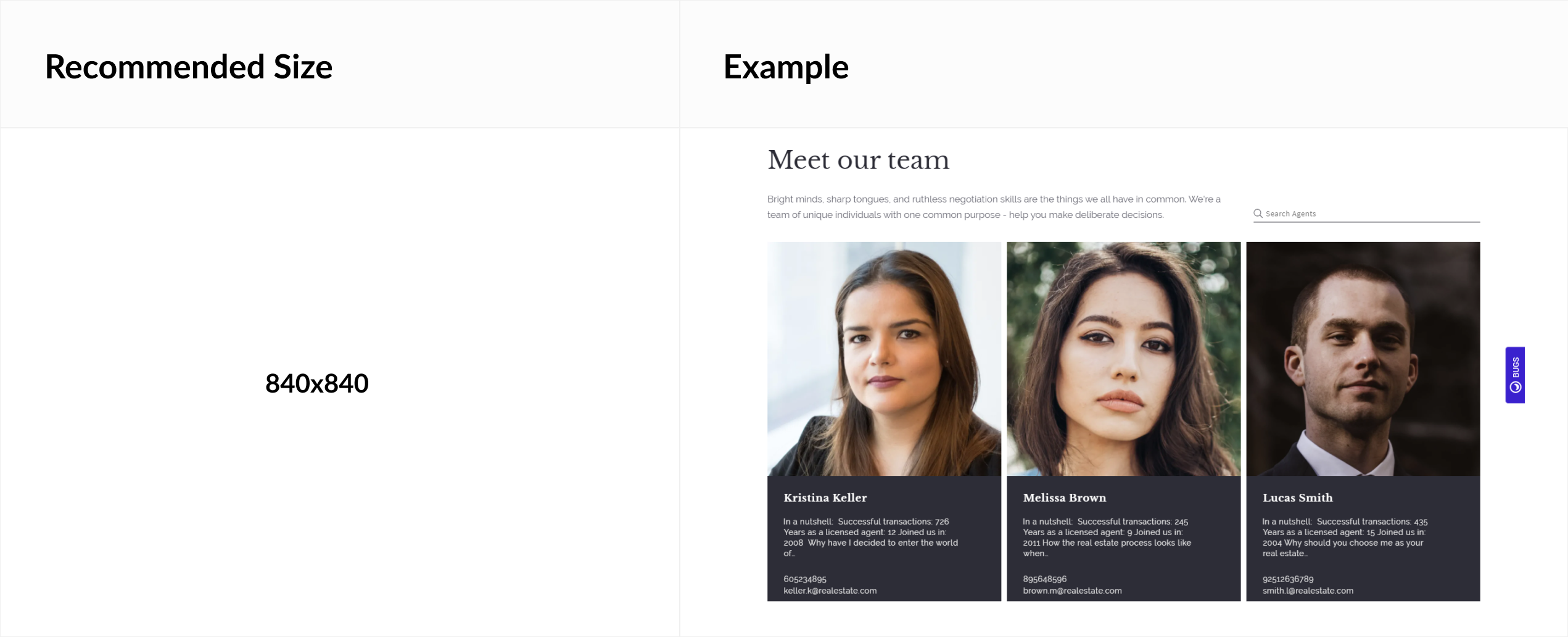
Note that the recommended dimensions here are the same for both height and width.
Office - featured image
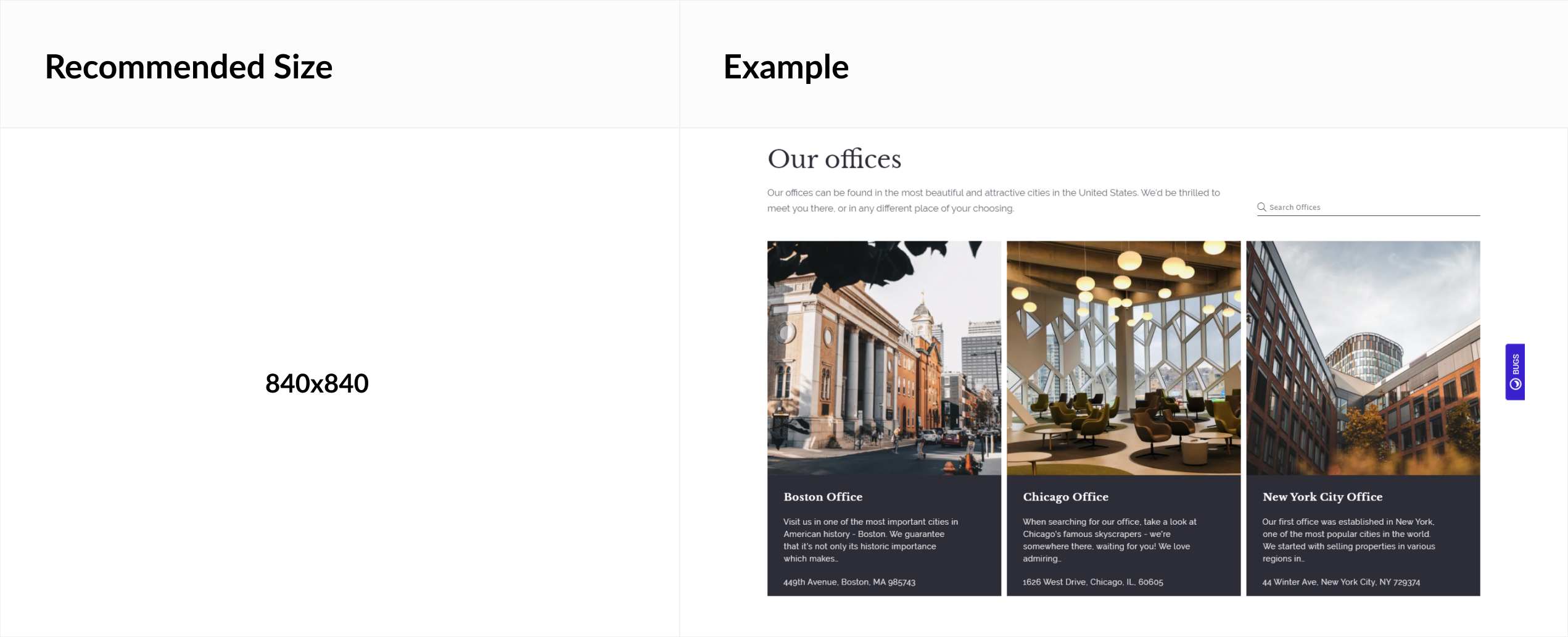
Note that the recommended dimensions here are the same for both height and width.
Mortgage calculator - image
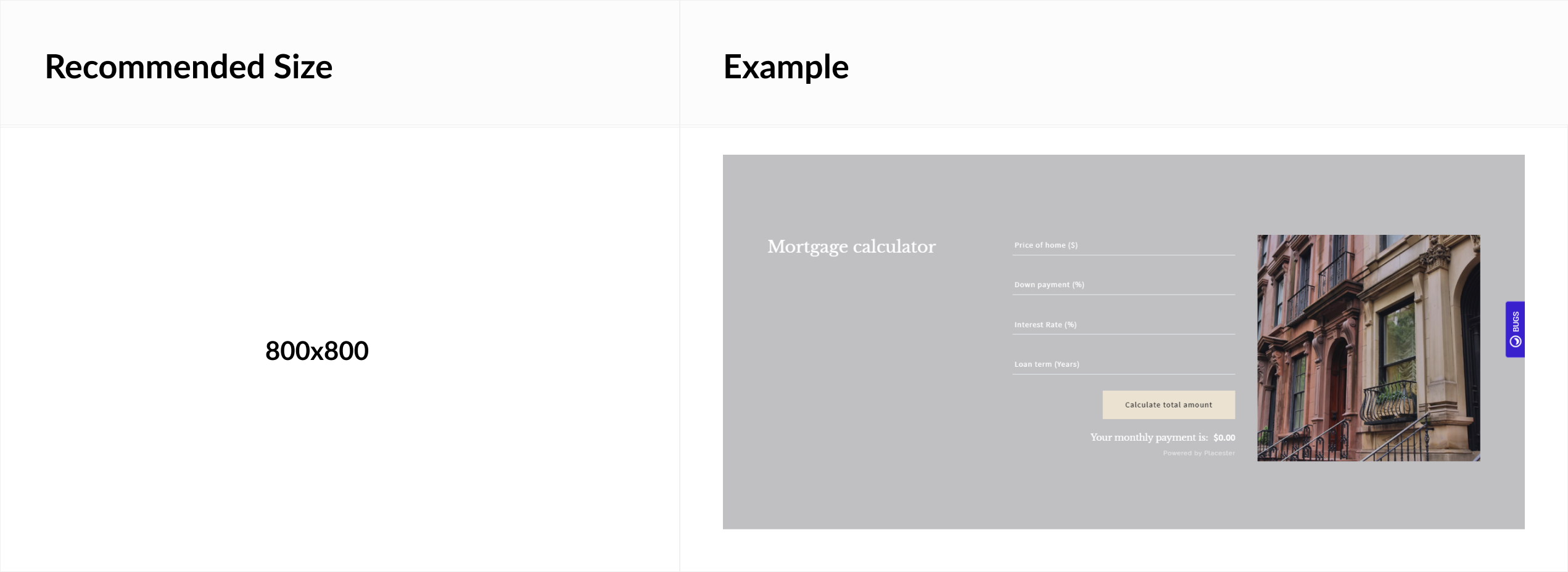
Note that the recommended dimensions here are the same for both height and width.
Landing page
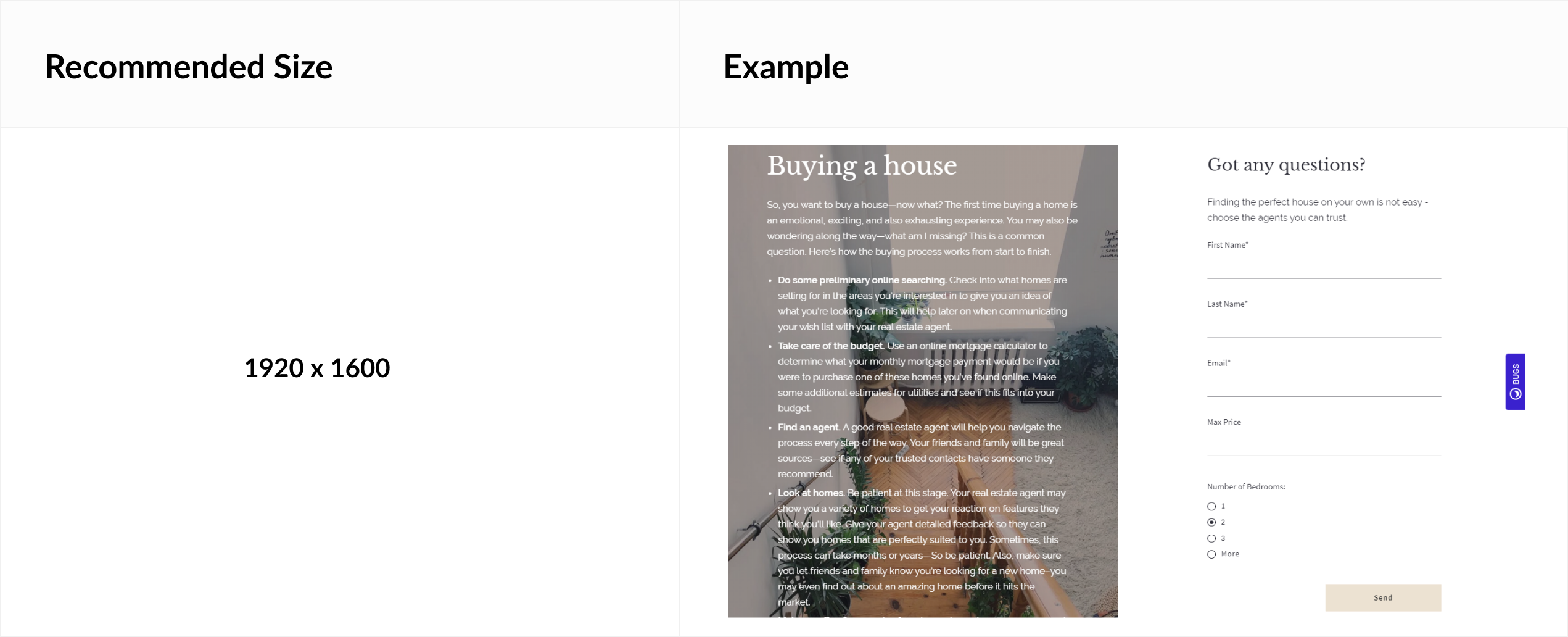
Home valuation
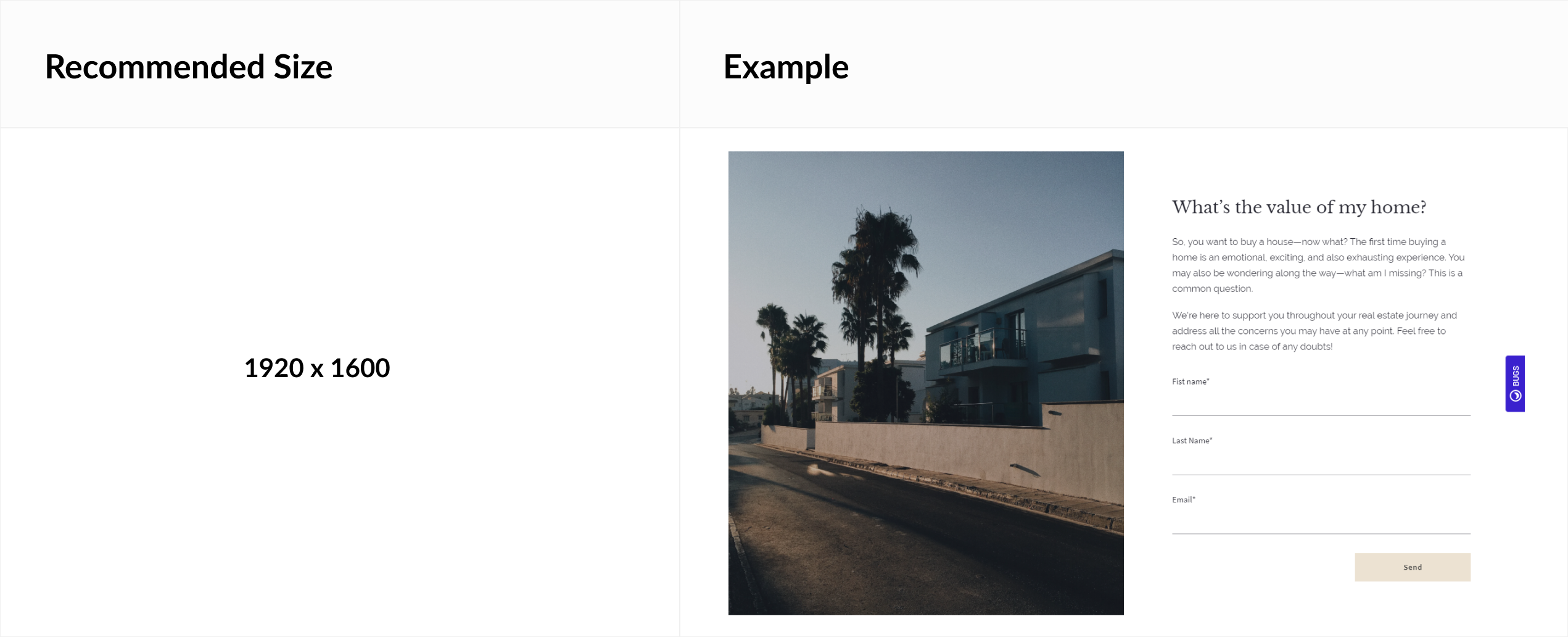
Logo wall - logotypes
PLAN ADVANCED AND ABOVE
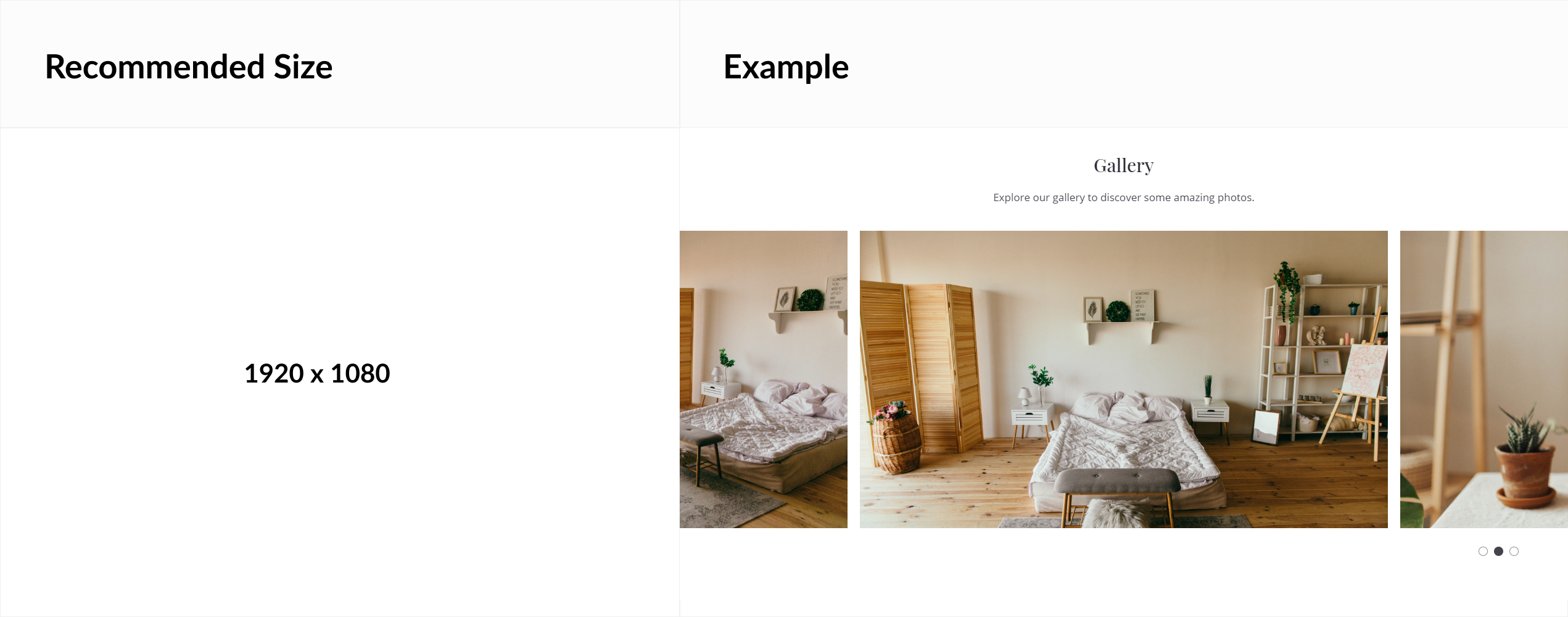
Gallery module - image gallery
PLAN ADVANCED AND ABOVE
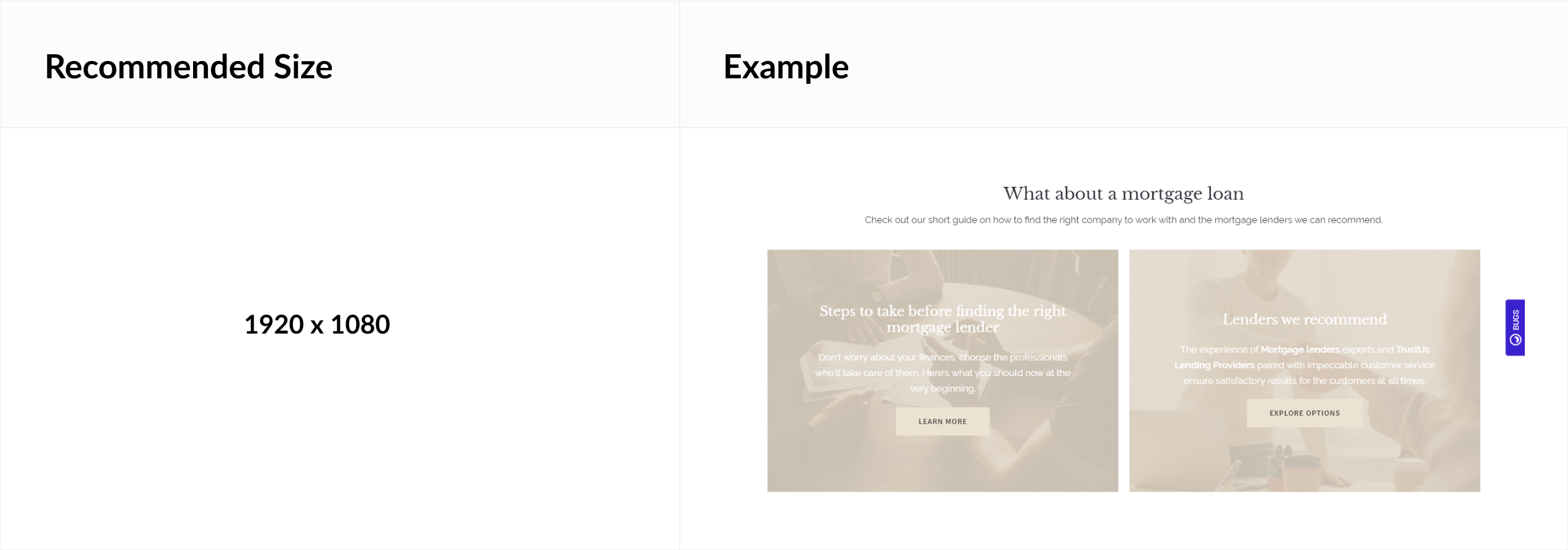
Call to action - background image
PLAN ADVANCED AND ABOVE
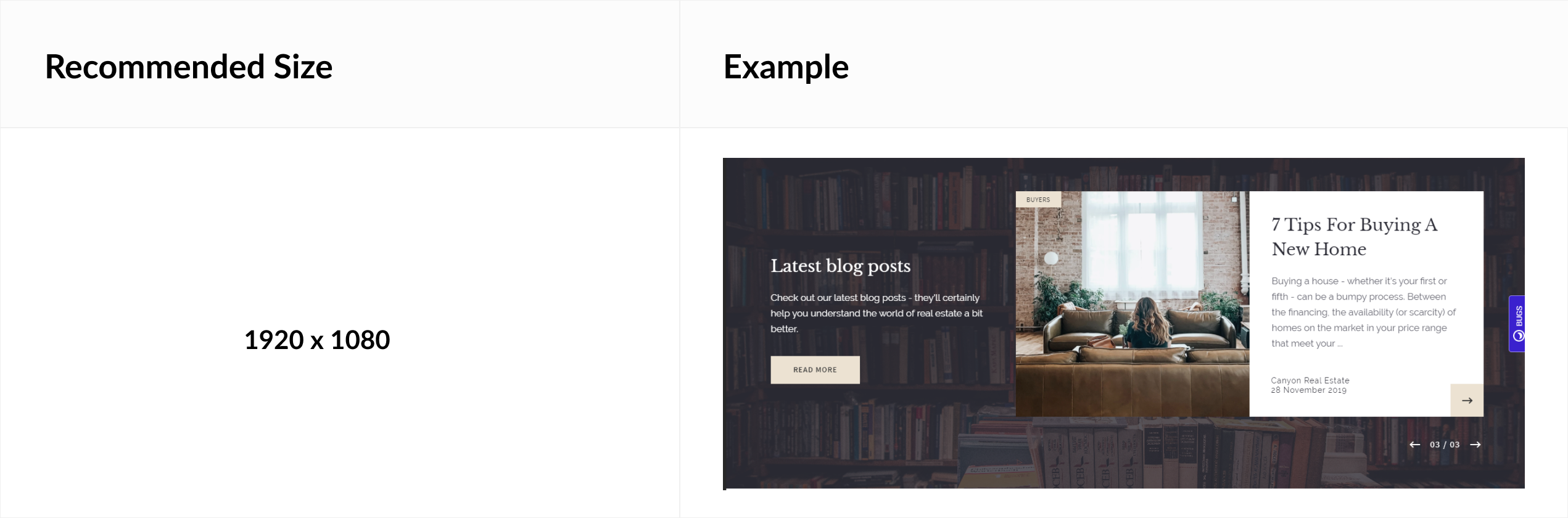
Module background - image
PLAN ADVANCED AND ABOVE
To change background go to:
Any Module Edition > Design Tab
Using Pixlr to Edit Images
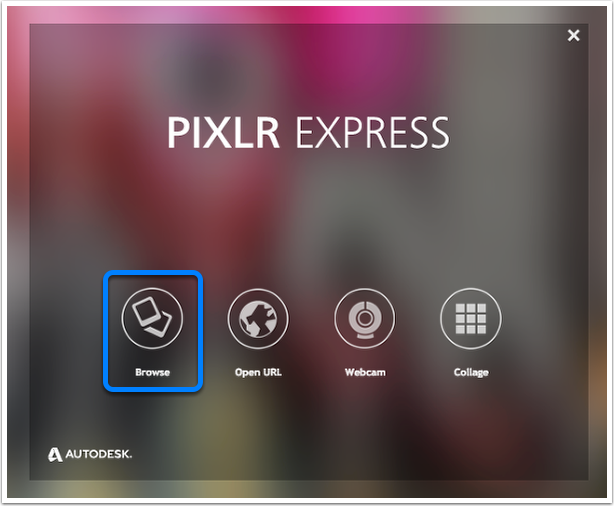
We recommend Pixlr, a free site that makes it really easy to resize your images. To start, click Browse and select the image you want to edit.
Using the Resize Tool
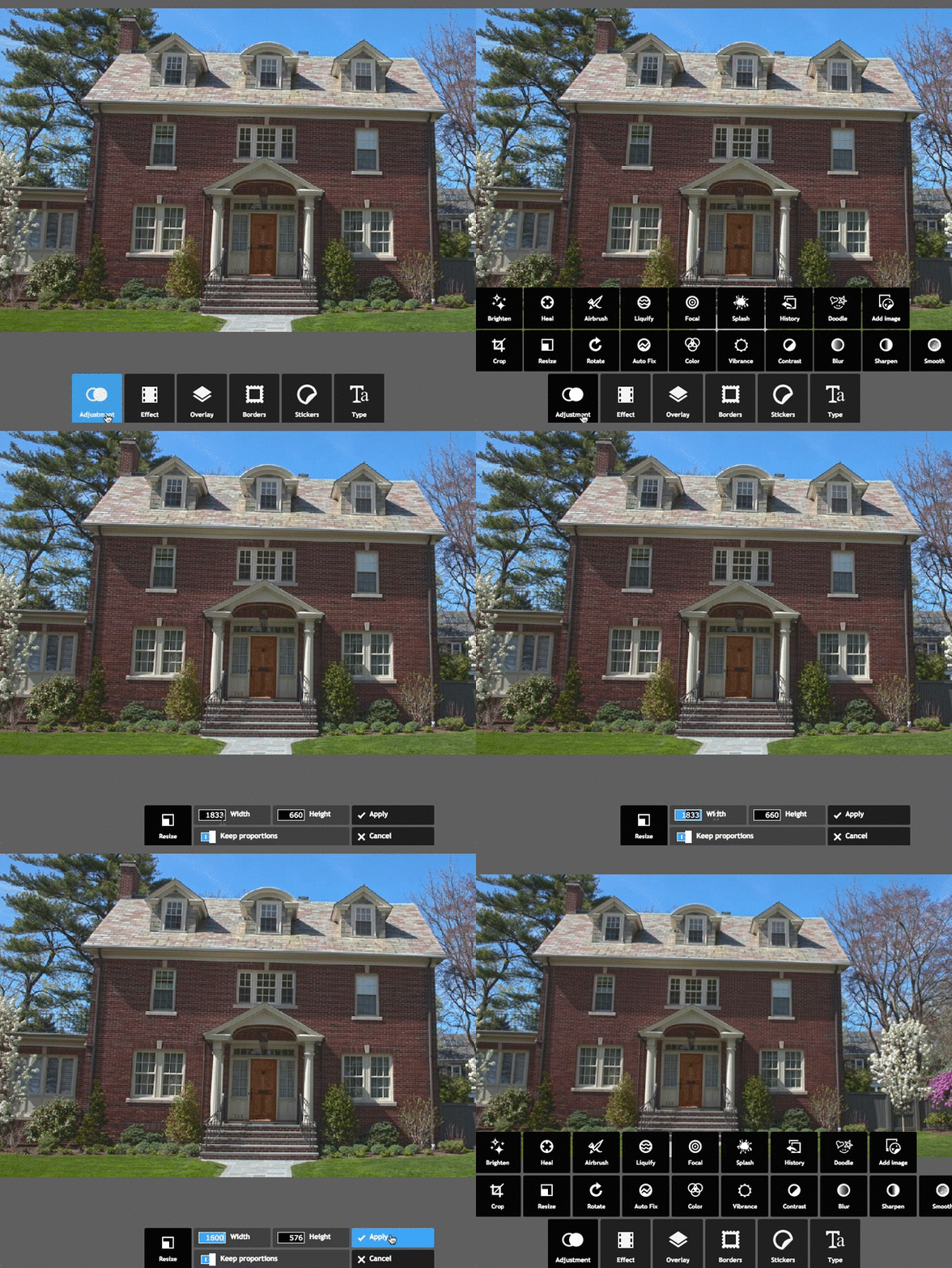
Click Adjustment to open the editing options, then select Resize. Make sure the "Keep proportions" box is selected to prevent the image being stretched out of proportion.
You can type a width or height depending on how you'd like to resize the image initially, then crop it from there. For instance, let's say you're aiming for 1600 pixels wide by 660 pixels tall. You might initially resize the image to 660 pixels tall, but then find it's still 2000 pixels wide when it's proportionately resized, so you'll just have to crop a bit off of each side to bring it down to 1600 pixels wide while keeping it 660 pixels tall.
Using the Crop Tool
To crop parts of the image off, you'll need to click Adjustment again, then Crop. Enter the size of the image you want to keep, rather than what you want to delete (so if you need your image to be 1000 x 500 pixels, enter that). Once you've entered the dimensions, you'll be able to select what you keep by dragging the highlighted window that appears. When you're happy with the image, click Apply.
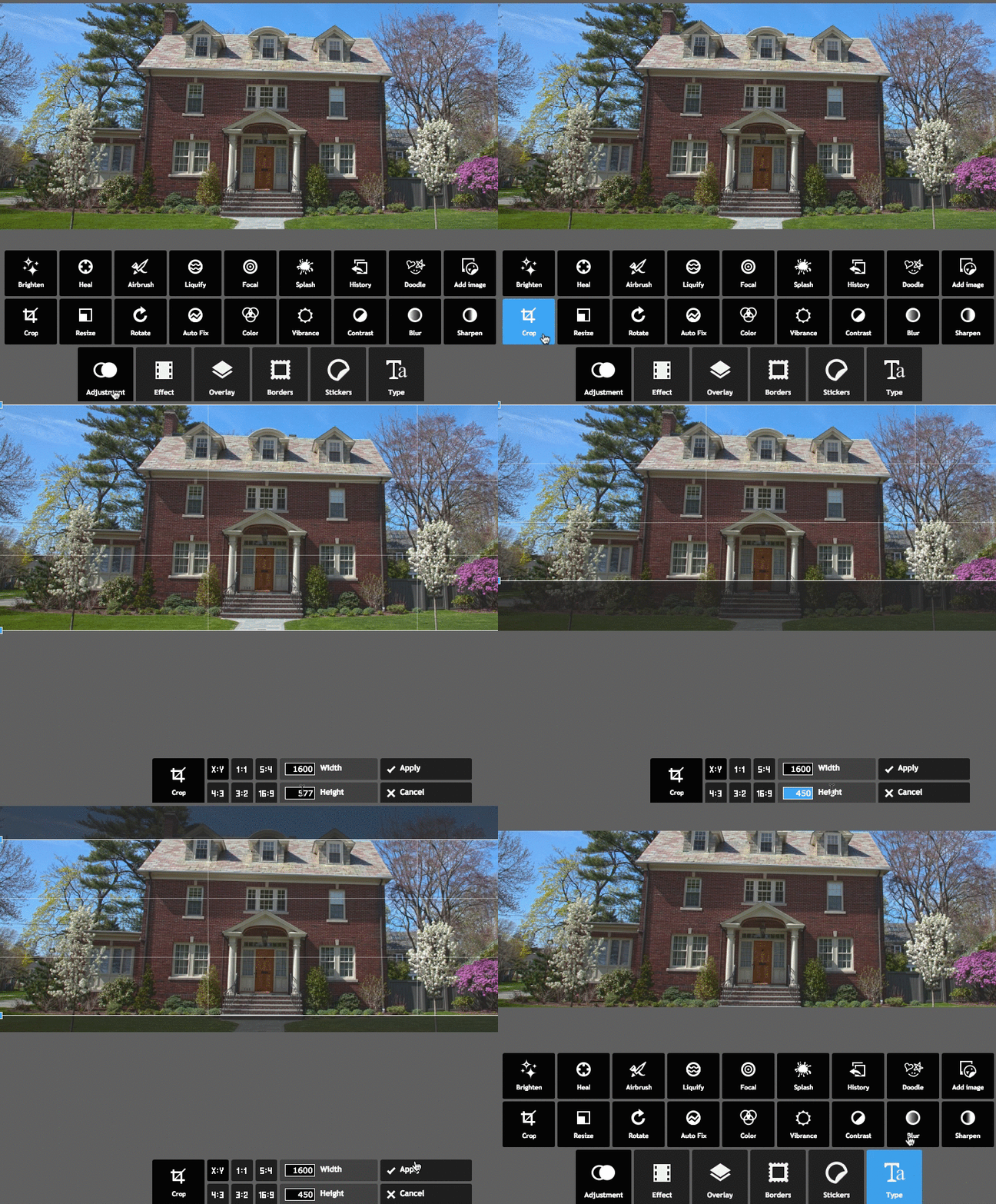
Once you're happy with the image, click Save in the top left of the screen to finalize the process.

Pixlr Support
If any questions come up with using this image editor, please check out Pixlr's support section for help articles and resources.
Need More Help?
For questions, concerns, or feedback, please chat with our team: https://app.placester.com/chat