Customizing Your Search Results Page
Your search results page shows the listings that match a visitor's search. In Site Edit you choose the layout of the results: a grid of listing cards, a map, or both. Your changes go into a draft. Visitors see them after you publish.
Open your search results page
- Select Dashboard in the top menu.
- On the site card, select EDIT SITE.
- In the Site Edit top bar, select Pages.
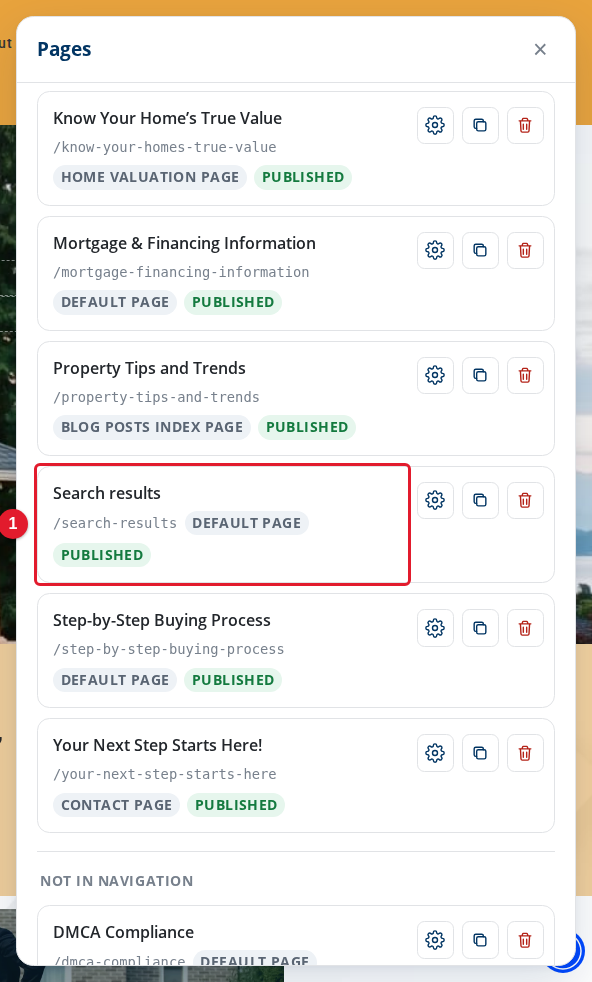
- Search results: Opens your search results page in the preview.
Select Search results. The page opens in the preview, with the search form at the top and the results under it.
Change the results layout
Move the pointer over the listing cards. A small toolbar appears at the top left of the results.
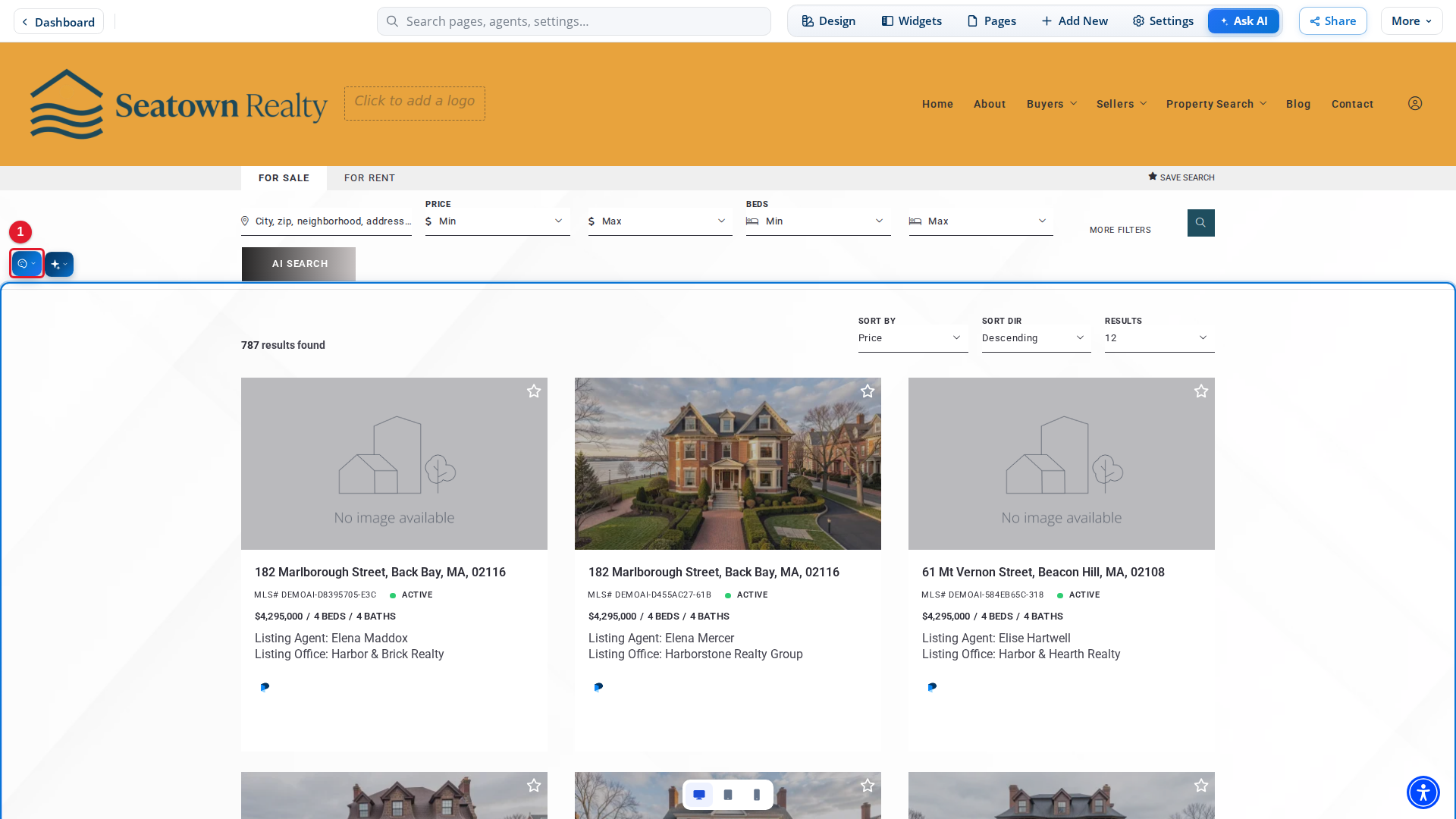
- Customize Results: Opens the Edit Results panel.
Select Customize Results. The Edit Results panel opens.
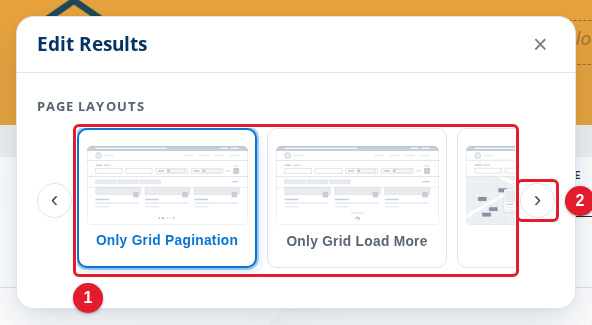
- Page layouts: The layout of the results: a grid, a map, or both.
- Scroll styles right: Shows more layouts.
There are six layouts: Only Grid Pagination, Only Grid Load More, Only Map, Grid And Map Side By Side, Map And Grid and Toggle Grid And Map Side By Side. The grid layouts show listing cards. The map layouts also show the listings on a map.
Select a layout. The preview changes at once, and the change goes into your draft.
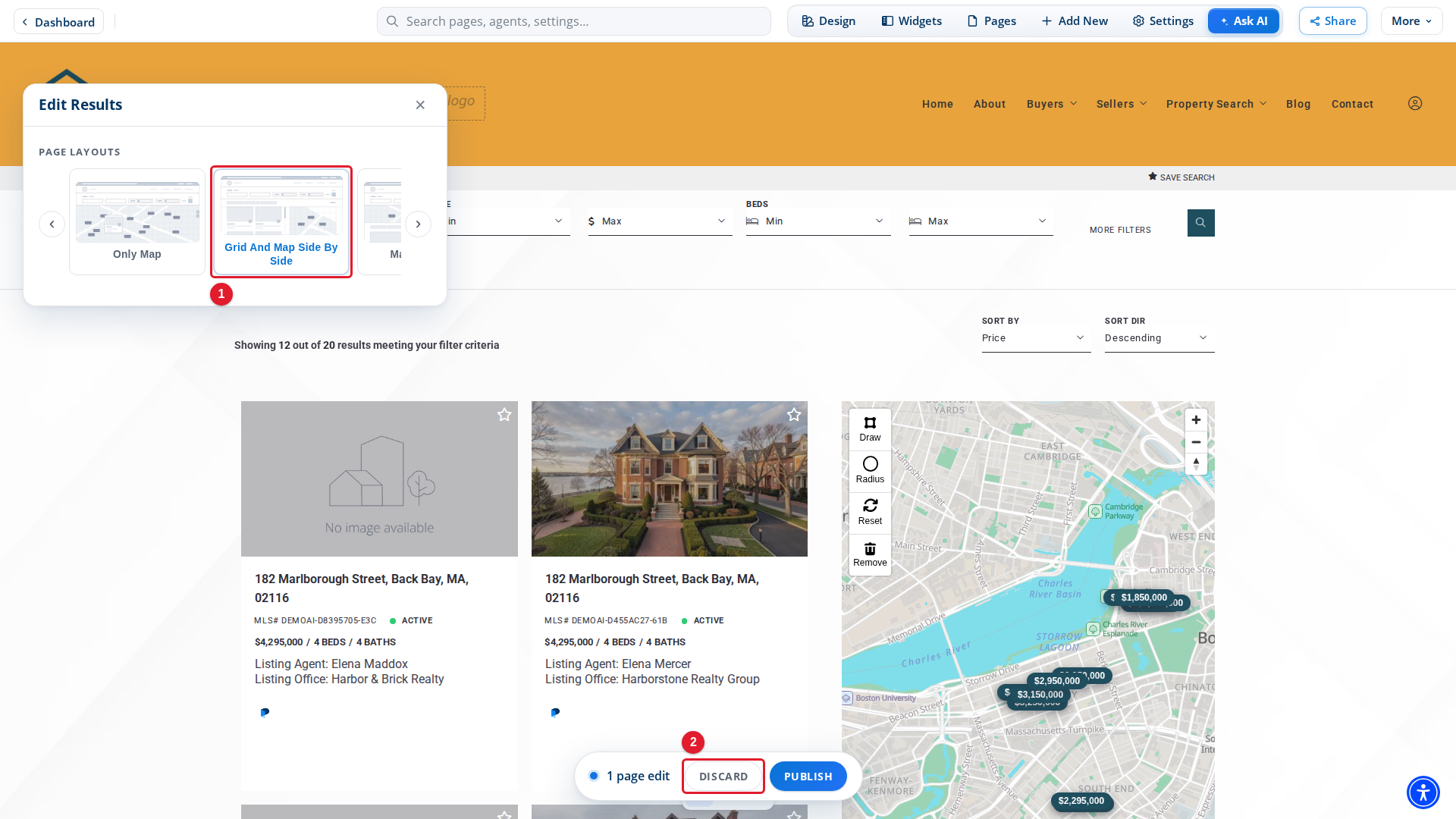
- Grid And Map Side By Side: The selected layout. The listing cards show next to a map.
- Discard: Undoes the change if you do not want to keep it.
On a map, visitors can zoom, draw an area or search in a radius. These are tools for visitors, not settings.
Choose the property type of the search
The search form at the top of the page searches one type of property.
- Move the pointer over the search form. A small Form toolbar appears.
- Select Customize Form. The Edit Form panel opens.
- In Search Result Page Type, select Residential, Commercial or Land.
Publish your changes
Each change goes into your draft. Close the Edit Results panel, then select Publish in the draft bar to show the changes to visitors, or Discard to undo all of the draft. See Publishing and Discarding Drafts.
To choose which listings appear in the results, and how many show on a page, see Choosing Which Listings Appear on Your Site.