Setting Up AI Listing Search
Legacy Customizer steps: Customizing AI Listing Search Legacy Customizer steps: Troubleshooting AI Listing Search
AI Listing Search lets visitors search for homes in their own words. When it is on for your account, your search results page shows an AI SEARCH button under the search form. In Site Edit you can change the color of the button. Your changes go into a draft. Visitors see them after you publish.
Open your search results page
- Select Dashboard in the top menu.
- On the site card, select EDIT SITE.
- In the Site Edit top bar, select Pages.
- Select Search results. Site Edit opens your search results page.
Change the button color
Move the pointer over the AI SEARCH button. A small toolbar appears.
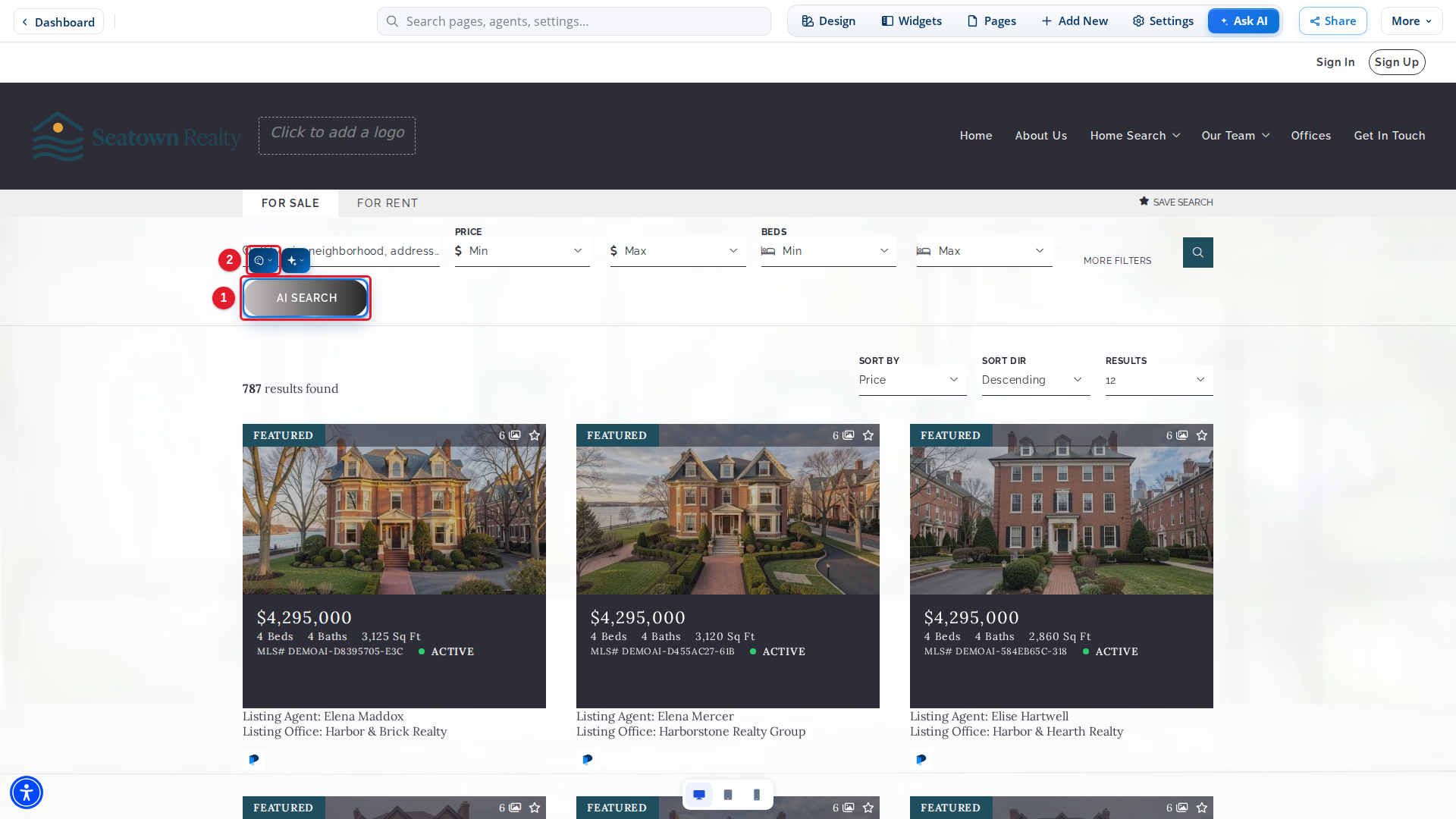
- AI SEARCH: The button visitors select to search in their own words.
- Customize Ai search button: Opens the Edit Ai search button panel.
Select Customize Ai search button. The Edit Ai search button panel opens.
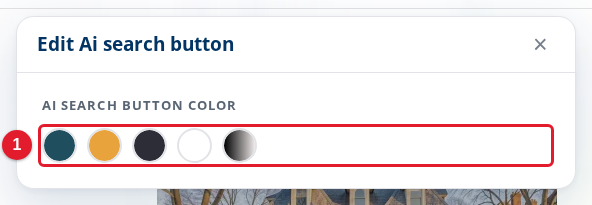
- AI Search button color: The color of the AI SEARCH button, from your site colors.
Choose accent, alternative, dark, light or gradient.
Check the button on your site
After you publish, open your search results page on your live site. Make sure that the AI SEARCH button shows under the search form. A search with the button uses AI, so a test search can use AI credits.
If you do not see the button on your search results page in Site Edit, contact Placester Support.
Publish your changes
Close the panel, then select Publish in the draft bar to show the changes to visitors, or Discard to undo all of the draft. See Publishing and Discarding Drafts.