Switching Your Site Design
Legacy Customizer steps: Switching Website Design [Codeless] Legacy Customizer steps: The Codeless Design Library and Design Switching
Using the Legacy Customizer? Switching Website Design Codeless · The Codeless Design Library and Design Switching
You can change your website to another design at any time, also after your site is live. In our site editor you can choose the design on the Theme tab of the Edit Design panel. The switch goes into your draft. Visitors see the new design after you publish.
Choose a design
- Select Dashboard in the top menu.
- On the site card, select EDIT SITE. Site Edit opens with your homepage.
- Select Design in the top bar. The Edit Design panel opens.
- Select the Theme tab.
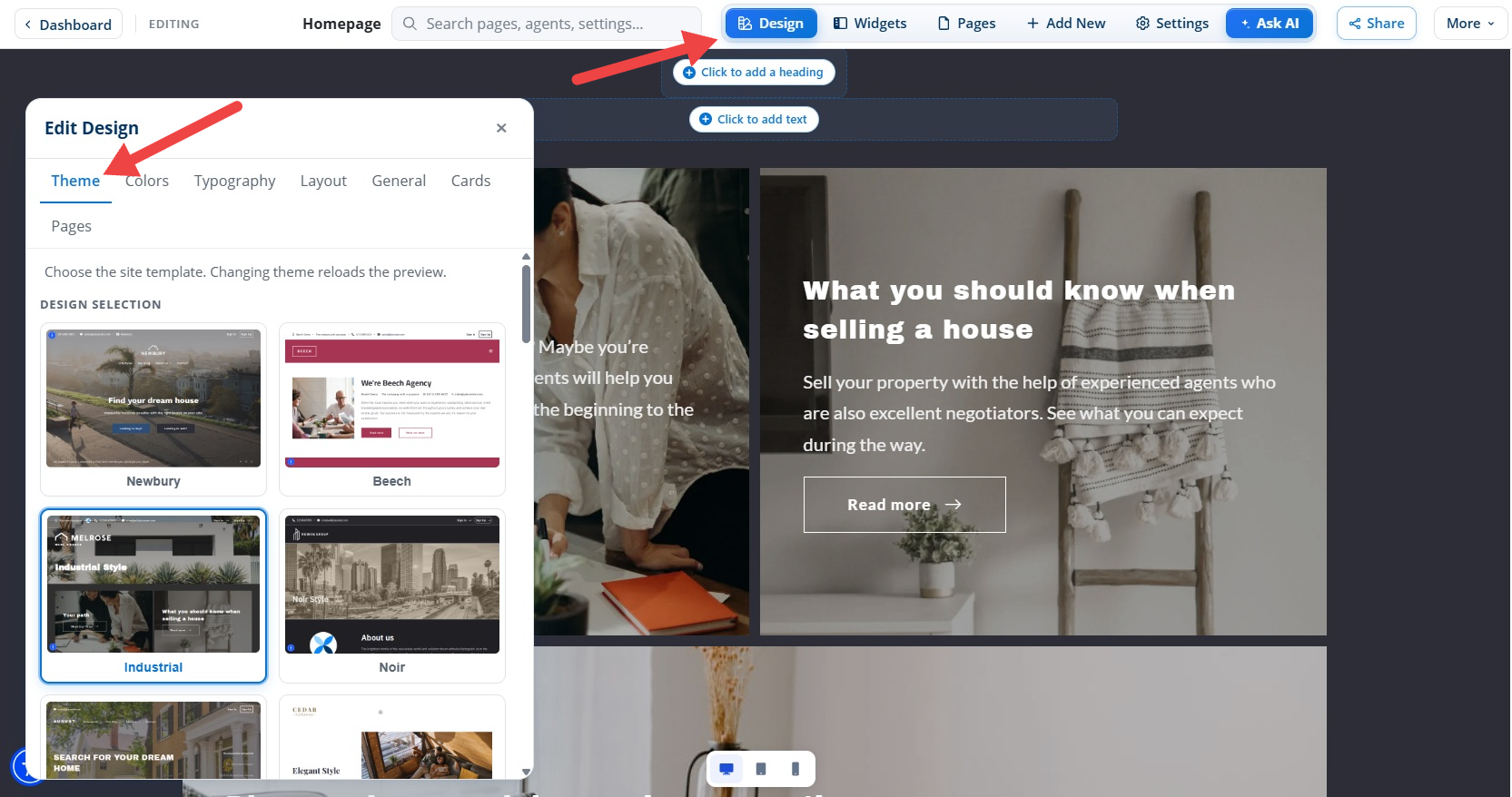
- Design: Opens the Edit Design panel.
- Theme: Shows the designs you can switch to.
- Design selection: One card for each design. Select a card to open the switch choices for that design.
Scroll the list to see all of the designs. Select the card of the design you want. The switch choices for that design appear at the bottom of the panel.
Choose what changes
The switch choices tell you what the new design changes on your site.
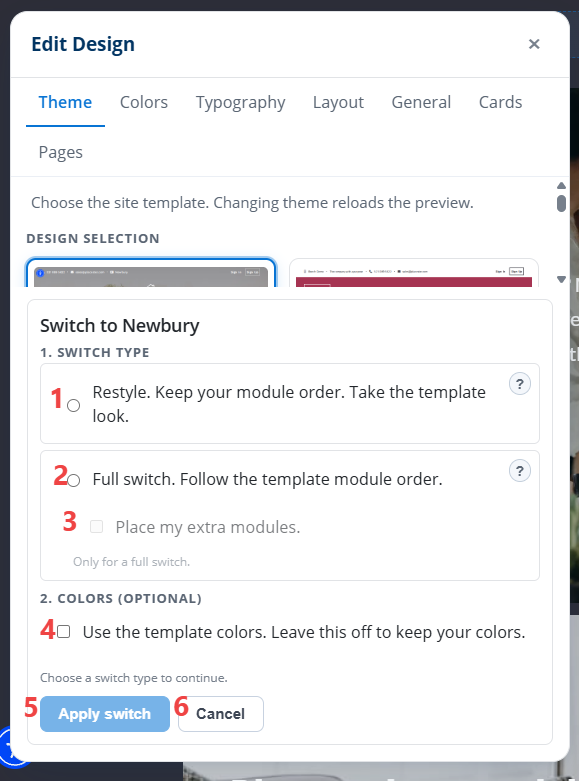
- Restyle: Keeps your modules in their order and gives them the look of the new design.
- Full switch: Puts your modules in the order of the new design.
- Place my extra modules: Available with full switch only. Places the modules the new design has no place for.
- Use the template colors (Optional): Replaces your site colors with the colors of the new design. Leave it unchecked to keep your own colors.
- Apply switch: Makes the switch in your draft. Available after you choose Restyle or Full switch.
- Cancel: Closes the choices. Nothing changes.
Apply the switch
- Select Apply switch. Site Edit makes the switch in your draft and shows a summary of what changed.
- Look at your pages in the preview.
- When you are ready, select Publish to show the new design to visitors. To go back to your old design, select Discard. Discard removes every change in your draft, not only the switch.
If you do not want to switch, select Cancel before you apply. Nothing changes.
For more about drafts, see Publishing and Discarding Drafts.