Why Isn't My Change Live?
You made a change in Site Edit, but visitors do not see it on your website. Use this checklist to find the cause. Do the checks in this order.
Is the draft published?
Most edits in Site Edit go into a draft first. Visitors do not see the draft. When the draft has edits, the draft bar shows at the bottom of Site Edit.
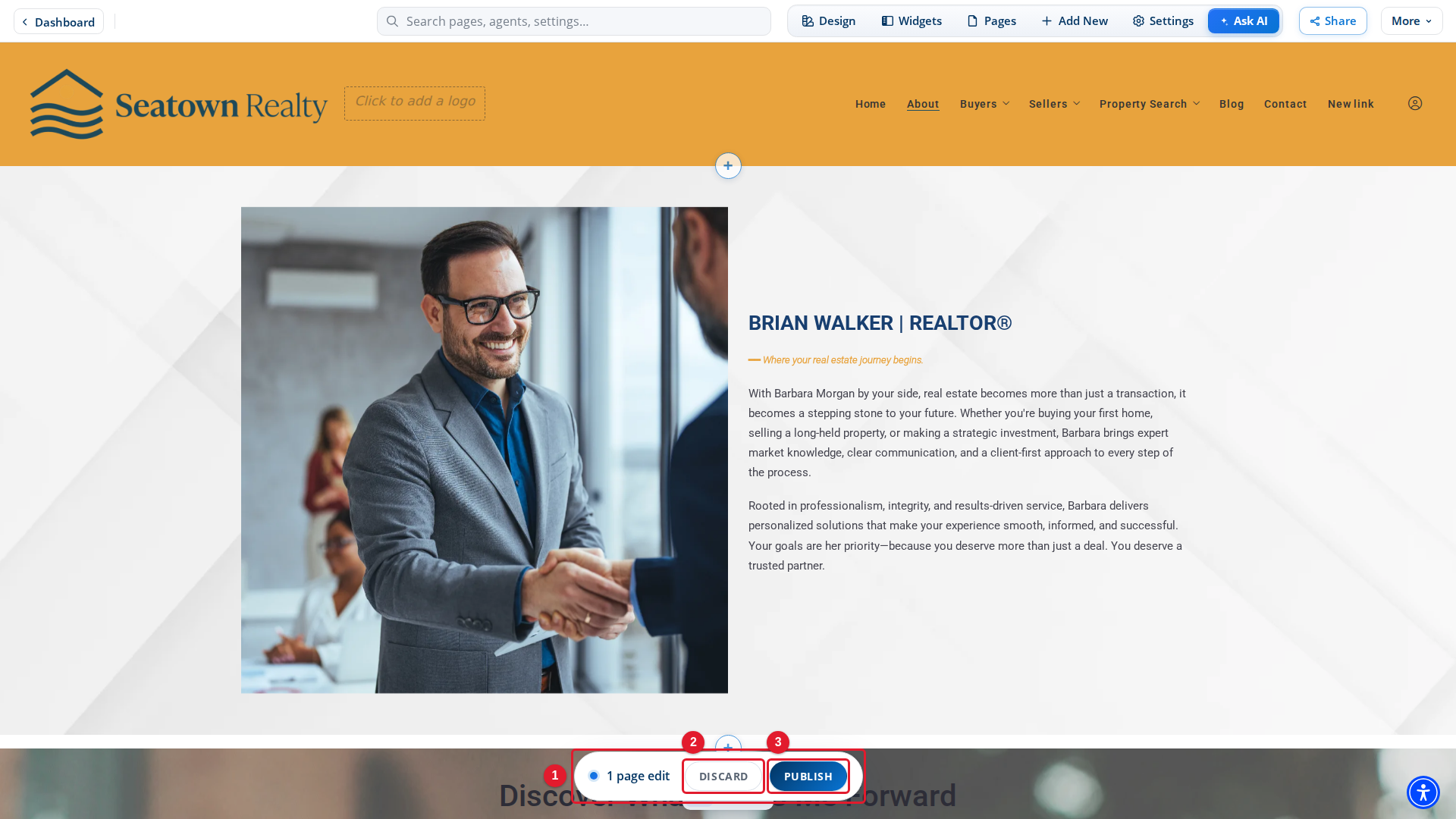
- Draft bar: Shows that you have edits that visitors do not see yet.
- Discard: Removes all of the edits in the draft.
- Publish: Sends all of the edits in the draft to your live site.
If you see the draft bar, select Publish. An open panel can cover the draft bar. Close the panel first.
Publish sends every edit in the draft, not only the last one. The draft also holds the status, the date and the categories of a blog post.
When you leave Site Edit
If you select Dashboard while the draft has edits, a dialog asks what to do with them.
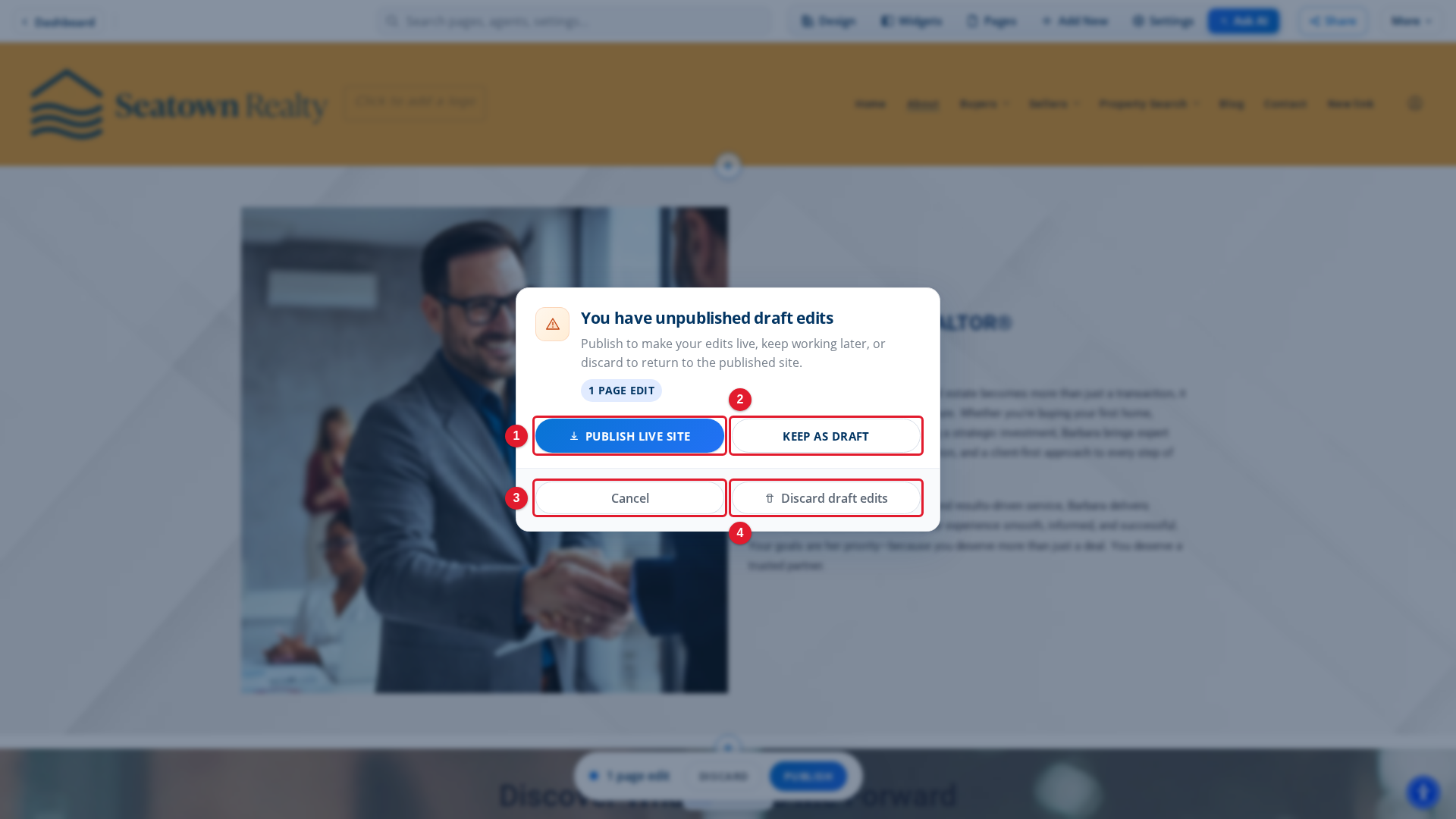
- Publish live site: Publishes the draft, then leaves Site Edit.
- Keep as draft: Leaves Site Edit. The draft stays for next time. Visitors do not see it.
- Cancel: Closes the dialog. You stay in Site Edit.
- Discard draft edits: Removes the draft, then leaves Site Edit.
If you selected Keep as draft last time, your edits are still in the draft. Open Site Edit and select Publish.
Check the page status and access
Each page and each blog post has its own status. A page that is not Published does not show to visitors, even after you publish the draft.
- Open the page in Site Edit.
- Select Settings in the top bar. The Settings panel opens on This Page.
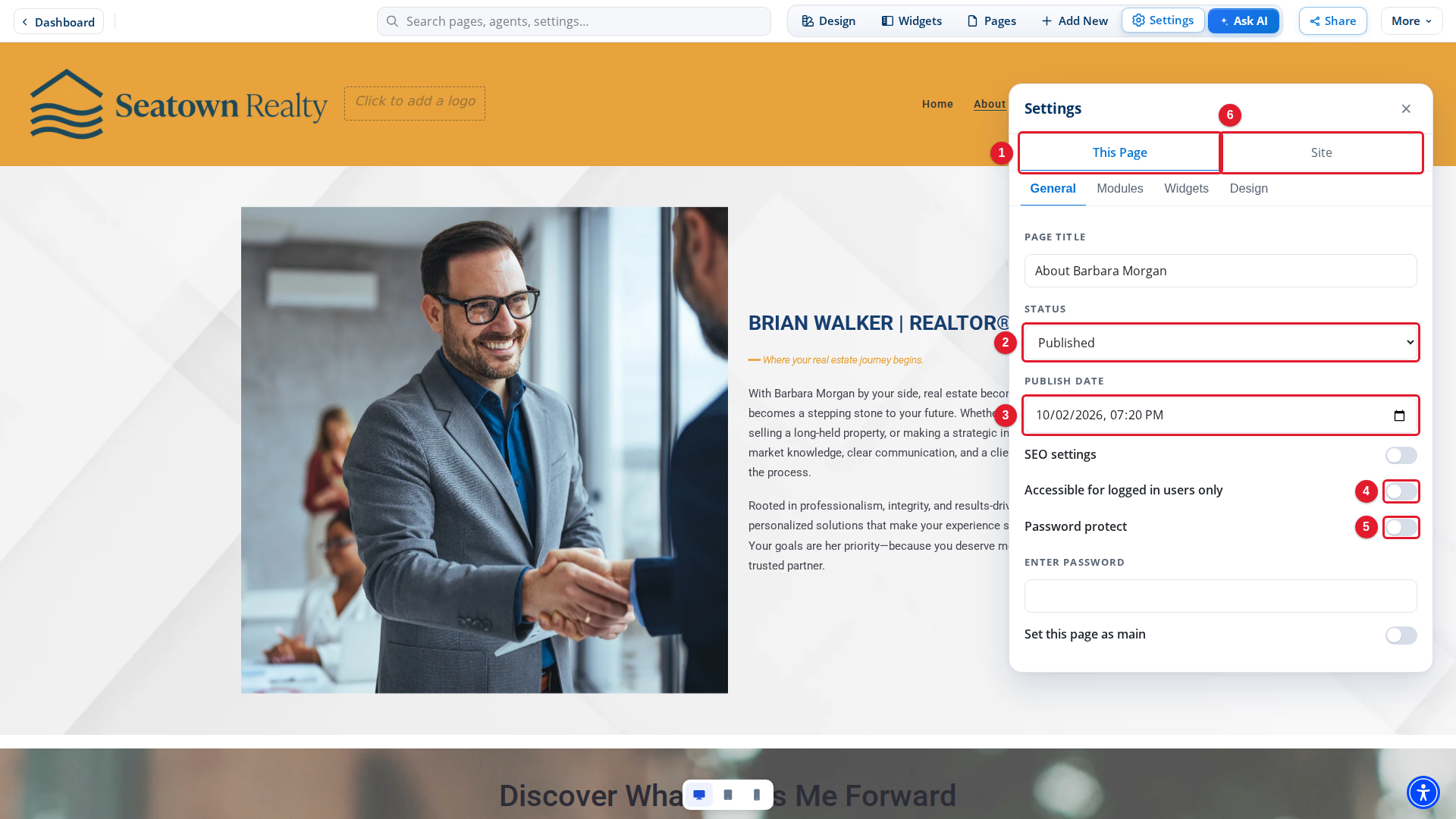
- This Page: Settings of only this page.
- Status: Only Published pages show to visitors.
- Publish date: With Scheduled, the page goes live at this date.
- Accessible for logged in users only: When on, only people who sign in to your site see the page.
- Password protect: When on, visitors must type a password to see the page.
- Site: Settings of the whole site.
Check these settings:
- Status is Draft or Private: visitors cannot see the page. Set it to Published.
- Status is Scheduled: the page goes live at its Publish date. If you want it now, set Status to Published.
- Accessible for logged in users only is on: visitors who are not signed in do not see the page.
- Password protect is on: visitors see a password box, not the page.
A change to these settings also goes into the draft. Publish the draft after you change them.
On a blog post, the same settings are on This Blog Post. For more, see Scheduling a Blog Post.
Did you change this page or the whole site?
The Settings panel has a tab for the page you are looking at (This Page) and a tab for the whole site (Site). A change on This Page shows only on that page. If you want a change on every page, make it on Site.
Look at the page where you made the change. If you expected the change on a different page, open that page and check it there.
Edits that go live at once
Some edits do not use the draft. They save to your live site as soon as you make them. Discard does not undo them.
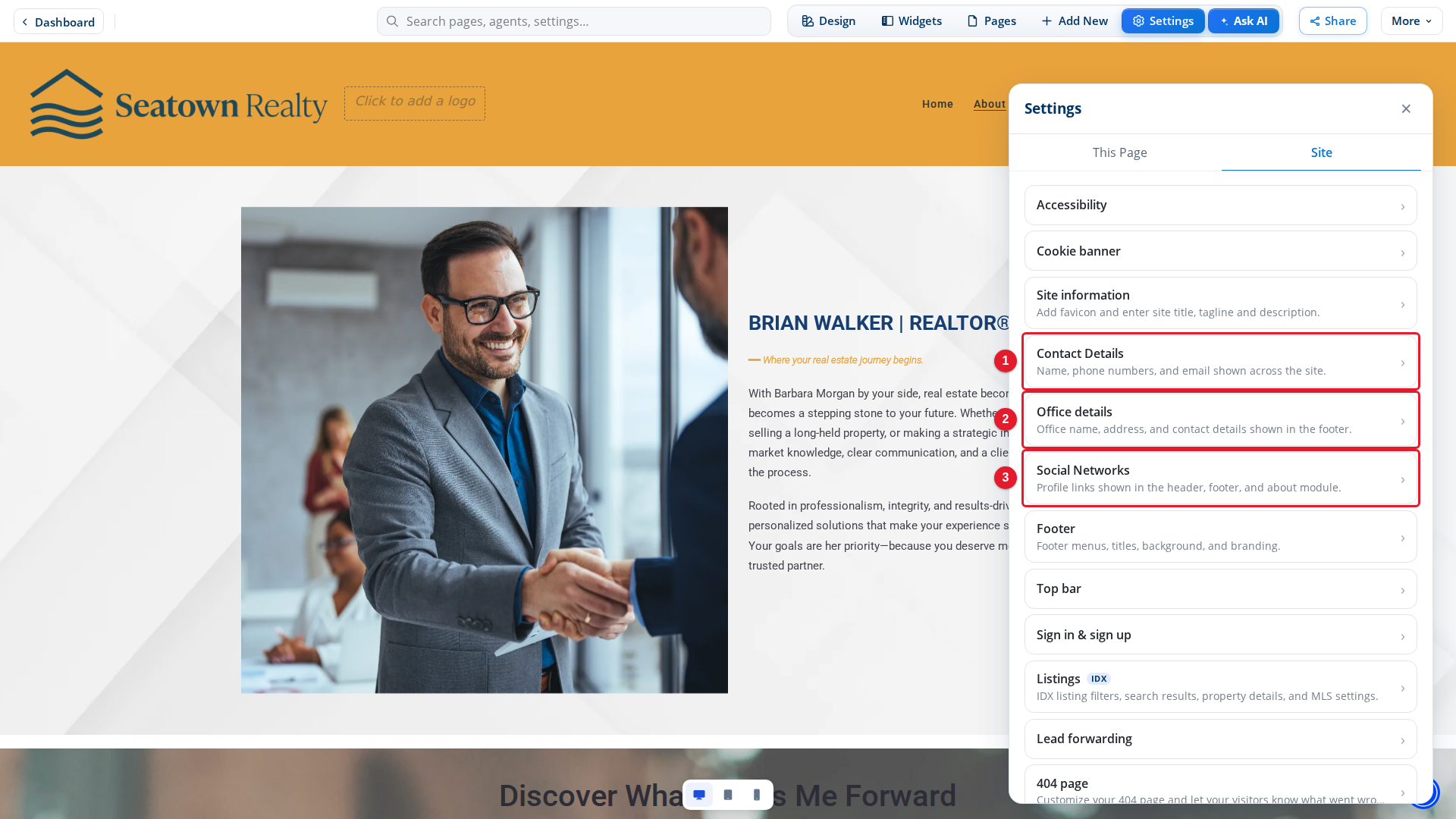
- Contact Details: Saves to your live site at once.
- Office details: Saves to your live site at once.
- Social Networks: Saves to your live site at once.
If one of these edits does not show, the cause is not the draft. Go to the next check.
Does your browser show an old copy?
Your browser can keep an old copy of a page.
- Open your live site in a new tab. In Site Edit, select Share, then Open live site.
- Reload the page. On most computers, press Ctrl+Shift+R. On a Mac, press Command+Shift+R.
- If you still see the old page, open it in a private or incognito window.
Still not live?
Note the page, the edit you made, and the time you published. Then contact Placester support.
For more about the draft, see Publishing and Discarding Drafts.