Module Types Reference
Legacy Customizer steps: Adding Featured Content Tiles [Codeless] Legacy Customizer steps: Defining Modules and Widgets in Codeless Legacy Customizer steps: Social Feed ( Codeless )
A page in Site Edit is a stack of modules. Each module type shows one kind of content, such as text, a gallery, a contact form or your listings. This article lists the module types in the Add module panel and tells you what each one is for.
Open the module list
- Select Dashboard in the top menu.
- On the site card, select EDIT SITE. Site Edit opens with your homepage.
- Move the pointer between two modules, or to the top of the page. A + button appears.
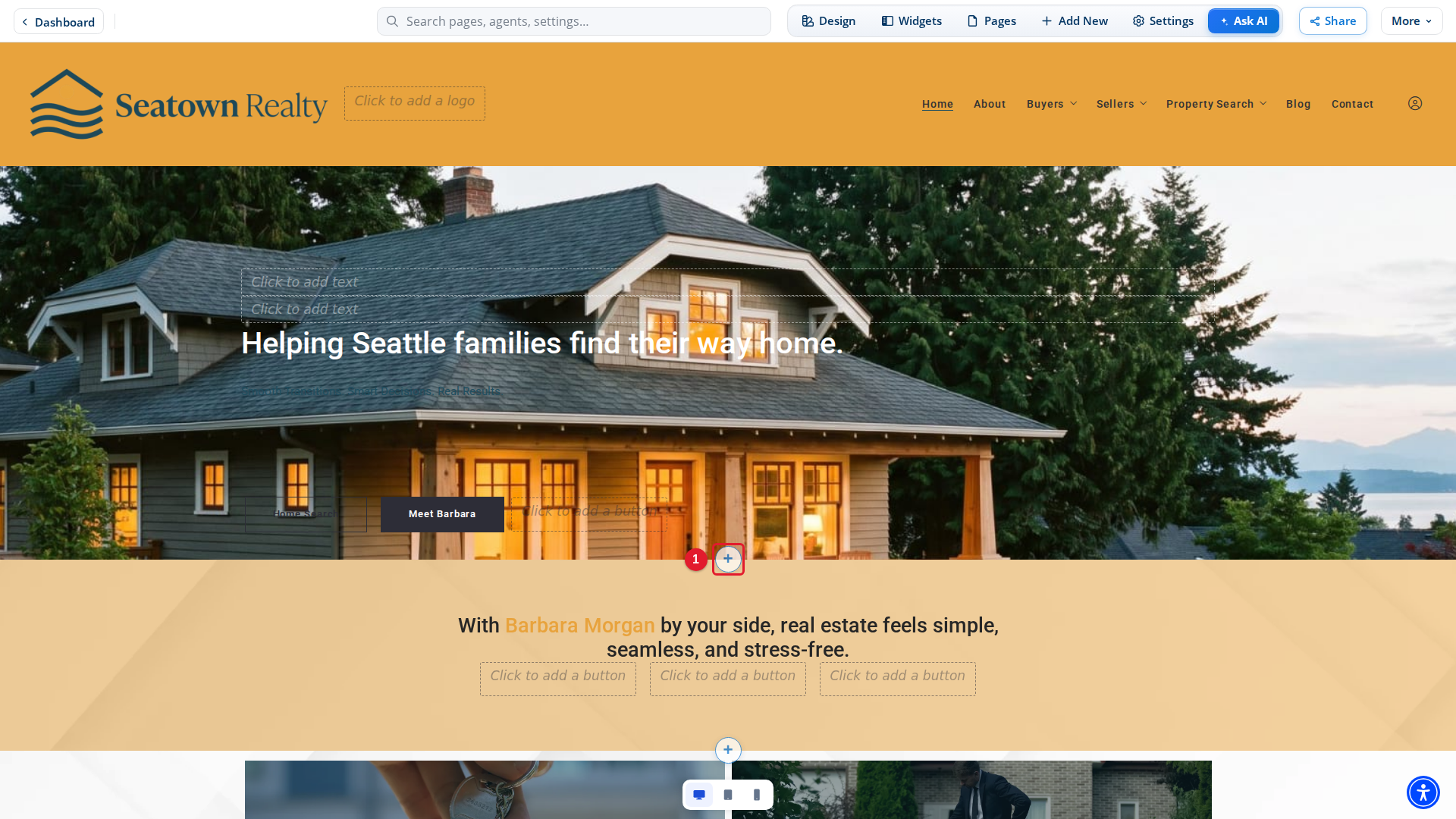
- +: Opens the Add module panel. A new module goes in at this place on the page.
Select +. The Add module panel opens on the New tab.
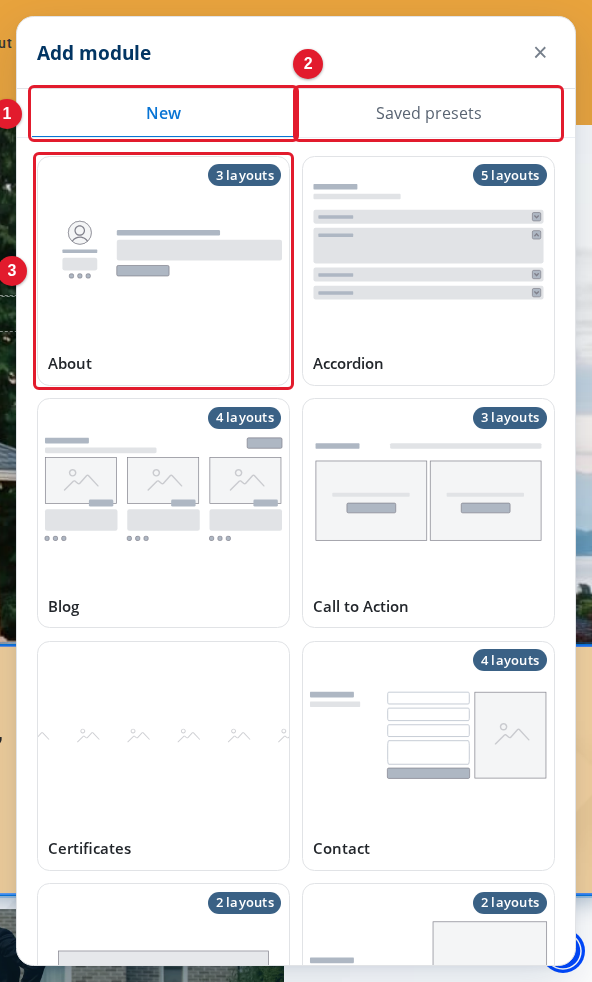
- New: Lists every module type you can add.
- Saved presets: Lists modules you saved before, to use again.
- About: A module type. The badge shows how many layouts it has.
Select a module type that has a badge. The panel shows its layouts.
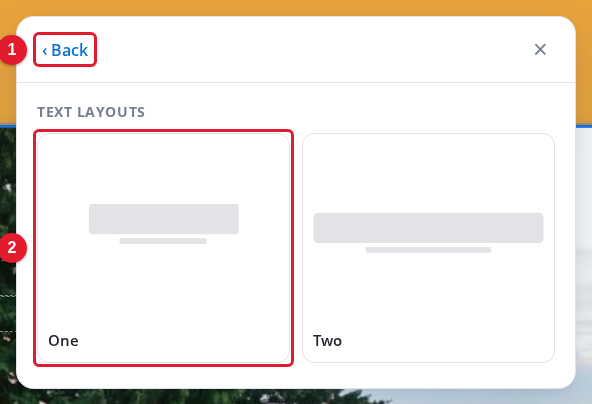
- Back: Returns to the list of module types.
- One: A layout. Select it to add the module with this layout.
A module type with no badge has no layouts. When you select it, Site Edit adds the module at once. Each new module goes into your draft. For how to edit, move and remove modules, see Working with Modules.
Module types
The New tab lists 26 module types. The end of the list has Video, Widgets and four modules for property landing pages.
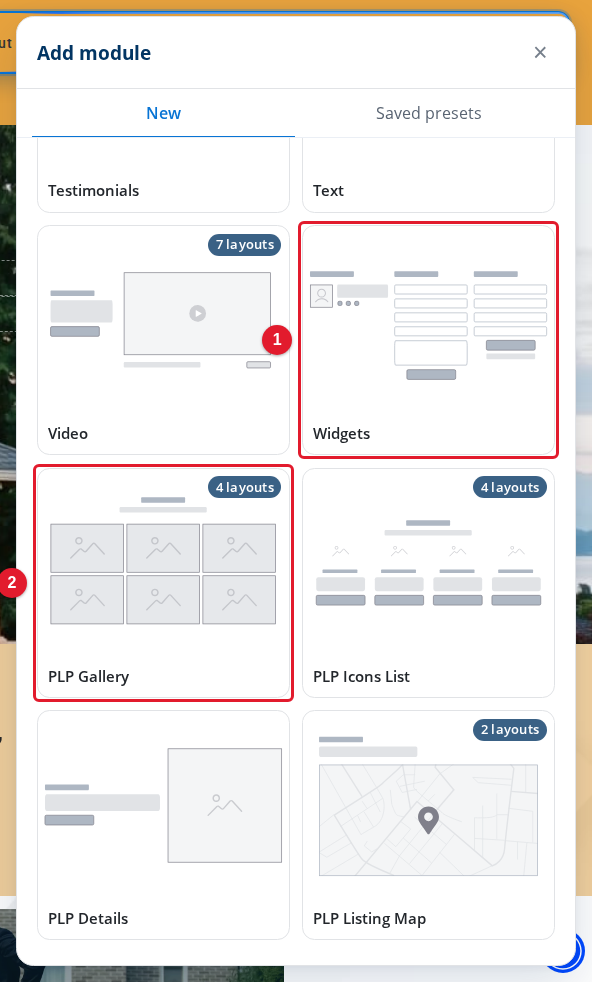
- Widgets: A module type with no badge. It has no layouts to choose.
- PLP Gallery: The first of the four modules for property landing pages. Their names start with PLP.
| Module type | Layouts | What it is for |
|---|---|---|
| About | 3 | Your name, your contact details and a short text about you, with up to two buttons. |
| Accordion | 5 | A list of items. Each item opens to show its text and closes again. |
| Blog | 4 | Your latest blog posts as cards, with a View more button. |
| Call to Action | 3 | Cards with a title, text, a background image and a button that links to a page or address. |
| Certificates | None | The logos of your certifications and memberships. You choose the images from the Media Library. |
| Contact | 4 | A contact form. You choose its fields, and it can have a headline and spam protection. |
| Custom Code | 2 | A place for your own code. |
| Custom Content | 2 | Cards with text, a background image and a button. You choose where each card sits. |
| Featured Areas | 5 | Cards for the areas you serve, each with a short text and a Read more link. |
| Featured Content | 3 | Cards that point visitors to the pages or addresses you want to highlight. |
| Gallery | 5 | A set of images from the Media Library. |
| Icons List | 4 | A list of short items, each with an icon. |
| Listings | 5 | Property listings from your site. |
| Logo Wall | 2 | A group of logos. |
| Proven Results | 3 | A list of items that show your results. |
| Mortgage calculator | 4 | A calculator. Visitors enter a price, a down payment, an interest rate and a loan term to see a monthly payment. |
| Social Feed | None | A feed from your social networks. |
| Quick Search | None | A search box for listings, with FOR SALE and FOR RENT. Its panel has variants with different numbers of search fields. |
| Testimonials | 3 | Your testimonials, each with a Read More link. |
| Text | 2 | A block of text with up to three buttons. |
| Video | 7 | A video with text beside it. |
| Widgets | None | Widgets in the body of the page. |
| PLP Gallery | 4 | The photos of the property on a property landing page. |
| PLP Icons List | 4 | A list of the features of the property, each with an icon. |
| PLP Details | None | The details of the property. |
| PLP Listing Map | 2 | A map that shows where the property is. |
The PLP modules are for property landing pages. For more, see Creating a Property Landing Page. For widgets in the sidebar of a page, see Working with Widgets.
Every module panel has a Design tab. It sets the width, the separators, the spacing and the background of the module. Most panels also have a Content tab and an Animations tab.
Use a saved preset
A saved preset is a module that you saved to use again. Select the Saved presets tab to see them.
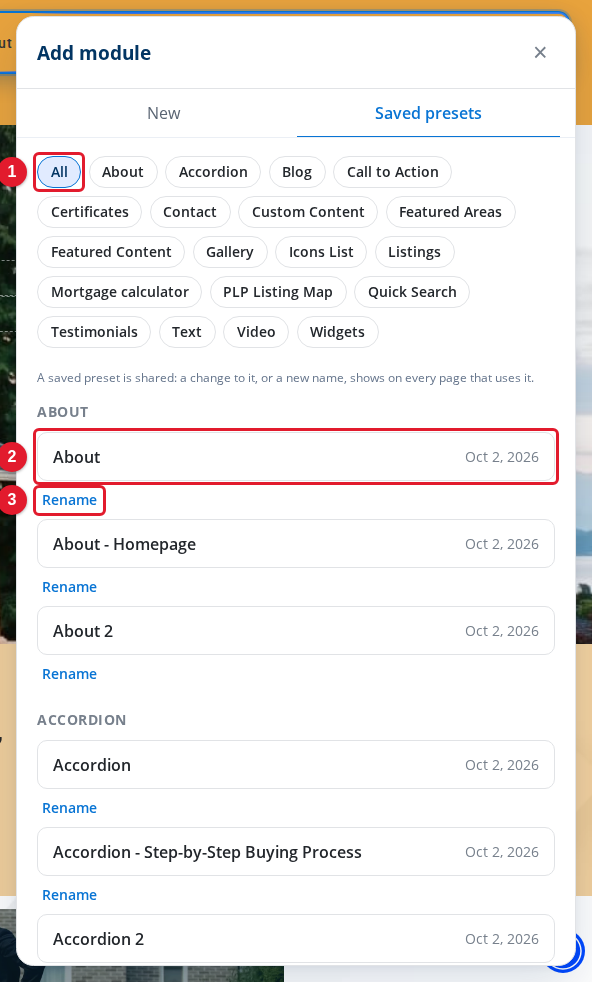
- All: Shows the saved presets of every module type. Select a type to show only its presets.
- About: A saved preset with the date it was saved. Select it to add it to the page.
- Rename: Changes the name of the preset.
A saved preset is shared. A change to it, or a new name, shows on every page that uses it. For more, see Reusing Modules with Saved Presets.