Adding Opt-In Language and a Privacy Policy Link to Contact Forms
This article explains how to add an opt-in checkbox and a privacy policy link to your contact forms on your Placester website. This feature is particularly useful when integrating with CRMs like Follow Up Boss, ensuring compliance and enhancing user trust.
Open the Page with Your Form
- Log into your Placester account.
- On the site card, click EDIT SITE.
- Click Pages in the toolbar and open the page with the form you want to update. You can also use your site’s navigation in the preview to reach the page.
Open the Form Settings
Depending on the type of form you're using, follow the instructions below:
- Contact form module: Hover over the module, click the palette icon, then switch to Content.
- Contact form widget: Hover over the widget and click the palette icon. Content is the only option available.
- Built-in contact form: On pages such as landing pages or about pages, click Settings, then Form builder.
Add an Opt-In Checkbox
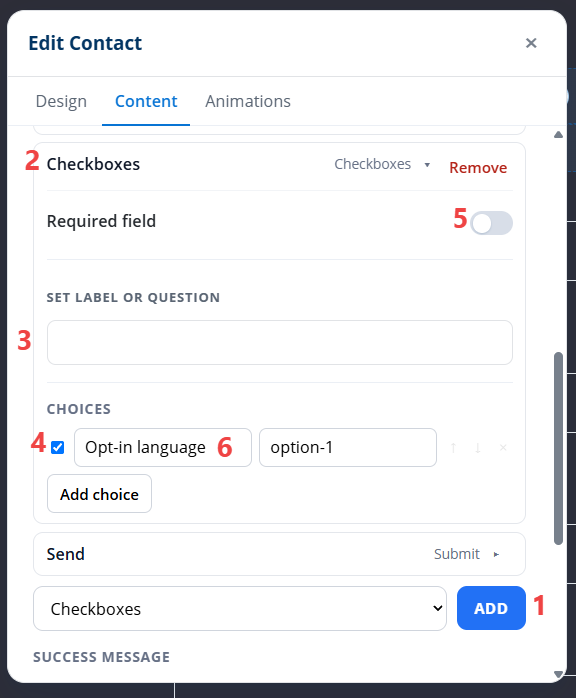
- Add a new field. Checkboxes is selected by default.
- Click the new field to open its settings.
- Under Set label or question, enter a heading such as “Text message consent.” Leave this box empty if you do not want a heading.
- Use the checkbox next to Choices to set whether the option is checked by default. Leave it unchecked if visitors should check it themselves.
- To make the field required, turn on Required field.
- Under Choices, enter your opt-in language in the box on the left. Leave the box on the right unchanged.
Add a Privacy Policy Link
- Scroll down the list of fields to add a new field.
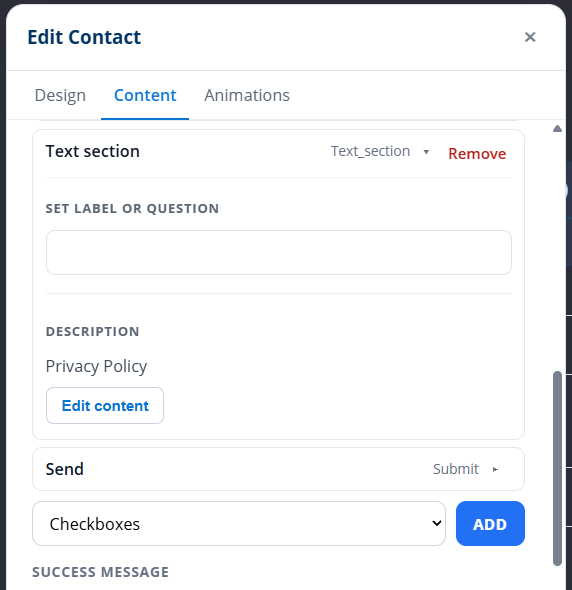
- Click Checkboxes to open the list of field types, then choose Text section.
- Click the new field to open its settings.
You can show the full URL or link the text “Privacy policy”:
- Show the full URL: Under Set label or question, enter “Privacy policy.” Paste the URL of your privacy policy page into the Description field.
- Show linked text: Leave Set label or question blank. Type “Privacy policy” in the Description field, highlight the text, and use the link option to add the URL of your privacy policy page.
Publish Your Changes
Once you have finished updating the form, click Publish to make your changes visible on the live site.
Need Help?
If you encounter any issues or have further questions, feel free to reach out to our support team for assistance. We're here to help you make the most of your Placester website!