Setting Shared Modules and Sidebars for Blog Posts, Areas, Agents and Offices
Blog posts, areas, agents and offices can share one set of modules and one sidebar. You set them once, and every item of that type shows them. You can also give one item its own modules or its own sidebar.
How shared modules work
- Global modules and Global widgets are the modules and sidebar widgets that every item of one type shows. For example, every blog post.
- Enable custom modules on one item makes that item use its own modules instead of the global modules.
- Enable custom sidebar on one item makes that item use its own sidebar widgets instead of the global widgets.
When the switch of an item is off, the item uses the global modules or widgets.
Set the shared modules and sidebar
- Select Dashboard in the top menu.
- On the site card, select EDIT SITE. Site Edit opens with your homepage.
- Select Pages, then select Blog Posts in the list filter.
- Select a blog post. Site Edit shows it.
- Select Settings in the top bar, then select the All Blog Posts tab.
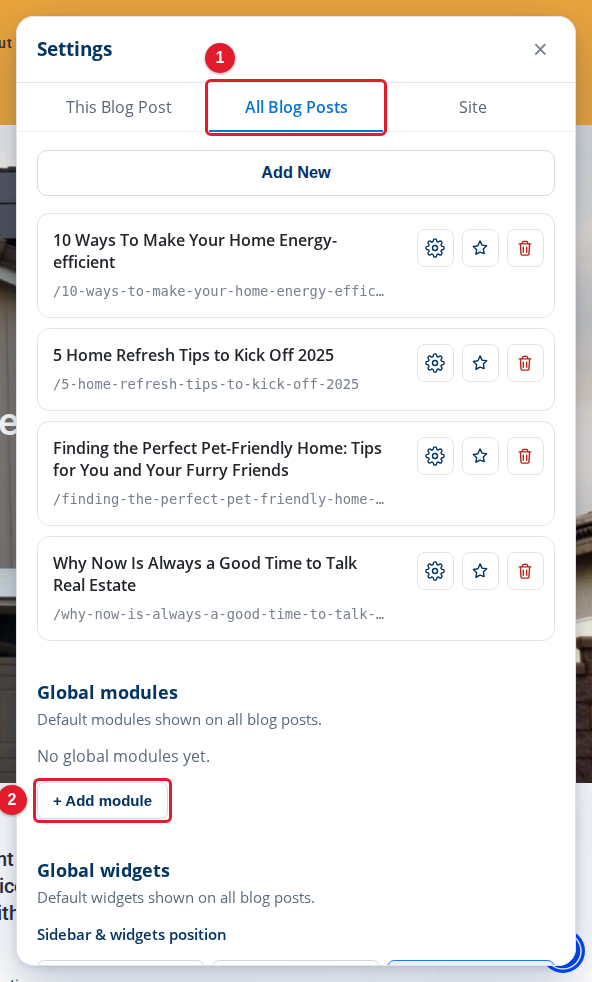
- All Blog Posts: Holds the settings shared by every blog post.
- Global modules: The modules shown on every blog post. Select + Add module to add one.
The Global widgets section is under Global modules.
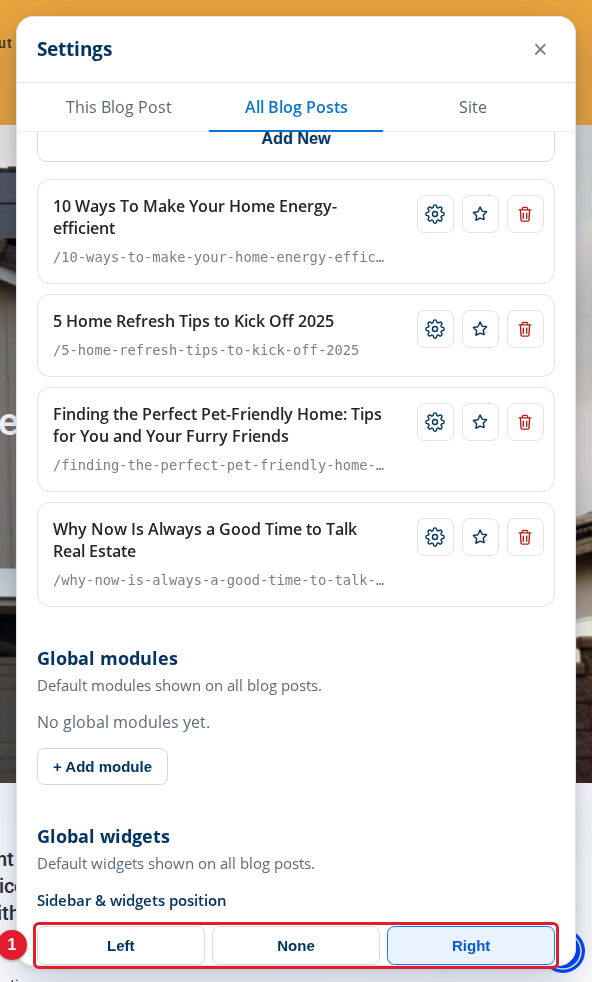
- Sidebar & widgets position: Puts the sidebar at the left or the right of every blog post, or hides it.
Under the position buttons is the list of global widgets. Each widget has arrows to move it up or down and × to remove it. Select + Add widget to add a widget.
To add a global module, select + Add module. A list of the modules on your site opens.
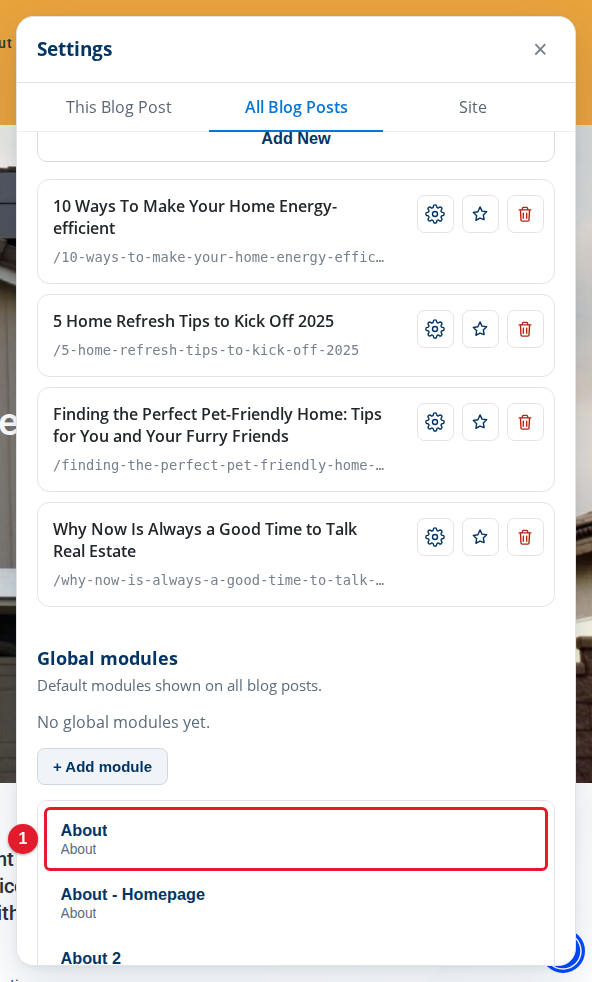
- About: A saved module, with its module type under its name. Select one to show it on every blog post.
For an area, open an area page and use the All Areas tab of Settings in the same way.
Give one item its own modules or sidebar
On a blog post, select Settings, then the This Blog Post tab. Select the Modules tab.
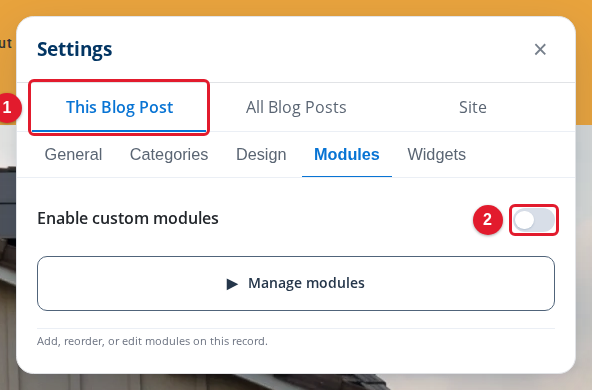
- This Blog Post: Holds the settings of the blog post you are viewing.
- Enable custom modules: On: this post uses its own modules. Off: it uses the global modules.
Turn on Enable custom modules to give this post its own modules. The change goes into your draft. For more about modules, see Working with Modules.
Select the Widgets tab to set the sidebar of this post.
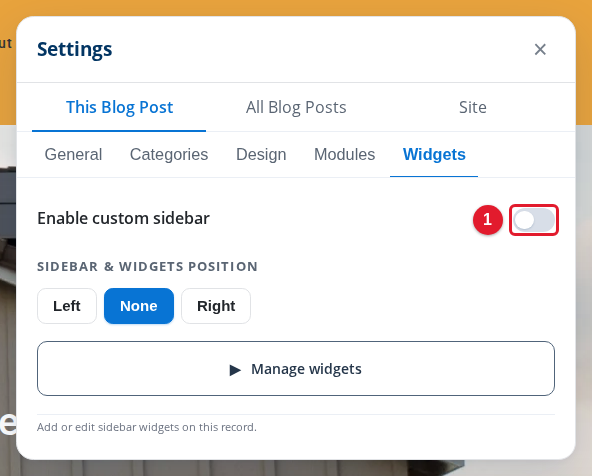
- Enable custom sidebar: On: this post uses its own sidebar widgets. Off: it uses the global widgets.
The tab can also show Sidebar & widgets position for this post.
Areas, agents and offices have the same choice in their edit panel. For example, select an area in Pages. The Edit Area panel opens. Select its Modules tab.
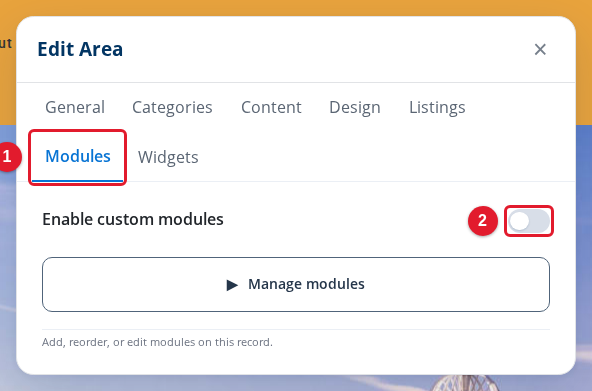
- Modules: Holds the module choice of this area.
- Enable custom modules: On: this area uses its own modules. Off: it uses the global modules of all areas.
The Edit Agent and Edit Office panels also have a Modules tab and a Widgets tab.
Publish your changes
Each change goes into your draft. The draft bar at the bottom of Site Edit shows your changes with Discard and Publish. Close the panel, then select Publish to show the changes to visitors.
For more about drafts, see Publishing and Discarding Drafts. For more about widgets, see Working with Widgets.