Updating Your Site Title, Tagline, and Favicon
The title, tagline, description and keywords tell search engines and visitors what your site is about. The favicon is the small icon in the browser tab. The app icon shows on a phone home screen when a visitor saves your site there. You change all of them in Site Edit Settings.
This article is about the information inside your site. To change the name of the site on your dashboard, see Renaming Your Site.
Open site information
- Select Dashboard in the top menu.
- On the site card, select EDIT SITE. Site Edit opens with your homepage.
- Select Settings in the top bar, then select the Site tab.
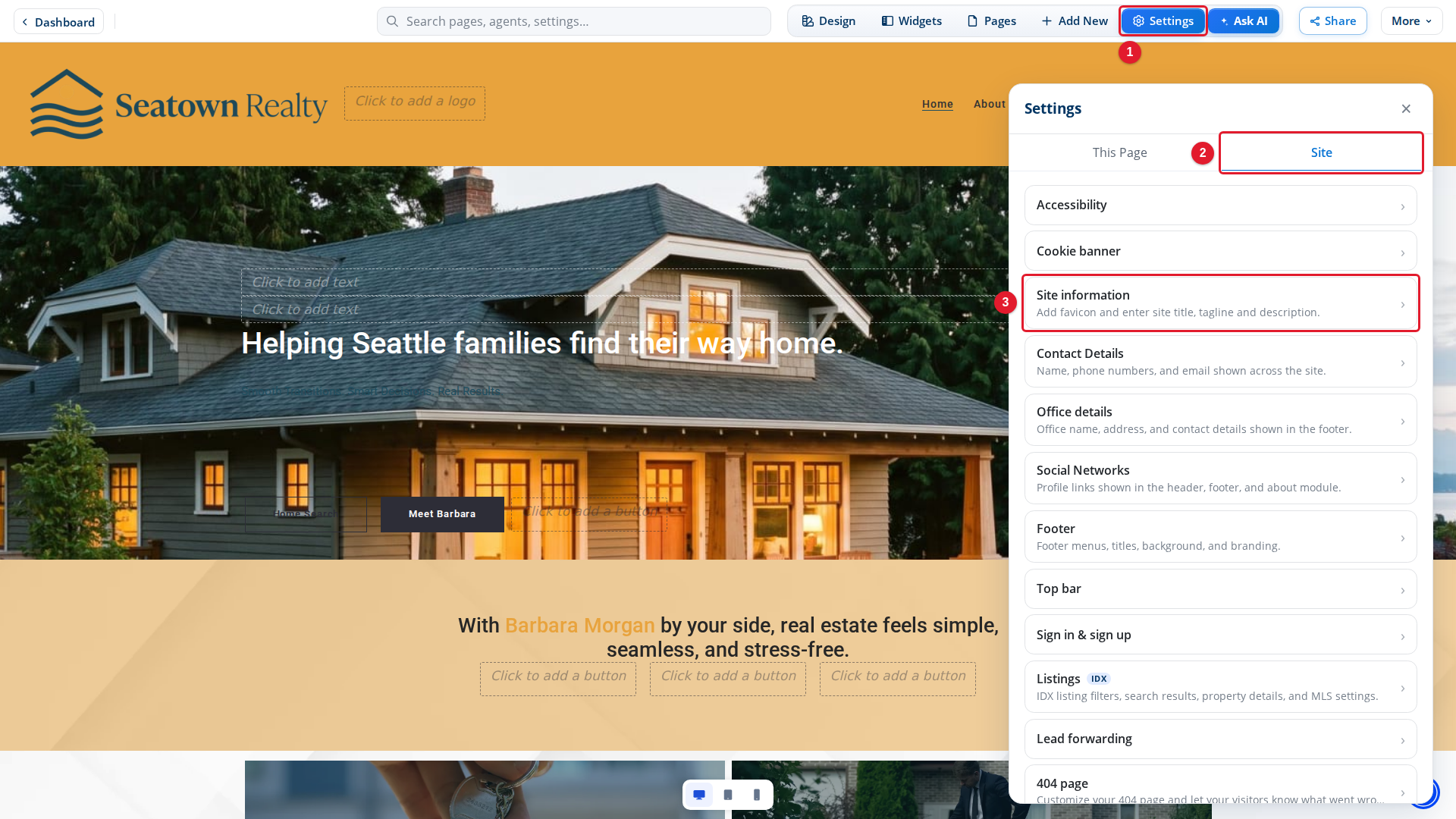
- Settings: Opens Settings.
- Site: Settings that apply to the whole site.
- Site information: The title, tagline, description, keywords and icons of your site.
Select Site information.
Change the title, tagline and description
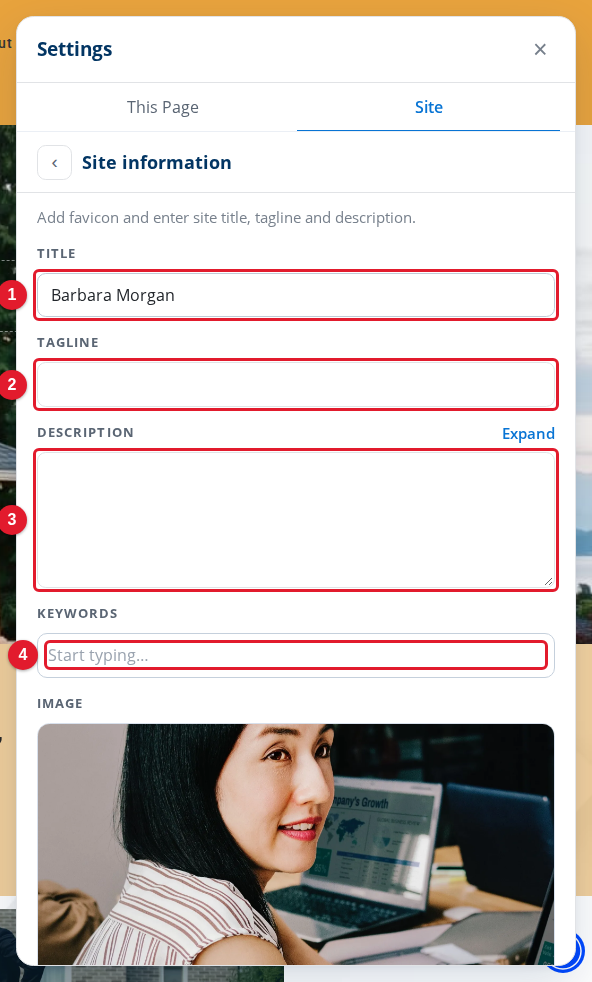
- Title: The name of your site.
- Tagline: A short line that goes with the title.
- Description: A sentence or two about your site.
- Keywords: Words that describe your site.
Type in a box, then select another box or press Tab. To write a longer description in a larger box, select Expand next to Description.
Below Keywords, Image shows an image for your site. Select the image to pick another one from your Media Library.
Add a favicon and an app icon
Scroll down in the panel.
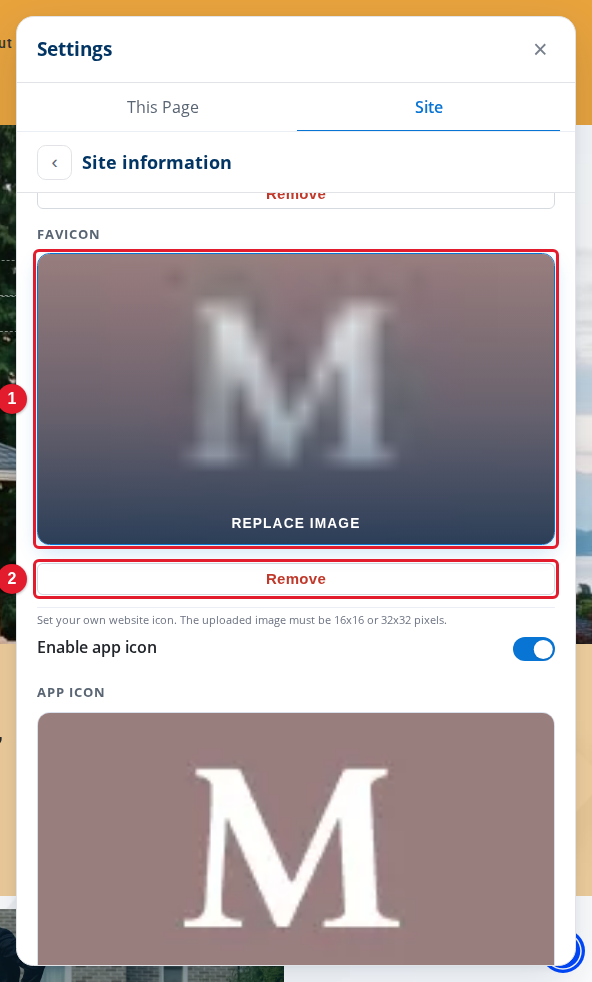
- Favicon: Picks the icon in the browser tab from your Media Library.
- Remove: Takes the favicon away.
The favicon must be 16 × 16 or 32 × 32 pixels.
Scroll down again for the app icon.
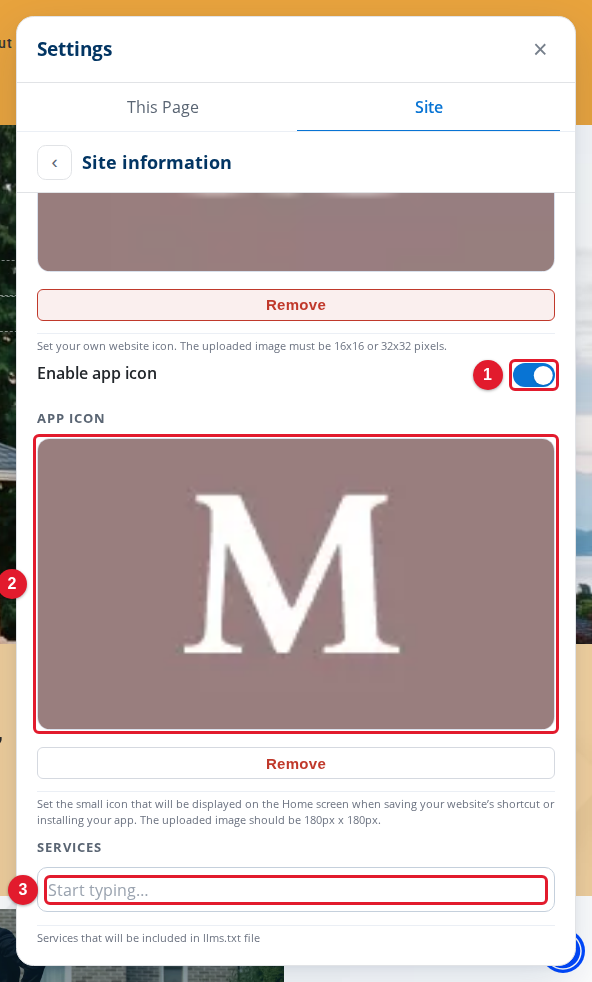
- Enable app icon: Turns the home screen icon on or off.
- App Icon: Picks the home screen icon from your Media Library.
- Services: The services you offer.
The app icon should be 180 × 180 pixels. To take the app icon away, select Remove under it. AI search tools can read the Services list.
Publish your changes
These settings go into your draft. When you change one, the draft bar shows at the bottom of the screen.
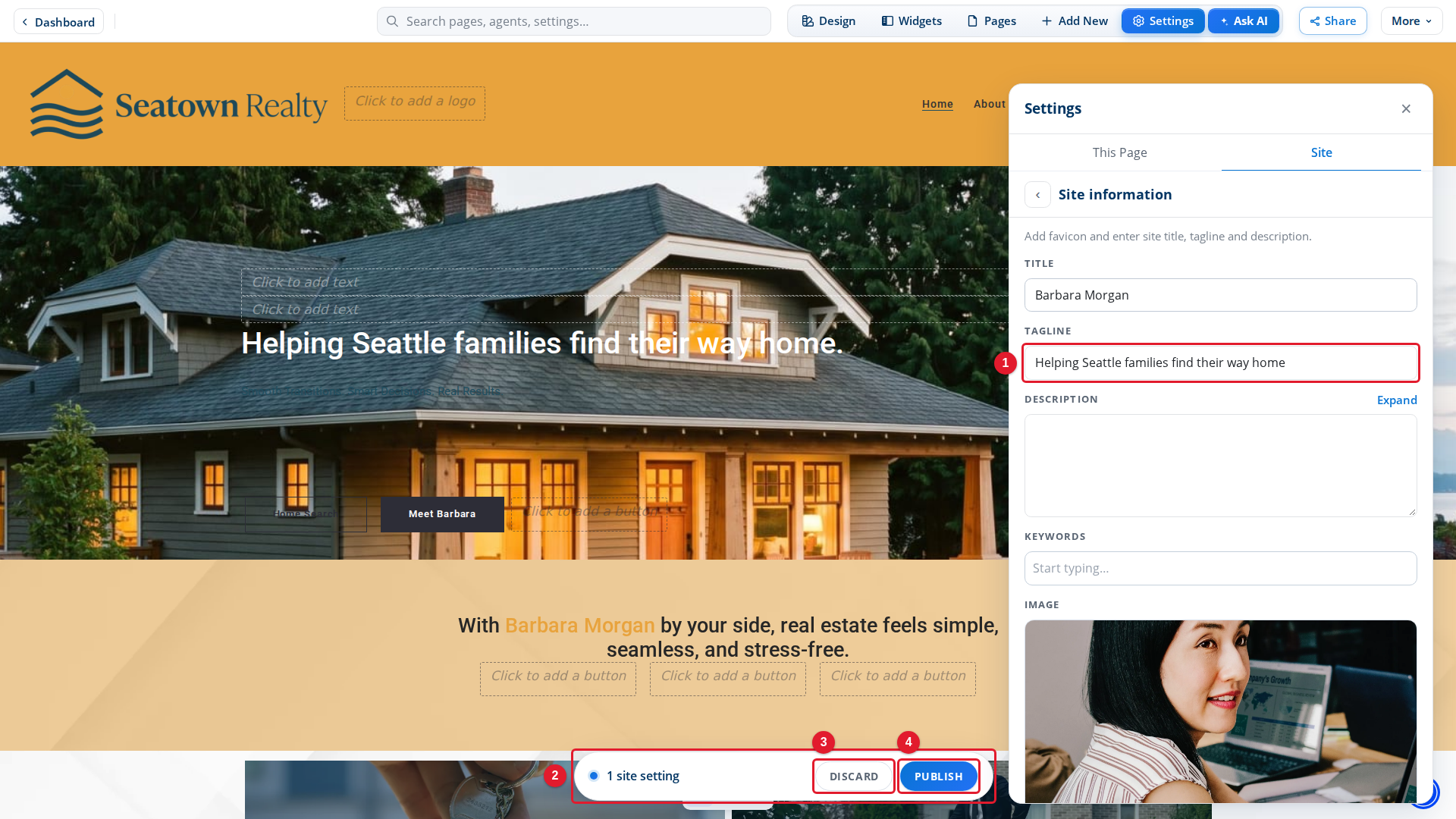
- Tagline: The changed tagline.
- 1 site setting: The draft bar counts the site settings you changed.
- Discard: Cancels the changes in the draft.
- Publish: Makes the changes visible on your live site.
Visitors do not see the changes until you select Publish. For more about the draft, see Publishing and Discarding Drafts.